
Are you looking to customize your WordPress footer but don’t know where to start? Your website’s footer is more important than you might think.
It’s the last thing visitors see and a perfect spot to add contact info, links, or even a call-to-action. But editing it can feel confusing if you’re new to WordPress. Don’t worry—you’re in the right place. You’ll discover simple, step-by-step ways to edit your footer quickly and easily.
Keep reading, and you’ll have full control over your footer in no time.
Credit: www.wpbeginner.com
Accessing The Footer Section
Editing the footer in WordPress starts with finding the right section. The footer is the area at the bottom of your website. It often contains important links, contact details, or copyright information. Accessing the footer section lets you change these details to fit your site’s style and needs.
There are several ways to access the footer. Each method depends on your WordPress theme and how it handles footers. Below are the common ways to find and edit your footer content.
Using The WordPress Customizer
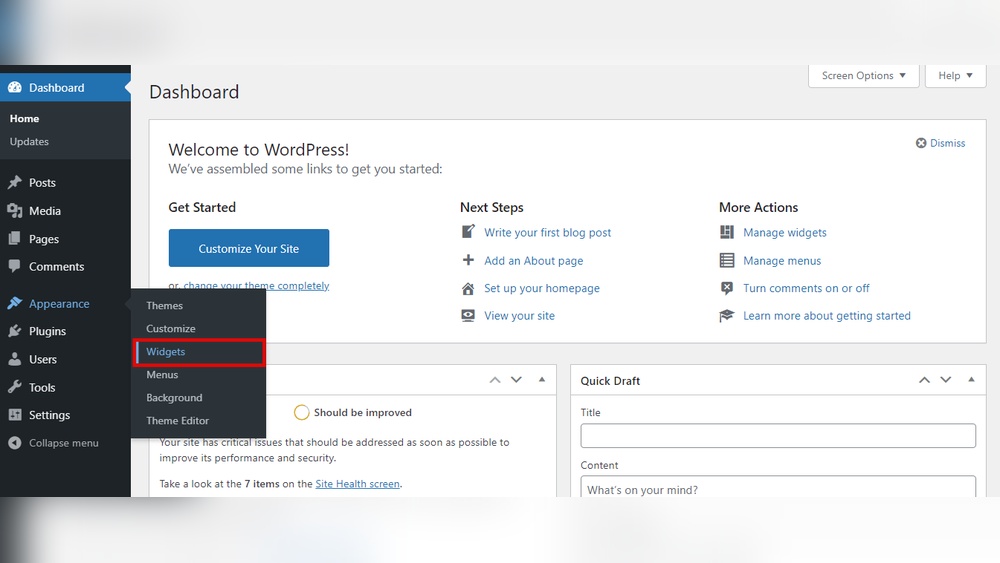
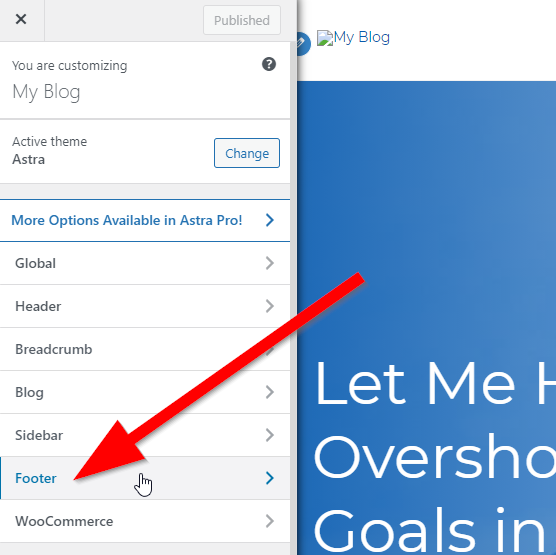
The WordPress Customizer is a simple tool to change your site’s look. To access it, go to your WordPress dashboard. Click on “Appearance” and then “Customize.”
Inside the Customizer, look for a section named “Footer” or “Widgets.” This area lets you add or remove footer items. Changes show in real time. Save your changes to update the site footer.
Navigating The Theme Editor
The Theme Editor lets you change the footer code directly. From the dashboard, go to “Appearance” and select “Theme Editor.”
Find the file named “footer.php.” It contains the footer’s HTML and PHP code. Edit this file carefully to avoid site errors. Always back up your site before making changes here.
Working With Widgets
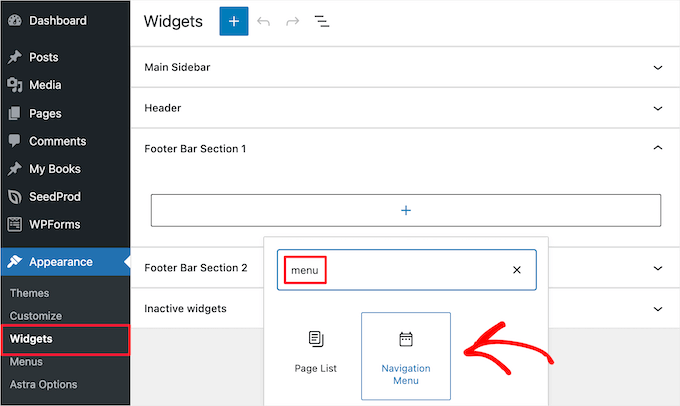
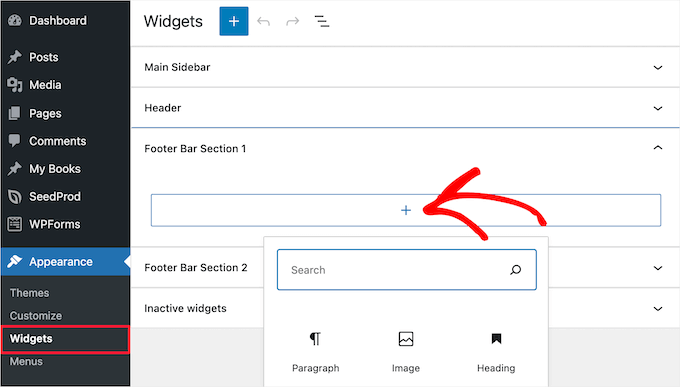
Many themes use widgets to manage footer content. Go to “Appearance” and then “Widgets” in the dashboard. Here, footer widget areas may appear as Footer 1, Footer 2, etc.
Drag and drop widgets into these footer areas. Widgets can show menus, text, images, or social links. Adjust the widgets to change what appears in your footer quickly.
Credit: www.crazyegg.com
Editing Footer Content
Editing footer content in WordPress lets you customize your website’s bottom section. This area often holds important details like contact info, quick links, or social media icons. Changing footer content helps keep your site fresh and user-friendly. You can make edits directly through WordPress tools, making updates simple and fast.
Changing Text And Links
To change text or links in the footer, start by going to the WordPress dashboard. Find the “Appearance” menu and click on “Widgets” or “Customize.” Look for the footer section or footer widgets. Here, you can edit the existing text or add new links. Replace old information with your current details. Save changes and refresh your site to see updates.
Adding Social Media Icons
Adding social media icons helps visitors find your profiles quickly. Many WordPress themes offer built-in options for social icons in the footer. Use the “Customize” section or widgets to place icons. Enter your social media URLs for platforms like Facebook, Twitter, or Instagram. Icons usually appear as small clickable images. They improve user engagement and site professionalism.
Inserting Custom Html
Custom HTML lets you add unique content to your footer. Use this option to include special text, links, or scripts. Go to “Appearance” then “Widgets.” Choose the “Custom HTML” widget and drag it to the footer area. Paste your HTML code into the box. This method gives full control over footer design and content. Always check your code for errors before saving.
Customizing Footer Design
Customizing your footer design lets you create a unique look for your website’s bottom section. The footer often contains important information like contact details, links, and copyright notes. Making it visually appealing helps visitors trust your site. Simple changes can improve user experience and brand consistency. Focus on colors, fonts, layout, and spacing to make the footer match your style.
Adjusting Colors And Fonts
Choose colors that fit your site’s theme. Use contrasting colors for text and background to keep readability high. Pick fonts that are easy to read and match your website’s style. Avoid using too many different fonts. Keep font sizes consistent for a clean look. These small tweaks make your footer look professional and inviting.
Modifying Layout And Spacing
Organize footer content in clear sections. Use columns or rows to separate different types of information. Leave enough space between elements to avoid clutter. Proper spacing improves readability and helps visitors find information fast. Align text and icons neatly to give a balanced feel. A well-structured footer enhances the overall site design.
Using Plugins For Footer Editing
Editing your WordPress footer can be simple with the right plugin. Plugins let you change footer text, add images, or insert links easily. They offer more control than the default theme settings. No coding skills are needed. You can customize your footer to match your site’s style. Plugins save time and make footer editing accessible to everyone.
Top Plugins For Footer Customization
Several plugins help you customize your footer. “Elementor” is popular for drag-and-drop design. “Footer Putter” focuses on footer content and copyright info. “WP Custom Footer” allows quick text and link updates. These plugins work with most themes. Choose one based on your needs and ease of use.
Installing And Activating Plugins
Go to your WordPress dashboard. Click on “Plugins” then “Add New.” Search for the plugin by name. Click “Install Now.” Wait for installation to finish. Click “Activate” to start using the plugin. You can now access the plugin’s settings in the dashboard menu.
Editing Footers With Plugins
Open the plugin settings from the dashboard. Find the footer customization section. Use simple tools to add or edit text, links, or images. Some plugins offer live previews. Save changes to see updates on your site. Editing footers with plugins is fast and user-friendly. It keeps your site looking professional without coding.
Saving And Previewing Changes
Saving and previewing changes is a key step when editing your WordPress footer. It ensures your updates look right before they go live. Taking time to save and check helps avoid mistakes and broken designs. This section guides you through publishing edits and previewing on various devices.
Publishing Footer Edits
After making your changes, save your work by clicking the update or publish button. This action applies your new footer content to your live site. WordPress often asks for confirmation before finalizing changes. This prevents accidental updates. Remember to save frequently to avoid losing any work.
Publishing is simple but important. It makes your edits visible to all visitors. Without publishing, changes stay hidden in the editor. Double-check your edits before pressing publish. This step keeps your footer clean and correct.
Previewing On Different Devices
Previewing your footer on multiple devices ensures it looks good everywhere. WordPress offers built-in preview tools for desktop, tablet, and mobile views. Use these tools to see how your footer adapts to different screen sizes.
Check for text alignment, link visibility, and spacing on all devices. A footer that works well on phones improves user experience. Responsive design is crucial for modern websites. Previewing saves you from surprises after publishing.
Credit: www.wpbeginner.com
Troubleshooting Common Issues
Troubleshooting common issues with your WordPress footer helps keep your site looking right. Small problems can cause big headaches. Fixing these quickly improves your site’s professionalism and user experience.
Many users face issues like the footer not updating or layout problems. Understanding simple fixes can save time and stress. This section guides you through easy steps to solve these common footer problems.
Fixing Footer Not Updating
The footer might not change after editing. This often happens because of caching. Clear your browser cache first. Also, clear any caching plugins you use. Sometimes, your hosting provider has server-side caching. Check and clear that if possible.
Another cause is theme or plugin conflicts. Disable plugins one by one to find the problem. Switch to a default theme temporarily to test. Save your changes again after clearing caches. This should update the footer correctly.
Resolving Layout Problems
Footer layout issues can make your site look broken. Check your theme settings for footer options. Sometimes, widgets or menus overlap or look messy. Remove or rearrange footer widgets to fix this.
CSS errors can also cause layout problems. Inspect the footer using browser developer tools. Look for missing or incorrect CSS rules. Adding custom CSS might fix alignment or spacing issues. Keep your changes simple and test on different devices.
Frequently Asked Questions
How Can I Access The Footer Editor In WordPress?
To edit your footer, go to your WordPress dashboard. Navigate to Appearance > Customize > Footer. Here, you can modify footer content and layout based on your theme’s options.
Can I Edit The Footer Using WordPress Widgets?
Yes, many themes allow footer edits via widgets. Go to Appearance > Widgets and find Footer widget areas. Add or remove widgets to customize footer content easily.
How Do I Change Footer Text In WordPress?
In the Customizer or Widgets section, locate the footer text area. Edit or replace the text, then save changes to update the footer on your site immediately.
Is It Possible To Edit Footer Code In WordPress?
Yes, advanced users can edit footer. php via Appearance > Theme Editor. Be cautious; improper edits may break your site. Always backup before changes.
Conclusion
Editing your WordPress footer is simple and quick. You can change text, links, or design easily. Use the WordPress Customizer or a footer plugin to help. Always save your work before checking the changes. A clear footer improves your site’s look and user experience.
Keep your footer neat and useful for visitors. Now, your website feels more complete and professional. Try updating your footer today and see the difference.



