
Are you looking to make your WordPress site more engaging and organized? Adding a new section can help you showcase important content, highlight services, or share updates with your visitors.
But if you’ve never done it before, it might feel a bit confusing. Don’t worry—you’re about to discover a simple, step-by-step way to add a section in WordPress that anyone can follow. By the end of this article, you’ll have the confidence to customize your site exactly the way you want.
Ready to transform your website? Let’s dive in!
Choosing The Right Page Builder
Choosing the right page builder is important for adding sections in WordPress. It affects how easy it is to create and edit your pages. The right tool helps you build pages faster and with fewer errors. Understanding the options helps you pick the one that fits your needs and skill level.
Some page builders are simple and good for beginners. Others offer more features but can be complex. Think about what you want to build and how much time you want to spend learning. Your choice impacts your website’s look and usability.
Gutenberg Editor Basics
The Gutenberg editor is WordPress’s default page builder. It uses blocks to add content like text, images, and videos. Each block is easy to move and customize. It works well for simple pages and small changes.
You do not need extra plugins to use Gutenberg. It updates automatically with WordPress. The interface is clean and beginner-friendly. It lets you see your page as you build it. Basic skills are enough to start adding sections.
Popular Page Builder Plugins
Plugins like Elementor, Beaver Builder, and Divi offer more design options. They have drag-and-drop interfaces to build complex layouts. These plugins come with templates and widgets for faster work. You can add buttons, forms, sliders, and more.
Most plugins work with all WordPress themes. They provide live previews to see changes instantly. Some offer free versions with limited features. Paid versions unlock advanced tools and support.
Comparing Features And Ease Of Use
Gutenberg is lightweight and fast but less flexible. It suits simple pages and quick edits. Page builder plugins are powerful but can slow your site. They require more learning but offer great design freedom.
Think about your comfort with technology. Choose a tool that matches your skill level. Consider the kind of content you add often. Also, check if the builder supports mobile-friendly designs. This keeps your site usable on all devices.
Credit: www.wptricks24.com
Creating A New Section
Creating a new section in WordPress lets you organize your content clearly. It helps visitors find information easily. Sections also improve your page’s look and feel. You can add text, images, buttons, and more inside each section.
WordPress uses blocks and layouts to build sections. These tools make it simple to design pages without coding. Follow the steps below to create a new section effectively.
Adding Blocks In Gutenberg
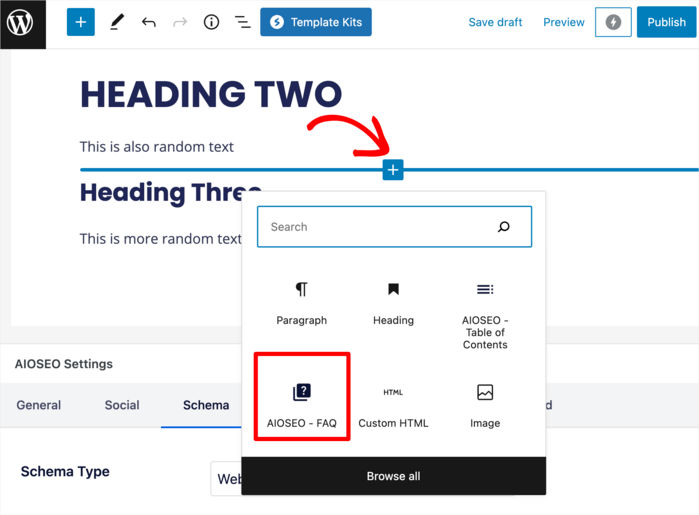
Gutenberg is the default WordPress editor. It uses blocks to add different content types. To start a new section, click the plus (+) icon. Choose the block type you want, like paragraph, image, or heading. Add your content inside the block. You can add many blocks to create a full section.
Blocks are easy to move and edit. Just drag them to change order. You can also duplicate or delete blocks quickly. This flexibility helps build sections fast and clean.
Using Rows And Columns
Rows and columns help arrange blocks side by side. This layout style makes your section more structured. To add rows and columns, use the Group or Columns block. Choose the number of columns you want. Then insert blocks inside each column.
This setup works well for showing multiple items. Like images next to text or lists beside buttons. It keeps your content balanced and neat.
Customizing Section Layouts
Customizing layouts changes how sections look and feel. You can adjust spacing, colors, and alignment. Select the section or block you want to edit. Use the sidebar options to change background color or padding. Padding adds space inside the section, making it less crowded.
Align text or blocks to the left, center, or right. Choose font size and style to improve readability. These small changes make your sections visually appealing and easy to read.
Adding Content Elements
Adding content elements to your WordPress section helps you create a clear and attractive layout. Content elements like text, images, and buttons make your page more useful and interesting. You can arrange these elements easily using the WordPress editor.
Each content type plays a unique role. Text shares your message. Images catch attention. Buttons guide visitors to act. Using these elements wisely improves user experience and engagement.
Inserting Text And Headings
Start by adding text blocks for your main content. Use headings to organize information clearly. Headings also help search engines understand your page. Choose from different heading levels like H2 or H3. Keep your sentences short and simple. This makes the content easy to read for everyone.
Embedding Images And Videos
Images make your page lively and appealing. Upload images directly or use the media library. Add descriptive alt text for better SEO. Videos keep visitors engaged longer. Embed videos from sources like YouTube by pasting the link. Make sure media files are optimized for fast loading.
Using Buttons And Call-to-actions
Buttons guide visitors to take specific actions. Add buttons to link to other pages or forms. Use clear and direct text on buttons, like “Contact Us” or “Buy Now.” Position buttons where visitors can easily see them. Well-placed call-to-actions increase interaction and conversions.
Credit: aioseo.com
Styling Your Section
Styling your section in WordPress helps make your content stand out. It improves the look and feel of your page. Simple style changes can make your site look clean and professional. You can change colors, fonts, and spacing easily. These small tweaks grab visitor attention and keep them reading.
Background Colors And Images
Choose a background color that matches your brand. Soft colors work well for most sites. Use bold colors to highlight important sections. You can also add an image as the background. Make sure the image is clear and not too busy. This keeps text easy to read over it.
Adjusting Spacing And Alignment
Space around your section makes the content easy to follow. Use padding to add space inside the section. Margin adds space outside the section. Align text to the left for easy reading. Center alignment works well for titles or quotes. Proper spacing and alignment create a neat layout.
Applying Custom Fonts And Colors
Pick fonts that match your website style. Use simple fonts for body text to improve readability. Apply different colors to headings to separate sections. Use contrasting colors for text and background. This helps visitors read the content without strain.
Optimizing For Mobile
Optimizing your WordPress sections for mobile is essential today. Most users visit sites on phones or tablets. Sections must look good and work well on all screen sizes. Mobile-friendly sections improve user experience and keep visitors engaged. Here are key tips to help your sections fit perfectly on mobile devices.
Responsive Design Tips
Use flexible layouts that adjust to screen size. Avoid fixed widths for images or containers. Choose fonts that remain readable on small screens. Add enough space around buttons and links for easy tapping. Use media queries in your CSS to customize styles for different devices. These steps help create a smooth, clean look on mobiles.
Previewing Sections On Devices
Test your sections on various devices before publishing. Use WordPress preview tools to see how the section appears on phones and tablets. Check orientation by viewing in both portrait and landscape modes. Try different screen sizes to spot any layout problems. Previewing saves time and ensures your content looks great everywhere.
Fixing Common Mobile Issues
Watch for overlapping elements or text cut off on small screens. Fix these by adjusting padding and margins. Avoid large images that slow down loading times. Use compressed images instead. Make sure clickable elements are not too close together. Clear any horizontal scrolling by setting proper width limits. These fixes improve usability and speed on mobile devices.

Credit: shellcreeper.com
Saving And Reusing Sections
Saving and reusing sections in WordPress saves time and keeps your site consistent. You create a design once and use it many times. This method helps maintain style and structure across pages. It also speeds up the website building process.
Sections can be saved as templates, exported, or saved as reusable blocks. Each method suits different needs and workflows. Choose the right one to improve your site management.
Saving Sections As Templates
WordPress allows you to save sections as templates. You design a section, then save it for later use. This feature is common in page builders like Elementor or Beaver Builder. Templates store your layout, style, and content settings.
To save a section as a template, select the section and find the save option. Name your template clearly for easy identification. You can then insert this template into any page or post. It saves time and keeps your design consistent.
Importing And Exporting Sections
Exporting sections lets you use designs across different websites. You export a saved section as a file. Then import it into another WordPress site. This is useful for developers or site managers working on multiple projects.
Export files are usually in JSON or ZIP format. Importing is simple through the page builder or WordPress editor. This method keeps your site’s look uniform across platforms. It also protects your work by creating backups.
Using Reusable Blocks Effectively
Reusable blocks are a WordPress feature for saving content pieces. Create a block, save it as reusable, then insert it anywhere. Edit it once, and changes update everywhere the block is used.
This method works well for headers, footers, or call-to-action sections. It reduces repetition and errors. Manage your blocks from the block editor for quick updates. Reusable blocks improve workflow and site consistency.
Troubleshooting Common Problems
Troubleshooting common problems helps keep your WordPress site running smoothly. Many users face issues when adding new sections. These problems can cause frustration but are often easy to fix. Understanding common fixes saves time and effort.
Fixing Layout Issues
Layout problems happen when sections do not appear correctly. Check the block settings first. Sometimes margins or padding cause spacing errors. Make sure your theme supports the section’s design. Clear your browser cache to see recent changes. Use the preview option before publishing.
Resolving Plugin Conflicts
Plugins can clash and break your page sections. Disable all plugins and check the section again. Enable plugins one by one to find the troublemaker. Update all plugins to their latest versions. Avoid using multiple plugins that do the same job.
Improving Page Load Speed
Slow loading pages affect user experience and SEO. Optimize images before uploading them to WordPress. Use caching plugins to reduce server load. Limit the number of sections and heavy elements. Test your site speed with online tools often.
Frequently Asked Questions
How Do I Add A New Section In WordPress?
To add a new section, go to the WordPress editor. Click the “+” icon, select a block type, and customize it. Save changes to display the new section on your page.
Can I Add Sections Without Coding In WordPress?
Yes, WordPress allows adding sections using its block editor or page builders. No coding skills are required. Simply drag and drop blocks or elements to create sections easily.
What Are The Best WordPress Blocks For Sections?
Common blocks include Paragraph, Image, Heading, Columns, and Group. These blocks help create well-structured sections with text, images, and layouts for better user experience.
How To Customize A Section In WordPress?
Select the section block, then use the block settings panel to adjust colors, fonts, spacing, and alignment. Customization options vary based on the block type used.
Conclusion
Adding a section in WordPress is simple and quick. You can organize your content better and make your site look neat. Just follow the steps carefully and practice a bit. Changing and customizing sections helps your site stand out. Keep your pages clear and easy to read.
This way, visitors enjoy your website more. Keep exploring and improving your WordPress skills one step at a time. Your site will grow with each new section you add.



