
Are you struggling to get your WordPress site noticed by search engines? Adding an XML sitemap can be the game-changer your website needs.
It helps search engines find and index your pages faster, boosting your visibility and traffic. In this guide, you’ll learn step-by-step how to add an XML sitemap to your WordPress site—no technical skills required. Keep reading to unlock a simple trick that can put your website on the map and attract more visitors today.
Credit: wpengine.com
Benefits Of Xml Sitemaps
XML sitemaps help search engines find and understand your website pages. They make it easier for search engines to discover all your content. This leads to better visibility in search results. Adding an XML sitemap to WordPress brings many benefits for your site’s growth and ranking.
Improve Site Indexing
XML sitemaps list all important pages of your site. Search engines use this list to index your pages quickly. This means new pages or updates get noticed faster. Your website appears more complete in search engine results.
Enhance Seo Performance
With better indexing, your site ranks higher in search results. Search engines understand your site structure clearly. This helps them rank your pages based on relevance. SEO improves as search engines find and value your content easily.
Boost Crawl Efficiency
Search engines have limited time to crawl your site. XML sitemaps guide them to key pages. This reduces crawl errors and missed content. Efficient crawling helps search engines keep your site updated regularly.
Credit: aioseo.com
Types Of Xml Sitemaps For WordPress
XML sitemaps help search engines find and index your website content. Different types of sitemaps serve different purposes. WordPress supports several kinds of XML sitemaps. Each type targets specific content on your site. Understanding these helps improve your site’s visibility.
Standard Xml Sitemap
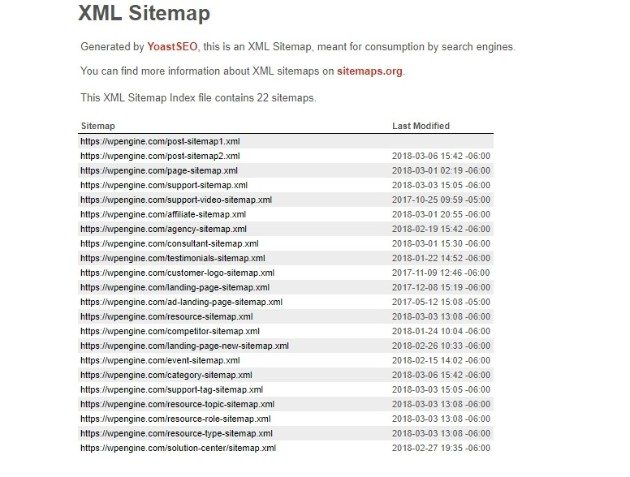
The standard XML sitemap lists all important pages and posts. It guides search engines through your main website structure. This sitemap updates automatically with most SEO plugins. It ensures your new content gets noticed quickly.
Image Sitemap
An image sitemap highlights all images on your site. It helps search engines find and index pictures. This is useful for websites with many photos or galleries. Image sitemaps improve your chances to rank in image search results.
Video Sitemap
A video sitemap provides details about videos on your site. It tells search engines the video title, description, and duration. Video sitemaps help videos appear in search results with rich snippets. Ideal for sites that host tutorials or product demos.
Choosing The Right Sitemap Plugin
Choosing the right sitemap plugin is important for your WordPress site. A good plugin helps search engines find your pages fast. It keeps your sitemap updated without extra work. Picking a plugin that fits your needs saves time and improves SEO.
Popular Sitemap Plugins
Several sitemap plugins work well with WordPress. Yoast SEO is a favorite for many users. It includes sitemap features along with SEO tools. Google XML Sitemaps focuses only on creating sitemaps. All in One SEO Pack also offers sitemap options. Each plugin suits different user needs and skill levels.
Comparison Of Features
Yoast SEO offers automatic sitemap updates and easy controls. Google XML Sitemaps creates detailed sitemaps for posts and pages. All in One SEO Pack supports image and video sitemaps too. Check if the plugin updates sitemaps when you add new content. Look for options to include or exclude pages. Some plugins provide better support and frequent updates.
Installation Tips
Install plugins from the official WordPress repository. Always check the plugin’s ratings and reviews first. After installation, activate the plugin and configure sitemap settings. Test the sitemap URL in your browser to see if it works. Submit the sitemap URL to Google Search Console for indexing. Regularly update the plugin to keep it secure and effective.
Credit: www.wpbeginner.com
Creating An Xml Sitemap Manually
Creating an XML sitemap manually helps you control your site’s structure. This process involves writing the sitemap yourself. It lets you decide which pages to include. This method is useful if you want a simple sitemap without plugins.
Manual creation requires basic knowledge of XML format. It may take more time than automatic tools. But the result is a clean, custom sitemap that fits your needs.
Generating Sitemap Code
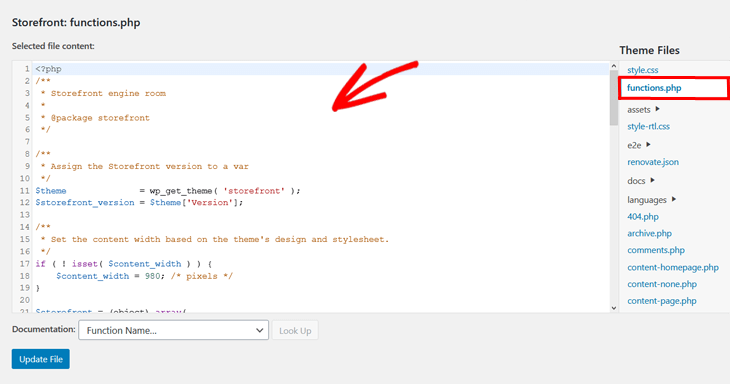
Start by opening a text editor like Notepad. Write the XML declaration on top: xml version="1.0" encoding="UTF-8"?.
Create the root tag xmlns="http://www.sitemaps.org/schemas/sitemap/0.9".
Inside
Close the sitemap.xml.
Uploading To WordPress
Access your WordPress site via FTP or hosting file manager. Go to the root folder where WordPress is installed.
Upload your sitemap.xml file to this root directory. This makes the sitemap reachable at yourdomain.com/sitemap.xml.
Ensure the file has the right permissions to be read publicly. Usually, permission 644 works fine.
Verifying Sitemap Functionality
Open a web browser and visit yourdomain.com/sitemap.xml. Check if the XML code displays correctly.
Use online sitemap validation tools to check for errors. These tools confirm if your sitemap follows standards.
Submit your sitemap URL to Google Search Console. This helps Google find and index your pages faster.
Adding Xml Sitemap Using Plugins
Adding an XML sitemap to your WordPress site helps search engines find and index your pages. Plugins make this task simple, even for beginners. These tools create sitemaps automatically and update them as you add new content. Using plugins saves time and ensures your sitemap follows best practices.
Yoast Seo Setup
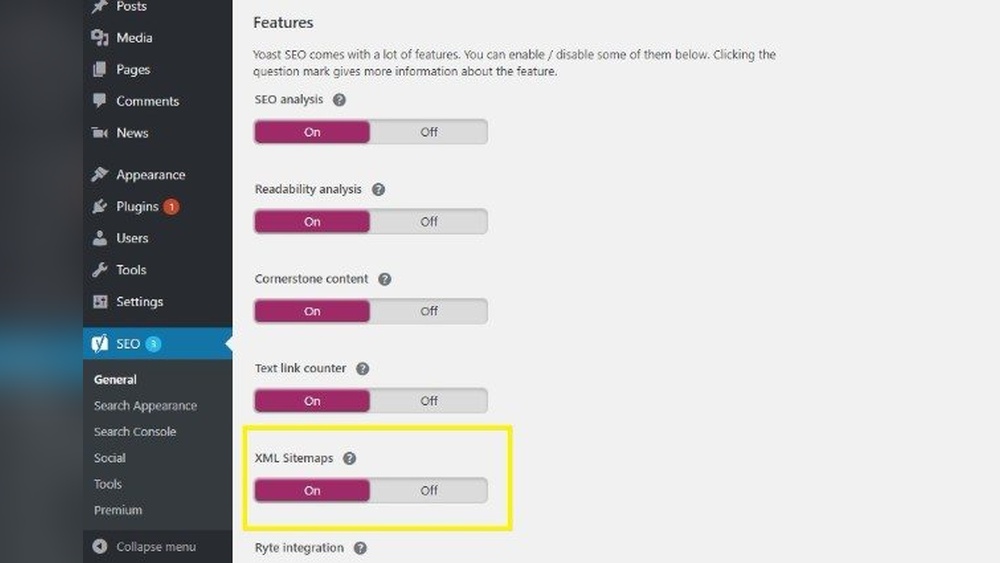
Yoast SEO is a popular plugin that includes an XML sitemap feature. After installing and activating Yoast SEO, go to the plugin settings. Click on the “Features” tab and find the “XML sitemaps” option. Make sure it is enabled. Yoast will create the sitemap for you. You can view it by clicking the question mark icon next to the option and then the sitemap link.
Google Xml Sitemaps Plugin
The Google XML Sitemaps plugin focuses only on sitemaps. Install and activate it from the WordPress plugin directory. Once active, go to the plugin settings page. The sitemap is generated automatically and updates with your content. You can customize which content types to include. Submit the sitemap URL to search engines for better crawling.
Rank Math Configuration
Rank Math is another SEO plugin with built-in sitemap support. Install and activate Rank Math on your WordPress site. Open the plugin dashboard and find the “Sitemap Settings” under the general options. Enable the sitemap feature if it is off. Adjust the settings for post types and taxonomies you want to include. Rank Math will handle sitemap updates automatically.
Submitting Sitemap To Search Engines
Submitting your XML sitemap to search engines helps them find and index your website pages faster. It improves your site’s visibility in search results. Most search engines have tools to upload your sitemap easily. This step is crucial after creating your sitemap in WordPress.
Google Search Console
Google Search Console is a free tool for website owners. It lets you submit your sitemap directly to Google. Log into your account or create one if needed. In the dashboard, find the “Sitemaps” section. Enter your sitemap URL, usually yourwebsite.com/sitemap.xml. Click “Submit” and wait for Google to start crawling your pages.
Bing Webmaster Tools
Bing Webmaster Tools works like Google Search Console. Sign in or create an account for your website. Go to the “Sitemaps” area under “Configure My Site.” Enter your sitemap URL and submit it. Bing will use this to index your site faster. Check this tool regularly for indexing status and errors.
Other Search Platforms
Other search engines like Yandex and DuckDuckGo also accept sitemaps. Yandex has a Webmaster tool similar to Google and Bing. Submit your sitemap URL there to improve indexing. DuckDuckGo uses data from other sources but submitting to Bing and Google helps indirectly. Always keep your sitemap updated for all platforms.
Troubleshooting Sitemap Issues
Sometimes, sitemaps in WordPress do not work as expected. This can cause problems for search engines. They may not find or read your sitemap correctly. Fixing these issues helps improve your site’s visibility. Below are common problems and ways to solve them.
Common Errors
One error is a broken link to the sitemap. This happens if the sitemap URL is wrong. Another issue is a sitemap with no content. It may be empty due to plugin conflicts or settings. Also, some sitemaps have wrong file formats or errors in code. These mistakes stop search engines from reading the sitemap properly.
Fixing Sitemap Not Found
Check that the sitemap URL is correct. Visit the URL in your browser to see if it loads. Clear your website cache and browser cache. Sometimes caching blocks new sitemaps from showing. Disable other plugins temporarily to test conflicts. Ensure your SEO or sitemap plugin is active and updated. If the sitemap still does not appear, regenerate it using your plugin’s tools.
Ensuring Sitemap Updates
Keep your sitemap fresh by updating it regularly. WordPress plugins usually update sitemaps automatically. Double-check plugin settings to confirm this feature is on. After adding or deleting pages, force a sitemap update manually. Submit the new sitemap URL to Google Search Console. This tells Google about changes faster. Regular updates help search engines index your site fully.
Maintaining Your Sitemap
Maintaining your XML sitemap is crucial for keeping your WordPress site visible to search engines. A well-maintained sitemap helps search engines find new and updated content quickly. It also ensures your site structure is clear and easy to follow.
Regular care keeps your sitemap accurate. This improves how search engines crawl your site. Ignoring your sitemap can lead to missed pages and lower rankings.
Regular Updates
Keep your sitemap fresh by updating it regularly. Whenever you add or remove pages, update your sitemap. Many WordPress SEO plugins update the sitemap automatically. Still, check often to confirm these updates happen. Fresh sitemaps help search engines find your latest content faster.
Monitoring Sitemap Health
Check your sitemap for errors frequently. Use tools like Google Search Console to spot issues. Fix broken links, missing pages, or format errors right away. A healthy sitemap means search engines can crawl your site without problems. This improves your website’s visibility and ranking.
Adjusting For Site Changes
Change your sitemap when your site structure changes. Add new sections and remove old pages. Update URLs if you change permalinks. Adjust your sitemap to match your website’s current layout. Accurate sitemaps guide search engines through your site effectively.
Frequently Asked Questions
What Is An Xml Sitemap In WordPress?
An XML sitemap lists your website’s pages for search engines. It helps Google crawl and index your WordPress site efficiently. This improves your site’s visibility and SEO performance.
How Do I Create An Xml Sitemap In WordPress?
You can create an XML sitemap using SEO plugins like Yoast or Rank Math. These plugins automatically generate and update your sitemap, saving you time and effort.
How To Submit Xml Sitemap To Google Search Console?
Log into Google Search Console, select your site, and go to Sitemaps. Enter your sitemap URL (usually yourdomain. com/sitemap. xml) and click Submit. This helps Google index your site faster.
Can I Customize My WordPress Xml Sitemap?
Yes, SEO plugins let you include or exclude pages from your sitemap. This customization ensures only important pages get indexed by search engines.
Conclusion
Adding an XML sitemap helps search engines find your pages fast. It improves your site’s visibility in search results. Creating and submitting the sitemap is simple in WordPress. Keep your sitemap updated for best results. This small step can boost your website’s ranking over time.
Start today and watch your site get noticed.



