
Are you ready to expand your WordPress site but not sure how to add another page? You’re in the right place.
Adding a new page is simpler than you think, and it can make your website look more professional and organized. Whether you want to create an About page, a Services section, or something else, this guide will walk you through every step.
By the end, you’ll have the confidence to grow your site exactly the way you want. Keep reading, and let’s get your WordPress site shining with fresh new pages!
Create A New Page
Creating a new page on WordPress is simple and quick. A new page lets you add fresh content to your website. It could be an About Us page, a Contact page, or anything you want to share.
This section guides you step-by-step through creating a new page. Follow these easy steps to get started.
Access WordPress Dashboard
First, log in to your WordPress dashboard. Use your username and password to enter. The dashboard is the control center of your website. Here, you manage all your content and settings.
Navigate To Pages Section
Look at the left menu in the dashboard. Find the option labeled “Pages.” Click on it. This section shows all the pages on your website. You can edit or delete pages here.
Click On Add New
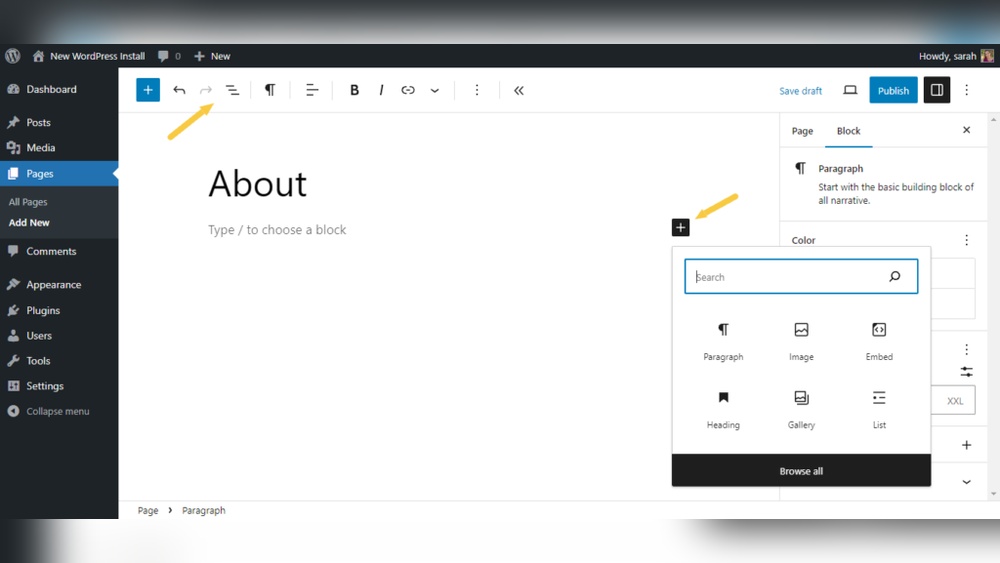
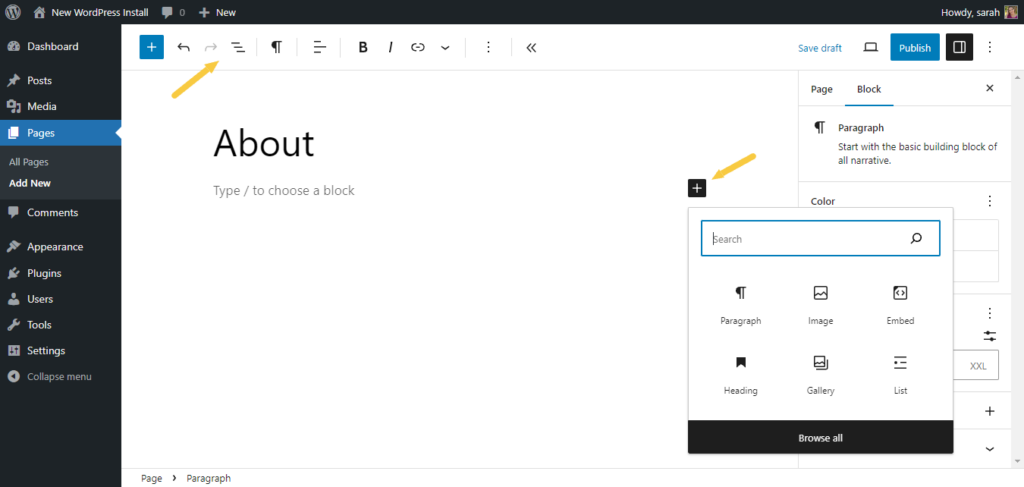
At the top of the Pages section, find the “Add New” button. Click it to start creating a new page. A blank editor will open. Now, you can add your page title and content.
Customize Your Page
Customizing your new WordPress page helps it stand out and fit your site style. You can control what visitors see and how they interact with your content. WordPress offers simple tools for editing and designing pages easily.
Add Title And Content
Start by giving your page a clear title. This title shows at the top and helps visitors understand the page topic. Below the title, write your main content. Use short paragraphs and simple words. This makes reading easier and keeps visitors engaged.
Insert Images And Media
Images catch attention and explain your points better. Click the add media button to upload pictures or videos. Choose files from your computer or media library. Place them where they fit best in your text. Keep image sizes small for faster loading.
Use Page Templates
Page templates control the look and layout of your page. WordPress includes many templates to choose from. Pick one that matches your content style. Templates save time and keep your site design consistent. Change templates anytime to try different looks.
Set Page Attributes
Setting page attributes helps organize your WordPress site. These settings control how pages relate and appear. Adjusting them gives your site a clear structure and better navigation. This section explains how to set key page attributes.
Choose Parent Page
Selecting a parent page groups your new page under it. This creates a hierarchy. It helps visitors find related content easily. To choose a parent, open the Page Attributes box. Pick a page from the Parent dropdown list. This links your new page as a child page.
Set Page Order
Page order controls the sequence pages appear in menus. Lower numbers show pages first. Higher numbers push them down the list. In the Page Attributes box, find the Order field. Enter a number to set your page’s place. This keeps your site tidy and easy to explore.
Select Page Template
Page templates change how your page looks. WordPress offers default and custom templates. In the Page Attributes box, click the Template dropdown. Choose a template that fits your content style. Templates can include full-width, blog, or contact page layouts. Pick one to match your page’s purpose.

Credit: wordpress.org
Publish Your Page
Publishing your page on WordPress is the final step to make your content live. It allows people to see your new page on your website. Before you hit the publish button, there are a few things to check. These simple steps help you control how and when your page appears online.
Preview The Page
Previewing your page shows how it looks on your site. Click the “Preview” button at the top right of the editor. This opens a new tab with your page as visitors will see it. Check for typos, images, and layout. Make sure everything looks clean and neat.
Adjust Visibility Settings
Visibility settings control who can see your page. You can choose Public, Private, or Password Protected. Public means everyone can view it. Private restricts it to site admins and editors. Password Protected lets you share the page only with people who have the password. Set the option that fits your needs.
Publish Immediately Or Schedule
You can publish your page right away or schedule it for later. To publish immediately, click the “Publish” button. To schedule, click “Publish” and select a date and time. This helps you plan your content ahead. Scheduling is great for keeping your site updated regularly.
Add Page To Navigation Menu
Adding a new page to your WordPress site is not enough. Visitors need to find it easily. The navigation menu helps users move through your website. Placing your new page in the menu makes it visible on every page. This step boosts your site’s user experience and engagement.
Go To Menus Section
Log in to your WordPress dashboard. On the left side, find the “Appearance” tab. Click on “Menus” under this tab. This opens the menu editor where you manage navigation items.
Select The New Page
Look for the “Pages” box on the left. Here, find the new page you created. Check the box next to it. Click the “Add to Menu” button below the list.
Arrange Menu Items
Your new page now appears in the menu structure. Drag it up or down to place it where you want. You can nest it under another menu item for a dropdown effect.
Save Menu Changes
After arranging, find the “Save Menu” button. Click it to confirm your changes. Your new page is now part of the navigation menu. Visitors can find it easily on your site.
Manage And Edit Pages
Managing and editing pages in WordPress helps keep your website organized. It lets you update content, remove old pages, and create new ones quickly. Understanding these tasks saves time and improves your site’s look. Here is how to handle pages easily.
Edit Existing Pages
To edit a page, go to the WordPress dashboard. Click on “Pages” to see a list of all pages. Find the page you want to change and click “Edit.” You can update text, images, and layouts here. After editing, click “Update” to save changes. This keeps your content fresh and relevant.
Delete Unwanted Pages
Deleting pages removes clutter from your website. In the Pages list, hover over the page you want to delete. Click “Trash” to move it to the trash bin. You can restore or delete it permanently later. This helps keep your site clean and easy to navigate.
Duplicate Pages For Faster Setup
Duplicating pages saves time when creating similar content. Use a plugin or theme feature to copy a page. This creates a new page with the same layout and content. Edit the new page to change details. It speeds up site building and keeps design consistent.
Use Plugins For Advanced Pages
Adding another page in WordPress can be simple or complex. Basic pages work well for many sites. But advanced pages need more tools. Plugins help create pages with unique styles and functions. They let you design pages without coding. This section shows how plugins improve your page building.
Install Page Builder Plugins
Start by choosing a page builder plugin. Popular options include Elementor, Beaver Builder, and Divi. Go to your WordPress dashboard. Click on “Plugins” then “Add New.” Search for the plugin by name. Click “Install Now” and then “Activate.” The plugin will appear in your menu. You can now create advanced pages easily.
Explore Additional Features
Page builder plugins offer many features. Drag and drop blocks let you place text, images, and buttons. Templates save time by giving ready-made page layouts. Customize fonts, colors, and backgrounds for your style. Some plugins add special effects and animations. Use these tools to make your page stand out.
Optimize Page Design
Good design improves user experience and SEO. Keep your page clear and simple. Use headings and short paragraphs for easy reading. Add images to support your text but keep them small in size. Test your page on phones and tablets. Make sure it loads quickly and looks good on all devices.

Credit: wordpress.org
Credit: solidwp.com
Frequently Asked Questions
How Do I Add A New Page In WordPress?
Go to your WordPress dashboard, click “Pages,” then “Add New. ” Enter your content and click “Publish” to add the page.
Can I Customize The New Page Layout In WordPress?
Yes, WordPress allows customization using page builders or themes. You can adjust layouts, add blocks, and style your page easily.
How Do I Link The New Page To My Menu?
Navigate to “Appearance” > “Menus,” select your new page, and click “Add to Menu. ” Save changes to update your site’s navigation.
Is It Possible To Create A Private Page On WordPress?
Yes, when creating or editing a page, set visibility to “Private” or “Password Protected” to restrict access to specific users.
Conclusion
Adding a new page on WordPress is simple and quick. Just follow the steps carefully. You can organize your website better this way. Each page lets you share more information with visitors. Keep your content clear and easy to read.
This helps people find what they need fast. Regular updates keep your site fresh and useful. Try adding different pages for blogs, contact, or services. Your website will look more complete and professional. Start creating pages today and improve your online presence.



