
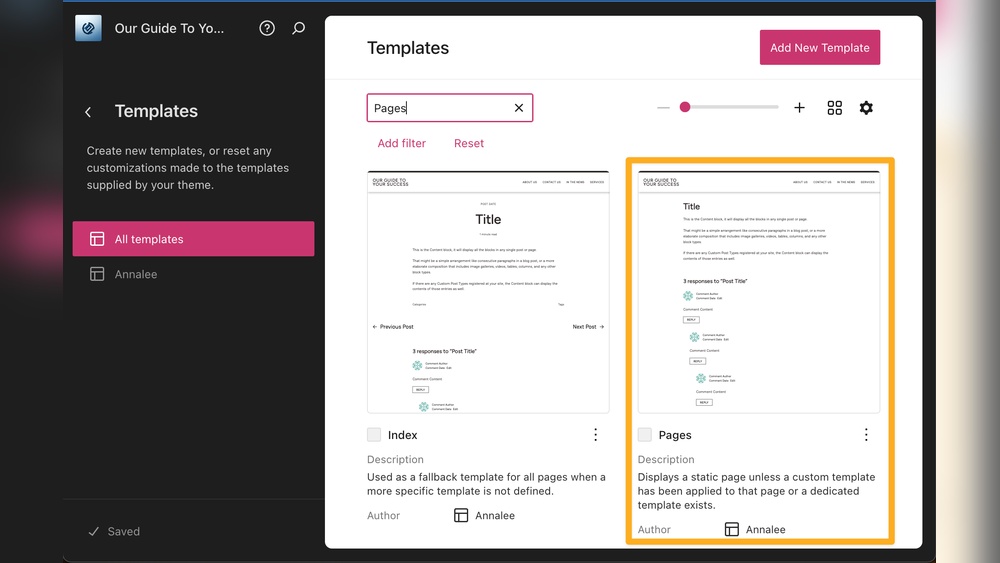
Are you looking to make your WordPress pages look more professional and unique? Adding a template to a page can help you do just that—quickly and easily.
Whether you want a clean layout for your blog or a stylish design for your business site, the right template can change everything. You’ll learn exactly how to add a template to a page in WordPress, step by step. By the end, you’ll have the tools to create pages that grab attention and keep visitors engaged.
Let’s get started and make your website stand out!
Choosing The Right Template
Choosing the right template for your WordPress page is important. The template controls how your page looks and functions. Picking the best one helps create a good user experience. It also makes your site easier to manage.
Default Vs Custom Templates
WordPress offers default templates. These come with your theme and cover basic layouts. They are simple and work for many types of pages.
Custom templates are made by developers or yourself. They fit specific needs or styles. Custom templates let you change page design beyond the default options.
Use default templates for quick setup. Choose custom templates if you want unique page designs or extra features.
Where To Find Templates
Templates are inside your theme folder in WordPress. You can also find free or paid templates online. Websites like WordPress.org or theme marketplaces offer many choices.
Some page builder plugins include extra templates. These templates help build pages faster with drag-and-drop tools.
Always choose templates from trusted sources. This protects your site from security risks and errors.
Template Compatibility
Not all templates work with every theme or plugin. Check if the template fits your WordPress version and theme.
Using incompatible templates can cause layout issues or errors. Test the template on a staging site before using it live.
Ensure your template supports mobile devices. Responsive templates improve user experience and SEO.

Credit: wordpress.com
Preparing Your WordPress Page
Preparing your WordPress page is an important first step before adding a template. It helps ensure smooth editing and better results. You need to create or select the right page and secure your site to avoid problems. Let’s go through the basic steps to get your page ready.
Creating A New Page
Start by logging into your WordPress dashboard. Go to the Pages menu and click “Add New.” Give your new page a clear title. This title should match your content’s main topic. Leave the page blank for now. You will apply the template after this step.
Editing An Existing Page
To add a template to an existing page, find it in the Pages menu. Click on the page name to open the editor. Review the current content and layout. Make sure the page is suitable for the new template. Save any changes before adding the template.
Backup And Precautions
Always create a backup before changing templates. Use a plugin or your hosting provider’s tool. This backup helps you restore the site if something goes wrong. Avoid editing live pages without a backup. Keep your WordPress and plugins updated for security.
Adding A Template Via Page Attributes
Adding a template via Page Attributes is a simple way to change how your page looks. WordPress allows you to pick a template that fits your content style. This method helps you customize pages without coding. Follow these steps to add a template easily.
Accessing Page Attributes
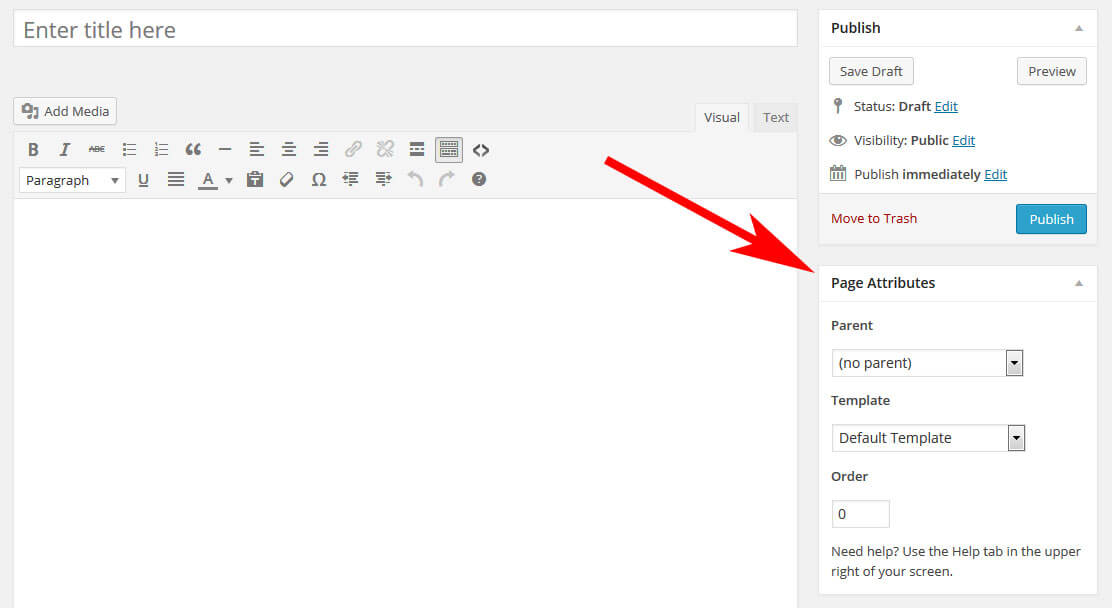
Start by opening your WordPress dashboard. Go to the Pages section and select the page you want to edit. On the right side, find the Page Attributes box. This is where you control templates and page hierarchy. If you don’t see it, check the Screen Options at the top and enable Page Attributes.
Selecting A Template
Inside the Page Attributes box, look for the Template dropdown menu. Click it to see available templates. These templates come from your active theme. Pick the template that suits your page’s purpose. The preview might not update here, but the live page will reflect the change.
Saving Your Changes
After choosing the template, scroll up to the Publish box. Click the Update or Publish button to save your changes. Refresh your page on the front end to see the new template in action. Your page now uses the selected design and layout.
Credit: www.smashingmagazine.com
Using Page Builders For Templates
Using page builders for templates makes designing WordPress pages easier. These tools offer drag-and-drop features, so you do not need coding skills. You can create a beautiful page quickly with ready-made templates. Page builders save time and help keep your design consistent.
Popular Page Builders
Some page builders are very popular among WordPress users. Elementor is one of the most used builders because it is simple and powerful. Beaver Builder offers strong features and a friendly interface. Divi Builder combines design and customization in one tool. Each of these builders has many templates to choose from.
Importing Templates
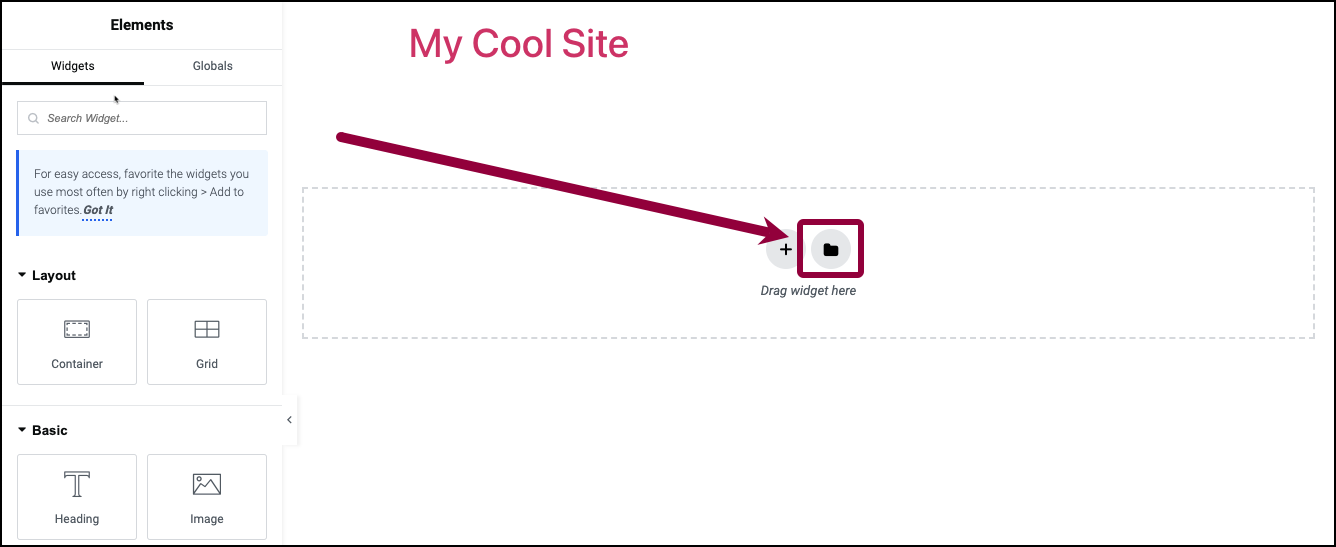
Importing templates in page builders is easy. First, open the page builder on your WordPress page. Choose the option to add a new template. Browse through the template library and pick the one you like. Click import or insert to add the template to your page. The template will load with all its design elements.
Customizing Templates
After importing, you can change the template to fit your needs. Edit text by clicking on the text areas and typing your content. Replace images by uploading your pictures or selecting from the media library. Adjust colors and fonts to match your brand style. Move sections or add new blocks to improve layout. Save your changes regularly to avoid losing work.
Troubleshooting Template Issues
Adding a template to a WordPress page should be easy. Sometimes, things do not work as expected. Troubleshooting template issues helps fix these problems fast. Understanding common issues saves time and frustration. Below are some frequent problems and how to solve them.
Template Not Showing
Sometimes, the chosen template does not appear on the page. First, check if the template file is in the correct theme folder. The file name must match the template name inside the code. Refresh the page and clear the browser cache. Make sure you select the template in the page editor under “Page Attributes”.
Conflicts With Plugins
Plugins can block templates from loading properly. Deactivate all plugins and see if the template shows up. If it does, activate plugins one by one to find the troublemaker. Look for plugins that change page layouts or add custom post types. Keep essential plugins active and find alternatives for the rest.
Theme Limitations
Not all themes support custom templates. Some themes allow only a few template options. Check your theme documentation for template support details. Switch to a different theme if your current one lacks needed templates. Use child themes to add custom templates safely without losing changes during updates.
Tips For Template Optimization
Optimizing a template enhances your WordPress page’s effectiveness and user experience. Simple changes can improve how your site looks and performs across devices. Focus on core areas to make your template work better for visitors and search engines.
Responsive Design
Your template must look good on all screen sizes. Use flexible layouts and images that adjust automatically. Test your page on phones, tablets, and desktops. A responsive design keeps visitors engaged and lowers bounce rates.
Seo Best Practices
Choose templates with clean, organized code. Ensure headings use proper HTML tags for better indexing. Add alt text to images and use descriptive URLs. Fast loading and mobile-friendly templates boost your search rankings.
Speed And Performance
Optimize images to reduce file size without losing quality. Limit the use of heavy scripts and plugins. Use caching tools to speed up loading times. A fast website improves user satisfaction and search engine visibility.
Credit: elementor.com
Frequently Asked Questions
How Do I Assign A Template To A WordPress Page?
To assign a template, open the page editor in WordPress. Locate the “Page Attributes” section. Select your desired template from the “Template” dropdown. Finally, update or publish the page to apply the template.
Can I Create Custom Templates For WordPress Pages?
Yes, you can create custom templates by coding a new PHP file. Add a template name comment at the top. Upload it to your theme’s folder. Then, select it from the page editor’s template dropdown.
Why Use Templates For WordPress Pages?
Templates allow consistent design and layout across pages. They save time by reusing styles and elements. Templates also improve site organization and user experience by maintaining uniformity.
Are All WordPress Themes Compatible With Custom Templates?
Most modern WordPress themes support custom templates. However, compatibility depends on the theme’s structure. Always check theme documentation or test your template before applying it.
Conclusion
Adding a template to a WordPress page is simple and fast. Choose the right template for your content. Upload or select it from your theme options. Customize the page to fit your style and needs. This helps your website look professional and organized.
Keep experimenting with templates to find what works best. Your site will become easier to manage and more attractive. Now you have the tools to improve your WordPress pages easily. Give it a try and see the difference yourself.



