Are you looking to make your WordPress blog more engaging? Adding a video can instantly grab your readers’ attention and keep them on your site longer.
But if you’re unsure how to add a video to your WordPress blog, don’t worry. This guide will walk you through simple, step-by-step methods that anyone can follow. By the end, you’ll know exactly how to embed videos that boost your content and connect better with your audience.
Ready to make your blog stand out? Let’s dive in.
Choosing The Right Video Format
Choosing the right video format is key to a smooth experience on your WordPress blog. The format affects how fast your video loads and how well it plays on different devices. Picking a proper format ensures visitors can watch videos without trouble. It also helps keep your site running fast and smooth.
Supported Video Formats In WordPress
WordPress supports several common video formats. The most popular are MP4, WebM, and Ogg. MP4 is the best choice for most users because it works on almost all browsers and devices. WebM and Ogg are less common but useful for specific cases. Using supported formats avoids playback errors for your visitors.
Optimizing Video Size For Web
Large video files can slow down your website. Compress videos to reduce file size without losing quality. Aim for a balance between good picture and fast loading times. Tools like HandBrake can help shrink videos easily. Smaller files improve user experience and keep your blog speedy.
Credit: www.wpbeginner.com
Uploading Videos Directly To WordPress
Uploading videos directly to WordPress is a simple way to share your content. It lets you keep videos on your own site without relying on other platforms. This method gives you control over your files and how they display.
WordPress has built-in tools to help upload and manage videos easily. You do not need extra plugins or software. Just follow a few easy steps to add your video to any post or page.
Using The Media Library
The Media Library stores all your uploaded files in one place. To upload a video, go to the WordPress dashboard and click “Media.” Then select “Add New.”
Drag your video file into the upload area or click “Select Files” to choose it from your computer. WordPress will upload and save the video for you.
Once uploaded, you can find the video in the Media Library. Click on the video to see its URL. This URL lets you add the video to posts or pages easily.
Embedding Videos In Posts
To show a video in a post, open the post editor in WordPress. Click the “+” icon to add a new block. Choose the “Video” block from the list.
Next, select “Media Library” and pick your uploaded video. WordPress will insert the video player directly into the post. Visitors can watch the video without leaving your site.
You can also paste the video URL into a “Video” block. WordPress will load the video automatically. Adjust the block settings to change the video size or add captions.
Embedding Videos From External Platforms
Embedding videos from external platforms is a simple way to enrich your WordPress blog. It lets you show videos without using your own server space. Most platforms provide easy embed codes you can paste directly into your posts. This method keeps your site fast and saves bandwidth.
Using external video embeds also improves user experience. Visitors can watch videos without leaving your blog. Plus, it helps with SEO by keeping visitors engaged longer.
Using Youtube Embeds
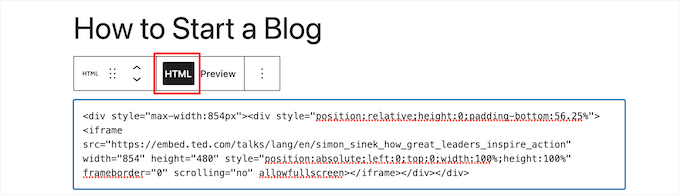
YouTube is the most popular video platform. To embed a YouTube video, go to the video page. Click the “Share” button under the video. Select “Embed” and copy the iframe code shown. Paste this code into the WordPress editor’s HTML view. The video will appear in your post instantly.
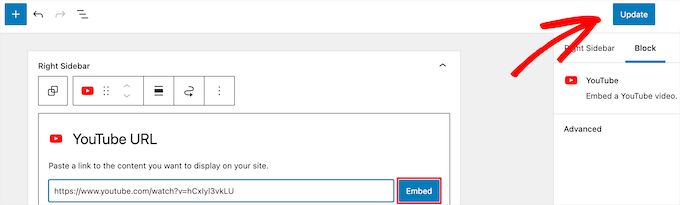
You can also just copy the video URL and paste it directly into the WordPress block editor. WordPress automatically converts it into a video embed. This method is quick and requires no coding.
Adding Videos From Vimeo
Vimeo is known for high-quality videos. Embedding Vimeo videos works like YouTube. Open the video and click the “Share” icon. Copy the embed code from the popup window. Paste the code into the HTML section of your post.
WordPress also supports direct URL pasting for Vimeo. Just paste the video link into the editor. WordPress transforms it into a playable video block automatically.
Other Popular Video Platforms
Besides YouTube and Vimeo, many other platforms offer embed options. Platforms like Dailymotion, Facebook, and Twitch provide embed codes. Find the share or embed option on their video pages. Copy and paste the iframe code into your WordPress post.
These platforms work well with WordPress and keep your blog fast. Embedding videos this way is user-friendly and SEO-friendly. It’s a great way to make your content more attractive.

Credit: yourmarketingbff.com
Using WordPress Video Plugins
Using WordPress video plugins is an easy way to add videos to your blog. These plugins help you embed videos without coding. They also offer extra features like video galleries, customization, and better playback options. Plugins make videos look good on all devices. They save time and improve your blog’s user experience.
Top Plugins For Video Embedding
Several plugins work well for video embedding. Video Embed & Thumbnail Generator creates thumbnails automatically. WP Video Lightbox opens videos in a popup, keeping visitors on your page. FV Player supports many video formats and has speed controls. Embed Plus for YouTube adds YouTube videos easily with extra controls. Choose plugins based on your needs and video sources.
Configuring Plugin Settings
After installing a plugin, configure its settings for best results. Set video size and alignment to fit your blog design. Enable autoplay or loop if needed, but avoid annoying users. Adjust controls like play, pause, and volume buttons. Some plugins let you add captions or subtitles. Test videos on desktop and mobile to ensure smooth playback.
Customizing Video Appearance
Customizing the appearance of your video helps it fit better in your blog. You can change the size, position, and add extra details. These tweaks make your blog look neat and professional. Visitors will have a better watching experience. Small changes can make a big difference.
Adjusting Video Size And Alignment
Changing the video size makes it fit your page perfectly. WordPress lets you set the width and height easily. Use the block editor to drag and resize the video. You can also enter exact dimensions in the settings panel.
Aligning the video controls where it appears on the page. Choose to align left, center, or right. Center alignment usually looks best for videos. It keeps the reader’s focus on the content.
Adding Captions And Thumbnails
Captions provide text for your video content. They help visitors understand the video better. Add captions directly in WordPress or upload a caption file. Captions improve accessibility and keep users engaged.
Thumbnails are the preview images shown before the video plays. A good thumbnail attracts more clicks. Upload a clear, relevant image as your thumbnail. This makes your blog look more inviting and professional.
Improving Video Performance
Adding videos to your WordPress blog can make it more lively and engaging. But videos can slow down your website. Slow websites lose visitors. Improving video performance helps keep your site fast and smooth. This section covers easy ways to boost video speed and loading.
Using Lazy Loading
Lazy loading delays video loading until a visitor scrolls near it. This saves bandwidth and speeds up the initial page load. WordPress supports lazy loading for videos by default. You can also use plugins to control lazy loading settings. This method makes your site feel faster and uses less data.
Optimizing Playback Speed
Fast video playback improves user experience. Choose video formats like MP4 for better compatibility. Compress your videos to reduce file size without losing quality. Smaller files load and play quicker on all devices. Use a reliable video host or content delivery network (CDN) to serve videos faster worldwide.
Troubleshooting Common Video Issues
Adding videos to your WordPress blog makes it more lively and engaging. Sometimes, videos may not play or upload properly. Troubleshooting common video issues helps keep your content smooth and user-friendly. Below are simple fixes for typical video problems on WordPress.
Fixing Playback Errors
Playback errors often happen due to unsupported video formats. Use MP4 format for better compatibility across browsers. Clear your browser cache to remove old data that may cause issues. Update your browser to the latest version for improved video support. Disable browser extensions that might block video playback. Check your internet connection speed; slow speeds can cause buffering problems. Use a reliable video player plugin designed for WordPress sites.
Resolving Upload Problems
Upload problems can occur due to file size limits. Compress videos before uploading to reduce file size. Increase the maximum upload size in your WordPress settings or hosting control panel. Ensure your internet connection is stable during uploads to avoid interruptions. Rename the video file to remove special characters or spaces. Use FTP upload as an alternative if the WordPress uploader fails. Confirm your hosting plan supports large files and video uploads.
Credit: www.wpbeginner.com
Frequently Asked Questions
How Do I Embed A Video In A WordPress Blog?
To embed a video, copy the video’s URL. Paste it directly into the WordPress editor. WordPress auto-embeds videos from platforms like YouTube, Vimeo, and more.
Can I Upload Videos Directly To WordPress?
Yes, you can upload videos via the Media Library. However, hosting videos externally is better for site speed and bandwidth.
Which Video Formats Does WordPress Support?
WordPress supports MP4, MOV, WMV, AVI, and more. MP4 is the most widely used and recommended for compatibility.
How To Add A Video Using A WordPress Block?
Use the Video block in the Gutenberg editor. Click “Add Block,” select “Video,” then upload or insert a video URL.
Conclusion
Adding a video to your WordPress blog is simple and effective. Videos make your content more interesting and help visitors stay longer. Use the built-in tools or embed from popular platforms like YouTube. Always check your video’s size and format for smooth playback.
Keep your steps clear and test your post before publishing. This small addition can improve your blog’s appeal and user experience. Try adding a video today and see how it changes your blog’s look.