Are you struggling to access your WordPress site files quickly and easily? Knowing how to connect to your site via FTP can save you hours of frustration and give you full control over your website’s files.
Whether you want to upload themes, fix errors, or back up your content, accessing your WordPress site through FTP is a must-have skill. This guide will walk you through simple, step-by-step instructions so you can confidently manage your site behind the scenes.
Keep reading to unlock the power of FTP and take control of your WordPress site like a pro.
Prepare For Ftp Access
Preparing to access your WordPress site via FTP is an important first step. This process lets you manage your website files directly. It helps fix problems, upload new content, or change themes quickly. Follow these simple steps to get ready.
Choose An Ftp Client
Pick an FTP client software to connect to your site. Some popular options include FileZilla, Cyberduck, and WinSCP. These tools make it easy to transfer files between your computer and the server. Choose one that works well on your device and is easy to use.
Gather Ftp Credentials
Collect your FTP login details before connecting. You need the server address, username, and password. This information is usually found in your hosting control panel or welcome email. Keep these details safe and ready for use.
Backup Your Website
Always back up your website before making changes. This protects your data if something goes wrong. Use a plugin or your hosting service to create a full backup. Save it on your computer or cloud storage for extra safety.
Credit: wp-rocket.me
Connect To Your WordPress Site
Connecting to your WordPress site via FTP lets you manage files directly. This access helps you upload themes, plugins, and fix issues fast. Follow clear steps to establish a secure connection. This guide explains how to connect your FTP client to your WordPress site easily.
Open The Ftp Client
First, open your FTP client software. Popular options include FileZilla, Cyberduck, or WinSCP. These programs let you connect to your website’s server. Launch the client on your computer to prepare for connection.
Enter Host Details
Next, enter the host name or IP address. This information comes from your web hosting provider. It usually looks like ftp.yoursite.com or an IP number. This step directs the client to your website’s server.
Log In With Credentials
Provide your FTP username and password. These login details come from your hosting account setup. Enter them carefully to avoid errors. After filling in the credentials, click connect to access your WordPress files.
Navigate WordPress Files
After connecting to your WordPress site via FTP, the next step is to navigate the WordPress files. Understanding the file structure helps you manage your site efficiently. It also allows safe editing and troubleshooting.
WordPress files are organized in specific folders. Each folder has a clear purpose. Knowing these folders helps you find what you need quickly.
Locate The Root Directory
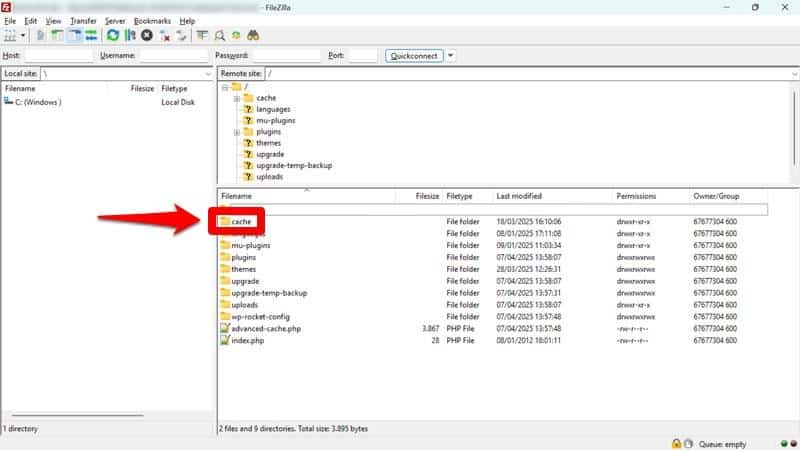
The root directory holds all WordPress files. It is the main folder you see after logging in with FTP. The root directory often has names like public_html, www, or your site’s name.
You will find important files here, such as wp-config.php and folders like wp-content. This location is the starting point for all changes.
Identify Key WordPress Folders
Inside the root directory, some folders are very important. The wp-content folder holds themes, plugins, and uploads. It is where most changes happen.
The wp-includes folder contains core WordPress files. It controls the main functions of your site. Avoid editing these files unless you know what you are doing.
The wp-admin folder includes files for the WordPress dashboard. It manages the back-end interface of your site.
Manage File Permissions
File permissions control who can view or change files. Proper permissions keep your site secure. Incorrect settings can cause errors or security risks.
Folders usually need permission set to 755. Files should be set to 644. You can change permissions using your FTP client.
Check permissions regularly to maintain site safety and functionality.
Credit: www.wpbeginner.com
Upload And Download Files
Uploading and downloading files through FTP is key to managing your WordPress site. It lets you move important files easily between your computer and server. Understanding this process helps keep your site updated and secure.
Files like themes, plugins, and images can be sent to your server fast. You can also get backups or edit files locally. This flexibility makes site management much simpler.
Transfer Files To Server
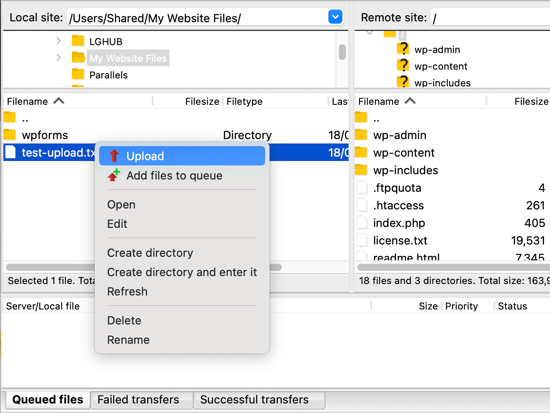
Open your FTP client and connect to your WordPress server. Locate the files on your computer that you want to upload. Drag and drop these files into the correct folder on the server. Common folders include wp-content or uploads. Wait for the transfer to finish before closing the client. This uploads your new or updated files to your website.
Download Files Locally
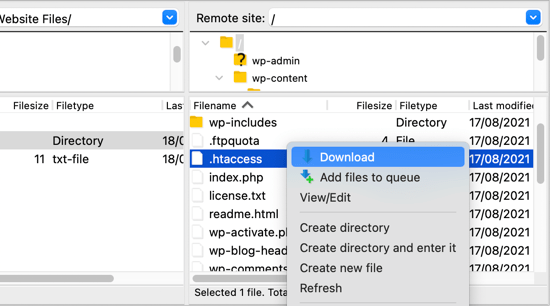
To download files, connect to the server with your FTP client. Browse the server’s directories to find the files you need. Select the files or folders and drag them to your local computer. This action copies the files for backup or offline editing. Always save them in a safe place for easy access later.
Sync Changes Safely
Keep your files in sync to avoid errors. Edit files locally and then upload the changes to the server. Before uploading, download the latest files to prevent overwriting others’ work. Use your FTP client’s sync feature if available. This keeps your WordPress site running smoothly without conflicts.
Troubleshoot Ftp Issues
Accessing your WordPress site via FTP can sometimes lead to connection problems. These issues stop you from uploading or editing files. Knowing how to fix common FTP problems saves time and frustration. Troubleshooting FTP issues involves checking errors, permissions, and settings. Follow these steps to regain access quickly.
Common Connection Errors
Failed to connect usually means wrong login details or server issues. Timeout errors occur when the server takes too long to respond. Check your internet and server status first. Make sure your FTP client uses the right protocol, either FTP or SFTP. Look for error messages in your FTP program. They often hint at the problem source.
Fix Permission Problems
Permission errors block file access or editing. Your FTP user might lack rights to certain folders. Use your hosting control panel to adjust file permissions. Set folders to 755 and files to 644 for typical WordPress sites. Avoid setting permissions too loose, like 777. Incorrect permissions can cause security risks or failures.
Verify Ftp Settings
Check your FTP host address matches your web server name. The username and password must be correct and case-sensitive. Confirm the port number, usually 21 for FTP and 22 for SFTP. Passive mode often solves connection issues by changing data transfer settings. Save your settings and try reconnecting. Double-check these details to avoid common mistakes.
Secure Your Ftp Connection
Securing your FTP connection is vital for protecting your WordPress site. FTP transfers files but sends data in plain text. This can expose your login details and files to hackers. Securing FTP helps keep your site safe from unauthorized access and data theft.
Use Sftp Instead Of Ftp
SFTP encrypts your data during transfer. It uses SSH to secure the connection. This stops hackers from reading your information. Most hosting providers support SFTP. Switching to SFTP is the easiest way to secure your site.
Change Default Ports
FTP uses default ports like 21. Hackers often scan these ports first. Changing the port number makes it harder to find. Choose a port number between 1024 and 65535. Update your FTP client to match the new port.
Regularly Update Credentials
Use strong, unique usernames and passwords. Change them regularly to reduce risk. Avoid common or simple passwords. Use a password manager to keep track. This ensures only you can access your FTP account.
Credit: www.wpbeginner.com
Frequently Asked Questions
What Is Ftp And Why Use It For WordPress?
FTP stands for File Transfer Protocol. It allows direct access to your WordPress files. FTP helps upload, edit, or fix files quickly. It is crucial for troubleshooting and managing your site beyond the WordPress dashboard.
How Do I Find My WordPress Ftp Credentials?
FTP credentials are provided by your hosting provider. Check your welcome email or hosting control panel. Common details include FTP server, username, password, and port number. These credentials connect your FTP client to your WordPress site safely.
Which Ftp Client Is Best For WordPress Access?
Popular FTP clients include FileZilla, Cyberduck, and WinSCP. FileZilla is free, user-friendly, and widely used. Choose a client compatible with your operating system. A good FTP client ensures smooth and secure file transfers.
Can I Edit WordPress Files Via Ftp Safely?
Yes, but always backup files first. Editing via FTP requires caution to avoid site errors. Use a plain text editor for code changes. FTP access is powerful for fixes but handle files carefully to maintain site integrity.
Conclusion
Accessing your WordPress site via FTP is simple and useful. It helps you manage files without logging into the dashboard. Just use an FTP client, enter your server details, and connect. Always keep your login info safe to protect your site.
Regular backups before making changes are smart. Practice these steps to feel confident handling your site files. This skill saves time and solves many website issues. Give it a try, and your WordPress management will become easier.