
Are you looking to organize your WordPress site better and make navigation easier for your visitors? Adding a parent category is a simple way to create a clear structure for your content.
When you group related posts under a parent category, your readers can find what they need faster, and search engines can understand your site better. You’ll learn exactly how to add a parent category in WordPress, step by step. By the end, you’ll have a neat, user-friendly site that keeps visitors coming back.
Let’s get started!
Setting Up Categories In WordPress
Setting up categories in WordPress helps organize your content clearly. Categories group posts with similar topics together. This makes it easier for visitors to find related posts. Proper categories also improve your website’s SEO by creating a clear structure.
WordPress lets you create both parent and child categories. Parent categories act as main topics. Child categories fall under these main topics, adding detail. Understanding this setup helps you build a neat and useful category system.
Accessing The Categories Section
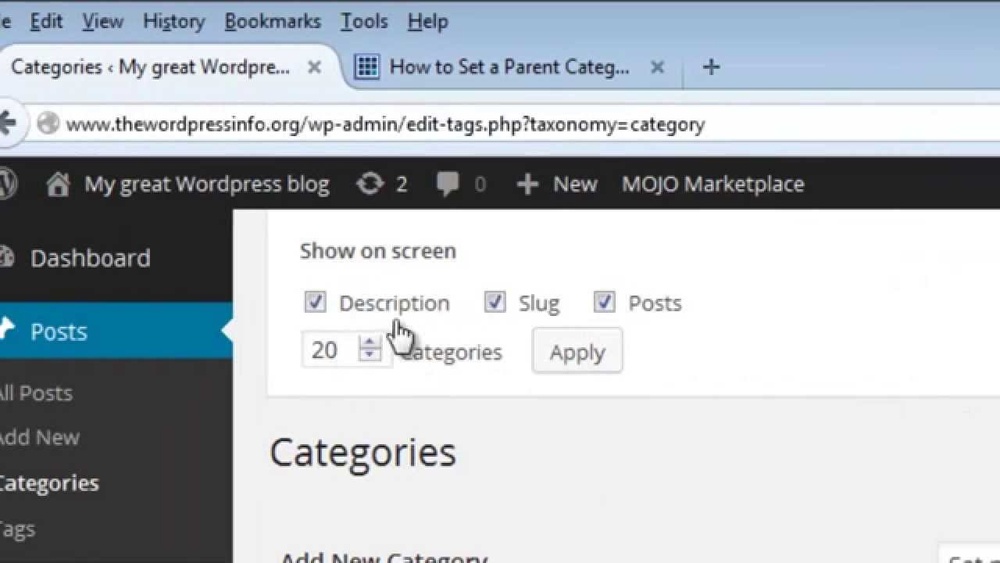
To start, log into your WordPress dashboard. On the left menu, find “Posts” and click it. Under “Posts,” click “Categories.” This opens the Categories page. Here, you can add, edit, or delete categories. The page also shows existing categories and their details.
Difference Between Parent And Child Categories
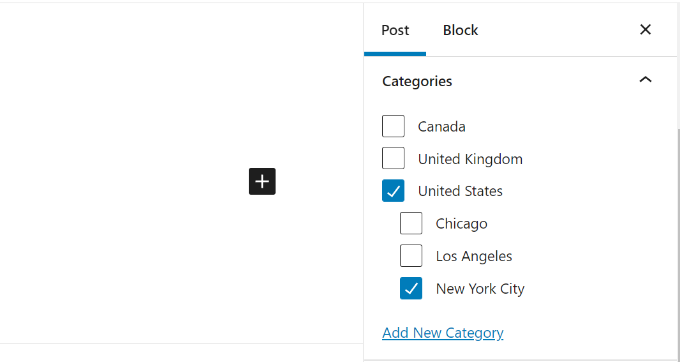
Parent categories are broad topics. They serve as the main category for your posts. Child categories are more specific and sit under parent categories. For example, “Books” can be a parent category. “Fiction” and “Non-Fiction” can be child categories.
This hierarchy helps visitors navigate your site quickly. It also helps search engines understand your content better. You can assign posts to either parent or child categories based on their topic.
Credit: www.wpbeginner.com
Creating A Parent Category
Creating a parent category in WordPress helps organize your content. It groups related posts under one main topic. This makes your site easier to navigate and understand. You can create a parent category quickly using the WordPress dashboard.
Start by opening the categories page in your WordPress admin area. From there, you can add a new category and set it as a parent. Follow the steps below to create your parent category.
Adding A New Category
Go to the WordPress dashboard. Click on “Posts” and then “Categories.” You will see a form to add a new category. Enter the name of your new category here. This form is simple and easy to use.
Naming Your Parent Category
Choose a clear and simple name for your parent category. The name should describe the main topic well. Use common words that visitors can understand. Avoid long or complex names to keep it easy.
Assigning The Parent Status
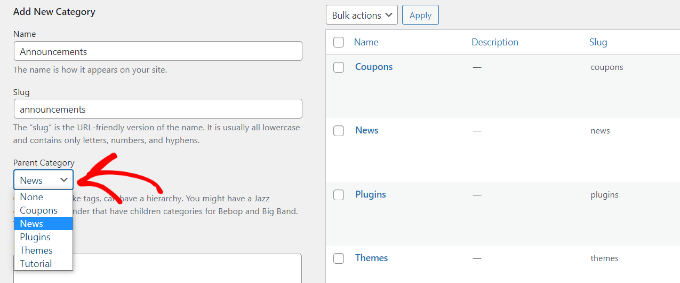
In the category form, find the “Parent Category” dropdown menu. Leave it set to “None” to make this category a parent. This means it will not be a subcategory of any other. Save your category by clicking the “Add New Category” button.
Managing Parent Categories
Managing parent categories in WordPress helps keep your site organized. It lets you group related posts together. This makes it easier for visitors to find content. You can also improve your site’s SEO by using clear categories.
WordPress allows you to edit and delete categories as needed. This keeps your category list clean and relevant. Let’s explore how to manage parent categories effectively.
Editing Existing Categories
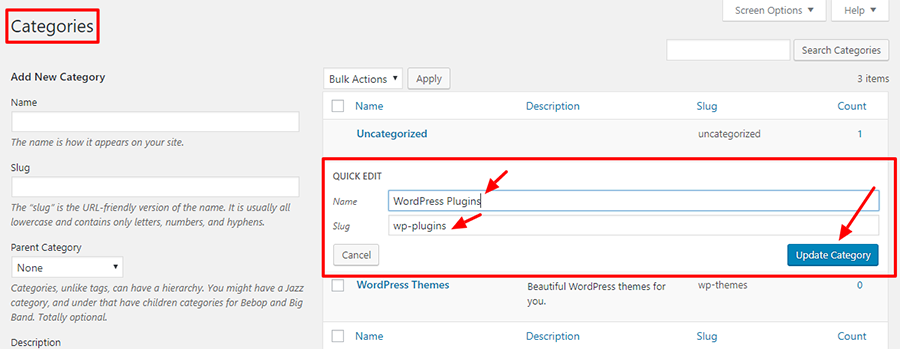
To edit a category, go to your WordPress dashboard. Click on “Posts,” then select “Categories.” Find the category you want to change. Click “Edit” under its name. You can update the category name, slug, or description. Save your changes by clicking the “Update” button. This keeps your categories accurate and useful.
Deleting Unwanted Categories
Removing unused categories helps tidy your website. In the “Categories” section, find the category to delete. Hover over it and click “Delete.” WordPress will ask for confirmation before deleting. Deleted categories will no longer appear on your site. Posts in that category will move to the default category. This prevents broken links or confusion.
Using Parent Categories Effectively
Using parent categories effectively helps keep your WordPress site organized. It groups related posts under a main topic. This structure makes your site easier to browse. Visitors find content faster and stay longer. Clear categories improve how search engines understand your site. This boosts your site’s visibility in search results.
Organizing Content Hierarchically
Parent categories create a clear content hierarchy. They act as main topics that cover broad subjects. Subcategories break these topics into smaller, specific areas. This hierarchy helps you manage large amounts of content. It also prevents clutter and confusion. Readers can follow a logical path from general to detailed information.
Improving Site Navigation
Good navigation keeps visitors on your site longer. Parent categories simplify menus and sidebars. They let users find related posts quickly. This reduces the chance of visitors leaving early. Clear navigation also improves mobile experience. Users can tap through categories easily without frustration.
Common Issues And Fixes
Adding a parent category in WordPress can sometimes cause issues. These issues may confuse users and affect how your site looks. This section covers common problems and easy fixes. Understanding these helps keep your categories organized and visible.
Category Not Showing Correctly
Sometimes the parent category does not appear as expected on your site. This often happens due to theme settings or caching problems. Clear your website cache first. Refresh the page to see if the category shows up.
Check your theme’s category display options. Some themes hide parent categories by default. Adjust the settings to enable parent categories. Also, verify that the category is assigned to the correct posts.
Troubleshooting Category Display Problems
Category display issues might arise from plugin conflicts. Disable plugins one by one to find the cause. After disabling each plugin, check if the categories appear properly.
Incorrect permalink settings can also cause problems. Go to WordPress Settings and reset permalinks. This refreshes the URL structure and often fixes display errors.
Ensure your WordPress and theme are up to date. Outdated software can cause compatibility issues. Keep everything current to avoid display problems.
Credit: www.wpbeginner.com
Credit: wpdatatables.com
Frequently Asked Questions
What Is A Parent Category In WordPress?
A parent category is a main category that holds one or more subcategories. It helps organize content clearly and improves site navigation.
How Do I Add A Parent Category In WordPress?
Go to Posts > Categories, enter the category name, leave Parent Category as “None,” and click “Add New Category. ”
Can I Edit Or Delete A Parent Category Later?
Yes, you can edit or delete parent categories anytime from the Categories page in your WordPress dashboard.
Why Use Parent Categories For Blog Posts?
Parent categories structure your content, enhance SEO, and help visitors find related posts easily, improving user experience.
Conclusion
Adding a parent category in WordPress is simple and useful. It helps organize your posts clearly. You can group related topics under one main category. This makes your site easier to navigate for visitors. Also, search engines find your site better with clear categories.
Keep your categories logical and neat. This small step improves your website’s structure. Try adding parent categories to see the difference. Your site will look more professional and user-friendly.



