

If you want to control how search engines treat the links on your WordPress site, adding nofollow links is a smart move. But maybe you’re wondering how to do this without fuss or confusion.
This guide will show you simple steps to add nofollow links quickly, so you can protect your site’s SEO and maintain trust with your audience. Keep reading, and you’ll learn exactly what nofollow links are, why they matter, and how to add them easily in WordPress—no tech skills needed.
Credit: www.fixrunner.com
Why Use Nofollow Links
Nofollow links tell search engines not to pass ranking credit to the linked page. This helps control which sites get SEO benefits from your content. Using nofollow links wisely keeps your site’s SEO strong and focused. It stops spammy or untrusted sites from gaining authority through your links.
Understanding why and when to use nofollow links helps maintain a healthy website. It also prevents your site from being penalized by search engines for bad linking practices.
Impact On Seo
Nofollow links do not pass link equity to the target page. This means they do not boost the linked page’s ranking. Using nofollow can protect your site’s SEO from low-quality or unrelated sites. It keeps your link profile natural and balanced.
Search engines see nofollow links as a hint, not a vote. These links still bring traffic and users but avoid sharing SEO value. This control helps avoid penalties for linking to spam or paid content.
When To Add Nofollow
Add nofollow links on paid or sponsored content to comply with search rules. Use them on user-generated content, like comments, to avoid spam influence. Links to untrusted or low-quality sites also need nofollow to protect your site.
Nofollow links work well for external links that you do not want to endorse. It is also useful when linking to pages with little relevance to your site’s topic. This practice keeps your SEO profile clean and trustworthy.
Credit: aioseo.com
Methods To Add Nofollow Links
Adding nofollow links in WordPress helps control how search engines treat your links. Nofollow links tell search engines not to pass ranking credit to the linked page. This is useful for sponsored links, comments, or any link you want to keep separate from your SEO strategy.
Several methods exist to add nofollow attributes in WordPress. These methods suit different skill levels and needs. Choose the one that fits your comfort with coding or plugins.
Using The WordPress Editor
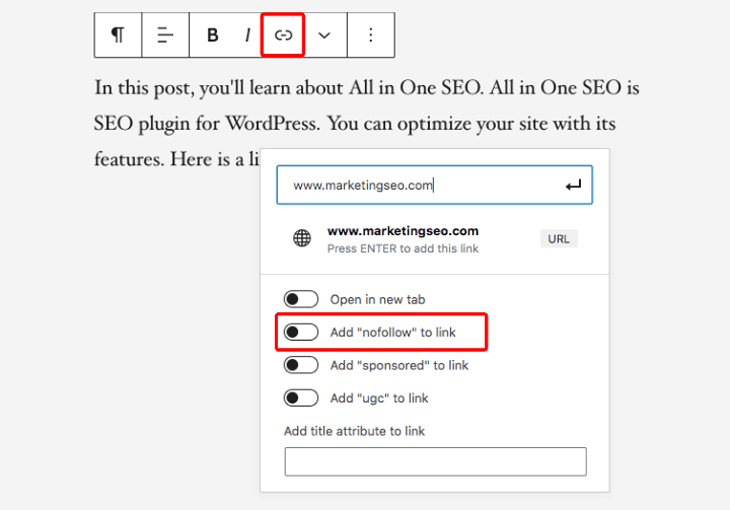
The WordPress block editor makes adding nofollow links simple. First, select the text or image you want to link. Click the link icon and paste the URL. Then click the gear icon to open link options.
In the link settings, find the checkbox labeled “Add rel=”nofollow”.” Check it to apply the nofollow attribute. Save your changes and update the post. This method requires no coding and works well for quick edits.
Adding Nofollow Via Html
For more control, use the HTML editor. Switch to the code view in the post editor. Locate the anchor tag () of the link you want to modify.
Add rel="nofollow" inside the tag. For example: Example. Save the changes and preview the post. This method is precise but needs basic HTML knowledge.
Using Seo Plugins
SEO plugins often include options to add nofollow links easily. Plugins like Yoast SEO or Rank Math offer link management features. These tools allow adding nofollow without touching code.
After installing a plugin, check its link settings. Many provide a checkbox or toggle to mark links as nofollow. This method suits users who want more SEO control without coding.
Nofollow Links In Comments
Nofollow links in comments help control spam and protect your website’s SEO. These links tell search engines not to follow or give credit to the linked pages. This stops spammers from gaining SEO benefits through your comment section.
Managing nofollow links in comments keeps your site clean and trustworthy. WordPress offers ways to handle these links easily. Let’s explore how WordPress deals with nofollow links in comments by default and how you can customize them.
Default Settings
WordPress automatically adds nofollow attributes to comment links. This setting stops search engines from following user-submitted links. It helps prevent spammy websites from gaining SEO value through your comments.
The default nofollow attribute applies to all comment author links. You do not need to do anything manually. This built-in feature protects your site’s SEO without extra plugins.
Customizing Comment Links
You can change how WordPress handles nofollow links in comments. Use plugins or custom code to add or remove nofollow attributes. This allows more control over which links get SEO credit.
For example, you may allow trusted commenters to have dofollow links. Or you might add nofollow to all external links for extra safety. Custom settings help balance SEO and user interaction.
Customizing comment links requires basic knowledge of WordPress filters or plugins. Many SEO plugins offer easy options to manage nofollow links in comments. Choose the method that fits your needs best.

Credit: www.youtube.com
Best Practices For Nofollow Links
Nofollow links help control how search engines treat your outbound links. Using them correctly protects your site’s SEO health. Best practices make sure you use nofollow links wisely. This keeps your website trustworthy and relevant.
Avoiding Overuse
Too many nofollow links can confuse search engines. It might seem like you don’t trust any sources. Use nofollow only for sponsored links or untrusted content. Keep most links as follow to share link value. This balance improves your site’s authority and ranking.
Balancing Follow And Nofollow
Mix follow and nofollow links naturally in your content. Use follow for helpful and trusted sites. Use nofollow for ads, paid posts, or user comments. This shows search engines which links matter. It helps your site stay credible and fair.
Common Mistakes To Avoid
Adding nofollow links in WordPress helps control your website’s SEO. Mistakes can reduce their effectiveness. Avoiding common errors improves your site’s ranking and user trust. Below are frequent mistakes to watch for.
Incorrect Attribute Usage
Using the wrong attribute breaks the nofollow function. The correct attribute is rel="nofollow". Avoid typos like rel="no follow" or rel="nofolow". Always check your HTML code carefully. WordPress editors may add attributes incorrectly sometimes. Use the text editor to verify the code.
Ignoring Link Relevance
Adding nofollow links to unrelated content confuses search engines. Links should match the linked page’s topic. Irrelevant links lower your site’s SEO value. Focus on linking to pages that add real value. Nofollow links should guide users to useful resources only.
Frequently Asked Questions
What Is A Nofollow Link In WordPress?
A nofollow link tells search engines not to pass SEO value to the linked page. It helps control link equity and avoid spam.
Why Should I Add Nofollow Links In WordPress?
Adding nofollow links prevents passing SEO juice to untrusted or paid links. It protects your site’s ranking and credibility.
How Do I Add Nofollow Links Using The WordPress Editor?
In the WordPress editor, select the link, click the gear icon, and check “Add rel=”nofollow””. Then save your changes.
Can Plugins Help Add Nofollow Links In WordPress?
Yes, SEO plugins like Yoast and Rank Math offer easy options to add nofollow attributes without coding.
Conclusion
Adding nofollow links in WordPress helps control where search engines go. It protects your site from linking to untrusted sources. You can add nofollow links easily with WordPress tools or plugins. This small step improves your site’s SEO and keeps your content safe.
Try adding nofollow links on external URLs to keep your link profile clean. Keep your site trustworthy and search-friendly with this simple practice.



