
Want to make your WordPress site more user-friendly and professional? Adding a download link is a simple way to give your visitors quick access to important files, like PDFs, eBooks, or images.
But if you’re not sure how to do it, don’t worry—you’re in the right place. This guide will walk you through easy steps to add a download link that works perfectly every time. By the end, you’ll have a seamless download feature on your site that keeps your visitors coming back for more.
Ready to boost your site’s functionality? Let’s dive in!
Credit: elementor.com
Choose The Right File
Choosing the right file is key when adding a download link in WordPress. The file type affects how users can open and use the file. Selecting the proper format helps visitors get what they need quickly and without trouble.
Consider the file size and format before uploading. This choice impacts site speed and user experience. Small, common file types work best for most downloads.
Choose Common File Formats
Common file formats are easy for users to open. PDF, DOCX, and ZIP files are popular choices. PDFs keep the layout fixed. DOCX files allow editing. ZIP files compress multiple files together.
Check File Size Limits
Large files slow down your website. WordPress limits upload size by default. Keep files small to avoid errors. Compress images or documents if needed.
Consider Device Compatibility
Visitors use phones, tablets, and computers. Pick file types that work on all devices. PDFs and images are widely supported. Avoid rare or outdated formats.
Ensure File Security
Scan files for viruses before uploading. Secure files protect your website and users. Avoid executable files like .exe or .bat. These can be harmful and blocked by browsers.
Upload Files To WordPress
Uploading files to WordPress is a key step to share downloads with your visitors. It lets you store files like PDFs, images, or documents directly on your site. This makes it easy to create download links that your users can access anytime.
There are two simple ways to upload files: through the Media Library or using FTP. Each method fits different needs depending on your file size and comfort level.
Using Media Library
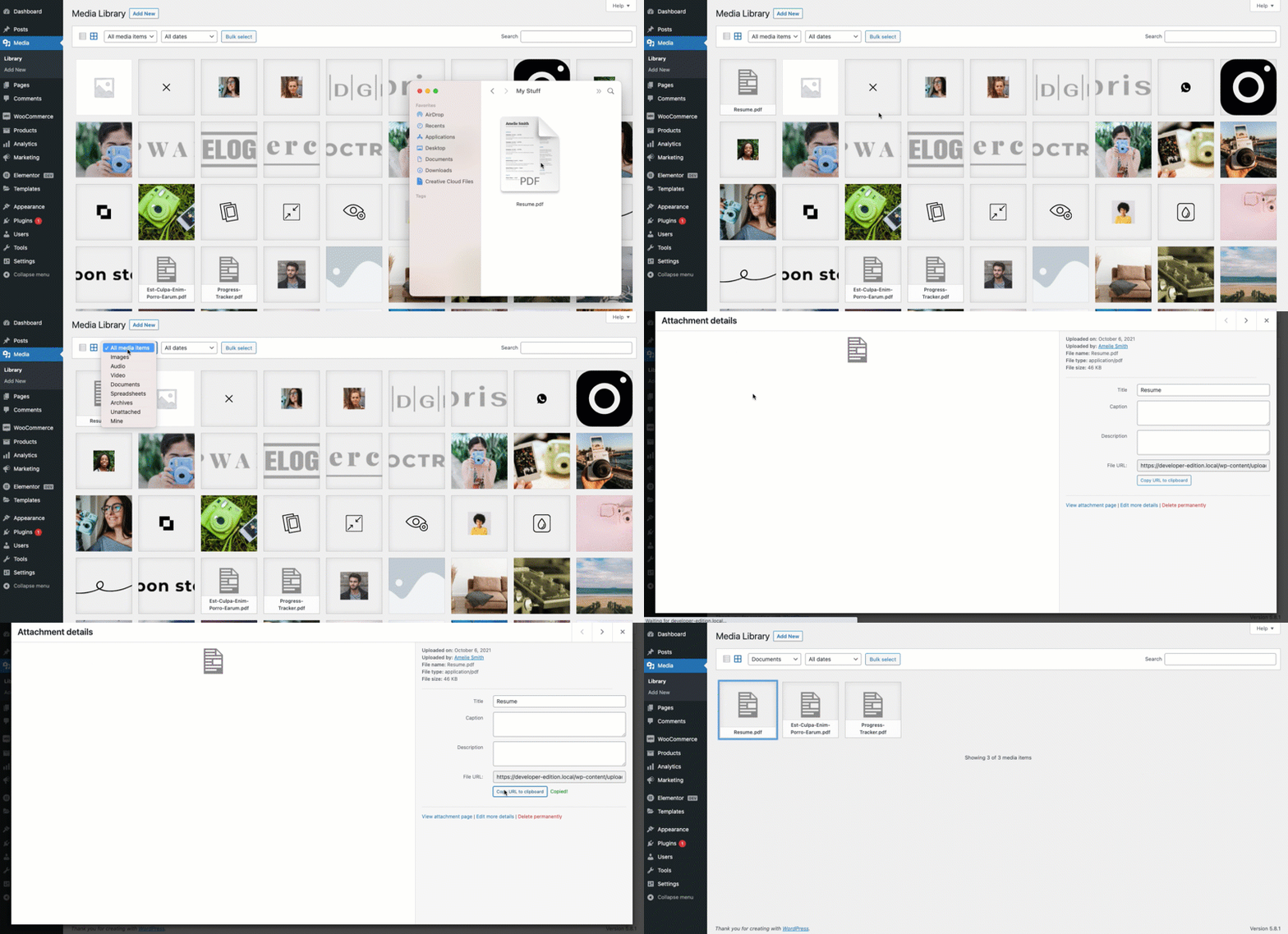
The Media Library is the easiest way to upload files in WordPress. Go to your dashboard and click on “Media.” Then select “Add New.”
Drag and drop your file or click to browse your computer. WordPress supports many file types such as PDFs, images, and videos.
Once uploaded, the file appears in the library. Click on it to get the URL. This URL is your download link.
Use this link in your posts or pages to let visitors download the file. Small to medium files work best with this method.
Using Ftp For Large Files
FTP (File Transfer Protocol) is great for uploading large files. It bypasses WordPress limits on file size.
Use an FTP client like FileZilla. Connect to your website server with your FTP credentials.
Upload the file to the “wp-content/uploads” folder. Organize files by year and month if needed.
After upload, copy the file path. Combine it with your website’s URL to create the download link.
This method suits very large files that cannot upload through the Media Library.
Create A Download Link
Creating a download link in WordPress lets visitors easily get files from your site. This feature works well for PDFs, images, or any digital product you want to share. The process is simple and quick, even for beginners.
Follow these steps to create a download link that works smoothly on your WordPress posts or pages. Customize the link text to make it clear and inviting for your visitors.
Insert Link In Posts Or Pages
Open the post or page where you want to add the download link. Highlight the text or select the button you want to turn into a link. Click the “Insert/edit link” icon in the WordPress editor toolbar. Paste the URL of the file you uploaded to the media library or an external source. Make sure the link is correct to avoid broken downloads. Click “Apply” to save the link.
Customize Link Text
Choose clear words for your download link. Use phrases like “Download PDF” or “Get the file” to tell visitors what to expect. Avoid vague text such as “Click here.” Short and direct text improves user experience and helps search engines understand your content. You can also style the link with bold or color to make it stand out.

Credit: www.youtube.com
Use Plugins For Advanced Options
Plugins offer powerful tools for adding download links in WordPress. They provide extra features that basic WordPress cannot do. Using plugins lets you control downloads easily and professionally.
Many plugins help manage files, track downloads, and set rules. They suit websites that want more than just a simple link. Plugins save time and improve user experience.
Popular Download Manager Plugins
Several plugins stand out for managing downloads in WordPress. Download Monitor is a favorite. It organizes files and shows download counts. Easy Digital Downloads works well for selling files online. WP File Download offers a user-friendly interface and file categorization. These plugins simplify file management and add useful options.
Setting Download Restrictions
Plugins allow setting limits on who can download files. You can restrict downloads by user role, login status, or IP address. Some plugins support password protection for files. This control helps protect sensitive content. You decide who sees and downloads your files. Restrictions keep your downloads safe and organized.
Test Download Links
Testing download links is key to a smooth user experience. It ensures visitors get the files without problems. This step helps spot errors early and saves frustration later. Always test your links before publishing your page or post.
Checking Link Functionality
Click each download link to see if it works. The file should start downloading immediately. Check the file format and size to confirm correctness. Try the link on different devices and browsers. This confirms the link works for all users.
Troubleshooting Common Issues
Broken links may cause errors or no action at all. Fix the URL if it points to the wrong file. Ensure the file is uploaded to your WordPress media library. Clear your browser cache to avoid loading old data. Check file permissions to make sure users can access downloads.
Credit: formidableforms.com
Improve User Experience
Improving user experience is key when adding download links in WordPress. A good user experience helps visitors find and use your downloads easily. Clear and simple design keeps users happy and engaged.
Providing easy access to downloads builds trust and encourages return visits. Thoughtful download features make your site professional and user-friendly.
Adding Download Buttons
Download buttons should stand out on the page. Use a clear label like “Download Now” or “Get File.” Place buttons near related content for easy access. Choose colors that contrast with the background. This helps users spot the button quickly. Make sure buttons work on mobile devices too.
Tracking Downloads
Tracking downloads shows which files users like most. Use plugins or tools to count clicks on download links. This data helps improve your content and offers. You can see which files need updates or removal. Tracking also helps measure user interest and engagement.
Frequently Asked Questions
How Do I Add A Download Link In WordPress?
To add a download link, upload your file to the Media Library. Then, copy the file URL and insert it as a link in your post or page. This creates a clickable download link for visitors to access your file easily.
Can I Add Download Links Without Plugins?
Yes, you can add download links without plugins by using the WordPress Media Library. Simply upload the file and link it manually in your content. However, plugins offer more customization and tracking features if needed.
How To Make Download Links Open In A New Tab?
To open download links in a new tab, edit the link in the WordPress editor. Check the option “Open link in a new tab. ” This improves user experience by keeping visitors on your site while downloading.
What File Types Can I Link For Download In WordPress?
WordPress supports common file types like PDF, DOCX, ZIP, and images for download. Ensure the file type is allowed by your hosting provider and WordPress settings to avoid upload restrictions.
Conclusion
Adding a download link in WordPress is simple and quick. You just need to follow a few clear steps. This helps visitors get files easily from your site. It improves user experience and keeps people coming back. Try adding links to important documents or resources.
Keep your site helpful and easy to use. With practice, adding download links will feel natural. Start today and make your site more useful.



