
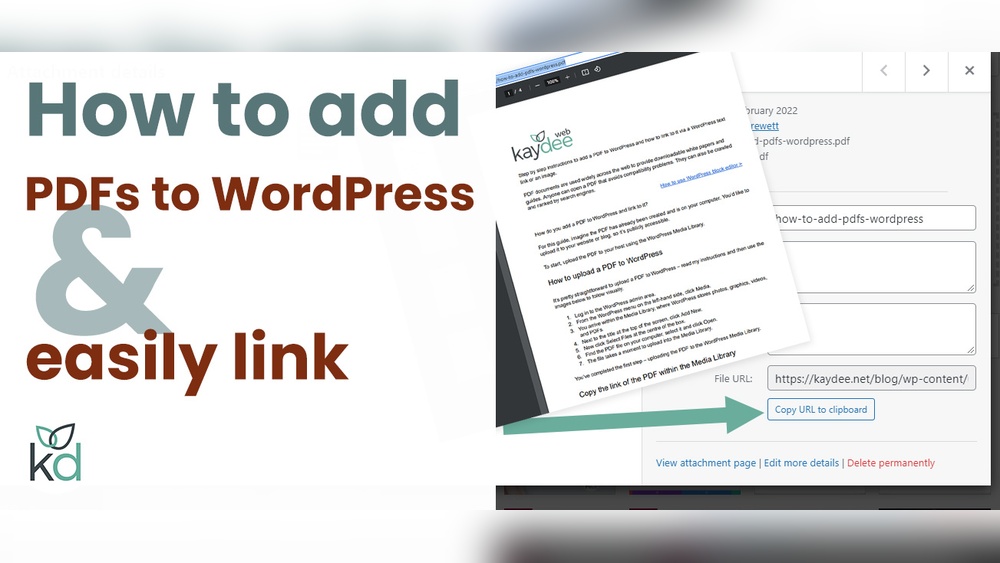
Looking to share important documents on your WordPress site? Adding a PDF to your website is one of the easiest ways to give your visitors quick access to files like brochures, guides, or reports.
But if you’re not sure how to do it, don’t worry—you’re in the right place. You’ll discover simple, step-by-step methods to upload and display PDFs on your WordPress site. By the end, you’ll have the confidence to make your content more engaging and professional with just a few clicks.
Ready to get started? Let’s dive in!
Choose The Right Pdf
Choosing the right PDF for your WordPress website is important. The PDF should fit your audience’s needs and your website’s purpose. A well-chosen PDF improves user experience and keeps visitors engaged. Focus on content relevance and file size to make the best choice.
Select Relevant Content
Pick a PDF that adds value to your site visitors. The content should match your website topic clearly. Avoid PDFs with too much unnecessary information. Users want quick answers or helpful details. Keep the PDF focused and easy to understand. This helps visitors find what they need fast.
Optimize File Size
Small file size ensures fast loading on your website. Large PDFs slow down your site and frustrate visitors. Compress your PDF before uploading it. Use tools that reduce size without losing quality. A lighter PDF also saves bandwidth and improves user experience. Test your PDF speed before publishing.
Upload Pdf To WordPress
Uploading a PDF to WordPress is simple and quick. It lets visitors view or download your files directly from your site. This process improves user experience and adds value to your content. Below are two easy ways to upload PDFs to your WordPress website.
Use Media Library
Go to your WordPress dashboard and open the Media Library. Click the “Add New” button at the top. Select the PDF file from your computer. Wait for the upload to finish. After uploading, click the file to see details. Copy the URL of the PDF. You can use this link to add the PDF to posts or pages. This method works well for most sites.
Check File Permissions
File permissions control who can view or edit your PDF files. Make sure the permissions allow visitors to access the PDFs. Usually, the permission setting should be 644 for files. This setting lets the server read and serve the file. Incorrect permissions can block your visitors from opening the PDF. You can check and change permissions using your hosting file manager or FTP client. Proper permissions keep your PDFs safe and accessible.
Insert Pdf Link In Posts
Inserting a PDF link into your WordPress posts allows visitors to access important documents easily. It helps share brochures, guides, or reports without cluttering the page. This method keeps your content clean and user-friendly.
Add Link Using Block Editor
First, upload your PDF file to the WordPress Media Library. Click on “Add Media” above the post editor and select your PDF. Copy the file URL once uploaded.
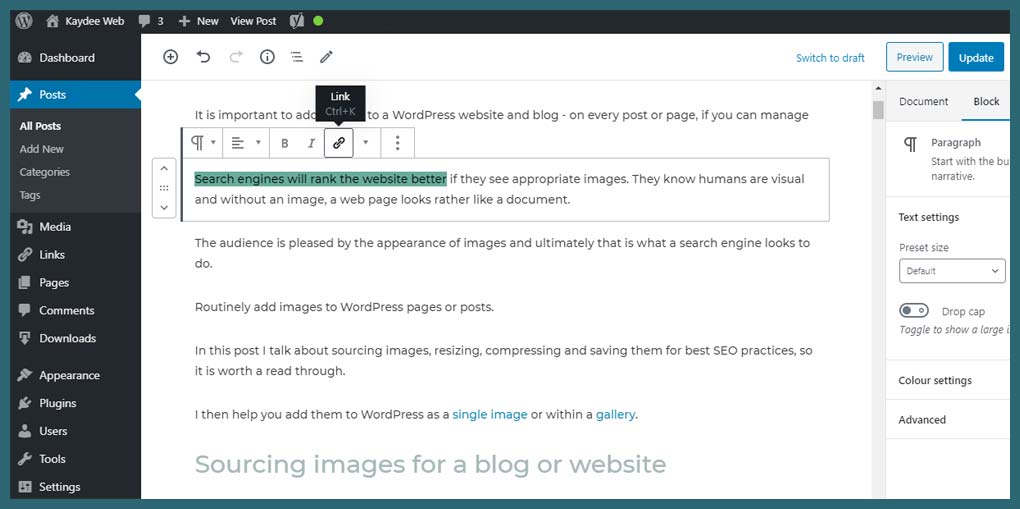
Next, highlight the text where you want the PDF link. Click the link icon in the block editor toolbar. Paste the copied URL into the link box and press Enter. Your selected text now links to the PDF file.
Customize Link Appearance
You can change the link text to make it clear and inviting. Use phrases like “Download PDF” or “View Document.” This helps visitors understand the link’s purpose quickly.
Adjust the link color or style in the block editor’s settings. Choose colors that stand out but fit your website design. Clear links improve user experience and encourage clicks.
Credit: kaydee.net
Embed Pdf Viewer
Embedding a PDF viewer in your WordPress site lets visitors read documents directly on the page. This improves user experience. Visitors do not need to download the file to see its content. Two easy methods help you embed PDFs: using the built-in Gutenberg block or installing plugins. Both options are simple and effective.
Use Gutenberg Pdf Block
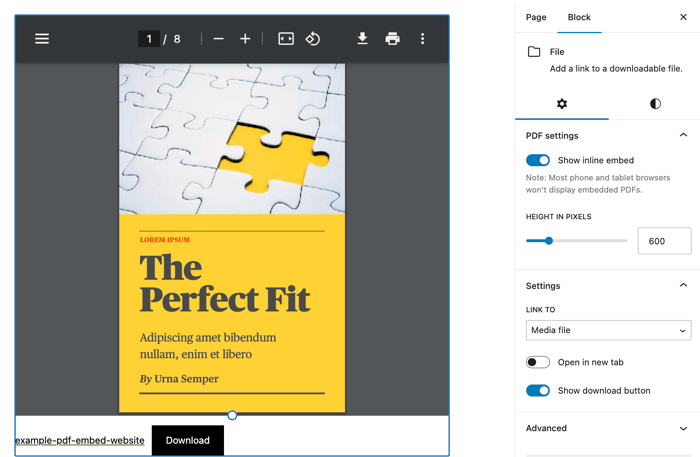
WordPress’s Gutenberg editor includes a PDF block. This block lets you upload and display PDFs quickly. Just add the PDF block to your post or page. Then upload your PDF file or select one from your media library. The PDF will appear as an embedded viewer. Visitors can scroll through and read the document without leaving the page.
This method requires no extra plugins. It works well for basic PDF embedding. The viewer is clean and easy to use. It supports most PDF files. This block is perfect for simple documents like reports or brochures.
Install Pdf Embed Plugins
Plugins provide advanced PDF viewing options. They add features like zoom, page navigation, and full-screen mode. To use a plugin, go to your WordPress dashboard. Navigate to Plugins > Add New. Search for “PDF embed” and choose a plugin with good reviews.
Install and activate the plugin. Then follow its instructions to embed your PDF. Most plugins offer shortcodes or blocks. Paste the shortcode or add the block to your page. Upload your PDF file through the plugin interface. The embedded viewer will appear with enhanced controls.
Plugins are ideal for sites needing more PDF interaction. They work well for manuals, catalogs, or large documents.
Improve Pdf Accessibility
Improving PDF accessibility on your WordPress site helps all users access your content easily. It makes your PDFs clearer and easier to navigate. This also helps search engines understand your files better. Accessible PDFs reach a wider audience and improve user experience.
Add Descriptive Titles
Give each PDF a clear and meaningful title. Use words that explain the content inside. Avoid vague names like “document1.pdf.” Descriptive titles help users and screen readers know what the file is about. This small step improves navigation for everyone.
Ensure Mobile Compatibility
Make sure your PDFs open well on mobile devices. Many users visit websites on phones or tablets. Use responsive PDF viewers or plugins that adjust to screen size. Test your PDFs on different devices to check readability. Mobile-friendly PDFs keep users engaged and reduce frustration.

Credit: www.wpmadesimple.org
Troubleshoot Common Issues
Troubleshooting is important when adding PDFs to WordPress. Some common problems can stop your files from showing properly. Fixing these issues helps keep your website user-friendly. It also improves the visitor experience and SEO rankings.
Below are simple steps to handle frequent problems with PDF files on WordPress.
Fix Broken Links
Broken links happen if the PDF file moves or deletes. Check the link URL carefully. Make sure it matches the current location of the PDF.
Use the WordPress media library to find the right file path. Replace the old link with the correct one on your page or post. Test the link by clicking it. It should open the PDF without error.
Resolve Embedding Errors
Embedding errors occur when the PDF does not load inside the page. Clear your browser cache and reload the page. Sometimes, old files cause display problems.
Confirm your WordPress theme supports PDF embedding. Some themes block certain file types. Try switching to a default theme to test.
Use a trusted PDF embed plugin if native embedding fails. Plugins often solve compatibility issues. Follow plugin instructions carefully to embed your PDF.
Enhance User Experience
Enhancing user experience is key when adding PDFs to your WordPress site. It helps visitors interact with your content easily. A smooth experience keeps users engaged and encourages them to explore more.
Simple features can make a big difference. Think about how users view and download PDFs. Making these actions clear and easy improves satisfaction and trust.
Enable Download Options
Allow visitors to download PDFs with one click. A clear download button saves time. It also helps users who want to keep a copy for later. Choose a visible spot for the download link on your page. This small step makes your site more user-friendly.
Make sure the download button is mobile-friendly. Many users visit sites on phones. A big button works better than a tiny link. Test the button on different devices to ensure easy access.
Use Preview Thumbnails
Show preview thumbnails of PDFs before users open them. Thumbnails give a quick idea of the content inside. This helps visitors decide if they want to read the full PDF. It saves time and reduces frustration.
Use clear, high-quality images for previews. Place thumbnails near the download or view button. This visual aid makes your site look professional and organized.
Credit: formidableforms.com
Frequently Asked Questions
How Do I Upload A Pdf File To WordPress?
To upload a PDF, go to your WordPress dashboard. Click on Media > Add New, then select your PDF file. Once uploaded, copy the file URL for use on your website.
Can I Embed A Pdf Directly Into A WordPress Page?
Yes, WordPress allows you to embed PDFs using the block editor. Simply add a “File” block, upload your PDF, and it will display with a download button.
What Plugins Help Add Pdfs To WordPress Sites?
Plugins like PDF Embedder and Embed Any Document simplify adding PDFs. They provide easy embedding options and improve user experience without coding.
How Do I Link A Pdf In A WordPress Post?
Highlight the text or image, click the link icon, and paste your PDF URL. This creates a clickable link to your PDF file within the post.
Conclusion
Adding a PDF to your WordPress site is simple and quick. Use the built-in media uploader or a plugin to make it easy. Visitors can view or download your PDF without trouble. This helps share important documents or guides clearly.
Keep your website organized by naming files well. Regular updates ensure your content stays fresh and useful. Start adding PDFs today to improve your site’s usefulness. Your visitors will appreciate the easy access to information.



