
Are you wondering if you can use WordPress on your Chromebook? Maybe you want to start a blog or build a website but aren’t sure if your device can handle it.
The good news is, yes—you can! But how smooth will it be? And what do you need to know before diving in? Keep reading, and you’ll discover exactly how to make WordPress work on your Chromebook without any hassle. By the end, you’ll feel confident and ready to create your online presence, no matter where you are.
WordPress Basics
WordPress is a popular tool for building websites and blogs. It is easy to use and offers many options. Understanding the basics helps you get started quickly. This section explains what WordPress is and the types of WordPress platforms available.
What Is WordPress
WordPress is software for creating websites. It allows users to design pages without coding. Many people use it for blogs, business sites, and online stores. WordPress is free and open source. This means anyone can use and change it. It has a large community that creates themes and plugins. These add new features and styles to websites.
Types Of WordPress Platforms
There are two main types of WordPress platforms. First, WordPress.com hosts your site for you. It is easy to set up but has some limits. Second, WordPress.org lets you download the software. You need your own web hosting for this. It offers full control and customization. Both options help you create websites but serve different needs.
Chromebook Features
Chromebooks have gained popularity for their simple design and ease of use. They run on Chrome OS, a lightweight system built for fast browsing and cloud tasks. Understanding Chromebook features helps decide if it suits WordPress use.
These devices focus on speed, security, and battery life. Their unique hardware and software offer a different experience than traditional laptops. Let’s explore these features in detail.
Hardware And Os Overview
Chromebooks use low-power processors like Intel Celeron or ARM chips. They come with 4GB to 8GB of RAM and limited local storage, often 32GB or 64GB. The focus is on online storage via Google Drive.
Chrome OS is a cloud-based operating system. It supports Android apps and Linux programs. Updates are automatic and do not slow the device. The OS is built for security and simplicity.
Limitations And Strengths
Chromebooks do not run traditional Windows or Mac software. This limits some desktop apps and tools. Offline work can be challenging without proper apps.
Strengths include fast startup, good battery life, and easy maintenance. Cloud integration makes file sharing simple. Android and Linux app support expand usability for many tasks.
These features make Chromebooks a good choice for web tasks. Basic WordPress management is smooth. Advanced editing may need workarounds but remains possible.
Setting Up WordPress On Chromebook
Setting up WordPress on a Chromebook is simple and flexible. You can choose different methods based on your needs. Each method suits different levels of control and technical skill.
Below are three ways to start using WordPress on your Chromebook. Pick the one that fits you best.
Using WordPress.com
WordPress.com is the easiest way to start. No installation or setup is needed. Just open your Chromebook’s browser and go to WordPress.com.
Create an account and choose a plan. You can use the free plan to build a basic site. The platform handles hosting, security, and updates for you.
This method is great for beginners or those who want to focus on content only. You access your site anywhere with an internet connection.
Installing WordPress Locally
Installing WordPress locally means running it directly on your Chromebook. This option needs a bit more work but offers full control.
You will need a local server environment like XAMPP or MAMP for Chrome OS. These tools let your Chromebook act like a web server.
After installing the server, download WordPress files from WordPress.org. Follow the setup process to create your local site. You can work offline and test themes or plugins.
Using Linux On Chromebook
Most Chromebooks support Linux apps. This opens more options for WordPress installation and development.
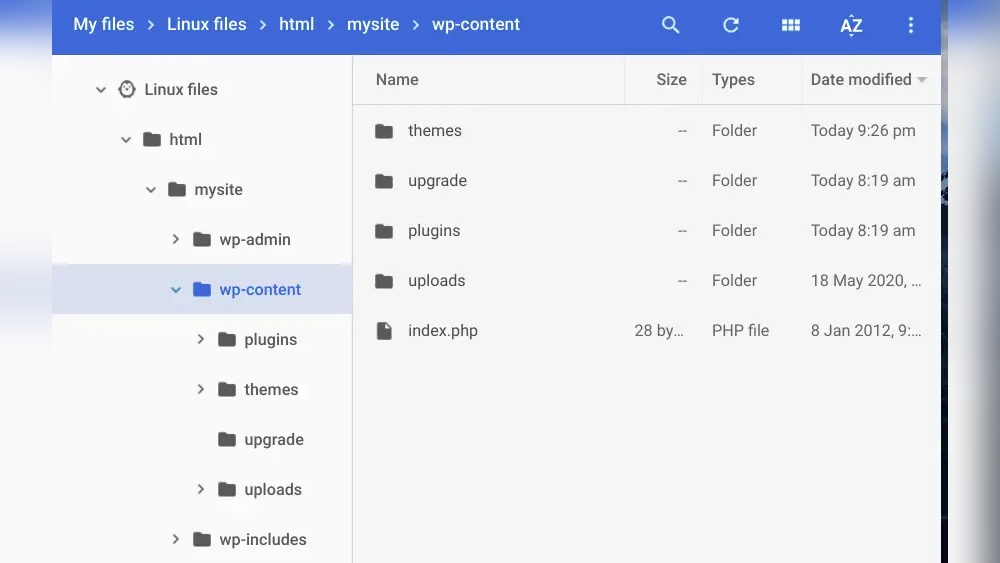
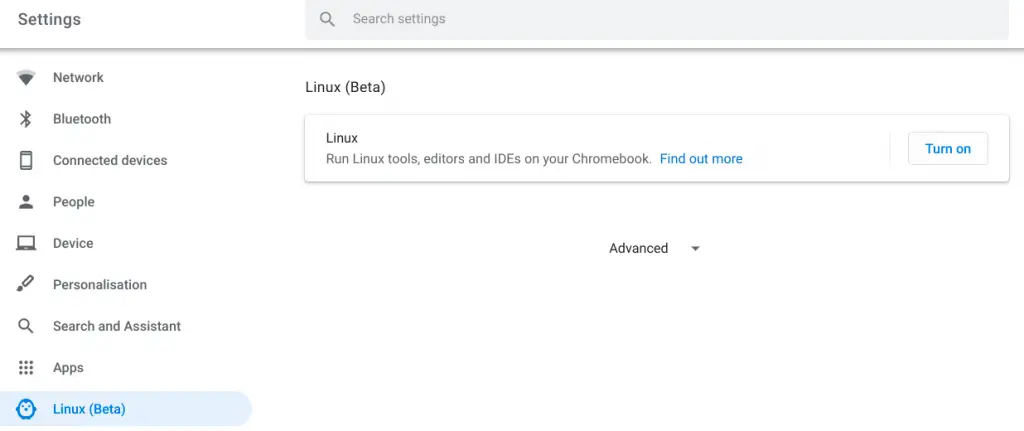
Enable Linux on your Chromebook through the settings menu. Once installed, use Linux terminal commands to set up a server like Apache or Nginx.
Install MySQL or MariaDB, then download WordPress files. This method gives you a powerful environment similar to regular computers.
Linux on Chromebook is best for users who want full control and advanced customization. It also helps learn web development skills.
Credit: www.number1hosting.com
Best Browsers For WordPress On Chromebook
Choosing the right browser is important for using WordPress on a Chromebook. The browser affects speed, compatibility, and how well WordPress works. Some browsers handle WordPress better than others. This section covers the best browsers to use.
Chrome Browser
Chrome is the default browser on Chromebooks. It runs WordPress smoothly and fast. Chrome supports all WordPress features and plugins. It updates often to keep your site safe. The browser also works well with Google tools like Drive and Docs. Using Chrome ensures fewer problems while editing or managing your WordPress site.
Alternative Browsers
Other browsers can work on a Chromebook but may have limits. Firefox offers good speed and privacy. It supports WordPress well but might lag behind Chrome in updates. Microsoft Edge is also an option. It runs WordPress smoothly and has useful tools for developers. Brave browser focuses on privacy and blocks ads. It can handle WordPress but may block some site features. Test these browsers to see which fits your needs best.
WordPress Management Tools
WordPress management tools help you run your website easily on a Chromebook. They offer simple ways to edit, publish, and check your site’s performance. These tools work well with the Chromebook’s web-based system. You can use apps or browser tools to manage your WordPress site. Both options keep your site updated and running smoothly.
Mobile Apps
WordPress has mobile apps that work on Chromebooks. These apps let you write posts, upload images, and reply to comments. They are designed for easy use on smaller screens. The apps sync with your website instantly. You can manage your site from anywhere, even offline. The apps are free and simple to install from the Google Play Store.
Browser-based Tools
You can also manage WordPress through any web browser on a Chromebook. The WordPress dashboard works well in Chrome and other browsers. It lets you edit pages, change themes, and add plugins. No extra software is needed. The dashboard updates in real time. This method is perfect for users who prefer a full desktop experience.
Credit: www.howtogeek.com
Optimizing Performance
Using WordPress on a Chromebook can be smooth with the right performance tips. Optimizing your setup helps your site load faster and run better. This section shows simple ways to boost speed and manage storage well.
Speed Tips
Choose a lightweight WordPress theme. Heavy themes slow down your Chromebook. Limit plugins to only the necessary ones. Too many plugins can cause delays. Clear your browser cache regularly. It frees up memory and speeds up loading. Use a content delivery network (CDN). A CDN delivers your site content faster worldwide. Keep WordPress and plugins updated. Updates improve speed and security.
Storage Solutions
Chromebooks have limited local storage. Store media files in cloud services like Google Drive. This saves space on your device. Use WordPress plugins that optimize image sizes. Smaller images load faster and use less space. Delete old or unused files from your WordPress site. Regular cleanup prevents storage overload. Backup your site to the cloud. It protects your data and frees local storage.
Troubleshooting Common Issues
Using WordPress on a Chromebook can be smooth, but some issues may appear. Troubleshooting these common problems helps keep your site running well. Understanding these issues saves time and frustration.
Connection Problems
Chromebooks need a good internet connection for WordPress. Slow or unstable Wi-Fi causes pages to load slowly or not at all. Restart your router or switch to a stronger network. Clear your browser cache to fix loading errors. Also, check if your Chromebook’s software is up to date. This can improve connectivity and performance.
Plugin Compatibility
Some WordPress plugins may not work well on Chromebooks. Plugins that need heavy resources can slow down your device. Test plugins one by one to find problems. Choose lightweight plugins designed for speed and simplicity. Always keep plugins updated to avoid security risks. Remove plugins that cause crashes or errors to keep your site stable.
Tips For A Smooth Experience
Using WordPress on a Chromebook can be simple and efficient. Some tips help you avoid common problems. These tips make your work smoother and faster. Focus on shortcuts and backup plans. Both help keep your WordPress site safe and easy to use.
Keyboard Shortcuts
Chromebooks have many keyboard shortcuts. They save time and reduce clicking. Use Ctrl + C to copy text. Press Ctrl + V to paste it. Use Ctrl + Z to undo mistakes quickly.
Switch tabs with Ctrl + Tab. Open a new tab with Ctrl + T. Close a tab using Ctrl + W. These shortcuts speed up your workflow on WordPress.
Backup Strategies
Backing up your WordPress site is very important. It protects your work from loss. Use plugins like UpdraftPlus to save backups automatically. Store backups on Google Drive for easy access.
Download backup files regularly to your Chromebook. Keep copies in different places for safety. Always check that backups work by testing restores. This saves your site from unexpected issues.
Credit: www.howtogeek.com
Frequently Asked Questions
Can I Install WordPress Directly On A Chromebook?
No, you cannot install WordPress directly on a Chromebook. WordPress is web-based and runs on a server. You can access it through a browser or use WordPress apps available on Chrome OS.
How Do I Manage WordPress On A Chromebook?
You can manage WordPress on a Chromebook using the browser or WordPress mobile apps. Both methods allow content editing, plugin management, and theme customization smoothly.
Is Chromebook Compatible With WordPress Plugins And Themes?
Yes, WordPress plugins and themes work perfectly on Chromebooks. Since WordPress runs online, compatibility depends on the server, not the device you use.
Can I Develop A WordPress Site Locally On Chromebook?
Local WordPress development on Chromebook is possible using Linux (Crostini) or third-party apps. These setups allow running a local server and managing WordPress offline.
Conclusion
WordPress works well on a Chromebook for many tasks. You can create, edit, and manage your site easily. The web-based tools fit Chromebook’s simple design perfectly. Some advanced features may need extra apps or settings. Overall, using WordPress on a Chromebook is practical and efficient.
It suits beginners and casual bloggers who want convenience. Try it out and see how it fits your needs. Simple, fast, and ready to use.



