
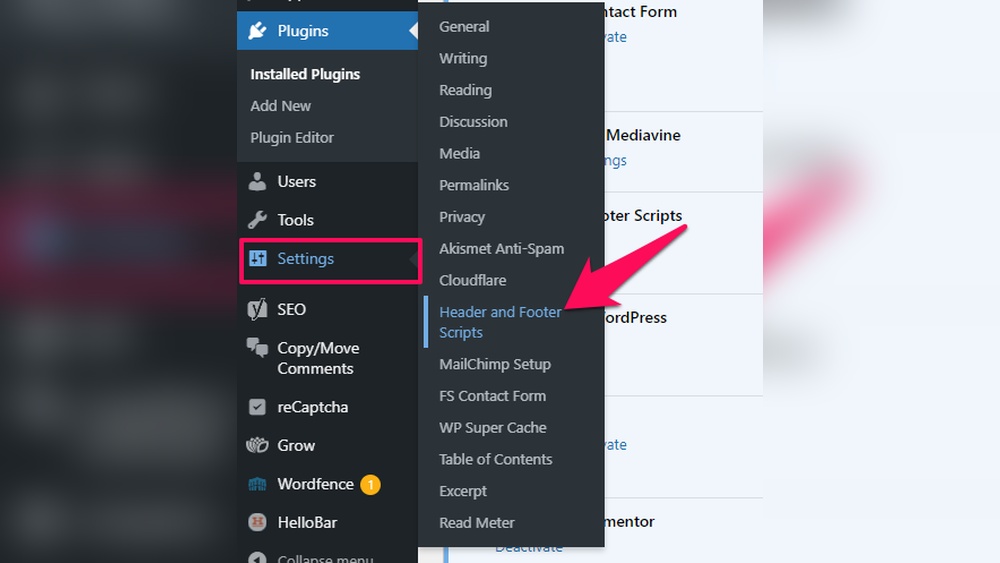
Are you ready to start earning money from your WordPress site? Adding AdSense code is one of the easiest ways to turn your traffic into income.
But if you’re new to this, the process might seem confusing or overwhelming. Don’t worry—you’re in the right place. You’ll learn exactly how to add AdSense code to your WordPress site step-by-step. By the end, you’ll have your ads up and running, ready to boost your earnings.
Keep reading to unlock the simple secrets that can transform your website into a money-making machine!
Set Up A Google Adsense Account
Setting up a Google AdSense account is the first step to earning money from your WordPress site. This process allows you to display ads and get paid. The setup is simple and takes only a few minutes. Follow the steps carefully to create and get approval for your account.
Create Your Account
Go to the Google AdSense website. Click the “Sign Up” button. Use your Google account to start the process. Enter your website URL and your email address. Choose whether you want customized ads. Fill in your personal details accurately. Submit your application for review.
Get Approved By Google
Google will review your website. They check for quality content and policy compliance. Ensure your site has original and useful content. Your site must be easy to navigate. Avoid using copyrighted material. Wait for Google’s approval email. This may take a few days. Once approved, you can access your AdSense dashboard and start creating ad units.
Credit: www.hostinger.com
Prepare Your WordPress Site
Preparing your WordPress site is the first step to add AdSense code effectively. A well-prepared site ensures smooth integration and better ad performance. It also improves user experience and site speed. Follow simple steps to get your site ready for AdSense.
Choose A Compatible Theme
Select a WordPress theme that supports ad placement. Some themes have built-in spaces for ads. This makes adding AdSense code easier. A clean and responsive theme helps ads display correctly on all devices. Avoid themes with slow loading times. Fast themes keep visitors engaged and improve SEO.
Install Necessary Plugins
Plugins simplify the process of adding AdSense code. Ad management plugins let you place ads without editing code. Use trusted plugins like Ad Inserter or Advanced Ads. These plugins help control where and how ads appear. Keep plugins updated for security and performance. Too many plugins can slow down your site, so install only what you need.
Generate Adsense Code
Generating AdSense code is the first step to showing ads on your WordPress site. This code tells Google where to place ads and what kind of ads to display. You need to create ad units and customize their settings before getting the code. This process is simple and takes only a few minutes.
Create Ad Units
Start by logging into your Google AdSense account. Find the “Ads” section and click on “Ad units.” Choose the type of ad you want, such as display ads, in-feed ads, or in-article ads. Give your ad unit a name for easy identification later.
Select the size of your ad. You can pick from fixed sizes or responsive ads that adjust to your site’s layout. After this, save the ad unit to generate the ad code.
Customize Ad Settings
Before copying the ad code, customize the settings for better performance. Choose the ad style, colors, and formats that match your website design. Set the ad type to show text, display ads, or both.
Adjust the ad’s behavior, like the number of ads per page or ad refresh rate. These settings help improve user experience and ad revenue. Once done, save all changes to get the final ad code ready for WordPress.
Credit: kinsta.com
Insert Code Manually
Inserting Adsense code manually in WordPress gives full control over ad placement. This method is simple and does not require extra plugins. You can place the code exactly where you want your ads to show. Manual insertion helps maintain website speed and design consistency.
Use WordPress Theme Editor
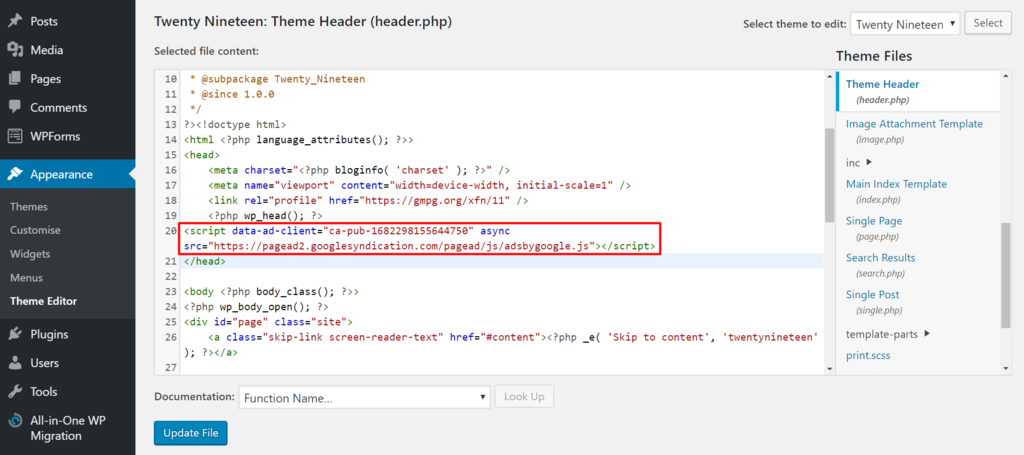
Open your WordPress dashboard. Go to Appearance > Theme Editor. Find the header.php or footer.php file. Paste the Adsense code between the
tags or before the tag. Save the changes. This will display ads site-wide on every page.Be careful when editing theme files. A small mistake can break your site. Always back up your theme before making changes. Use a child theme if possible to avoid losing changes after updates.
Add Code To Header Or Sidebar
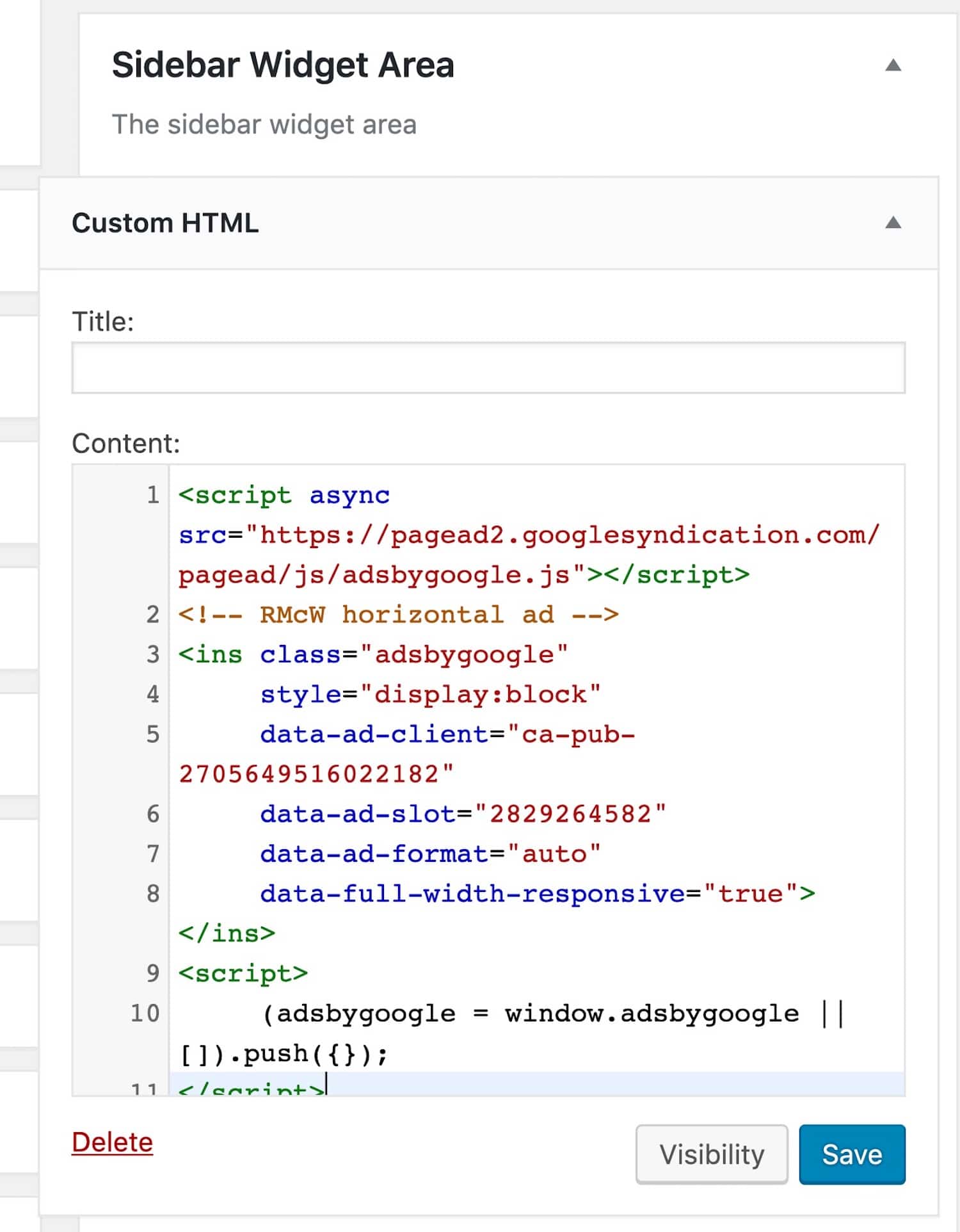
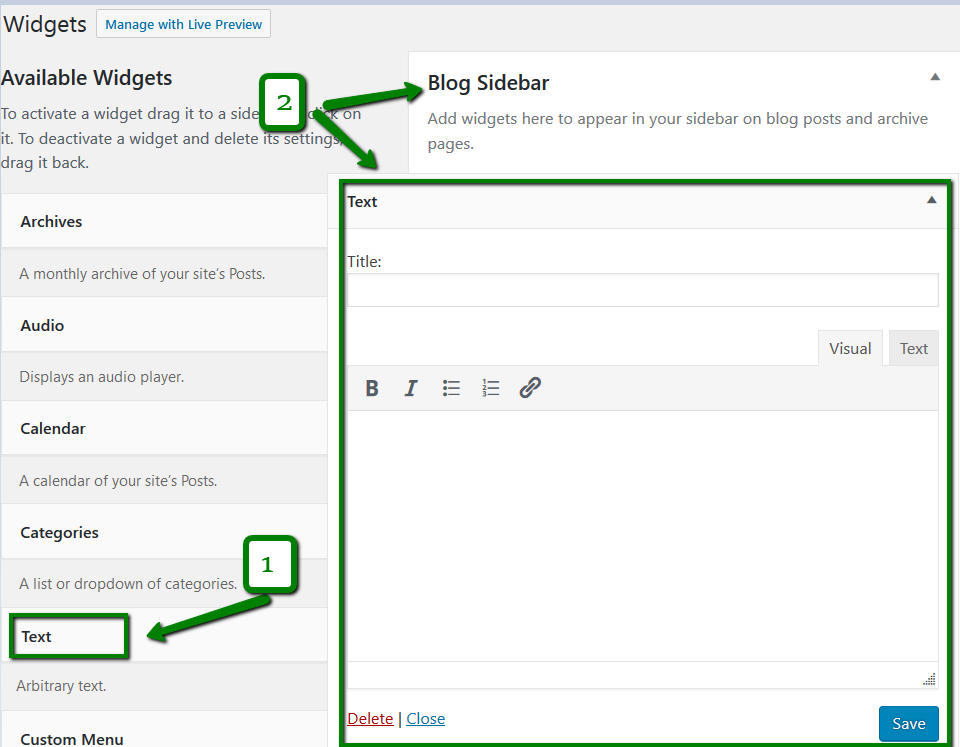
Go to Appearance > Widgets. Choose a Text or Custom HTML widget. Paste your Adsense code inside the widget. Drag the widget to the Header or Sidebar area. Save your widget settings.
This method places ads in specific areas only. It is easy and does not require coding skills. You can move or remove the ads anytime from the Widgets page.
Use Plugins To Add Ads
Using plugins to add Adsense code in WordPress makes the process simple. Plugins manage the code for you, so you avoid manual mistakes. They help place ads in the best spots on your site. This method saves time and works well for beginners.
Install Ad Management Plugins
First, choose a reliable ad management plugin. Popular options include Ad Inserter and Advanced Ads. Go to your WordPress dashboard and click “Plugins.” Select “Add New” and type the plugin name in the search box. Click “Install Now” and then “Activate” to enable the plugin.
Configure Plugin Settings
After activation, open the plugin settings in your dashboard. Paste your Adsense code in the designated area. Set where you want the ads to appear, such as before or after posts. Save your settings and check your website to ensure ads show correctly.
Credit: www.namecheap.com
Optimize Ad Placement
Optimizing ad placement is key to earning more from Google AdSense on WordPress. Proper placement helps ads get noticed without annoying your visitors. It balances user experience and revenue.
Choose High Traffic Areas
Place ads where visitors spend most time. Common spots are the header, sidebar, and within content. Ads near the top of the page often get more views. Also, placing ads after the first few paragraphs grabs attention. Choose areas that fit your site’s layout naturally.
Avoid Overcrowding
Too many ads can drive visitors away. Limit the number of ads on each page. Space ads out so the page looks clean and organized. Overcrowded pages look spammy and reduce clicks. Keep a good balance between content and ads.
Monitor Earnings And Performance
Monitoring your AdSense earnings and performance is important. It helps you understand which ads work best on your WordPress site. You can see how much money you earn and where visitors click the most. This information lets you make smart choices to improve your ad setup and increase income.
Track Through Adsense Dashboard
The AdSense dashboard shows your earnings in real time. It provides detailed reports on clicks, impressions, and revenue. You can check which pages earn the most money. The dashboard also shows your payment history and any issues with your account. Use it daily to keep track of your progress and spot trends early.
Use Analytics Tools
Analytics tools like Google Analytics help analyze visitor behavior. They show how visitors interact with ads and which pages they visit most. You can link Google Analytics with AdSense to get deeper insights. This data helps optimize ad placement and improve user experience. Tracking performance with analytics leads to better decisions and more earnings.
Frequently Asked Questions
How Do I Add Adsense Code To WordPress Manually?
To add AdSense manually, copy your ad code from Google AdSense. Paste it into your WordPress theme’s header. php file or use a code widget. This method places ads precisely where you want them on your site for better control and monetization.
Can I Use A Plugin To Insert Adsense Code In WordPress?
Yes, WordPress plugins like “Ad Inserter” or “Advanced Ads” simplify adding AdSense code. These plugins help you manage ad placement without editing theme files. They offer options for automatic ad insertion, boosting convenience and compliance with Google policies.
Where Should I Place Adsense Code In WordPress?
Place AdSense code in your site’s header, sidebar, or within posts. The header. php file or widget areas work well. Strategic placement improves ad visibility and click rates, enhancing your earnings without disrupting user experience.
Will Adding Adsense Code Slow Down My WordPress Site?
Adding AdSense code can slightly affect load times. However, Google’s ads are optimized for speed. Use caching plugins and optimize images to keep your WordPress site fast while displaying ads effectively.
Conclusion
Adding Adsense code to your WordPress site is simple and quick. Follow the steps carefully for the best results. Placing ads correctly helps you earn money from your content. Keep your site clean and easy to read for visitors. Check your ads often to see how they perform.
Stay patient and consistent to grow your earnings. Now, you have the tools to start monetizing your blog. Give it a try and watch your site improve.



