
Are you looking to make your WordPress homepage more engaging and visually appealing? Adding a slider is one of the best ways to grab your visitors’ attention right away.
Imagine showcasing your top images, latest posts, or special offers in a smooth, sliding display that keeps people hooked. In this guide, you’ll learn exactly how to add a slider to your WordPress homepage—step by step, without any confusion. By the end, your site will look more professional and inviting, helping you keep visitors longer and boost your results.
Ready to transform your homepage? Let’s get started!

Credit: www.wpxpo.com
Choosing The Right Slider Plugin
Choosing the right slider plugin for your WordPress homepage is important. It affects how your site looks and works. A good slider plugin can make your homepage more attractive and keep visitors interested. Many options exist, so pick one that fits your needs and skills. Consider your budget, website design, and technical requirements before deciding.
Free Vs Premium Options
Free slider plugins are easy to find and use. They often have basic features. Good for simple sliders without many effects or options. Premium plugins cost money but offer more tools. They include animations, templates, and better support. Premium versions usually have faster updates and security fixes. Choose free if you want a quick, simple slider. Pick premium for more control and advanced designs.
Key Features To Look For
Look for plugins with easy drag-and-drop builders. They save time and need no coding. Check if the plugin supports images, videos, and text. Responsive design is a must for mobile users. Animation options help make slides more engaging. SEO-friendly sliders improve your site’s search ranking. Also, good plugins load fast to keep your site quick. Support and regular updates are important too.
Compatibility With Themes
The slider plugin must work well with your theme. Some plugins clash with certain themes, causing errors. Test the plugin in a staging site first. Check if it fits your homepage layout and style. A compatible slider keeps your site stable and attractive. Read reviews or ask support about theme compatibility. Avoid plugins that slow down or break your site.
Installing And Activating The Slider Plugin
Installing and activating a slider plugin is the first step to adding a slider on your WordPress homepage. A plugin controls how the slider looks and works. You can add it easily using WordPress tools. This section shows two simple ways to install the plugin. Then, it explains how to activate it so you can start using the slider.
Using The WordPress Plugin Directory
Go to your WordPress dashboard. Find the “Plugins” menu on the left. Click on “Add New.” Use the search box to type the slider plugin name. Find the plugin in the results. Click the “Install Now” button next to it. Wait a few seconds. WordPress will download and install the plugin automatically.
Manual Upload Method
Download the slider plugin file from its website. The file is usually in .zip format. Go to your WordPress dashboard. Click “Plugins” then “Add New.” At the top, click the “Upload Plugin” button. Click “Choose File” and find the .zip file on your computer. Select it and click “Install Now.” WordPress will upload and install the plugin.
Activating The Plugin
After installation, click the “Activate” button to turn on the plugin. The plugin is now ready to use. You can find its settings in the dashboard menu. Set up your slider from there. Activation makes the plugin work on your site immediately.
Creating Your First Slider
Creating your first slider on your WordPress homepage is simple and fun. A slider shows images or content in a smooth, moving way. It helps catch visitors’ eyes and makes your site look modern. Follow these easy steps to build your slider.
Adding Slides And Images
Start by opening your slider plugin or the built-in slider tool. Click the option to add a new slide. Upload images from your computer or choose from your media library. Make sure your images are clear and sized correctly. Add titles or descriptions if the tool allows. Repeat for each slide you want to include.
Customizing Slide Settings
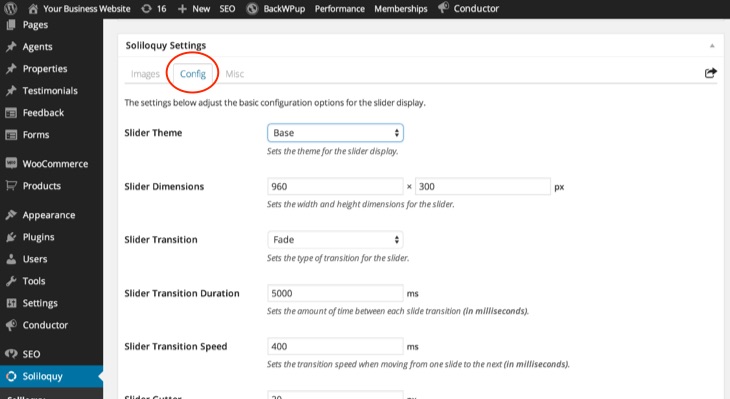
Next, adjust the settings for each slide. Set how long each slide stays visible. Choose if you want text or buttons on slides. Pick background colors or overlays for better contrast. Save your changes often to avoid losing work. Check each slide preview to ensure it looks good.
Setting Slide Transitions
Slide transitions control how slides change from one to another. Select from effects like fade, slide, or zoom. Set the speed of the transition to keep it smooth. Avoid too fast or too slow changes to keep visitors engaged. Test different effects until you find the best fit for your site.

Credit: www.youtube.com
Adding The Slider To Your Homepage
Adding a slider to your homepage makes your site more attractive and interactive. It allows you to show images, posts, or promotions in a neat, moving display. There are several ways to place a slider on your homepage in WordPress. Choose the best method based on your theme and skills.
Using Shortcodes
Many slider plugins provide shortcodes. These are small code snippets you can paste anywhere on your site. Copy the shortcode from your slider plugin dashboard. Then, go to your homepage editor and paste it where you want the slider to appear. This method is quick and requires no coding knowledge. It works with most page builders and classic editors.
Widget Areas
Widget areas are sections in your theme where you can add blocks or widgets. Some themes have widget areas on the homepage. Go to Appearance > Widgets in your WordPress dashboard. Find the widget area for the homepage. Drag and drop the slider widget or a text widget with the shortcode into that area. Save your changes and check your homepage to see the slider in action.
Editing Homepage Templates
For advanced users, editing the homepage template file offers full control. Access your theme files via Appearance > Theme Editor or use FTP. Locate the homepage template, usually named front-page.php or home.php. Insert the slider’s PHP function or shortcode inside the template code. Save the file and refresh your homepage. This method requires basic PHP knowledge and care to avoid breaking your site.
Optimizing Slider Performance
Optimizing slider performance is key for a fast and smooth homepage. A well-optimized slider helps your website load quickly and keeps visitors interested. Slow sliders can frustrate users and increase bounce rates. Focus on improving image handling and reducing unnecessary load. This section covers easy ways to boost your slider’s speed and reliability.
Image Size And Format Tips
Choose the right image size for your slider. Large images slow down the page. Resize images to match your slider dimensions. Use image formats like JPEG for photos and PNG for graphics. Compress images to reduce file size. Tools like TinyPNG or ImageOptim help compress without losing quality. Smaller images load faster and save bandwidth.
Lazy Loading Slides
Lazy loading delays loading images until needed. It loads only visible slides first. Other slides load when users scroll or slide. This reduces initial load time and server load. Many slider plugins support lazy loading. Enable this feature in your slider settings. It improves page speed and user experience.
Minimizing Plugin Conflicts
Plugins can conflict and slow your site. Use only one slider plugin to avoid problems. Keep plugins updated to fix bugs and improve speed. Deactivate plugins that you do not use. Test your slider after adding new plugins. This prevents crashes and ensures smooth performance.
Credit: slocumthemes.com
Troubleshooting Common Issues
Adding a slider to your WordPress homepage can enhance your site’s look. Sometimes, issues occur that stop the slider from working well. Troubleshooting these common problems can help you fix them quickly. This guide covers the most frequent issues and easy solutions.
Slider Not Displaying
Check if the slider plugin is active. Deactivated plugins stop sliders from showing. Confirm the slider is set to appear on the homepage. Clear your browser cache and refresh the page. Sometimes, cached files block new content from loading.
Look for JavaScript errors in the browser console. Errors can prevent sliders from running. Make sure your theme supports the slider plugin. Some themes may not be compatible or need extra setup.
Responsive Design Problems
Test the slider on different devices and screen sizes. A slider that looks good on desktop may not fit mobiles. Adjust slider settings to enable responsive mode. Many plugins include options for mobile optimization.
Check image sizes inside the slider. Large images can break layout on small screens. Use images that scale well and keep file sizes small. This improves load time and display quality on all devices.
Plugin Compatibility
Conflicts between plugins can cause slider issues. Disable other plugins one by one to identify conflicts. Update all plugins and WordPress to the latest versions. Older versions may not work well together.
Choose slider plugins with good reviews and regular updates. Reliable plugins are less likely to cause compatibility problems. Avoid using multiple slider plugins on the same site to reduce conflicts.
Frequently Asked Questions
How Do I Add A Slider To My WordPress Homepage?
To add a slider, install a slider plugin like Smart Slider 3 or MetaSlider. Then, create slides and embed the slider using a shortcode or widget on your homepage.
Which WordPress Slider Plugins Are Best For Beginners?
Smart Slider 3, MetaSlider, and Soliloquy are beginner-friendly. They offer easy drag-and-drop interfaces, templates, and responsive designs for quick slider setup.
Can I Customize The Slider Appearance On WordPress?
Yes, most slider plugins allow customization. You can change slide animations, colors, fonts, and slide timing to match your website’s design.
Is A Slider Good For WordPress Homepage Speed?
Sliders can slow down your site if not optimized. Use lightweight plugins, compress images, and enable lazy loading to maintain fast page speed.
Conclusion
Adding a slider to your WordPress homepage can boost your site’s look. Sliders show important content in a small space. Choose a plugin that fits your needs. Customize slides with images and text easily. Test your slider on different devices for best results.
Keep your site fast by optimizing slider images. A well-made slider helps visitors find key info quickly. Try adding one today to make your homepage more engaging.



