
Want to make your WordPress images stand out? Adding text to your images is a simple trick that grabs attention and makes your message clear right away.
Whether you’re creating a blog post, a product page, or social media content, knowing how to add text on an image can boost your site’s impact. In this guide, you’ll discover easy steps to do this quickly, even if you’re not tech-savvy.
Keep reading, and you’ll learn how to make your images speak louder and connect better with your audience.
Credit: www.webnots.com
Choosing The Right Image
Choosing the right image is key to making your text stand out. The image must match your message and look good on all devices. A poor choice can distract readers or make text hard to read. Good images support your content and attract more visitors.
Selecting High-quality Photos
Always pick clear and sharp images. Blurry or pixelated photos reduce your site’s professionalism. Use photos with good lighting and focus. High-quality images help your text appear clean and easy to read. Avoid heavily edited or overly busy photos.
Considering Image Dimensions
Image size affects how your site loads and looks. Use images that fit well in your layout. Too large images slow down your website. Too small images look blurry or stretched. Choose dimensions that keep your text visible and balanced.
Optimizing For Web
Optimize images to load quickly without losing quality. Compress images using tools before uploading. Use web-friendly formats like JPEG or PNG. Fast loading images improve user experience and SEO. Proper optimization keeps your site smooth and professional.
Using WordPress Block Editor
The WordPress Block Editor lets you add text directly on images with ease. It uses blocks to build content. Each block has a specific role. You can combine blocks to create beautiful designs. Adding text on images becomes simple and clear.
The editor gives you control over images and text. You can insert images, write text, and change styles. This helps make your message stand out. The following steps show how to use the Block Editor for this.
Adding An Image Block
Start by opening your WordPress editor. Click the plus (+) icon to add a new block. Search for the “Image” block and select it. Upload an image or choose one from your media library. The image will appear on your page or post.
You can move the image block anywhere on the page. Resize the image by dragging its corners. This sets the base for adding text on top.
Inserting Text With Cover Block
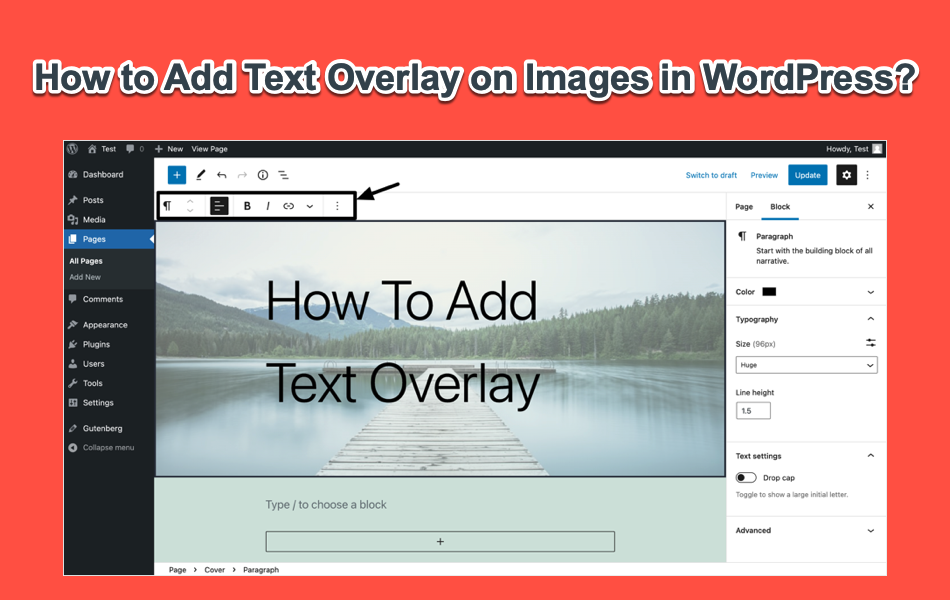
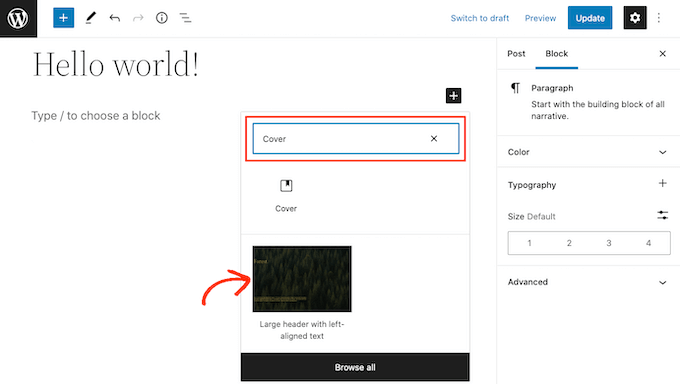
The Cover block lets you place text over an image easily. Click the plus (+) icon and select the “Cover” block. Upload an image or pick one from your media library. A text box appears over the image.
Type your text in the box. The Cover block keeps the text visible on top of the image. It also adds a slight overlay to improve text readability. This block is perfect for titles or short messages.
Customizing Text Appearance
Select the text inside the Cover block. Use the toolbar to change font size, color, and style. You can make the text bold or italic. Adjust the alignment to left, center, or right.
The block settings panel offers more options. Change the overlay color or opacity for better contrast. Add padding to create space around the text. These tweaks make your text clear and attractive.
Plugins For Text On Images
Adding text on images in WordPress can improve your site’s look and user experience. Plugins make this task easy and fast. They offer simple tools to add, style, and position text on images without coding. Choosing the right plugin saves time and helps create attractive content.
Top Plugins To Try
Several plugins let you add text on images with ease. WP Paint offers a full image editor inside WordPress. Image Hover Effects allows text overlays with animation. Text Over Image is simple and focused on adding clear text layers. Pick a plugin that fits your needs and skill level.
Installing And Activating Plugins
Go to your WordPress dashboard. Click on Plugins and then Add New. Search for your chosen plugin by name. Click Install Now and wait for it to finish. After installation, click Activate. The plugin is ready to use on your site.
Editing Images With Plugin Tools
Open the plugin’s interface from your dashboard or media library. Upload or select an image you want to edit. Use the text tool to add words or phrases on the image. Adjust font, size, color, and position to fit your design. Save changes and insert the image into your post or page easily.
Credit: themelooks.com
Manual Image Editing Options
Manual image editing gives you full control over how text appears on your images. You can create custom designs that match your website style perfectly. This process involves editing images before uploading them to WordPress. It may take more time but offers great flexibility.
Using External Tools Before Upload
Editing images outside WordPress lets you add text exactly where you want. You can choose fonts, colors, and effects easily. Many tools allow layering text over images for clear, attractive results. Save your work as a new image file before uploading to WordPress.
Popular Free Image Editors
Several free editors work well for adding text on images. GIMP offers powerful features similar to paid software. Canva is user-friendly and has many fonts and templates. Paint.NET is simple and good for basic text additions. Pick one based on your comfort and needs.
Uploading Edited Images
After editing, save your image in JPEG or PNG format. Go to WordPress media library and upload the new file. Insert the image into your post or page. This method keeps your text design intact and looks professional. Always check image size for faster loading.
Tips For Stunning Visuals
Creating stunning visuals with text on images can boost your website’s appeal. Clear and attractive text helps visitors understand your message quickly. Follow simple tips to make your text easy to read and visually appealing. Focus on font choice, contrast, and mobile display to enhance your design.
Choosing Readable Fonts
Select fonts that are simple and easy to read. Avoid fancy or overly decorative fonts. Stick to common fonts like Arial, Verdana, or Helvetica. Use font sizes that are large enough to read without effort. Keep font styles consistent across your images for a clean look.
Using Contrast Effectively
Contrast helps your text stand out from the background. Use light text on dark backgrounds or dark text on light backgrounds. Avoid colors that blend or clash with the image. Try semi-transparent overlays behind text to improve visibility. High contrast makes your message clear and easy to read.
Maintaining Mobile Responsiveness
Many visitors use phones or tablets to view your site. Make sure your text stays readable on small screens. Use responsive design tools in WordPress to check text size and placement. Avoid placing text too close to edges or corners. Keep text short and simple for mobile users.
Credit: www.wpbeginner.com
Frequently Asked Questions
How Can I Add Text On An Image In WordPress?
You can add text on an image using WordPress’s built-in block editor. Use the “Image” block combined with a “Text” or “Cover” block for overlay text. Alternatively, install plugins like “Image Caption” or “Advanced Image Styles” for more customization options.
Which WordPress Plugins Help Add Text On Images?
Popular plugins include “Image Caption,” “Advanced Image Styles,” and “WPBakery Page Builder. ” These plugins offer easy text overlay features and style options, enhancing images without coding. Choose one based on your design needs and ease of use.
Can I Customize The Text Style On WordPress Images?
Yes, WordPress allows customization of font, size, color, and position. Using the block editor or plugins, you can easily style the text overlay to match your site’s branding and design preferences.
Is Adding Text On Images Good For Seo In WordPress?
Yes, adding text on images improves SEO by enhancing user experience and engagement. Use descriptive text and alt attributes to help search engines understand your images better and boost your page’s ranking.
Conclusion
Adding text to images in WordPress is simple and useful. You can highlight key points and make your site more attractive. Use built-in tools or plugins to do this easily. Try different fonts and colors to match your style. Practice a few times to get comfortable.
This small skill helps your website stand out and share messages clearly. Keep exploring and improving your posts with text on images. It makes your content easier to understand and more engaging for visitors.



