
Are you looking to make your WordPress site easier to navigate? Adding anchor links is a simple trick that can keep your visitors engaged and help them find exactly what they need—fast.
Imagine your readers jumping straight to the most important parts of your page with just one click. You’ll learn exactly how to create anchor links in WordPress, step by step. By the end, you’ll have a powerful tool to improve your site’s user experience and keep visitors coming back for more.
Let’s get started!
Basics Of Anchor Links
Anchor links are simple tools that improve website navigation. They help visitors jump to specific parts of a page quickly. This makes reading easier and saves time.
Understanding the basics of anchor links is important for any WordPress user. You can create a better user experience and keep visitors engaged longer.
What Are Anchor Links
Anchor links connect one part of a page to another part on the same page. They work by using special IDs assigned to headings or sections. When clicked, the page scrolls directly to the linked area.
These links look like normal links but point to a location within the same page. They are easy to set up and use in WordPress.
Benefits For Website Navigation
Anchor links help users find information faster. This reduces scrolling and makes long pages easier to explore.
They also improve website accessibility for all visitors. People with disabilities can navigate the content with less effort.
Search engines like Google notice anchor links. They can boost your site’s SEO by organizing content clearly.
Using anchor links creates a smooth and professional browsing experience. Visitors are more likely to stay and read more.
Credit: kinsta.com
Creating Anchor Links In WordPress
Creating anchor links in WordPress helps visitors navigate your pages easily. It lets users jump to specific sections without scrolling. This improves user experience and keeps readers engaged. Anchor links work well for long posts or detailed pages.
Adding Anchors To Content
Start by selecting the heading or text to link to. In the WordPress editor, choose the block where you want the anchor. Open the block settings on the right side. Find the “HTML anchor” field and enter a simple, unique ID. Use lowercase letters and no spaces, like “section1”. This ID marks the spot where users will jump.
Linking To Anchors Within Pages
Next, create the link that jumps to your anchor. Highlight the text or button you want to link from. Click the link icon in the toolbar. Type a hashtag () followed by the anchor ID. For example, “section1”. This tells WordPress to scroll to that part of the page. Save your changes and test the link to make sure it works smoothly.
Using The Block Editor For Anchors
Using the Block Editor for anchors in WordPress helps create smooth navigation. Anchors allow visitors to jump to specific parts of a page. The Block Editor makes it easy to assign anchors without coding. This feature improves user experience and page structure.
Adding anchor links in the Block Editor is simple and quick. You can label sections with HTML anchors. Then, link to these anchors from anywhere on the page. This method works well for long articles or landing pages.
Assigning Html Anchors To Blocks
Select the block you want to link to in the editor. In the right sidebar, find the “Advanced” section. Locate the “HTML anchor” field there. Enter a simple, unique name for your anchor. Avoid spaces or special characters; use hyphens instead. This name acts as the ID for that block.
Once saved, the block will have a hidden anchor. This anchor lets you link directly to that section. You can assign anchors to headings, paragraphs, images, or any block.
Linking Blocks With Anchor Links
Create a link that points to the anchor you set. Use the format “anchor-name” in the URL field. For example, if your anchor is “section1,” link to “section1.”
Highlight the text or button to add the link. Paste the anchor link in the link box. Visitors clicking this link jump directly to the anchored block.
Anchor links work inside the same page. They improve navigation and help readers find content fast.

Credit: kinsta.com
Anchor Links With Classic Editor
Anchor links help visitors jump to specific sections on a page. They improve user experience and navigation. The Classic Editor in WordPress allows easy creation of these links. This section explains how to use anchor links with the Classic Editor.
Inserting Anchors With Html
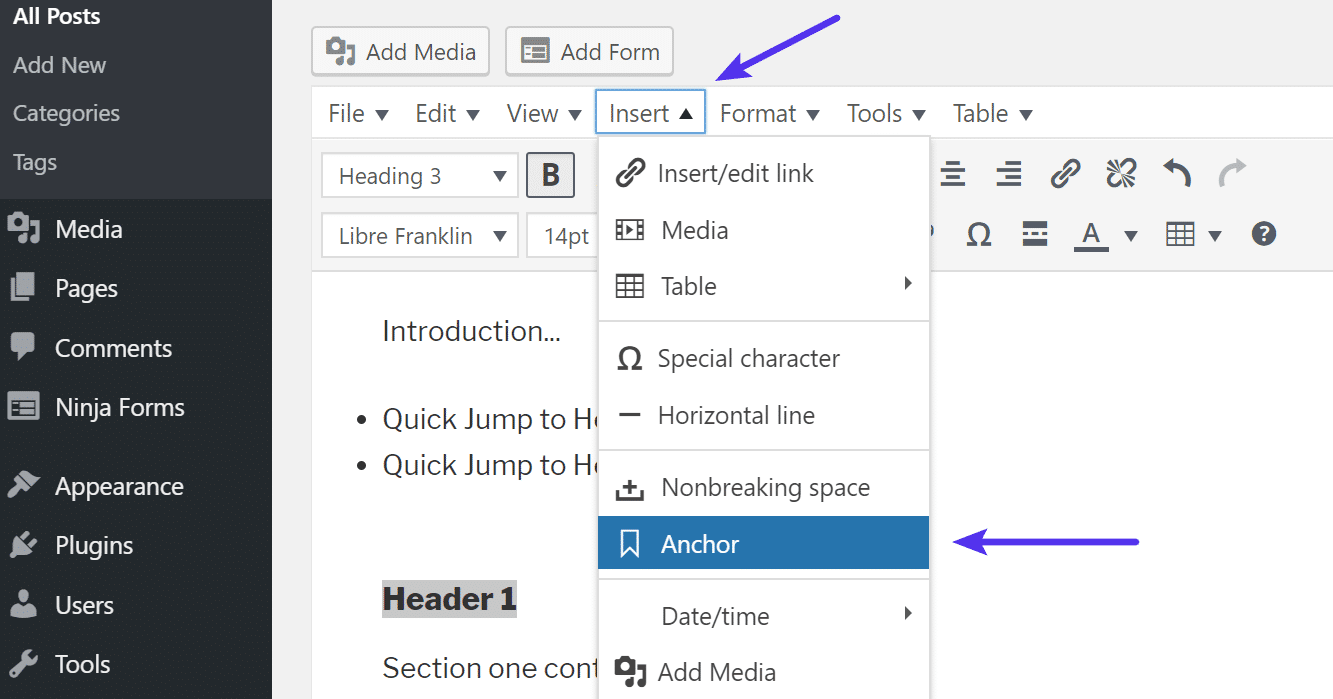
First, switch to the Text tab in the Classic Editor. This view shows the HTML code of your content. Find the spot where you want the anchor link target.
Insert an anchor by adding an id attribute inside an HTML tag. For example, use Section Title
id value must be unique on the page.
This code marks the section for the anchor link. Save the changes and return to the Visual tab.
Creating Links To Anchors
Highlight the text you want to turn into a link. Click the Insert/edit link button in the Classic Editor toolbar. In the URL field, type the anchor with a hash symbol. For example, section1.
Click Apply or press Enter. The link now jumps to the anchored section. Test the link to ensure it works correctly.
Anchor links make long content easy to explore. They guide readers directly to important parts of your post.
Anchor Links In Menus And Widgets
Anchor links help visitors move quickly within a page. They work well in menus and widgets. Using them improves site navigation and user experience. Visitors can jump to important sections with one click. Below are simple ways to add anchor links in WordPress menus and widgets.
Adding Anchor Links To Navigation Menus
Start by creating an anchor ID in your page content. Use a unique name like id="section1" in a heading or paragraph.
Next, go to the WordPress dashboard and open the Appearance > Menus area. Select the menu you want to edit.
Choose Custom Links from the left panel. In the URL box, type section1. Replace section1 with your anchor ID.
Give the menu item a name. Click Add to Menu, then Save Menu. The menu link will jump to the anchor on the page.
Using Anchors In Sidebar Widgets
Open Appearance > Widgets in your WordPress dashboard. Select a text or custom HTML widget for your sidebar.
Insert an anchor link using HTML. For example: Go to Section 2. Use the anchor ID from your page content.
Save the widget. Visitors can click the link to jump to that part of the page. This method works well for long pages.
Troubleshooting Anchor Links
Troubleshooting anchor links in WordPress can be tricky. Sometimes, they do not work as expected. This section helps identify common problems. It also offers simple fixes. You can make anchor links smooth and reliable. This improves user experience on your site.
Common Issues And Fixes
Anchor links may not jump to the right section. This often happens if the anchor ID is missing or misspelled. Check the ID in your HTML and ensure it matches the link target exactly.
Another problem is broken links caused by incorrect URL formatting. Use a hashtag () followed by the exact ID without spaces.
Some themes or plugins interfere with anchor links. Disable plugins one by one to find conflicts. Switch to a default theme to test if the theme causes issues.
Ensuring Smooth Scrolling
Anchor links can jump abruptly to sections. This can feel jarring for users. Adding smooth scrolling improves the experience.
Many WordPress themes include smooth scrolling by default. If not, add a small JavaScript snippet or use a lightweight plugin.
Make sure smooth scrolling works on all devices. Test on mobile and desktop to confirm.
Enhancing Anchor Link Experience
Enhancing the anchor link experience makes your website easier to use. Visitors find information faster. This keeps them on your site longer. A smooth anchor link improves navigation and user satisfaction.
Simple anchor links work well, but adding features makes them better. You can use plugins or customize how links behave. These options create a more professional feel for your site.
Using Plugins For Advanced Features
Plugins add extra tools to your anchor links. Some plugins let you create smooth scrolling effects. Others allow you to highlight the active link on the page. These features help users see where they are.
Many WordPress plugins are easy to install and use. Popular ones include “Page scroll to id” and “Easy Smooth Scroll Links”. They offer settings to control animation speed and offset. This makes the navigation experience more natural.
Customizing Scroll Behavior
Custom scroll settings help control how the page moves. You can adjust the speed of the scroll. Slow scrolls feel calm, while fast scrolls get users there quickly. Choose the speed that fits your site style.
Another option is to add an offset. This moves the page a bit above the anchor point. It prevents content from hiding behind sticky headers. You can add this code to your theme or use a plugin for it.
Credit: www.elegantthemes.com
Frequently Asked Questions
How Do I Create Anchor Links In WordPress?
To create anchor links, add an ID to your target heading or section. Then, link to it by using “ID” in your URL or link settings. This helps visitors jump directly to specific content within your page.
Can Anchor Links Improve Seo On WordPress Sites?
Yes, anchor links enhance user experience by making navigation easier. Better navigation reduces bounce rates and increases time on site, indirectly boosting SEO rankings. They also help search engines understand your page structure.
Are Anchor Links Compatible With All WordPress Themes?
Most modern WordPress themes support anchor links without issues. However, some older or heavily customized themes may require manual adjustments. Always test your anchor links after adding them to ensure they work correctly.
How Can I Add Anchor Links In The WordPress Block Editor?
In the block editor, select a block, go to “Advanced” settings, and add a unique HTML anchor. Then, link to that anchor using “anchor-name” in your links. It’s simple and does not require coding knowledge.
Conclusion
Anchor links make website navigation simple and clear. They help visitors find information fast. Creating anchor links in WordPress is easy with the right steps. Use them to guide readers through your content smoothly. This small tool improves user experience and site structure.
Try adding anchor links to your posts today. Watch how they help readers explore your site better. Simple, useful, and effective—anchor links are worth using.



