
Are you wondering how to change your web address on WordPress but don’t know where to start? Changing your site’s URL can feel tricky, but it doesn’t have to be.
Whether you want a fresh new domain or need to fix a mistake, this guide will walk you through the steps clearly and simply. By the end, you’ll have the confidence to update your web address without losing visitors or traffic.
Keep reading—you’re closer to making your WordPress site exactly how you want it.
Reasons To Change Your WordPress Url
Changing your WordPress URL is a common step for many website owners. It helps align your website with your goals and audience. Adjusting your web address can improve your site’s identity and performance. Here are some key reasons why you might want to change your WordPress URL.
Rebranding Your Website
Rebranding often requires a new web address. A fresh URL matches your new brand name or style. It helps visitors recognize your updated identity. Changing the URL supports your marketing and branding efforts.
Switching To A Custom Domain
Many websites start with a free WordPress subdomain. Switching to a custom domain looks more professional. It makes your site easier to remember. A custom domain builds trust with your visitors and customers.
Improving Seo And User Experience
A clear and simple URL improves search rankings. It helps search engines understand your site better. Users find it easier to navigate and share your pages. Changing your URL can increase traffic and engagement.

Credit: wpmarmite.com
Preparing For Url Change
Changing your web address on WordPress needs careful preparation. This step helps avoid problems like broken links or lost visitors. Preparing well keeps your site safe and your audience informed.
Backing Up Your Website
First, create a full backup of your WordPress site. This includes files, themes, plugins, and the database. Use plugins like UpdraftPlus or your hosting provider’s backup tool. A backup saves your data if something goes wrong during the change.
Checking Current Url Settings
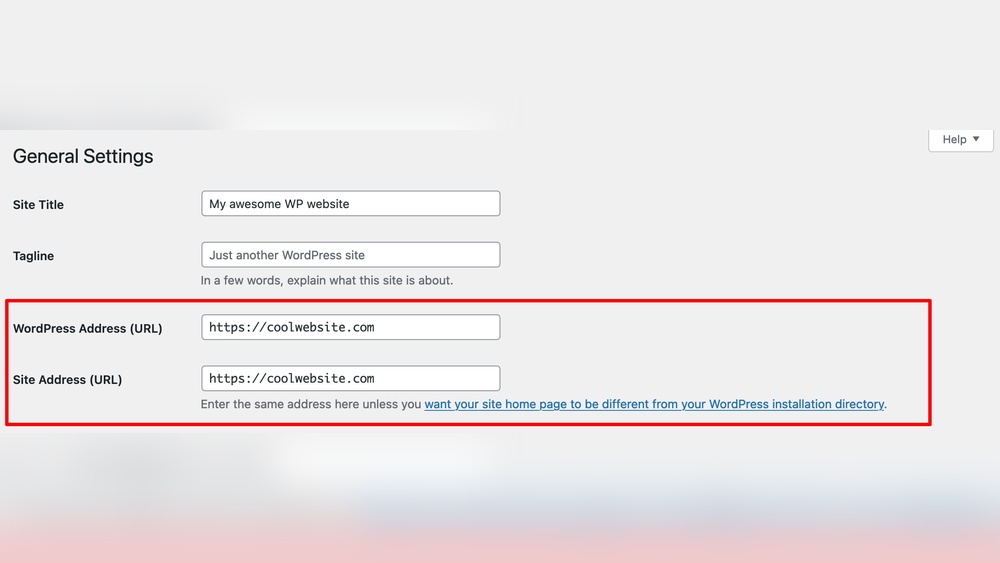
Next, check your current URL settings in WordPress. Go to Settings > General and note down the WordPress Address and Site Address. These URLs show your current web address. Knowing them helps you update the new address correctly.
Informing Your Audience
Tell your visitors about the upcoming change. Use your blog, email list, or social media channels. Explain when and why the URL will change. This keeps your audience ready and reduces confusion.
Changing Url In WordPress Settings
Changing your website’s URL in WordPress settings is a simple way to update your web address. This process helps when you want a new domain or are moving your site. Adjusting these settings correctly avoids broken links and keeps your site running smoothly.
Follow a few clear steps in the WordPress dashboard to change the URL safely. This guide focuses on the core part: the WordPress settings area where you update your site address.
Accessing General Settings
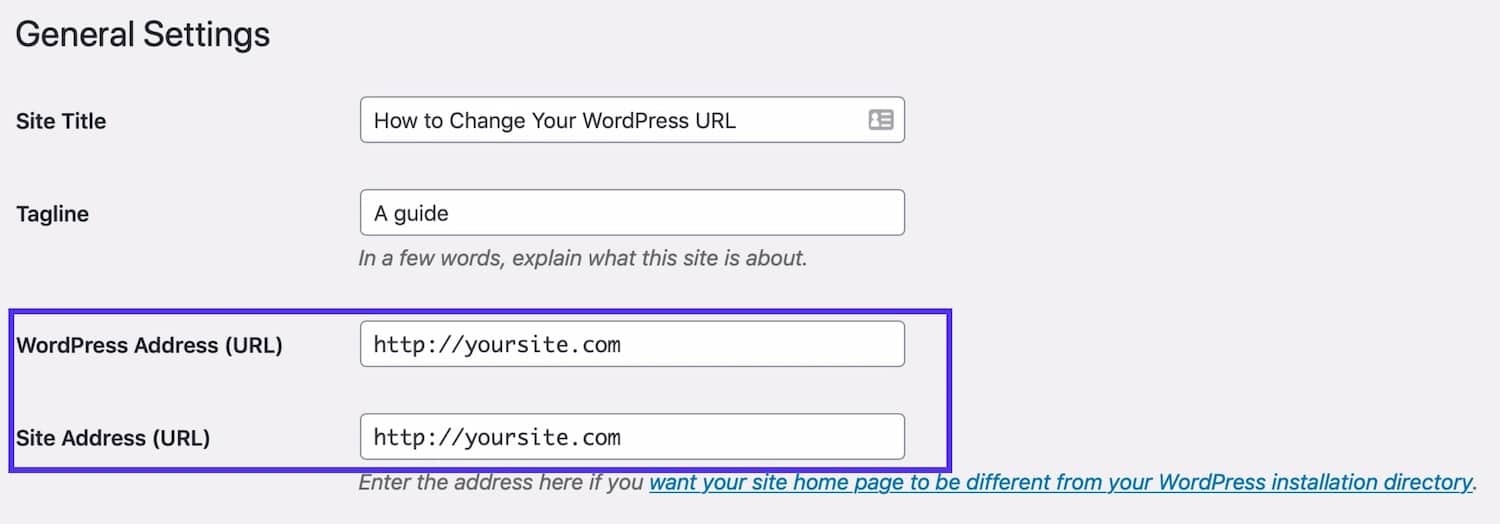
Start by logging into your WordPress dashboard. On the left menu, find and click “Settings.” Then select “General.” This page contains the basic info about your site, including the URLs.
Here, you will see two fields: “WordPress Address (URL)” and “Site Address (URL).” These control where your site’s content lives and how visitors reach your homepage.
Updating WordPress And Site Address
In the “WordPress Address (URL)” field, enter your new web address. Do the same for the “Site Address (URL)” field if the homepage address changes too.
Make sure to type the full URL, starting with “http://” or “https://”. Double-check for any typos. Mistakes here can cause your site to break or become unreachable.
Saving Changes Properly
Scroll down and click the “Save Changes” button. WordPress will update your site with the new URLs immediately.
After saving, clear your browser cache and refresh your site. Check that all pages load correctly under the new web address.
Changing your URL in settings is quick but requires care. Always back up your site before making changes.

Credit: wordpress.com
Updating Url Via Wp-config.php
Updating your WordPress URL via the wp-config.php file is a direct and quick method. This approach is useful when you cannot access the WordPress dashboard. It helps you set the new site address manually. The process involves editing a core file in your WordPress setup.
This method requires basic knowledge of file handling in your hosting environment. Caution is important to avoid mistakes that could break your site. Follow the steps carefully to update your web address successfully.
Locating Wp-config.php File
The wp-config.php file sits in your WordPress root folder. Access your site files via FTP or your hosting control panel. Look for the main directory where WordPress is installed. The file is usually in the top-level folder alongside other core files.
Adding Url Definitions
Open the wp-config.php file with a text editor. Add the following lines to set the new URL:
define('WP_HOME','http://yournewsite.com'); define('WP_SITEURL','http://yournewsite.com');Replace http://yournewsite.com with your actual new web address. Place these lines above the comment that says / That's all, stop editing! Happy blogging. /.
Verifying The Changes
Save the file and upload it back to your server. Clear your browser cache before checking your site. Visit your new web address to see if the site loads correctly. Log in to your WordPress dashboard to confirm the URL update. If everything works, the change was successful.
Modifying Url In The Database
Changing your WordPress web address sometimes needs direct database updates. This method helps when the admin panel cannot be accessed. Modifying the URL in the database requires care to avoid site errors.
WordPress stores site URLs in its database. You must update these records to reflect the new address. Doing this manually ensures the changes take effect immediately.
Using Phpmyadmin To Access Database
phpMyAdmin is a common tool to manage WordPress databases. Login to your hosting control panel and open phpMyAdmin. Select your WordPress database from the list on the left side. Always create a backup before making any changes.
Running Sql Queries For Url Update
Run SQL queries to update the site URL safely. Use this command to change the site URL:
UPDATE wp_options SET option_value = 'http://newsite.com' WHERE option_name = 'siteurl';
Also update the home URL:
UPDATE wp_options SET option_value = 'http://newsite.com' WHERE option_name = 'home';
Replace ‘http://newsite.com’ with your new web address. These queries update core site links instantly.
Handling Serialized Data
Some WordPress data is stored as serialized arrays. Changing URL length can break this data. Use specialized tools or plugins to update serialized data correctly. Incorrect edits cause site errors or data loss. Always test your site after modifying serialized entries.
Fixing Broken Links And Media
Changing your web address on WordPress can cause broken links and missing media files. These issues affect your site’s user experience and SEO. Fixing broken links and media is important to keep your website working well. This section explains easy ways to find and fix these problems.
Using Search And Replace Plugins
Search and replace plugins scan your website for old URLs. They update links and media paths to the new web address. These plugins save time by fixing many links at once. Popular plugins include Better Search Replace and Velvet Blues Update URLs.
Install the plugin, enter the old and new URLs, and run the tool. Always back up your site before making changes. This method ensures all links point to your new address.
Updating Permalinks Structure
Permalinks control the URL format of your posts and pages. Changing your web address may break permalinks. Update your permalink settings to fix this issue.
Go to Settings > Permalinks in your WordPress dashboard. Choose the desired structure and save changes. WordPress will refresh URLs with the new address. This step helps prevent broken links across your site.
Checking Media Urls
Media files like images keep their original URLs after a web address change. This causes broken images on your site. Manually check your media library for old URLs.
Use plugins or tools to update media links in posts and pages. Replace old URLs with the new web address to restore media visibility. Fixing media URLs improves your site’s look and user trust.
Redirecting Old Urls To New
Redirecting old URLs to new ones helps keep visitors and search engines happy. It sends users to the right page after changing your web address. This prevents broken links and keeps your site’s ranking steady. Setting up proper redirects is key for a smooth transition.
Setting Up 301 Redirects
A 301 redirect tells browsers and search engines the page moved permanently. It passes most SEO value to the new URL. You can set up 301 redirects using plugins or your hosting control panel. This method is simple and does not require coding skills.
Using .htaccess File
The .htaccess file controls web server settings for your site. You can add redirect rules directly here for better speed. Edit the file with care, as errors can break your site. Use this code format to redirect:
Redirect 301 /old-page.html https://yourdomain.com/new-page/Replace the URLs with your actual old and new addresses.
Testing Redirects
After setting redirects, test them to ensure they work correctly. Use a browser or online tools to check. Type the old URL and see if it leads to the new page. Fix any errors to avoid losing visitors or search engine trust.
Verifying Website Functionality
After changing your web address on WordPress, checking if your site works well is important. This step helps catch problems early. It also keeps visitors happy and improves your site’s ranking. Focus on key areas to ensure smooth functionality.
Testing Pages And Posts
Open different pages and posts on your site. See if all content loads correctly. Click links to check if they lead to the right places. Look for broken images or errors. Make sure your forms and buttons work well. This confirms visitors get a good experience.
Checking Seo Settings
Verify your SEO settings after the web address change. Check titles, descriptions, and keywords for each page. Update any old URLs in your SEO plugin. Confirm your sitemap matches the new address. Submit the updated sitemap to search engines. This helps keep your search rankings steady.
Monitoring Site Performance
Watch your site speed and uptime closely. Use tools to track loading times and errors. Notice any slow pages or downtime issues. Fast and reliable sites attract more visitors. Fix problems quickly to avoid losing traffic.
Common Issues And Troubleshooting
Changing your web address on WordPress can cause some common issues. These problems may confuse you at first. Understanding how to fix them helps keep your site running smoothly. Troubleshooting is simpler with clear steps to follow. Below are common issues and how to resolve them quickly.
Fixing Login Problems
After changing your web address, logging in might fail. WordPress may still use the old URL. Clear your browser cache to remove stored data. Try accessing your site using the new address. If login still fails, update the site URL in the wp-config.php file. This forces WordPress to use the new address. Another way is to change URLs directly in the database using phpMyAdmin. This ensures WordPress recognizes the new web address.
Resolving Mixed Content Warnings
Mixed content warnings appear when your site loads insecure resources. This happens if some links still use “http” instead of “https.” These warnings can block images or scripts. Use a plugin like Really Simple SSL to fix mixed content. It updates all links to use the secure “https” version. Alternatively, search and replace old URLs in your database. This removes insecure links and keeps your site safe.
Handling Dns Propagation Delays
After updating your web address, DNS changes take time to spread worldwide. This delay can last from a few minutes to 48 hours. During this time, some visitors see the old site. Others see the new one. Use online tools to check DNS status. Avoid making more changes until propagation finishes. Patience is key. This ensures your site works correctly for all users.
Credit: forum.hestiacp.com
Frequently Asked Questions
How To Change My WordPress Site Url?
Go to WordPress Dashboard > Settings > General. Update the “WordPress Address (URL)” and “Site Address (URL)” fields. Save changes. This updates your web address safely without losing content or SEO rankings.
Will Changing My WordPress Url Affect Seo?
Changing your URL can impact SEO if not handled correctly. Use 301 redirects to point old URLs to new ones. This preserves SEO rankings and prevents broken links or traffic loss.
Can I Change My WordPress Url Without Losing Content?
Yes, changing your WordPress URL won’t delete content. Just update the address in settings and ensure proper redirects. Always back up your site before making changes.
What If My WordPress Url Change Breaks My Site?
If your site breaks after URL change, check the wp-config. php file for hardcoded URLs. Correct database entries if needed. Use recovery mode or restore backup to fix issues.
Conclusion
Changing your WordPress web address is simple and clear. Just follow the right steps carefully. Always back up your website before making changes. Check your site after updating the address to avoid errors. This helps keep your visitors and search engines happy.
Remember, a correct web address improves your site’s reach and trust. Take your time and make changes with care. Your site will work well and look professional with the new address. Keep learning and updating your WordPress skills for the best results.



