
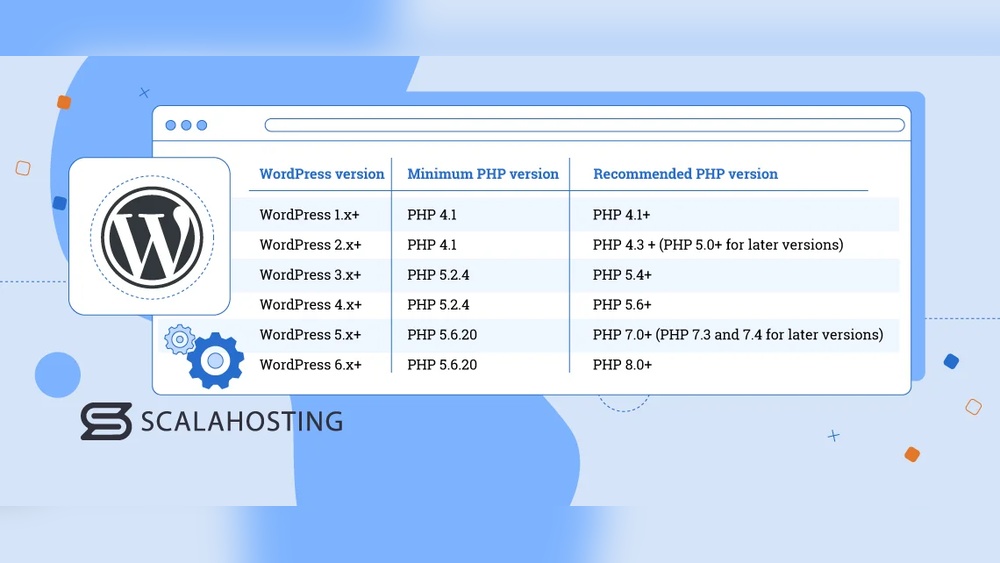
Are you wondering how to update your PHP version in WordPress? Keeping your PHP up to date is crucial for your website’s speed, security, and overall performance.
If you ignore it, your site could slow down or even become vulnerable to attacks. But don’t worry—updating PHP doesn’t have to be confusing or risky. You’ll discover simple, step-by-step instructions to safely upgrade your PHP version. By the end, your WordPress site will run smoother and faster, giving your visitors a better experience.
Ready to make your site stronger? Let’s get started.
Credit: wpmet.com
Check Current Php Version
Knowing your current PHP version is the first step to updating it in WordPress. PHP is the language that runs your website’s code. A newer version means better speed and security. Before updating, check the version your site uses now. This helps avoid errors and ensures compatibility with themes and plugins.
Check Php Version In WordPress Dashboard
Log in to your WordPress admin area. Go to Tools and then click on Site Health. Select the Info tab. Scroll down to the Server section. Here, you will see the PHP version currently active on your website.
Use A Php Info File
Create a new file named phpinfo.php on your server. Add this line of code inside: php phpinfo(); ?. Upload the file to your WordPress root folder. Open it in a browser by visiting yourdomain.com/phpinfo.php. The page shows detailed PHP information, including the version.
Check Php Version Via Hosting Control Panel
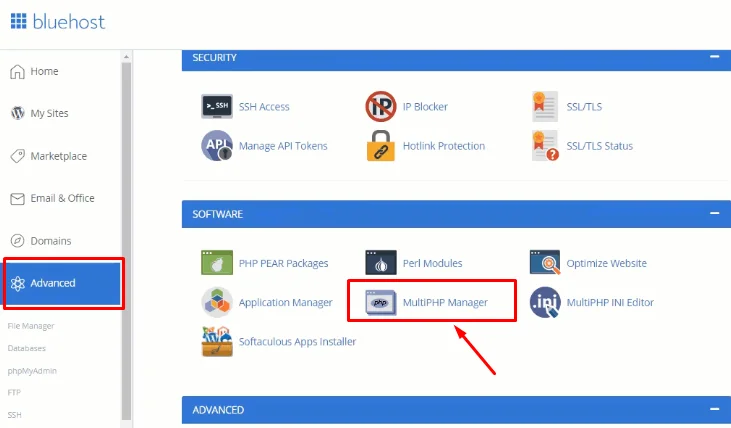
Many hosting providers display PHP version in their control panel. Log in to your hosting dashboard. Look for sections like PHP Settings or Server Information. The current PHP version will be listed there. This method is quick and does not require file changes.

Credit: www.youtube.com
Backup Your WordPress Site
Backing up your WordPress site is important before updating your PHP version. It keeps your data safe. You can restore your site if something goes wrong during the update. Always create a full backup. This includes files and the database. A good backup saves time and stress.
Backup Using A Plugin
Plugins make backups easy. Many free plugins are available for WordPress. They can save your site automatically or on demand. Choose a plugin with good reviews and regular updates. Follow the plugin’s instructions carefully. Save the backup files in a safe place.
Manual Backup Via Cpanel
Manual backups give you full control. Log in to your hosting cPanel. Use the file manager to download your WordPress files. Export your database using phpMyAdmin. Store both files and database backups on your computer or cloud storage.
Check Your Backup
Always check your backup. Try opening the backup files. Make sure the database export is complete. Confirm the backup size looks correct. A verified backup prevents surprises during restoration.
Review Hosting Php Compatibility
Before updating your PHP version in WordPress, check your hosting provider’s PHP compatibility. Not all hosts support the latest PHP versions. Using an unsupported version can cause errors or site crashes. Checking compatibility helps avoid issues and keeps your site safe.
Many hosts offer a control panel to view or change your PHP version. Some hosts automatically update PHP, but you must confirm the version. Knowing what PHP versions your host supports saves time and effort.
Check Current Php Version On Your Hosting
Log into your hosting control panel. Look for a section named “PHP Settings” or “PHP Version.” Your current PHP version usually shows there. Note it down before making changes.
Verify Supported Php Versions
Find a list of supported PHP versions on your hosting site or FAQ. Some hosts list supported versions in your account dashboard. Confirm the latest version they allow for your plan.
Contact Hosting Support
If you cannot find PHP details, contact support. Ask which PHP versions they support. Also, ask about any risks or steps needed to update PHP safely.
Backup Your Website
Before changing PHP versions, back up your site. A backup protects your data if something goes wrong. Use a plugin or your host’s backup tool.
Update Php Via Hosting Control Panel
Updating PHP through your hosting control panel is a simple and safe way. It ensures your WordPress site runs faster and more securely. Many hosting providers offer easy tools to change your PHP version.
Follow these clear steps to update PHP without confusion. No special skills needed. Just access your hosting dashboard and make the change.
Access Hosting Dashboard
First, log in to your hosting account. Use your username and password. This leads you to the main dashboard where all settings live. Look for a section related to website or server management.
Locate Php Settings
Find the PHP settings or PHP version option. It might be under “Software” or “Programming” tools. Some hosts call it “PHP Manager” or “Select PHP Version”. This area controls the PHP version for your site.
Select New Php Version
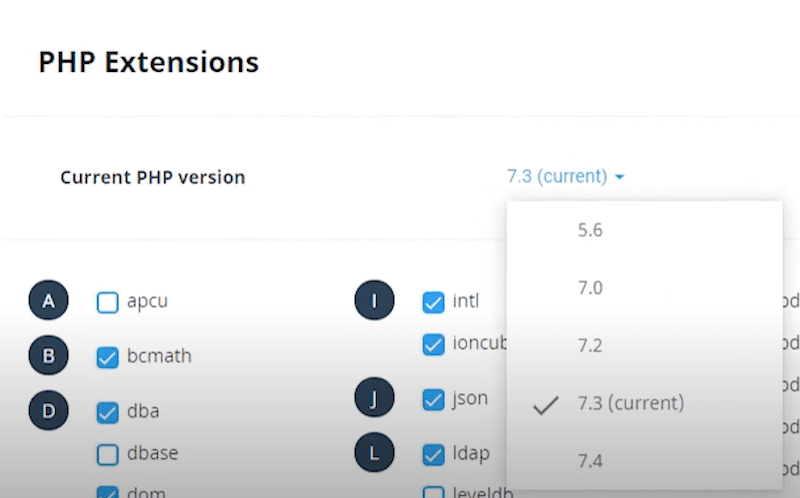
Choose the latest supported PHP version from the list. Higher versions improve speed and security. Check compatibility with your WordPress plugins and themes before selecting. Avoid very new versions if unsure.
Apply Changes
After choosing the PHP version, save or apply your changes. The system updates PHP for your website. Wait a few moments and then test your site to confirm it works properly. That’s all.
Update Php Using Cpanel
Updating PHP using cPanel is a straightforward way to improve your WordPress site’s speed and security. Many web hosts provide cPanel to manage your website settings easily. Changing the PHP version through cPanel helps keep your site compatible with new plugins and themes.
This guide walks you through the steps to update PHP version using cPanel. The process only takes a few minutes and requires no coding skills. Follow these simple instructions to keep your site running smoothly.
Log Into Cpanel
Start by opening your web browser and going to your cPanel login page. Enter your username and password provided by your hosting provider. After logging in, you will see the main dashboard with many options.
Find Php Selector
Look for the “Select PHP Version” or “PHP Manager” icon in the dashboard. It is usually under the “Software” section. Click on it to open the PHP version settings for your site.
Choose Desired Php Version
Inside the PHP selector, you will see a list of available PHP versions. Pick the newest stable version recommended by your host. Newer PHP versions offer better performance and security for your WordPress site.
Save And Confirm Update
After selecting the PHP version, click on the “Save” or “Set as current” button. The change will apply immediately or after a few minutes. Check your website to confirm it works correctly with the new PHP version.
Verify Php Update Success
After updating your PHP version in WordPress, confirming the update is crucial. This step ensures your site runs smoothly and uses the latest features. Verifying the PHP update helps avoid compatibility problems and improves security. You can use simple tools within WordPress or create a small PHP file to check the version.
Use WordPress Site Health Tool
The WordPress Site Health tool quickly shows your PHP version. Go to your WordPress dashboard. Click on “Tools” and then “Site Health.” Look for the “Server” section on this page. It displays the current PHP version your site uses. This method is easy and does not need any extra coding. It also alerts you about any issues with your PHP setup.
Check Php Info File
Creating a PHP info file gives detailed server information. Open a text editor and add this code: php phpinfo(); ?. Save the file as phpinfo.php. Upload it to your WordPress root directory using FTP or your hosting file manager. Visit yourdomain.com/phpinfo.php in a browser. The page will show your PHP version and other settings. Remember to delete this file after checking for security reasons.
Troubleshoot Common Issues
Updating your PHP version in WordPress can cause some issues. These issues may affect how your site works or looks. Knowing how to fix common problems helps keep your site running well. This section covers typical issues and how to solve them quickly.
Plugin And Theme Compatibility
Some plugins or themes may not work with the new PHP version. They might cause errors or make parts of your site stop working. Check if your plugins and themes are updated. Use the latest versions that support the new PHP version. Deactivate plugins one by one to find the problem. Switch to a default theme to test theme issues. Update or replace incompatible plugins and themes.
Restore Backup If Needed
Always back up your site before updating PHP. A backup lets you undo changes if something breaks. If your site crashes or shows errors, restore the backup. This returns your site to the last working state. Use your hosting control panel or a backup plugin. Test your site after restoring. Then try updating PHP again carefully.
Credit: wp-rocket.me
Maintain Updated Php Version
Maintaining an updated PHP version in WordPress keeps your website secure and fast. PHP updates fix bugs and improve performance. Using the latest PHP helps avoid security risks and compatibility issues. It also supports new WordPress features and plugins.
Regularly Check For Updates
Check your PHP version often. Web hosts often release updates to improve security. Use your hosting control panel or contact support to know your PHP version. WordPress also shows warnings if your PHP is outdated. Stay alert and update PHP whenever a new version is available.
Schedule Routine Backups
Create backups before any PHP update. Backups protect your data if something goes wrong. Use plugins or your hosting service for easy backups. Schedule backups regularly to keep your site safe. This way, you can restore your site quickly if needed.
Frequently Asked Questions
How Do I Check My Current Php Version In WordPress?
You can check your PHP version by going to your WordPress dashboard. Navigate to Tools > Site Health > Info. Under the Server section, you will find your current PHP version displayed.
Why Should I Update Php Version In WordPress?
Updating PHP improves website speed, security, and compatibility with plugins. It also ensures better performance and reduces vulnerability to attacks.
How Can I Update Php Version Via Hosting Control Panel?
Log in to your hosting control panel. Find the PHP settings or software section. Select the desired PHP version and save changes to update it.
Will Updating Php Break My WordPress Site?
Updating PHP can cause compatibility issues if themes or plugins are outdated. Always backup your site and test updates in a staging environment first.
Conclusion
Updating your PHP version in WordPress keeps your site fast and secure. It helps avoid errors and supports new features. Always back up your site before starting. Follow simple steps carefully to update without trouble. Regular updates ensure your website runs smoothly over time.
Stay on top of updates to protect your online presence. A well-maintained site attracts more visitors and works better. Keep your WordPress PHP version current for the best results.



