
Are you looking to make your WordPress page more dynamic and eye-catching? Adding a Revolution Slider can transform your site with stunning animations and smooth transitions that grab your visitors’ attention instantly.
If you want to learn how to easily install and customize this powerful tool, you’re in the right place. Keep reading, and you’ll discover simple steps that will help you create a professional-looking slider without any hassle. Your website deserves to stand out, and this guide will show you exactly how to do it.

Credit: totalwptheme.com
Choosing Revolution Slider Plugin
Choosing the right Revolution Slider plugin is important. It affects your website’s look and speed.
Not all sliders work the same. Some are easy to use, others need more skill.
Picking a good plugin saves time and avoids problems later. It helps create beautiful sliders that load fast.
Check Plugin Compatibility
Make sure the slider works well with your WordPress version. Old plugins may cause errors or not work at all.
Also, confirm it fits your theme. Some sliders clash with certain themes and break the site’s design.
Look For User-friendly Features
Choose a slider with simple controls. Drag-and-drop builders are best for beginners.
Templates help create sliders fast. Pick a plugin with many ready-made designs.
Evaluate Performance And Speed
A good slider should load quickly. Slow sliders hurt user experience and SEO.
Test how the plugin affects your site speed before finalizing it.
Check Support And Updates
Good plugins get regular updates to fix bugs and improve features.
Also, see if the developer offers support. It helps solve issues fast.
Credit: www.sliderrevolution.com
Installing The Plugin
Installing the Revolution Slider plugin is the first step to creating stunning slides on your WordPress site. This plugin lets you add dynamic content with ease. You can install it in two main ways. Both are simple and quick to follow.
Uploading Via WordPress Dashboard
First, download the Revolution Slider plugin as a .zip file. Next, log into your WordPress dashboard. Go to the “Plugins” section and click “Add New.” Choose the “Upload Plugin” button at the top. Click “Choose File” and select the .zip file from your computer. Then, click “Install Now.” After installation, activate the plugin with one click. Your slider plugin is now ready to use.
Installing From Plugin Repository
Open your WordPress dashboard and navigate to “Plugins.” Click “Add New.” In the search bar, type “Revolution Slider.” Find the official plugin in the results. Click “Install Now.” Wait a moment for the process to finish. Finally, click “Activate” to enable the plugin on your site. You can now start creating sliders immediately.
Activating Revolution Slider
Activating Revolution Slider is the first step to display beautiful slides on your WordPress page. The process is simple and quick. It helps you start creating sliders that catch visitors’ attention. Follow the steps carefully to avoid errors and get the slider ready fast.
Locate The Revolution Slider Plugin
Go to your WordPress dashboard. Find the “Plugins” section on the left menu. Click “Installed Plugins” to see the list. Look for “Revolution Slider” in the list. If not found, you must install it first.
Activate The Plugin
Once you find Revolution Slider, check if it is active. If not, click the “Activate” button below the plugin’s name. Wait a few seconds. The plugin will be ready to use.
Verify Activation Success
After activation, a new menu item called “Slider Revolution” appears. Click it to open the plugin’s dashboard. This confirms the plugin is active and working correctly. You can now create or import sliders.
Creating Your First Slider
Creating your first slider with Revolution Slider is simple and fun. This tool helps you make beautiful sliders that catch visitors’ eyes. Start by opening the plugin in your WordPress dashboard. Follow clear steps to build a slider that fits your site perfectly.
Selecting Slider Type
First, choose the type of slider you want. Revolution Slider offers several options like standard, carousel, or hero sliders. Each type has a unique style and function. Pick one that matches your website’s goal and design.
Standard sliders show one slide at a time. Carousels display multiple slides side by side. Hero sliders are large and grab attention. Decide based on the look and feel you want.
Adding Slides And Content
Next, add slides to your chosen slider type. Click the “Add Slide” button to start. You can upload images, videos, or plain backgrounds. Each slide can have text, buttons, or animations.
Keep your content clear and simple. Use short headlines and easy-to-read fonts. Add call-to-action buttons to guide visitors. This makes your slider interactive and useful.
Customizing Slider Settings
Finally, adjust the slider settings to fit your needs. Control slide duration, transition effects, and navigation arrows. You can also set the slider size and alignment.
Test different settings to see what looks best. Preview your slider on desktop and mobile views. This ensures a smooth experience for all visitors.
Adding Slider To WordPress Page
Adding a Revolution Slider to a WordPress page enhances the visual appeal and engages visitors. The process is simple and offers several methods to fit your workflow. Choose the best way to insert the slider into your page content.
Using Shortcode Method
Every Revolution Slider comes with a unique shortcode. You can copy this shortcode from the slider settings panel.
Paste the shortcode directly into the WordPress page editor where you want the slider to appear. This method works with both classic and block editors. It is quick and does not require extra tools.
Embedding With Gutenberg Block
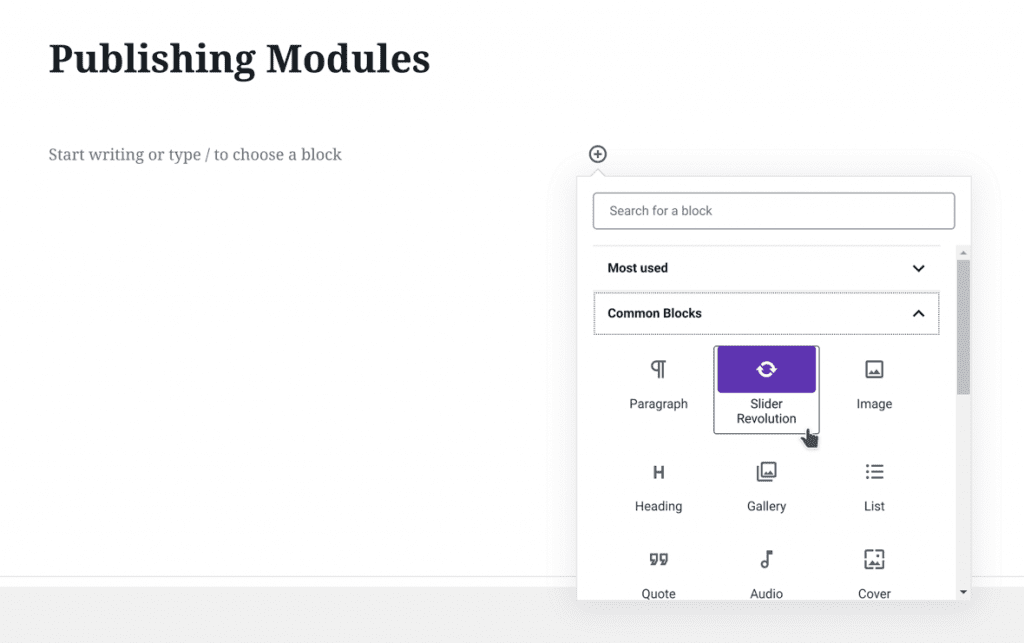
The Gutenberg editor has a dedicated block for Revolution Slider. Click the plus (+) icon to add a new block.
Search for “Revolution Slider” and select it. Then, pick the slider you want to show from the dropdown menu inside the block. The slider preview appears instantly.
Inserting Via Page Builder
Many WordPress themes use page builders like Elementor or WPBakery. These builders have built-in support for Revolution Slider.
Open your page builder and add a new element or widget. Choose the Revolution Slider widget, then select the slider you created. Adjust the settings if needed and save your changes.
Optimizing Slider Performance
Optimizing the performance of your Revolution Slider is key to a smooth user experience. Slow sliders can frustrate visitors and increase bounce rates. Proper optimization helps your site load faster and run better on all devices.
This section covers two important ways to improve slider speed and performance. Follow these tips to make your slider efficient and user-friendly.
Image Size Best Practices
Use images that match the slider’s display size. Large images slow down page loading. Resize images before uploading them to your WordPress site. Compress images to reduce file size without losing quality.
Choose the right file format. JPEG works well for photos. PNG is better for graphics with fewer colors. Avoid using raw or very large images. Keep image width under 1920 pixels for full-screen sliders.
Enabling Lazy Loading
Lazy loading delays image loading until needed. This speeds up the initial page load. Revolution Slider supports lazy loading for slides. Enable this feature in the slider settings.
Lazy loading saves bandwidth and improves performance on mobile devices. It ensures images load only when visible on the screen. This reduces unnecessary data use and speeds up your site.
Troubleshooting Common Issues
Troubleshooting common issues with Revolution Slider helps keep your WordPress site running smoothly. Problems can occur due to many reasons. Understanding basic fixes saves time and stress.
This section covers simple solutions for display problems and plugin conflicts. These tips help you get your slider working again quickly.
Fixing Display Problems
Sometimes the slider does not show up or looks broken. Clear your browser cache first. Old files can cause display errors.
Check if your slider shortcode is correct. A small typo can stop it from showing.
Make sure your theme supports Revolution Slider. Some themes block slider scripts.
Update Revolution Slider to the latest version. Updates fix bugs that affect display.
Disable any lazy loading or optimization plugins temporarily. These can interfere with slider scripts.
Resolving Plugin Conflicts
Plugins may clash with Revolution Slider and cause errors. Disable all other plugins except Revolution Slider.
Check if the slider works after disabling plugins. If yes, enable plugins one by one.
This process helps identify which plugin causes the conflict.
Look for alternative plugins or contact the plugin developers for support.
Keep all plugins updated to reduce conflicts and improve compatibility.

Credit: theme.co
Frequently Asked Questions
How Do I Install Revolution Slider On WordPress?
To install Revolution Slider, go to your WordPress dashboard. Navigate to Plugins > Add New. Upload the slider plugin file and activate it. This adds the slider functionality to your site quickly and securely.
How Can I Add Revolution Slider To A WordPress Page?
Edit the WordPress page where you want the slider. Click on the Revolution Slider block or shortcode option. Select the slider you created and insert it. Update the page to display the slider live.
Is Revolution Slider Compatible With All WordPress Themes?
Yes, Revolution Slider works with most modern WordPress themes. Ensure your theme supports shortcodes or page builder plugins for smooth integration. This compatibility helps display sliders correctly without conflicts.
Can I Customize Revolution Slider On My WordPress Site?
Absolutely! Revolution Slider offers various customization options. You can change slides, animations, layouts, and styles. These features let you create unique, engaging sliders tailored to your brand.
Conclusion
Adding Revolution Slider to your WordPress page is simple and quick. Follow the steps carefully to avoid errors. The slider makes your site more attractive and interactive. You can customize slides to match your style and needs. Keep your plugin updated for the best performance.
Practice creating sliders to gain confidence. Soon, your website will look professional and engaging. Enjoy the new visual appeal on your WordPress page!



