
Are you looking to share important documents on your WordPress site but don’t know how to add a PDF link? You’re in the right place.
Adding a PDF link can make your content more valuable and easy to access for your visitors. Whether it’s a brochure, a guide, or a report, linking PDFs lets your audience get exactly what they need with just one click.
You’ll learn simple, step-by-step methods to add PDF links to your WordPress site quickly—no technical skills required. Keep reading, and you’ll have your PDFs ready to share in no time.
Credit: wpdatatables.com
Prepare Your Pdf File
Start by checking your PDF file for clarity and size. Make sure it is easy to read and not too large. Rename the file with simple words for easy uploading to WordPress.
Optimize Pdf Size
Preparing your PDF file starts with checking its size. Large files slow down your website and frustrate visitors. Compress your PDF to reduce the file size without losing quality. Use online tools or PDF software to shrink the file easily. Aim for a size under 5 MB for faster loading.
Smaller files improve user experience and boost your site’s SEO. Visitors are more likely to open and read quick-loading documents. Keep your PDF lean but clear.
Name Your File Clearly
Choose a clear and simple name for your PDF file. Use words that describe the content well. Avoid spaces or special characters; use hyphens instead. For example, “travel-guide-2024.pdf” is better than “doc1.pdf”.
A clear file name helps search engines understand your content. It also makes it easier for visitors to find and recognize the file. Keep names short and relevant.
Upload Pdf To WordPress
Uploading a PDF to WordPress is simple. It lets you share important documents with visitors. You can add brochures, guides, or reports easily. The process takes only a few steps. This section explains how to upload PDFs correctly.
Use Media Library
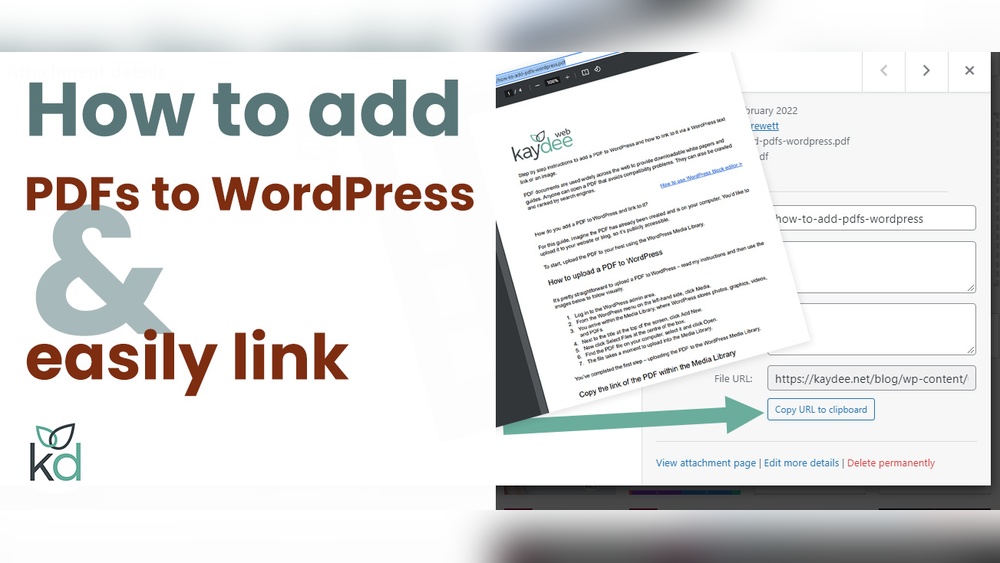
The Media Library is the easiest way to upload PDFs. Go to your WordPress dashboard. Click on “Media” and then “Add New”. Drag and drop your PDF file or click “Select Files”. Once uploaded, click the file to get its URL. Use this URL to create a link in your posts or pages.
Alternative Upload Methods
You can also upload PDFs using FTP. Connect to your website server with an FTP client. Upload the PDF to a folder like “wp-content/uploads”. Copy the file URL after upload. Then, use this URL to link the PDF in WordPress. This method is useful for large files or bulk uploads.
Create Pdf Link In Posts
Creating a PDF link in WordPress posts helps share files easily. Readers can click the link and open or download the PDF file. This improves user experience and keeps your content organized.
WordPress offers simple ways to add PDF links. Both the Block Editor and Classic Editor support this feature. Choose the method that fits your editing style.
Insert Link Using Block Editor
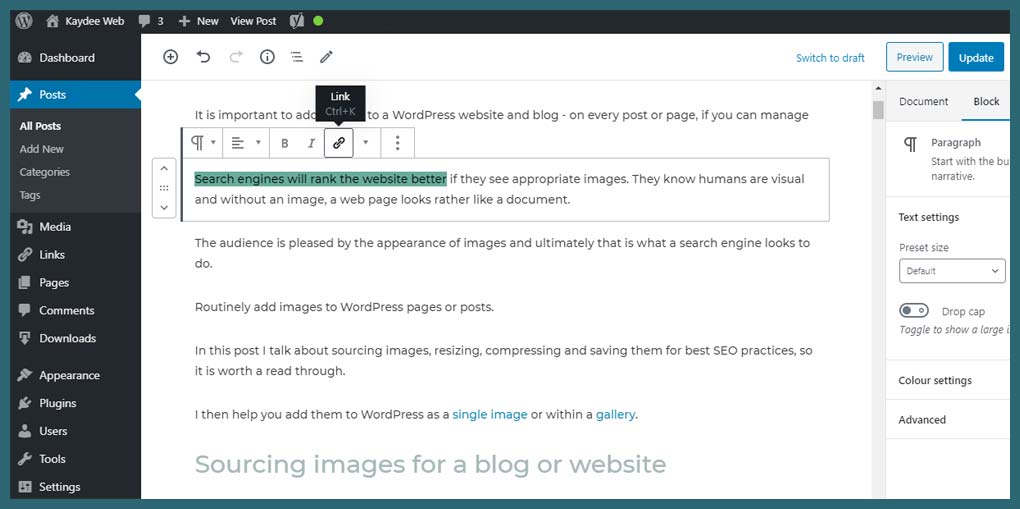
Open the post in the Block Editor. Click the plus (+) icon to add a new block. Select the “File” block from the options. Upload your PDF file or choose one from the media library. The block will display a download button automatically. You can edit the button text to make it clear. Alternatively, use a “Paragraph” or “Text” block. Highlight the text you want to link. Click the link icon in the toolbar. Paste the PDF file URL and press Enter. Your PDF link is now active and ready to use.
Add Link In Classic Editor
Open your post in the Classic Editor. Highlight the text where you want the PDF link. Click the “Add Media” button above the editor. Upload your PDF file or pick one from the media library. Click the “Insert into post” button. WordPress will add the PDF link to the selected text. You can also insert the URL manually. Highlight the text and click the link icon. Paste the PDF link and save. This method keeps your post clean and easy to read.
Customize Link Appearance
Customizing the appearance of your PDF link in WordPress makes it clear and attractive. A well-styled link can encourage more clicks and improve user experience. You can change the link text or turn the link into a button. Both options help the link stand out on your page.
Change Link Text
Changing the link text helps explain what the PDF is about. Instead of showing the file name, write a clear phrase like “Download Report” or “View PDF.” This makes it easier for visitors to understand what they will get.
To change the text, highlight the link in the editor and type your new words. Keep it short and direct. Avoid using generic words like “click here.” Be specific and helpful.
Add Button Style
Turning your link into a button grabs attention faster. Buttons look clickable and invite action. WordPress offers simple ways to style links as buttons.
Add a CSS class like button to your link. Many themes support this style by default. You can also use the block editor’s button block for easy styling.
Choose colors that match your site but stand out from the text. Use padding and borders to make the button clear and easy to tap on mobile.
Test Pdf Link Functionality
Testing your PDF link is a key step after adding it to WordPress. It ensures visitors can open the file without issues. A working link improves user experience and keeps your site professional. Try several checks before publishing.
Check On Different Devices
Test the PDF link on various devices like phones, tablets, and computers. Each device may handle PDFs differently. Make sure the link opens smoothly on all screens. Use popular browsers such as Chrome, Firefox, and Safari. This helps catch device-specific problems early.
Troubleshoot Common Issues
If the PDF does not open, check the file URL. Confirm the link points to the correct file location. Clear your browser cache and refresh the page. Verify the PDF is uploaded correctly in WordPress media. Large files might take time to load, so test patience. Fixing these issues will improve your PDF link’s reliability.
Credit: formidableforms.com
Use Plugins For Advanced Features
Plugins offer useful features beyond basic PDF linking. They help you embed PDFs directly on your site and track user activity. These tools improve user experience and give insights about your content.
Choose plugins that fit your needs. Many options are free and easy to use. They save time and add powerful functions to your WordPress site.
Embed Pdf Viewer
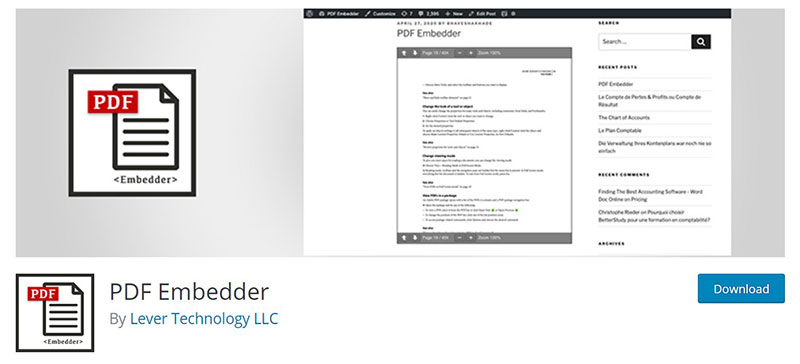
Embedding a PDF viewer lets visitors read documents without leaving your page. Plugins like PDF Embedder or Embed Any Document make this easy. They show PDFs in a clean, scrollable window.
Visitors stay longer on your site. They can zoom, scroll, and navigate pages smoothly. This keeps your content accessible and professional.
Track Pdf Downloads
Tracking downloads helps you know which files interest visitors most. Plugins such as MonsterInsights or Download Monitor track user clicks on PDF links.
This data helps improve your content strategy. You learn what works and what needs change. Tracking downloads is a smart step for any site with PDFs.
Credit: kaydee.net
Frequently Asked Questions
How Do I Upload A Pdf To WordPress?
To upload a PDF, go to your WordPress dashboard, click Media > Add New. Select your PDF file to upload. Once uploaded, copy the file URL to use in links or posts.
How Can I Add A Pdf Link In WordPress Posts?
Edit your post, highlight text or select an image, then click the link icon. Paste the PDF URL and hit apply. This creates a clickable PDF link in your content.
Can I Display Pdfs Directly On WordPress Pages?
Yes, use a PDF embed plugin or the block editor’s File block. This allows visitors to view or download the PDF without leaving the page.
Are Pdf Links Seo Friendly In WordPress?
Yes, linking to PDFs can improve user experience and provide valuable resources. Ensure the PDFs are optimized with relevant keywords and metadata for better SEO.
Conclusion
Adding a PDF link to WordPress is simple and fast. You only need a few steps to share your files online. This helps visitors easily find and download your documents. Keep your files organized and update links when needed. Using clear link text improves user experience.
Now, your website can offer helpful resources with ease. Try adding PDF links today to make your content more useful.



