
Are you ready to give your WordPress website a fresh new look? Changing your theme is one of the easiest ways to do that—and it doesn’t require any coding skills.
Whether you want a sleek, modern design or something more colorful and fun, adding a theme can transform your site instantly. In this guide, you’ll learn exactly how to add a WordPress theme step-by-step, so you can make your website stand out and capture your audience’s attention.
Keep reading, and by the end, you’ll be able to customize your site with confidence and ease.
Choosing The Right Theme
Choosing the right theme is the first step in building a great WordPress site. The theme controls how your site looks and feels. It also affects how visitors use your site. Picking a good theme helps your site load faster and work well on all devices. A well-chosen theme makes your content shine and keeps visitors interested.
Focus on themes that match your site’s purpose. Think about your audience and what they need. Some themes suit blogs, while others are better for shops or portfolios. This choice shapes your site’s success.
Free Vs Premium Themes
Free themes cost nothing and are easy to find. They work well for simple sites or beginners. Yet, free themes may lack some features and support. Premium themes come with a price. They offer more designs and tools. Support and updates are better in premium themes. Choose based on your budget and needs.
Key Features To Consider
Look for themes that are easy to customize. Check if they support widgets and menus. A responsive design is a must. Your site should look good on phones and tablets. Fast loading speed is vital. Also, SEO-friendly themes help your site rank higher. Regular updates show the theme is well maintained.
Theme Compatibility
Your theme must work well with popular plugins. Check compatibility with page builders like Elementor or Gutenberg. Make sure it supports the latest WordPress version. Test the theme on different browsers. This avoids issues for visitors. Compatibility ensures smooth site performance and better user experience.
Credit: www.greengeeks.com
Preparing Your Site
Preparing your WordPress site before adding a new theme helps avoid problems. Taking a few simple steps keeps your site safe and running smoothly. These steps protect your content and ensure compatibility with the new theme.
Backing Up Your Website
Backing up your website means saving a copy of your site’s data. This includes posts, pages, images, and settings. Use a backup plugin or your hosting provider’s tools. Store backups in a safe place, like your computer or cloud storage. This step protects your content if something goes wrong during the theme change.
Checking WordPress Version
Check your WordPress version before installing a new theme. Some themes need the latest WordPress version to work correctly. To check, go to your WordPress dashboard and look at the bottom right corner. Update WordPress if your version is outdated. This ensures the theme functions properly and keeps your site secure.
Clearing Cache
Clear your site’s cache before activating a new theme. Cache stores old versions of your site to load faster. It can cause display problems if not cleared. Use a caching plugin or your browser settings to clear cache. This step helps you see the new theme without old files interfering.
Installing A Theme From WordPress Directory
Installing a theme from the WordPress Directory is simple and fast. The directory offers thousands of free themes. Each theme can change your site’s look and feel without coding. This method is perfect for beginners and those who want a trusted theme. Follow these steps to find and install the right theme for your website.
Searching For Themes
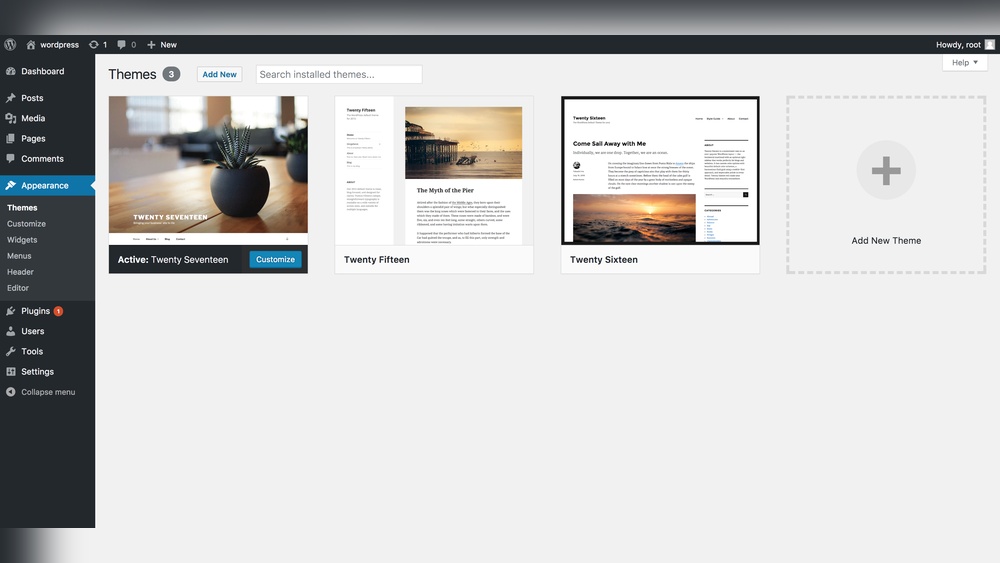
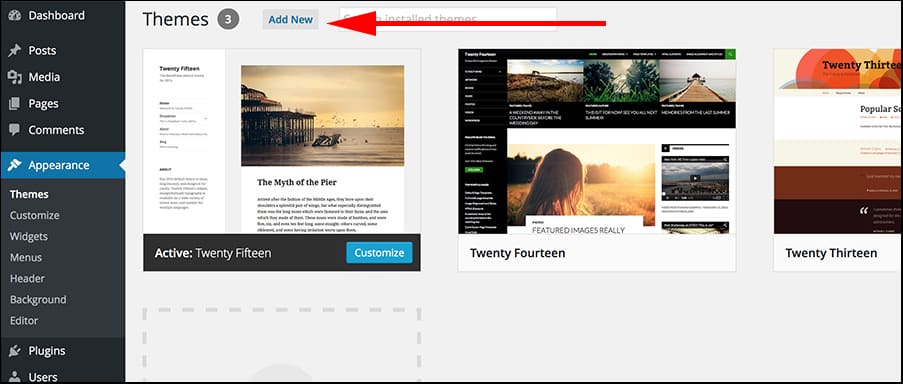
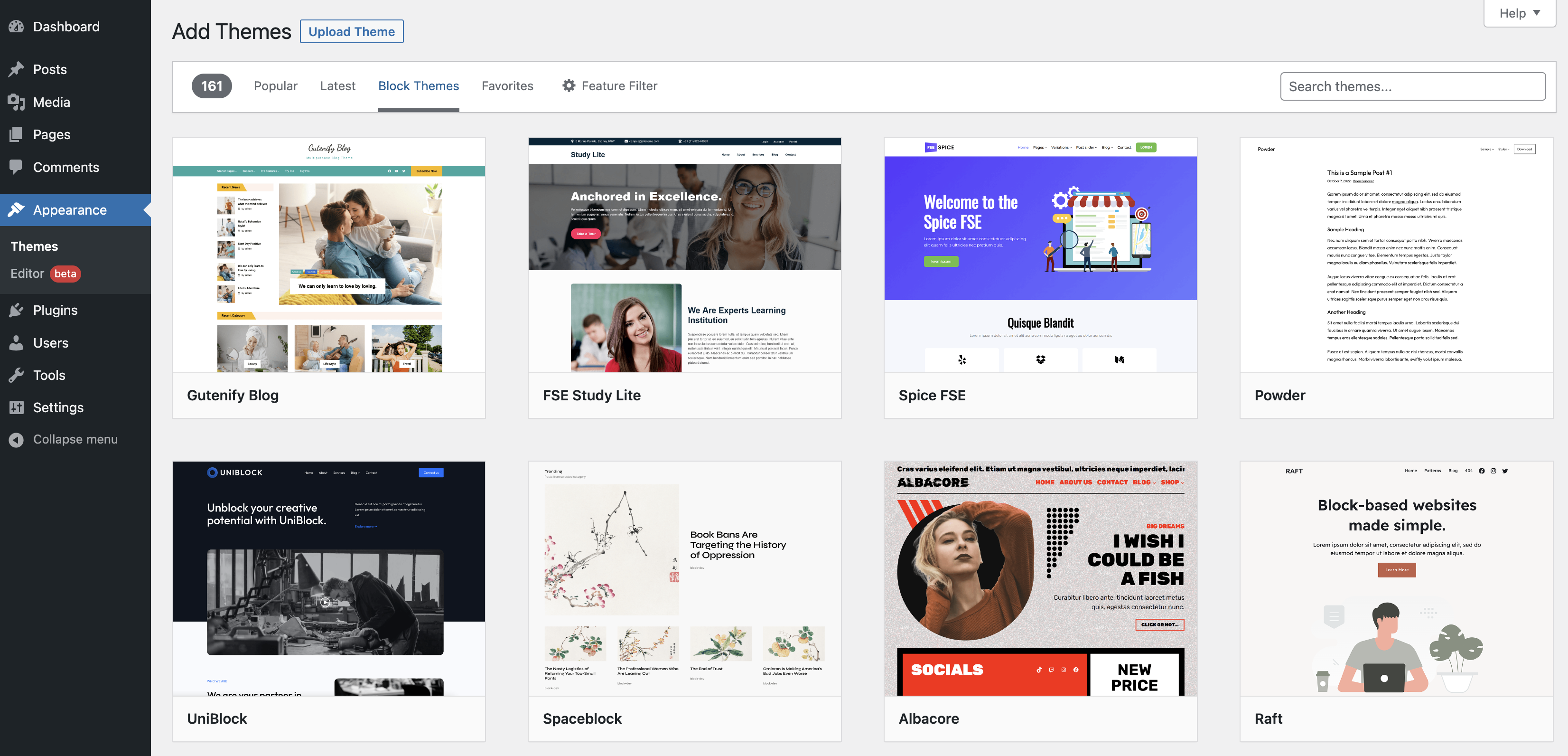
Start by going to your WordPress dashboard. Click on “Appearance” and then “Themes.” Select the “Add New” button at the top. Use the search bar to type keywords related to your site style. You can also filter themes by features, layout, or popularity. This helps narrow down choices quickly.
Previewing Themes
Hover over any theme to see a “Preview” button. Click it to view how the theme looks on your site. This preview shows your content in the theme’s style. It helps decide if the design fits your needs. Take time to check different themes before choosing.
Installing And Activating
Once you find a theme you like, click “Install.” Wait a few seconds while WordPress downloads the theme. After installation, click “Activate” to apply the theme to your website. Your site will now use the new design. You can always change or customize it later.
Credit: wordpress.org
Uploading A Theme Manually
Uploading a WordPress theme manually lets you use themes not found in the official directory. This method works well for premium or custom themes. It involves downloading the theme files, uploading them to your site, and then activating the theme.
Downloading Theme Files
First, get the theme files from a trusted source. These files usually come in a .zip format. Save the .zip file on your computer. Check that the file is complete and not corrupted.
Using The Upload Feature
Log in to your WordPress dashboard. Go to Appearance > Themes. Click the “Add New” button at the top. Then select “Upload Theme.” Choose the .zip file from your computer. Click “Install Now” to start uploading.
Activating The Uploaded Theme
After the upload finishes, click the “Activate” button. Your site will now use the new theme. Visit your site to see how it looks. Customize it further if needed in the theme settings.
Customizing Your Theme
Customizing your WordPress theme lets you make your website unique. You can change how your site looks and feels. This helps you create a site that fits your style and needs.
WordPress offers simple tools for theme customization. These tools allow you to adjust many settings without coding. Below are easy ways to customize your theme effectively.
Using The Customizer Tool
The Customizer tool is built into WordPress. It shows a live preview of your site as you make changes. You can find it under Appearance > Customize in your dashboard.
Use the Customizer to change site title, tagline, and layout. You can also add a logo or site icon. It lets you see changes before saving them.
Adding Widgets And Menus
Widgets add extra features to your site’s sidebars or footers. You can add text, images, or social links with widgets. Go to Appearance > Widgets to manage them.
Menus help visitors navigate your site. You can create custom menus for header, footer, or sidebar. Use Appearance > Menus to build and assign menus easily.
Adjusting Colors And Fonts
Colors and fonts affect your site’s look and readability. Use the Customizer to pick colors for backgrounds, text, and links. Choose colors that match your brand or style.
Fonts control the style of your text. Many themes let you select font types and sizes. Choose simple fonts that are easy to read on all devices.
Troubleshooting Common Issues
Adding a new WordPress theme can sometimes cause issues. Troubleshooting helps fix these problems fast. Understanding common issues saves time and stress. Below are solutions for frequent theme problems.
Theme Not Appearing
Sometimes the theme does not show after activation. Clear your browser cache and reload the page. Check if the theme is properly installed in the dashboard. Make sure you activated the theme under Appearance > Themes. If the problem continues, try reinstalling the theme file.
Layout Problems
Layout may look broken or different than expected. This often happens if the theme needs certain plugins. Check the theme documentation for required plugins. Clear your site cache and refresh the page. Adjust theme settings under Appearance > Customize. Use default WordPress widgets to avoid layout conflicts.
Plugin Conflicts
Plugins can conflict with your new theme. Deactivate all plugins and check if the theme works. Reactivate plugins one by one to find the troublemaker. Update all plugins and the theme to their latest versions. Choose plugins compatible with your WordPress version and theme.
Keeping Your Theme Updated
Keeping your WordPress theme updated is important for website security and performance. Updates fix bugs, improve speed, and add new features. An updated theme also keeps your site compatible with the latest WordPress version. Regular updates prevent security risks and broken layouts.
Automatic Updates
Many WordPress themes support automatic updates. This feature installs updates without your intervention. It saves time and reduces the chance of errors. To enable automatic updates, go to your WordPress dashboard. Find the theme section and turn on automatic updates for your active theme.
Manual Update Process
Manual updates require you to upload the new theme version yourself. Download the latest theme file from the developer’s website. Use an FTP client or the WordPress dashboard to upload the new files. Replace the old theme folder carefully. Check your site after updating to ensure everything works well.
Backup Before Updating
Backing up your site before updating is crucial. A backup saves your current theme and content. It protects against data loss if the update causes issues. Use a reliable backup plugin or your hosting service’s backup tool. Save the backup on your computer or cloud storage for safety.

Credit: wpmarmite.com
Frequently Asked Questions
How Do I Install A WordPress Theme Manually?
Download the theme ZIP file. In your WordPress dashboard, go to Appearance > Themes > Add New > Upload Theme. Choose the ZIP file and click Install Now. After installation, activate the theme to apply it to your website.
Can I Add Free Themes To My WordPress Site?
Yes, WordPress offers thousands of free themes in its official directory. Access them via Appearance > Themes > Add New. Use filters to find themes by features and install them directly from your dashboard.
What Is The Easiest Way To Add A Theme In WordPress?
The easiest way is through the WordPress dashboard. Navigate to Appearance > Themes > Add New. Search or upload your theme, then click Install and Activate. No coding is needed, making it simple for beginners.
How Do I Update A WordPress Theme Safely?
Backup your website before updating. Go to Appearance > Themes, and check for update notifications. Click Update Now to ensure compatibility and security without losing customizations. Use child themes for major changes.
Conclusion
Adding a WordPress theme is simple and quick. You just need to choose the right theme for your site. Upload or search for it inside your WordPress dashboard. Activate the theme to see the new look instantly. Remember to customize the theme to fit your style.
This helps your website stand out and work better. Regular updates keep your theme secure and smooth. Start experimenting today to find the perfect design for your site. Your website will look fresh and professional in no time.



