
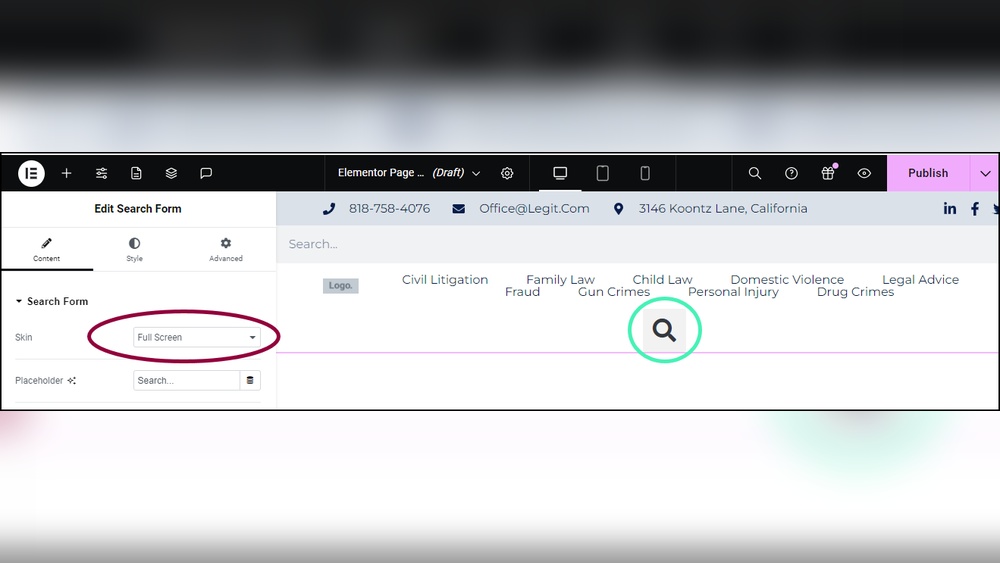
Are you looking to make your WordPress site easier to navigate? Adding a search bar with Elementor can do just that.
When visitors can quickly find what they need, they stay longer and engage more. In this guide, you’ll learn simple steps to add a search bar to your site without any hassle. By the end, you’ll have a powerful tool that helps your audience find content fast.
Ready to improve your site’s user experience? Let’s dive in!
Credit: happyaddons.com
Benefits Of Adding A Search Bar
Adding a search bar to your WordPress site with Elementor improves user experience. Visitors find information quickly without browsing through many pages. This simple tool helps keep users engaged and reduces bounce rates. It also helps your site look more professional and organized.
Search bars make navigation easier. They give visitors control over what they want to see. This feature is especially useful for sites with lots of content or products. It saves time and effort for both visitors and site owners.
Enhanced User Experience
A search bar lets visitors find content fast. They do not need to scroll or click many links. Quick access to information makes users happy. Happy users spend more time on your site.
Improved Content Discovery
Visitors can discover more pages or posts. Some content might be hidden in menus or categories. The search bar brings this content to light. It helps visitors explore your site more deeply.
Increased Engagement
When visitors find what they want, they stay longer. They may visit more pages and interact more. This keeps your site active and interesting. Search bars encourage users to explore further.
Boosted Seo Performance
Search bars help visitors find relevant keywords. This increases page views for those keywords. More views can improve your site’s ranking on search engines. Search bars indirectly support your SEO efforts.
Time-saving For Visitors
Typing keywords is faster than clicking through menus. Visitors can quickly get to the right page. This saves their time and effort. Fast access keeps visitors coming back to your site.
Preparing Your WordPress Site
Preparing your WordPress site is the first step to adding a search bar with Elementor. This phase ensures your site is ready for smooth integration. Proper preparation avoids future problems and saves time.
Start by choosing a theme that works well with Elementor. Next, install the Elementor plugin. Finally, set up Elementor Pro to unlock advanced features. Each step builds a strong foundation for your search bar.
Choosing The Right Theme
Pick a theme that supports Elementor fully. A lightweight, clean theme improves site speed. Avoid heavy themes with many built-in features. Themes like Hello Elementor or Astra are good choices. They offer flexibility and speed for your site.
Installing Elementor Plugin
Go to your WordPress dashboard and open the Plugins menu. Click “Add New” and search for “Elementor.” Install and activate the plugin. Elementor offers a free version with essential tools. This plugin lets you design pages visually.
Setting Up Elementor Pro
Elementor Pro adds extra widgets and templates. Buy a license from the Elementor website. Download the Pro plugin and upload it to WordPress. Activate the Pro version using your license key. This step enables the advanced search bar widget.
Creating A Search Bar With Elementor
Creating a search bar with Elementor helps visitors find content fast. It improves site navigation and user experience. Elementor makes this task simple with its drag-and-drop features.
Adding A Search Widget
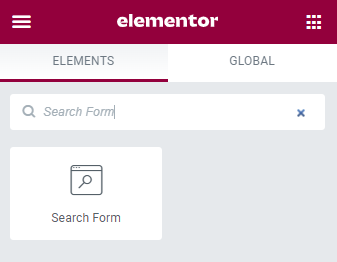
Open your page in Elementor editor. Look for the search widget in the panel. Drag and drop it to the desired spot on the page. You can place it in the header, sidebar, or any section. This widget connects to your site’s search function automatically.
Customizing Search Bar Design
Select the search widget to open its style settings. Change colors to match your site theme. Adjust font size and style for better readability. Add padding or margins to create space around the search box. You can also modify the placeholder text to guide users.
Configuring Search Settings
Go to the widget’s advanced settings tab. Choose what content types the search will include, such as posts or pages. Enable or disable live search for instant results. Set the search button icon and size. Save your changes and test the search bar on your site.

Credit: elementor.com
Enhancing Search Functionality
Enhancing search functionality in WordPress Elementor improves user experience. A good search bar helps visitors find content fast. It makes your website easier to navigate. This can increase visitor satisfaction and time spent on site.
Improving search tools also boosts your site’s professionalism. Visitors expect quick, relevant results. Adding smart search features meets those expectations. It helps your website stand out and perform better.
Using Search Plugins
Search plugins add extra power to your search bar. They offer features like autocomplete and keyword suggestions. Many plugins are easy to install and customize. Some popular options include SearchWP and Relevanssi. These tools improve search speed and accuracy. They make finding posts and pages simple for users.
Integrating With Woocommerce
WooCommerce integration helps if you run an online store. It enables product search directly from the search bar. Customers find items faster without browsing categories. This integration supports product filters and sorting options. It makes shopping smoother and faster. A better search leads to higher sales.
Adding Filters And Suggestions
Filters narrow down search results by categories or tags. Visitors get precise results quickly. Suggestions show possible matches as users type. This saves time and reduces errors. Both features create a friendly and smart search experience. They keep visitors engaged and reduce bounce rates.
Placing The Search Bar Strategically
Placing the search bar in the right spot improves website usability. Visitors find content faster. It helps keep users on your site longer. Think about where people expect to see the search bar. Choose a place that fits your site’s design and user habits.
Good placement makes searching easy and natural. Each area on your site offers different benefits. Let’s explore where to place the search bar for best results.
Header Placement
The header is the most common spot for a search bar. It shows up on every page. Visitors see it right away. Placing the search bar here helps users search anytime. It works well for sites with lots of pages or products. Keep it simple and visible, near the logo or menu.
Sidebar Placement
Sidebars are great for search bars on blogs or content-heavy sites. Users scan the sidebar while reading. The search bar stays accessible without distracting from main content. It fits well with other tools like categories or recent posts. Make sure the sidebar is on the right or left side consistently.
Footer Placement
Footers suit sites where users scroll to the bottom for more options. The search bar here acts as a last chance to find content. It is less visible than header or sidebar. Use footer placement for simple sites or when you want a clean header. Keep the search box clear and easy to spot in the footer area.
Credit: wedevs.com
Testing And Troubleshooting
Testing and troubleshooting are important after adding a search bar in Elementor. They help ensure the search works well and finds the right content. Problems can slow down or stop the search from working. Checking and fixing these issues keeps your site user-friendly and efficient.
Verifying Search Accuracy
Check if the search bar finds the correct pages or posts. Enter different keywords to test results. Try common terms and rare phrases. Look for missing or extra results. Make sure the search covers all site areas you want. Accuracy means users find what they need fast.
Fixing Common Issues
Clear the cache if search results do not update. Check if the search widget is properly connected to the site. Update Elementor and WordPress to the latest versions. Disable conflicting plugins that may block search functions. Ensure your site’s permalinks are correctly set. These steps fix most search problems quickly.
Improving Search Speed
Use a lightweight search plugin for faster results. Optimize your database by removing old data and spam. Limit the number of posts the search scans at once. Enable caching to reduce server load. Fast search keeps visitors happy and reduces bounce rates. Speed matters for a smooth user experience.
Optimizing For Mobile Devices
Optimizing your search bar for mobile devices is essential. Most users access websites on phones or tablets. A search bar must work well on small screens. It should be easy to find and use. Poor mobile design can frustrate visitors and reduce site engagement.
Responsive Design Tips
Use Elementor’s responsive settings to adjust the search bar. Set the width to fit smaller screens. Avoid fixed sizes that can break the layout. Use padding and margins wisely to keep the design neat. Test the search bar on various devices for consistency. Keep the font size readable without zooming in.
Mobile-friendly Search Experience
Make the search input box large enough for fingers. Use clear placeholder text to guide users. Add a visible search button for quick access. Ensure the search results load fast on mobile networks. Avoid pop-ups that cover the search bar on small screens. Keep the design simple to prevent confusion and delays.
Frequently Asked Questions
How Do I Add A Search Bar In Elementor?
To add a search bar in Elementor, use the Search widget. Drag it to your desired section, customize the style, and save changes. This allows visitors to easily find content on your WordPress site.
Can I Customize The Search Bar Style In Elementor?
Yes, Elementor allows full customization of the search bar. You can change colors, fonts, borders, and placeholder text to match your website design. This enhances user experience and maintains brand consistency.
Is A Plugin Required To Add A Search Bar In Elementor?
No plugin is necessary if you use Elementor Pro, as it includes a built-in Search widget. For the free version, you may need an additional search plugin compatible with Elementor.
How To Make The Search Bar Mobile-friendly In Elementor?
Elementor lets you adjust the search bar’s size and layout for mobile devices. Use its responsive settings to ensure the search bar looks and functions well on smartphones and tablets.
Conclusion
Adding a search bar in WordPress Elementor helps visitors find content fast. It improves user experience and keeps people on your site longer. The steps are simple and do not need coding skills. You can customize the search bar to match your website style.
Regular updates keep it working well and secure. Try adding a search bar today and see how it helps your site. Small changes can make a big difference in site usability. Start now and make your site easier to navigate.



