
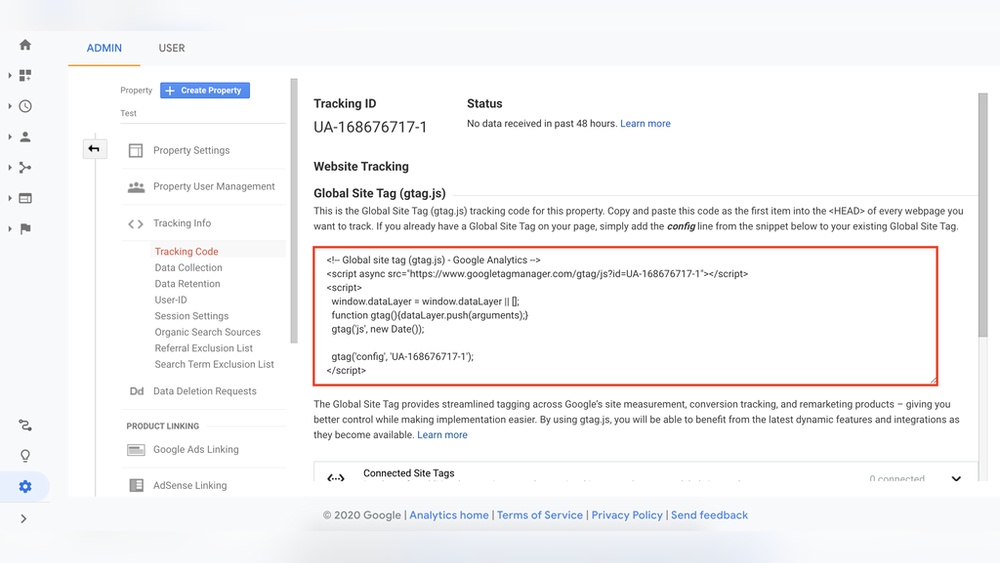
Are you ready to unlock the full potential of your WordPress website? Adding analytics code is the key step that lets you see exactly how visitors interact with your site.
Imagine knowing which pages keep your audience hooked and which ones need improvement. This insight can boost your traffic, increase engagement, and grow your business faster than you thought possible. In this guide, you’ll discover simple, clear steps to add analytics code to your WordPress site—no technical jargon, no confusion.
Keep reading, and you’ll have the tools to turn your website into a powerful success story.
Credit: www.hostinger.com
Choosing The Right Analytics Tool
Choosing the right analytics tool is important for your WordPress site. It helps you understand visitors and improve your content. A good tool shows clear data and works well with WordPress. The right choice depends on your needs and how deep you want to dive into your website traffic.
Popular Analytics Options
Google Analytics is the most used tool. It offers detailed reports and real-time data. It is free and works with many plugins. Another option is Matomo, which focuses on privacy. It stores data on your server for full control. Clicky is simple and user-friendly. It shows important stats without confusion. Jetpack also offers basic analytics inside WordPress. It is easy to set up and good for beginners.
Key Features To Consider
Look for ease of use. You want clear reports and simple dashboards. Real-time tracking helps you see visitor actions as they happen. Privacy settings matter for user trust and legal rules. Integration with WordPress plugins makes setup smoother. Customizable reports help focus on what matters most. Support and updates ensure the tool stays reliable and secure.
Preparing Your WordPress Site
Preparing your WordPress site is the first step before adding analytics code. It helps avoid problems and keeps your site safe. Taking time now can save trouble later. Follow these simple steps to get ready.
Backup Your Site
Always create a backup before changing your site. A backup saves all your files and data. It helps restore your site if something goes wrong. Use a reliable plugin or your hosting service to make a backup. Keep the backup file in a safe place.
Accessing The Theme Files
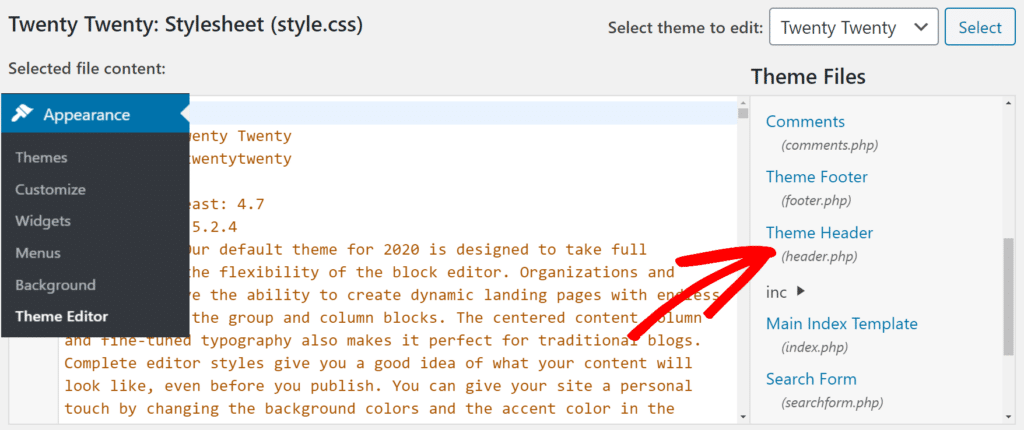
To add analytics code, you need to access theme files. Log in to your WordPress dashboard. Go to Appearance, then click on Theme Editor. Find the header.php file in the right sidebar. This file usually holds the place for analytics code. Be careful not to change other parts of the code.
Adding Analytics Code Manually
Adding analytics code manually in WordPress gives you full control over your site tracking. You place the code directly into your theme files. This process helps track your website traffic without relying on plugins. It is a good option for those who want a lightweight setup or prefer hands-on management. Follow these steps carefully to avoid errors.
Locating The Header File
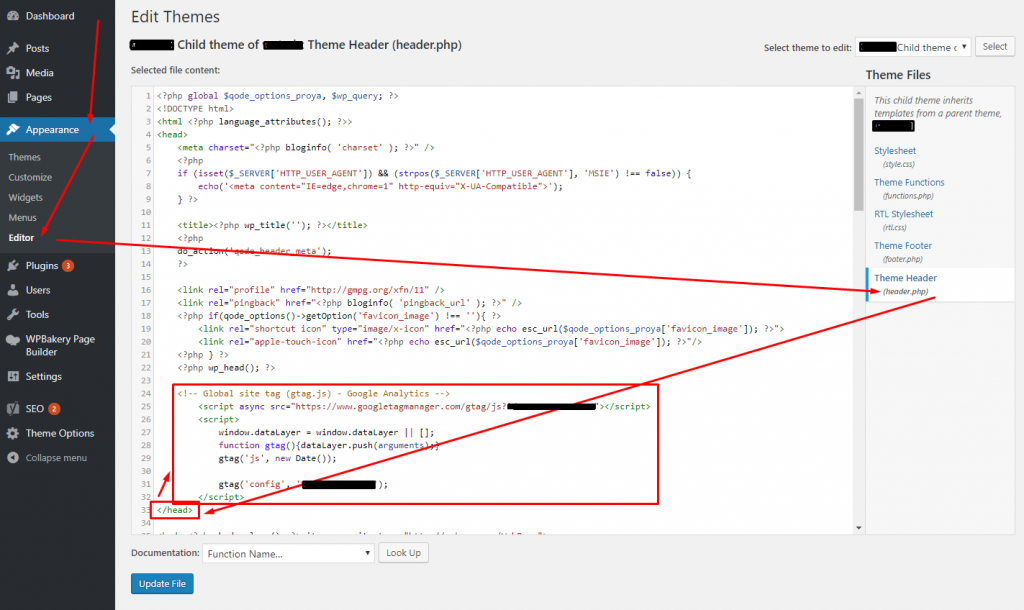
First, find the header file in your WordPress theme. It is usually named header.php. This file controls the top part of every page. You can locate it by going to the WordPress dashboard. Then, navigate to Appearance > Theme Editor. On the right, look for header.php. Open this file to edit it. Always make a backup before making changes. This keeps your site safe if something goes wrong.
Inserting The Tracking Code
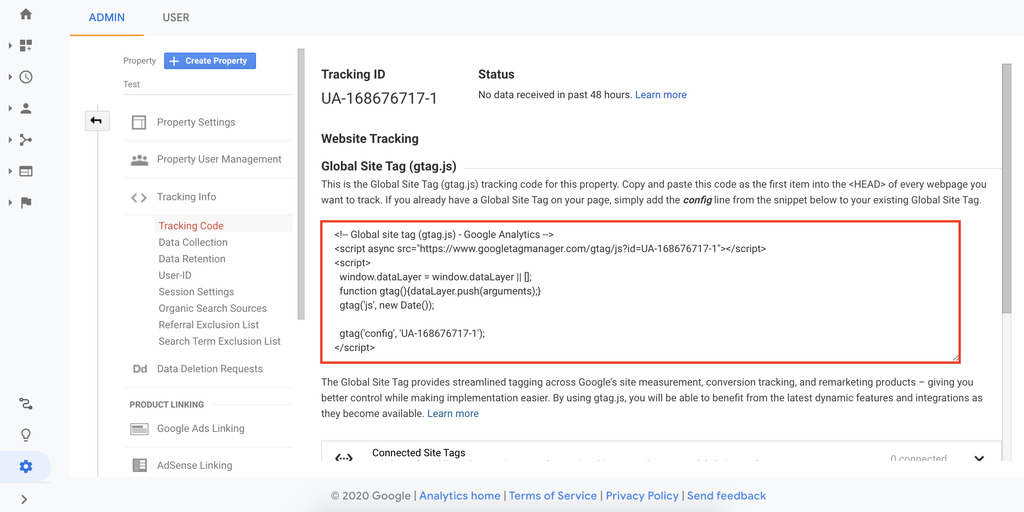
Next, insert your analytics tracking code into the header file. Place the code just before the closing tag. This ensures the code loads on every page. Copy the entire tracking code from your analytics provider. Paste it carefully in the header file. Save the changes after pasting the code. Check your website to confirm the tracking works. This method tracks visitors without extra plugins.
Credit: www.monsterinsights.com
Using Plugins For Analytics Integration
Using plugins makes adding analytics code to WordPress simple and quick. Plugins handle the technical parts for you. No need to edit theme files or touch any code. Just install, configure, and start tracking your website data.
Plugins offer easy access to popular analytics tools. They help you see visitor numbers, page views, and user behavior right in your WordPress dashboard. This saves time and reduces errors.
Top Analytics Plugins
Several plugins work well for integrating analytics into WordPress. Google Site Kit connects your site with Google Analytics and other Google tools. MonsterInsights is user-friendly and shows reports inside WordPress. Analytify offers simple analytics reports without complex settings. These plugins support beginners and experts alike.
Installing And Configuring Plugins
Go to your WordPress dashboard and click “Plugins” then “Add New.” Search for your chosen analytics plugin by name. Click “Install Now” and then “Activate.”
After activation, find the plugin’s settings menu in your dashboard. Follow the steps to connect your analytics account. Usually, you need to log in and authorize access.
Once connected, adjust settings to suit your needs. Choose which data to track and display. Save changes and check your website reports regularly.
Verifying Analytics Setup
Verifying your analytics setup ensures your data is accurate. It confirms the tracking code works correctly on your WordPress site. This step helps you avoid missing important visitor information. Follow easy checks to know your analytics is ready.
Checking Real-time Data
Open your analytics dashboard to see real-time reports. These reports show live visitors on your site right now. Visit your WordPress site in a new browser tab. Watch the real-time data update as you browse pages. If data appears, your tracking code is active and working.
Try clicking different pages or refreshing your site. Real-time data should reflect these actions quickly. No data means the code might not be added properly. Double-check your code placement in WordPress.
Troubleshooting Common Issues
Clear your browser cache before testing analytics. Old data can block new tracking codes from loading. Disable any caching plugins temporarily. Check if your WordPress theme or plugins block scripts. Sometimes, conflicts stop analytics code from running.
Ensure the analytics code is in the correct place. It usually goes in the header or footer section. Use plugin tools to insert code if unsure. Use browser developer tools to check for errors. Fixing these issues helps your analytics report correct data.
Optimizing Analytics For Better Insights
Optimizing your analytics setup gives clearer insights into your WordPress site’s performance. It helps track user actions and measure success. Properly configured analytics reveal what works and what needs change. This leads to smarter decisions and better results.
Setting Up Goals And Events
Goals define important actions visitors take on your site. Examples include form submissions, purchases, or newsletter signups. Setting goals tracks these actions automatically.
Events track specific interactions like button clicks, video plays, or downloads. They show how users engage with your content.
To set up goals and events, access your analytics dashboard. Use simple rules to define what counts as a goal or event. Test them to ensure they record data correctly. This setup highlights key user behavior and site achievements.
Using Reports To Improve Site Performance
Analytics reports provide data on traffic, user behavior, and conversions. Study these reports regularly to spot trends and issues.
Look for pages with high bounce rates or low engagement. These pages might need better content or design changes.
Focus on reports that show user flow, device use, and conversion paths. These details help improve site navigation and user experience.
Use insights from reports to make small, effective changes. Track the impact of these changes over time for continuous improvement.
Credit: deeperlook.com.au
Frequently Asked Questions
How Do I Add Google Analytics To WordPress?
To add Google Analytics, install a plugin like MonsterInsights or manually insert the tracking code in the header. php file. This tracks website traffic and user behavior efficiently.
Can I Add Analytics Without A Plugin In WordPress?
Yes, you can add analytics by pasting the tracking code directly into your theme’s header. php file. This method requires basic coding knowledge.
Where Do I Place Analytics Code In WordPress?
Place the analytics tracking code inside the
section of your theme’s header.php file or use a plugin that handles it automatically.Is It Safe To Edit WordPress Theme For Analytics?
Editing the theme’s header. php is safe if done carefully. Always back up your site before making changes to avoid errors.
Conclusion
Adding analytics code to WordPress helps track your website’s visitors. You can see where people come from and what they like. This information guides you to improve your site. Make sure to follow the steps carefully for accurate results. Check your data often to understand your audience better.
Small changes can lead to better user experience and growth. Start today and watch your website get smarter with each visit. Easy to do, and very helpful for your online success.



