
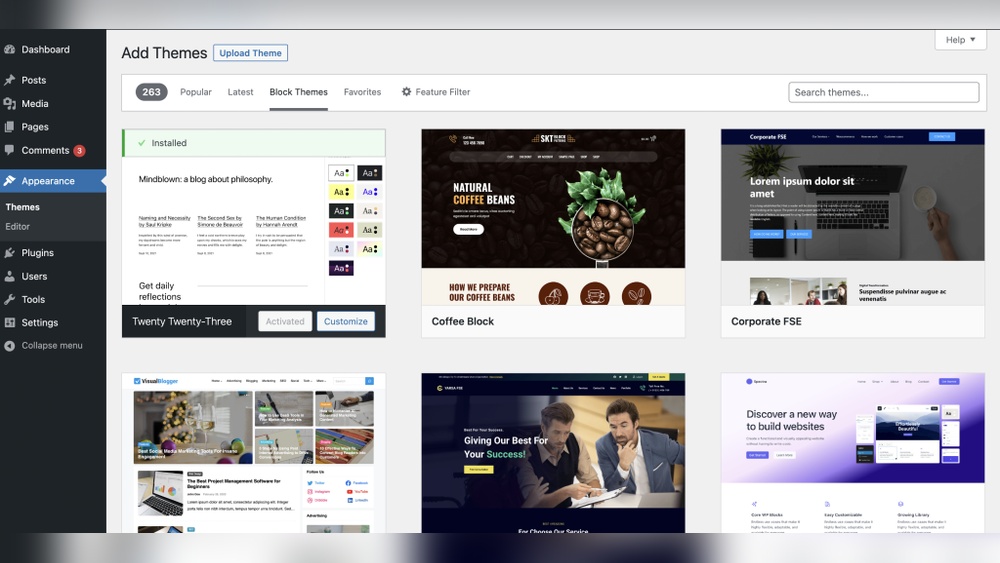
Are you ready to take control of your WordPress site but not sure how to get started? Accessing your WordPress dashboard is the first step to managing your content, customizing your design, and boosting your online presence.
In this guide, you’ll learn simple, clear steps to log in quickly and securely. Whether you’re a beginner or just need a refresher, this article will help you unlock your site’s full potential with ease. Keep reading, and you’ll be managing your WordPress site like a pro in no time!
Login Page Locations
Finding the login page is the first step to access a WordPress site. The login page is where you enter your username and password. WordPress has standard login URLs, but sometimes these URLs are changed. Knowing where to find the login page saves time and avoids confusion.
Default WordPress Login Urls
Most WordPress sites use default login URLs. The most common is /wp-login.php. For example, if your site is www.example.com, then the login page is www.example.com/wp-login.php.
Another common URL is /wp-admin. Visiting this URL also redirects you to the login page if you are not logged in yet. These URLs are standard and work for almost all WordPress sites unless changed.
Custom Login Urls
Some site owners change the login URL for security reasons. This means the login page is not at the default place. Custom login URLs can be anything the owner chooses.
To find a custom login URL, check your site’s documentation or ask the administrator. Using a custom URL helps protect the site from unauthorized access attempts. Always save the custom login URL to avoid being locked out.
Using The Login Form
Accessing your WordPress site is simple using the login form. This form is the main gateway to your website’s dashboard. It helps you manage content, settings, and much more.
The login form is usually found at yoursite.com/wp-login.php or yoursite.com/wp-admin. Use it to enter your username and password securely.
Entering Username And Password
Start by typing your username in the first field. This is the name you set during WordPress setup. Next, enter your password carefully in the second box.
Check for any typing errors. Passwords are case-sensitive, so use the correct capitalization. After filling both fields, click the “Log In” button.
If your details are correct, WordPress will take you to the dashboard. This area lets you control every part of your site.
Resetting Forgotten Password
Forgot your password? No problem. Below the login form, find the “Lost your password?” link. Click it to start the reset process.
Enter your username or email address linked to your account. WordPress will send a password reset link to your email.
Open the email and click the link. Create a new password and save it carefully. Use this new password to log in next time.
Accessing Via Hosting Provider
Accessing your WordPress site through your hosting provider is a straightforward way to manage your website. Most hosting companies offer tools that let you enter your WordPress dashboard quickly. This method is helpful, especially if you forget your WordPress login details. You can use your hosting account to regain access and keep your site running smoothly.
Using Hosting Control Panel
Many hosting providers include a control panel like cPanel or Plesk. This panel helps you manage your website files, databases, and WordPress installation. To access WordPress, log in to your hosting control panel first. Find the section called “Applications” or “WordPress.” Click on your website name or the WordPress icon. This action usually takes you directly to your WordPress admin page. From there, enter your WordPress username and password to access the dashboard.
One-click WordPress Login
Some hosting providers offer a one-click login feature for WordPress. This feature skips the need to enter your WordPress password. After logging into your hosting account, locate the WordPress tool or dashboard. Click on the one-click login button next to your site’s name. The system logs you in automatically and opens the WordPress admin panel. This option saves time and helps if you forget your WordPress credentials.

Credit: stackoverflow.com
Troubleshooting Login Issues
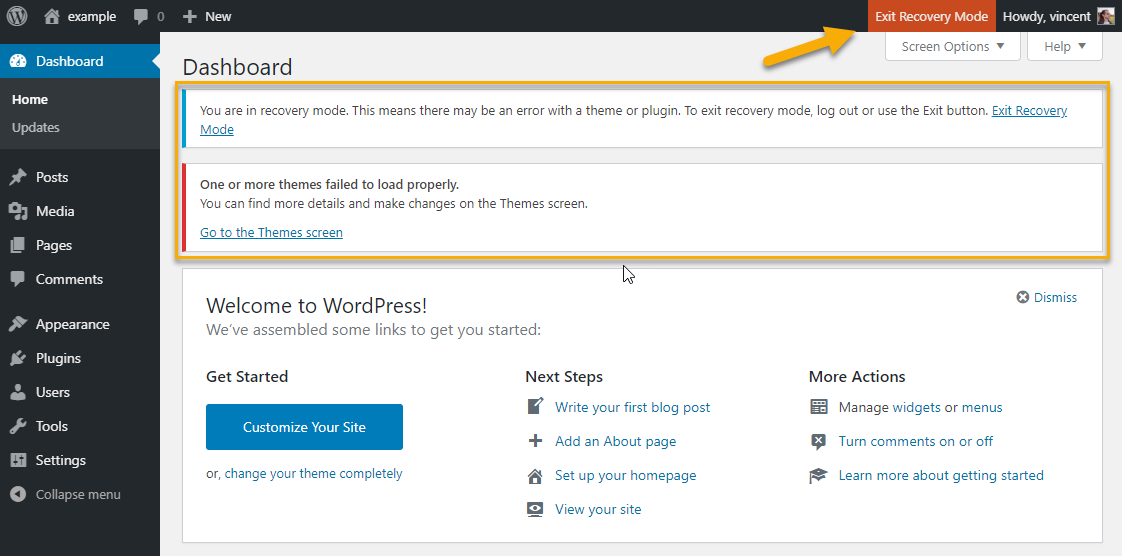
Login problems can stop you from reaching your WordPress site. These issues often arise from simple errors. Fixing them quickly helps you get back to work. Here are ways to solve common login troubles.
Clearing Browser Cache And Cookies
Old cache and cookies can block your login page. Browsers store this data to speed up websites. Sometimes, it causes errors with your WordPress login. Clear your browser cache and cookies. This action removes stored data and refreshes the login process. After clearing, try logging in again.
Disabling Plugins Causing Conflicts
Plugins add features to your site. Some plugins may conflict with the login system. This conflict can stop you from logging in. Disable all plugins to check for issues. Access your website files via FTP or hosting panel. Rename the “plugins” folder to disable them all. Try to log in again. If successful, rename the folder back. Then, enable plugins one by one to find the problem.
Resetting Password Via Database
Password reset links may not work in some cases. You can reset the password directly in the database. Use phpMyAdmin or a database tool from your hosting. Find the “wp_users” table. Locate your username and edit the password field. Use the MD5 function to encrypt your new password. Save changes and try logging in with the new password. This method works when email reset fails.
Enhancing Login Security
Keeping your WordPress site safe starts with strong login security. Protecting your login page reduces the risk of hacking. Simple steps can make a big difference. Let’s explore key ways to enhance your login security.
Enabling Two-factor Authentication
Two-factor authentication (2FA) adds an extra security step. It asks for a code sent to your phone or email. This stops hackers who only have your password. Many WordPress plugins make it easy to set up 2FA. Use 2FA to protect your site from unauthorized access.
Using Strong Passwords
Create passwords that are hard to guess. Use a mix of letters, numbers, and symbols. Avoid common words or simple patterns. Change passwords regularly to keep your site safe. Strong passwords block many hacking attempts before they start.
Limiting Login Attempts
Limit how many times someone can try to log in. Too many failed attempts can signal a hacker is trying to guess your password. WordPress plugins can block users after several failed tries. This stops hackers from using brute force attacks on your site.

Credit: melapress.com
Credit: wpmarmite.com
Frequently Asked Questions
How Do I Log Into My WordPress Site?
To log in, go to yoursite. com/wp-admin or yoursite. com/wp-login. php. Enter your username and password to access the dashboard.
What If I Forget My WordPress Password?
Click the “Lost your password? ” Link on the login page. Follow the instructions to reset your password via email.
Can I Access WordPress Site From Mobile Devices?
Yes, WordPress is mobile-friendly. Use any mobile browser or the WordPress app to access and manage your site easily.
How Do I Secure My WordPress Login Page?
Use strong passwords, enable two-factor authentication, and limit login attempts to protect your WordPress site from unauthorized access.
Conclusion
Accessing your WordPress site is simple with these clear steps. Always keep your login details safe and private. Use the correct URL and enter your username and password carefully. Regularly update your password to protect your site. Remember, quick access helps you manage your content easily.
Practice these tips to avoid common login problems. Your WordPress site is now ready for you to explore and control confidently.



