

Are you looking to take control of your WordPress site’s security and performance? Adding an .htaccess file is one of the simplest yet most powerful ways to do that.
This small file can protect your website, improve loading times, and even help with SEO. If you’re wondering how to add an. htaccess file to your WordPress site without breaking anything, you’re in the right place. Keep reading, and you’ll learn step-by-step how to create and customize this essential file—making your site safer and faster with ease.
Credit: blogvault.net
What Is .htaccess File
The .htaccess file is a small but powerful file in WordPress. It controls many important settings on your website. This file helps to manage how your site works on the server.
It is a hidden file located in your WordPress root directory. The .htaccess file can change how your website behaves without changing the code.
What Does The .htaccess File Do?
The .htaccess file controls how your server handles requests. It can redirect visitors to different pages. It also protects your site from unwanted access.
This file helps improve security by blocking harmful bots. It also controls URL structure for better search engine ranking.
Where Is The .htaccess File Located?
You find the .htaccess file in the root folder of your WordPress site. This is the same place where folders like wp-content and wp-admin are stored.
The file is hidden by default. You need to enable “show hidden files” in your file manager to see it.
Why Is .htaccess Important For WordPress?
The .htaccess file controls important features like permalinks. It helps make URLs clean and easy to read.
It also manages redirects and custom error pages. This keeps your site user-friendly and safe from errors.
Credit: www.hostinger.com
Why .htaccess Matters In WordPress
The .htaccess file controls many important settings on your WordPress site. It is a hidden file that lives in your website’s root directory. This file helps your site run smoothly and stay secure.
Without a properly set up .htaccess, your site may face issues like broken links or slow loading. It also plays a key role in how your URLs look and behave.
Controls Permalink Structure
The .htaccess file manages the permalink settings. Permalinks are the permanent links to your pages and posts. Clean and readable URLs help visitors and search engines understand your content better.
By editing .htaccess, you can create SEO-friendly URLs. This can improve your site’s ranking in search engines and make your content easier to share.
Enhances Security
You can use .htaccess to add extra security layers. It can block unwanted visitors and stop hackers from accessing sensitive files.
Adding rules to your .htaccess helps protect your login page and important WordPress files. This keeps your site safer from attacks.
Improves Site Performance
The .htaccess file can speed up your site by enabling caching. Caching stores copies of your pages so they load faster for repeat visitors.
It can also compress files, reducing the time it takes to load pages. A faster site improves user experience and boosts SEO rankings.
Locating The .htaccess File
The .htaccess file is vital for WordPress site settings. It controls redirects, security, and permalinks. Finding this file is the first step to making changes. The file is hidden by default, so it might not appear immediately. Knowing where and how to find it helps you manage your website better.
Accessing Via Ftp
Use an FTP client like FileZilla to access your site files. Connect using your FTP credentials provided by your host. Navigate to the root folder of your WordPress installation. This folder usually contains wp-content, wp-admin, and wp-includes. The .htaccess file is located here. It may be hidden, so enable “Show hidden files” in your FTP client settings.
Using File Manager In Hosting Panel
Log in to your hosting control panel, such as cPanel or Plesk. Open the File Manager tool. Go to the root directory of your WordPress site. Look for the .htaccess file. If you don’t see it, enable the option to show hidden files. You can edit or download the file directly from this interface.
Creating A New .htaccess File
Creating a new .htaccess file can help manage your WordPress site’s settings. This file controls important features like redirects and security rules. If your site lacks this file or you want to start fresh, making a new one is simple. Follow clear steps to create and upload your .htaccess file correctly.
Using A Text Editor
Open a plain text editor on your computer. Avoid word processors like Microsoft Word. Use editors like Notepad, TextEdit, or VS Code. Start with a blank file.
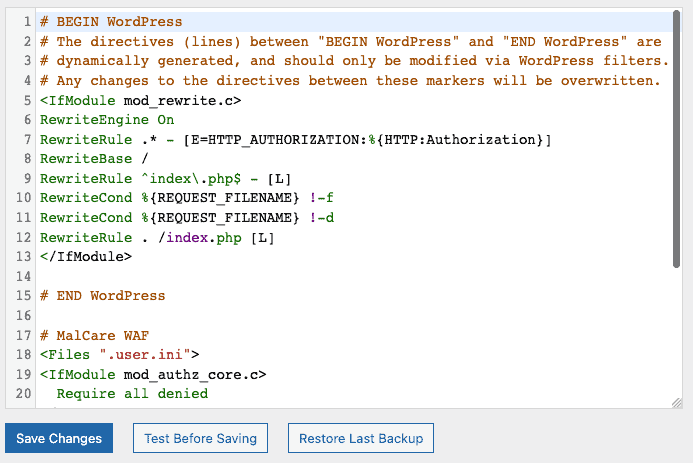
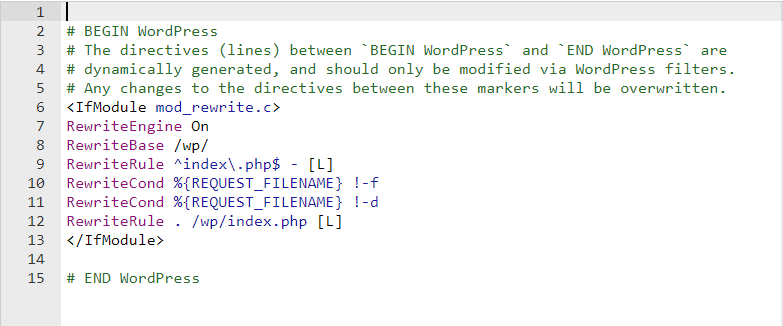
Type or paste the default WordPress .htaccess code:
BEGIN WordPress RewriteEngine On RewriteBase / RewriteRule ^index\.php$ - [L] RewriteCond %{REQUEST_FILENAME} !-f RewriteCond %{REQUEST_FILENAME} !-d RewriteRule . /index.php [L] END WordPress This code helps WordPress manage URLs and links properly. Save the file as .htaccess exactly, without any extra extensions.
Saving And Uploading The File
Save the .htaccess file in a location you can find easily. Use your FTP client or file manager in your hosting control panel.
Connect to your WordPress root folder, often named public_html or www. Upload the new .htaccess file here.
Check file permissions and set them to 644. This setting keeps the file safe but accessible to WordPress.
Refreshing your website now applies the new rules from the .htaccess file. This step helps your site work as expected.
Editing .htaccess Safely
Editing the .htaccess file in WordPress requires care. This file controls important settings for your website. A small mistake can cause errors or make your site unavailable. Always take steps to protect your site before making changes.
Working safely with the .htaccess file helps avoid downtime. Follow simple rules to edit the file without problems. Backing up the file is the first step. Knowing useful code snippets can save time and improve your site’s performance.
Backing Up Existing File
Before editing, create a backup of your current .htaccess file. Use an FTP client or file manager in your hosting control panel. Download the file to your computer. This backup lets you restore the original if something goes wrong. Never skip this step.
Common Code Snippets To Add
Several code snippets improve security and speed. For example, use code to disable directory browsing. Add rules to protect the wp-config.php file. Enable browser caching to load pages faster. These snippets help your site work better and stay safe.
Credit: www.hostinger.com
Setting Permissions For .htaccess
Setting the right permissions for your .htaccess file is important. It controls who can read or change this file. Incorrect permissions can cause security problems or stop your site from working well.
Permissions tell the server what actions are allowed. This includes reading, writing, or executing the file. For .htaccess, the focus is on reading and writing.
Understanding File Permissions
File permissions use numbers or letters to show access levels. Each number means a different permission. For example, 644 lets the owner read and write. Others can only read.
Recommended Permissions For .htaccess
Use 644 for the .htaccess file. It keeps the file safe but lets WordPress update it. This means only the owner can change it.
How To Change Permissions
Access your site with an FTP client or file manager. Find the .htaccess file in your WordPress root folder. Right-click and select “Permissions” or “File Attributes.”
Set the value to 644. Save the changes. Check your site to make sure everything works well.
Troubleshooting .htaccess Issues
Troubleshooting .htaccess issues can be tricky for WordPress users. This file controls many important functions like redirects and security. Errors here can cause your site to break or show server errors. Understanding how to fix common problems helps keep your site running smoothly.
Below are two common fixes for .htaccess problems that often affect WordPress sites.
Fixing Internal Server Errors
Internal server errors often happen because of a corrupted .htaccess file. To fix this, connect to your site using FTP or your hosting file manager. Rename the current .htaccess file to something like .htaccess_old. This disables the file without deleting it. After renaming, visit your WordPress site. If the error disappears, the .htaccess file was the cause.
Create a new .htaccess file by going to WordPress dashboard > Settings > Permalinks. Click “Save Changes” without editing anything. WordPress will generate a new .htaccess file with default rules. This simple step often fixes server errors linked to .htaccess.
Resetting Permalinks
Permalink issues can also cause 404 errors or broken links. Resetting permalinks can fix these problems. Go to WordPress dashboard > Settings > Permalinks. Select your preferred permalink structure or leave it as is. Click “Save Changes.” This action refreshes rewrite rules and updates the .htaccess file automatically.
If permalinks still cause issues, try manually editing the .htaccess file. Add WordPress default rewrite rules inside it. This ensures WordPress can control URL structures properly.
Frequently Asked Questions
What Is An Htaccess File In WordPress?
An htaccess file is a configuration file for Apache servers. It controls website settings like redirects, security, and URL structure in WordPress.
How Do I Create An Htaccess File In WordPress?
To create an htaccess file, use a text editor. Save it as “. htaccess” and upload it to your WordPress root directory via FTP.
Can I Edit The Htaccess File Safely?
Yes, but always back up the file first. Use a plain text editor and avoid syntax errors to prevent site issues.
Where Is The Htaccess File Located In WordPress?
The htaccess file is in the root folder of your WordPress installation. It may be hidden, so enable “show hidden files” in your FTP client.
Conclusion
Adding an htaccess file helps control your WordPress site better. It improves security and site speed. You can block unwanted visitors or enable friendly URLs. Always back up your site before making changes. Test your site after adding the file.
Small steps keep your site safe and running smooth. This simple file makes a big difference. Keep learning to manage your site with confidence.



