
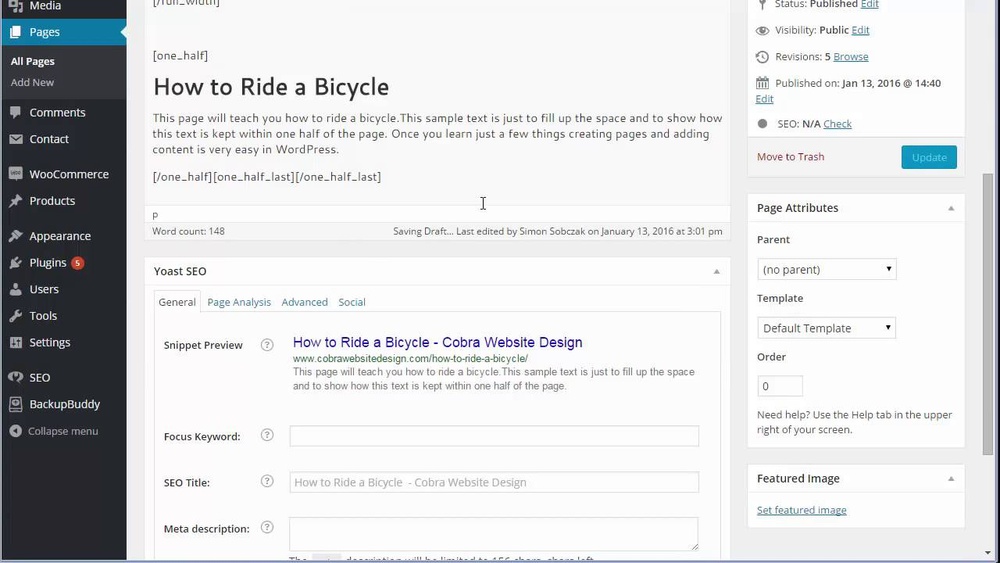
Are you looking to make your WordPress pages more engaging and informative? Adding content to your pages is the key to attracting visitors and keeping them interested.
But if you’re new to WordPress, the process might seem confusing or overwhelming. Don’t worry—you’re about to learn simple, step-by-step methods that anyone can follow. By the end of this article, you’ll know exactly how to add text, images, and other elements to your pages with ease.
Ready to take control of your website and make it truly yours? Let’s dive in.
Setting Up Your WordPress Page
Setting up your WordPress page is the first step to creating a strong website. It helps you organize your content and decide how your page will look. Proper setup ensures visitors have a smooth experience and find what they need quickly.
Understanding the options available in WordPress makes setup easier. Take time to explore settings and templates. This way, you control your page’s appearance and functionality from the start.
Choosing The Right Page Template
WordPress offers many page templates for different needs. Templates change the layout and design of your page. Pick one that fits your content style and website goals.
Some templates show a sidebar. Others use the full width of the screen. Check the demo or preview before applying a template. This helps you see how your page will look.
Use simple templates for clean and easy reading. Complex templates suit portfolios or stores better. Your choice affects user experience and page speed.
Configuring Page Settings
Page settings control how your page behaves and looks. You can set the page title, URL, and visibility here. Make sure the title matches your content for better SEO.
Decide if the page is public or private. Public pages show to all visitors. Private pages require a password or login to view.
Other settings include comments, page order, and featured images. Adjust these to fit your website’s needs. Proper settings improve navigation and visitor interaction.
Using The WordPress Editor
The WordPress Editor lets you create and edit page content easily. It uses blocks to add different types of content. This makes pages flexible and simple to build. Anyone can use it, no coding needed.
The editor helps you control how your page looks. You can add text, images, videos, and more. Each piece of content is a block. You can move blocks around to change the layout.
Navigating The Block Editor
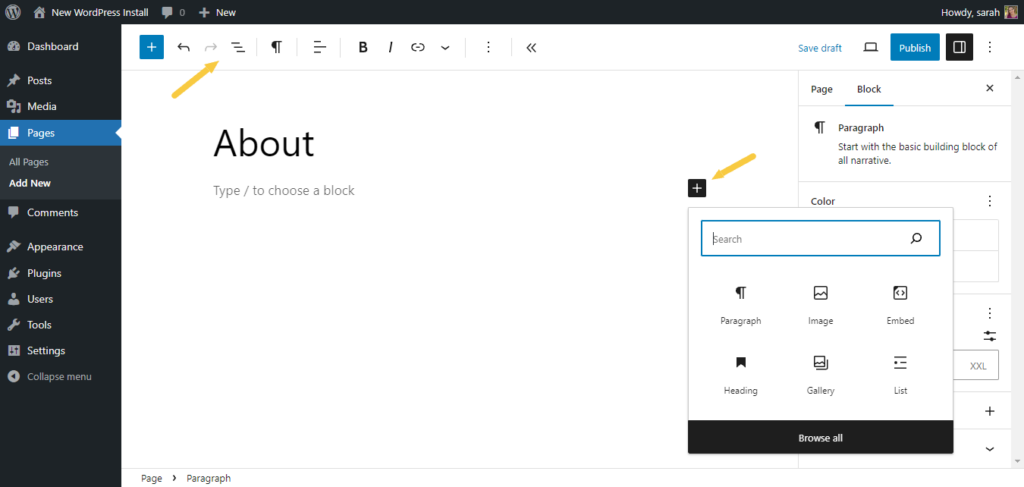
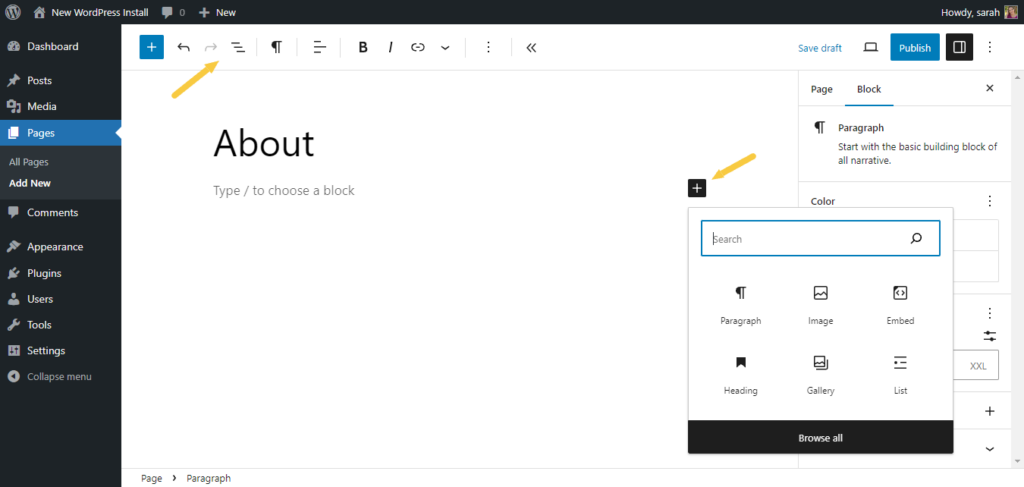
The block editor shows a clean workspace. On the right, you find settings for blocks and pages. On the left, the toolbar helps you add new blocks or undo changes. The main area is for your content blocks.
Click any block to edit it. Each block has its own toolbar. It lets you change block style and layout. You can also drag blocks to reorder them.
Adding And Arranging Blocks
To add a block, click the plus (+) button. Choose from text, images, lists, and many more. You can add multiple blocks to one page.
Drag blocks to move them up or down. This changes the content order. Use the arrow buttons for small moves. Drag and drop for quick changes.
Blocks can be nested. For example, a group block can hold several blocks inside. This helps keep content organized.
Inserting Text And Media
Inserting text and media into WordPress pages helps make your content clear and attractive. Text shares your message. Media like images and videos catch visitors’ eyes and explain ideas better. WordPress makes it simple to add these elements. Understanding how to insert text and media improves your page’s look and user experience.
Adding Text Content
Click inside the text box on your WordPress page. Start typing your message clearly and simply. Use short sentences for easy reading. You can format text by making it bold, italic, or underlined. Use headings and lists to organize your content. This helps readers scan your page fast.
Uploading Images And Videos
Click the “Add Media” button above the text editor. Choose files from your computer to upload. WordPress supports many image and video formats. After uploading, you can add captions or descriptions. Resize or align media for a neat appearance. Visuals break up text and make pages lively.
Embedding External Media
Copy the URL of the media you want to embed. Paste the link directly into the text editor. WordPress automatically turns it into embedded content. You can add videos from YouTube, audio from SoundCloud, or posts from social media. Embeds make your content richer without slowing your site.

Credit: www.youtube.com
Enhancing Pages With Plugins
Plugins help improve your WordPress pages easily. They add new features without coding. You can create contact forms, galleries, sliders, and more. Plugins make your site interactive and user-friendly.
Choosing the right plugin depends on your page needs. Some plugins focus on design, others on functionality. Using plugins helps you customize pages to fit your goals.
Popular Content Plugins
Several plugins stand out for content creation. Elementor and Beaver Builder offer drag-and-drop page building. These tools simplify adding text, images, and layouts.
Yoast SEO helps optimize your content for search engines. It guides you to write better titles and descriptions. WPForms allows easy form creation for user interaction.
Adding Contact Forms And Galleries
Contact forms let visitors reach you directly. WPForms and Contact Form 7 are popular choices. They are easy to install and customize.
Image galleries showcase photos in a neat layout. Plugins like NextGEN Gallery and Envira Gallery work well. They support multiple formats and responsive design.
Optimizing Content For Seo
Optimizing content for SEO helps your WordPress pages rank higher in search results. It makes your content easier for search engines to find and understand. This brings more visitors to your site and improves user experience. Simple steps can improve your SEO without much effort.
Using Seo Plugins
SEO plugins simplify optimization tasks. They guide you to add keywords, meta descriptions, and titles. Popular plugins like Yoast SEO or All in One SEO offer clear instructions. They also check readability and suggest improvements. These tools save time and help avoid common SEO mistakes.
Writing Seo-friendly Content
Use clear and short sentences. Include keywords naturally in your text, titles, and headings. Avoid keyword stuffing. Focus on topics your audience cares about. Write unique content that answers questions or solves problems. Add images with descriptive alt text. This helps search engines understand your page better.
Credit: www.omnisend.com
Previewing And Publishing Pages
Previewing and publishing pages in WordPress helps you control what visitors see. You can check your work before it goes live. This step avoids mistakes and improves your site’s quality.
WordPress offers easy tools to preview changes and schedule posts. These options keep your content fresh and accurate. Let’s explore how to preview and publish your pages effectively.
Previewing Changes
Previewing lets you see your page as visitors will. Click the “Preview” button on the editor screen. A new tab opens showing your page with all edits.
This view helps spot errors or layout problems. You can test links, images, and text before publishing. Make sure everything looks right and works well.
Previewing saves time and avoids publishing mistakes. It shows your page in desktop and mobile views. This way, you confirm a good user experience on all devices.
Publishing And Scheduling
Publishing makes your page live on your website. Click the “Publish” button once satisfied with your content. Your page becomes visible to all visitors instantly.
You can also schedule pages to publish later. Choose a future date and time in the “Publish” settings. WordPress will automatically post your page at that time.
Scheduling keeps your site updated without manual work. Plan content releases to match your marketing or events. This feature helps maintain a steady flow of fresh content.
Editing And Updating Content
Editing and updating content on your WordPress pages is essential to keep your site relevant and useful. Regular updates help maintain accuracy and improve user experience. It also boosts your site’s ranking on search engines by showing fresh content.
Making Revisions
Start by logging into your WordPress dashboard. Navigate to the page you want to edit. Click the “Edit” button to open the page editor. Make the needed changes to text, images, or layout. Use simple and clear language to keep visitors engaged. Preview your changes before saving to ensure everything looks right. Finally, click “Update” to save the revisions live.
Keeping Content Fresh
Review your pages regularly to spot outdated information. Update statistics, dates, and facts to keep content current. Add new sections or images to improve the page. Remove any broken links or irrelevant details. Fresh content encourages visitors to return and explore more. Search engines favor websites that update content often.
Credit: solidwp.com
Frequently Asked Questions
How Do I Add Text Content To WordPress Pages?
To add text, open your WordPress page editor, select the block area, and type or paste your content. Use the paragraph block for regular text and customize fonts or colors using the toolbar.
Can I Add Images To WordPress Pages Easily?
Yes, click the “+” icon in the editor, choose the Image block, and upload or select an image from the media library. You can resize and align images as needed.
How To Insert Videos Into WordPress Pages?
Use the Video or Embed block in the editor. Paste the video URL or upload a file directly. WordPress supports YouTube, Vimeo, and self-hosted videos for easy embedding.
Is It Possible To Add Buttons On WordPress Pages?
Absolutely, add a Button block to your page. Customize the button text, link, and style to improve user engagement and navigation on your site.
Conclusion
Adding content to WordPress pages is simple and quick. Use the editor to type or paste your text. Add images or videos to make pages more interesting. Organize content with headings and lists. Preview your work before publishing to check everything.
Keep practicing to improve your skills. Creating good pages helps your website grow and attract visitors. Start adding content today and see the difference.



