
Looking to grab your visitors’ attention instantly? Adding a popup to your WordPress site can be a game-changer for growing your email list, promoting offers, or sharing important news.
But what if you want to do it without relying on plugins that can slow down your site? You’re in the right place. This guide will show you exactly how to add a popup in WordPress without using any plugins—simple, fast, and effective.
Keep reading, and you’ll learn how to create eye-catching popups that boost your site’s impact while keeping it lean and speedy.
Why Choose Plugin-free Popups
Choosing to add popups without a plugin on your WordPress site offers clear advantages. It keeps your site light and fast. You also gain more control over the popup design and behavior. This method reduces reliance on third-party tools. It helps avoid common plugin issues like conflicts and updates. Many site owners prefer a simpler, cleaner approach. Let’s explore why plugin-free popups can be a smart choice.
Benefits Of Avoiding Plugins
Plugins add extra code to your website. More code means slower loading times. Each plugin can increase the risk of errors. Some plugins may not work well with others. Without plugins, you keep your site streamlined. You control exactly what code runs. Custom popups can match your site’s style better. No need to learn new plugin settings or features. You save time by not managing updates or licenses.
Performance And Security Gains
Less plugin use often improves website speed. Faster websites rank better in search engines. A speedy site improves user experience too. Plugin-free popups reduce security risks. Every plugin is a potential target for hackers. Custom code can be more secure if well written. You avoid vulnerabilities that come with outdated plugins. Your site stays safer and runs smoother with fewer plugins.
Preparing Your WordPress Site
Before adding a popup to your WordPress site without a plugin, prepare your site carefully. Preparation helps avoid problems and keeps your site safe. Follow simple steps to get ready for the changes.
Backup Your Website
Backup your website before making any changes. This saves your data if something goes wrong. Use your hosting provider’s backup tool or a manual method. Download a copy of your database and files. Keep the backup safe on your computer.
Accessing Theme Files Safely
Access theme files with care to avoid errors. Use a child theme to protect your main theme. Edit files via FTP or your hosting control panel. Avoid direct changes in the WordPress editor. Always create a backup of the file before editing.
Creating The Popup Html
Creating the popup HTML is the first step in adding a popup to WordPress without a plugin. This part involves writing the basic code that builds the popup box. The popup structure holds the content and controls how it looks on the page. Clear and simple HTML helps the popup work well on all devices.
Designing The Popup Structure
Start by making a container for the popup. Use a tag with a unique class or ID. This container wraps all popup elements. Inside, add another for the popup content area. This area will hold text, images, or buttons.
Keep the structure simple. The popup should have a close button. This button lets users close the popup easily. Use a or for the close icon. Place it at the top right inside the content container.
Adding Content To The Popup
Now add the message or information inside the popup content area. Use headings like or for titles. Add paragraphs with for details. You can also add images with
Include a call-to-action, like a button or link. This guides visitors on what to do next. Keep text short and clear. Make sure content fits well inside the popup box.
Credit: wowoptin.com
Styling The Popup With Css
Styling your popup with CSS is key to making it look clean and professional. Good styles help grab visitors’ attention. They also improve the user experience. Custom CSS lets you control colors, sizes, and layout. It makes your popup fit your site’s design perfectly.
CSS also lets you add animations and effects. These make the popup appear smoothly. They keep the user engaged. Simple animations can make your popup feel modern and alive.
Basic Popup Styles
Start with the popup container. Give it a fixed size and center it on screen. Use a light background color for easy reading. Add padding inside to keep text away from edges. A border or shadow helps it stand out from the page.
Set the font size and color for the popup text. Keep fonts clear and easy to read. Use a high contrast between text and background. Add some space between lines for comfort. Make buttons large enough to click on all devices.
Adding Animations And Effects
Use CSS transitions for smooth show and hide effects. Fade the popup in and out by changing opacity. Slide it from top or bottom for extra style. Keep animations short, about 0.3 to 0.5 seconds. This keeps the motion natural and quick.
Add a slight scale effect to make the popup pop out. Use transform: scale(1.05) on hover for interactive feedback. Avoid too many animations as they distract users. Simple and subtle effects work best for popups.
Adding Javascript For Popup Behavior
Adding JavaScript for popup behavior makes your popup interactive. It controls when the popup appears and how users close it. This step is important to create a smooth user experience. You can write simple JavaScript to show and hide the popup without extra plugins.
Triggering The Popup On Page Load
Use JavaScript to show the popup as soon as the page loads. This grabs attention right away. Add a script that listens for the page’s load event. Then, change the popup’s style to make it visible.
Example:
window.onload = function() { document.getElementById('myPopup').style.display = 'block'; };This code finds the popup by its ID and shows it immediately. It works on all modern browsers and requires no extra setup.
Enabling Close Button And Outside Click
Let users close the popup easily. Add a close button inside the popup. Use JavaScript to hide the popup when the button is clicked.
Also, allow closing the popup by clicking outside it. This improves usability and feels natural.
Example:
var popup = document.getElementById('myPopup'); var closeBtn = document.getElementById('closeBtn'); closeBtn.onclick = function() { popup.style.display = 'none'; }; window.onclick = function(event) { if (event.target == popup) { popup.style.display = 'none'; } };This script listens for clicks on the close button and outside the popup. It hides the popup in both cases. Users can exit the popup without confusion.
Inserting Popup Code Into WordPress
Adding a popup to your WordPress site can catch visitors’ attention quickly. You can do this without using extra plugins by inserting the popup code directly into your site. This method keeps your site fast and clean.
There are two main ways to insert popup code into WordPress. You can edit the theme files or use the code snippets feature. Both ways let you add custom code safely and effectively.
Editing The Theme’s Header Or Footer
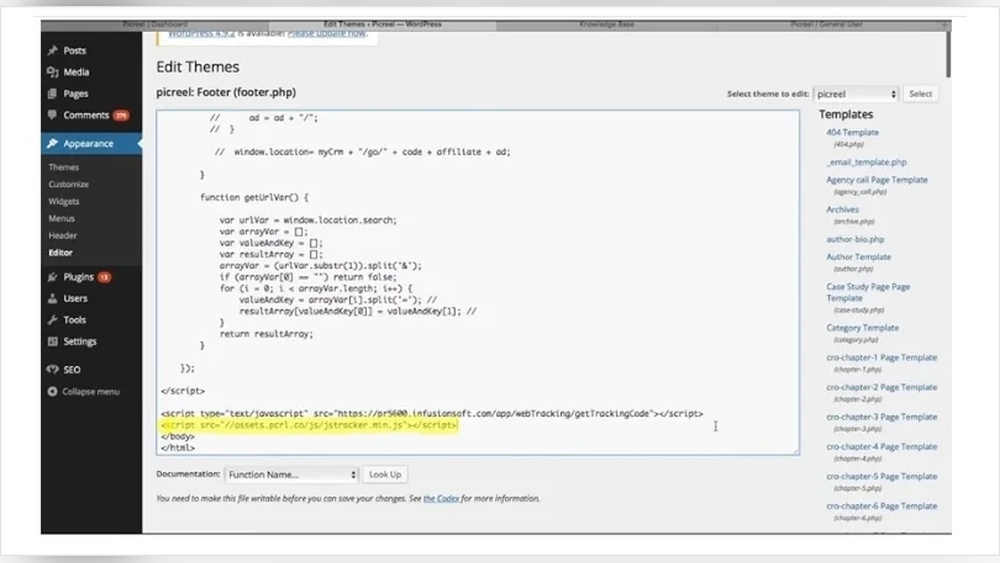
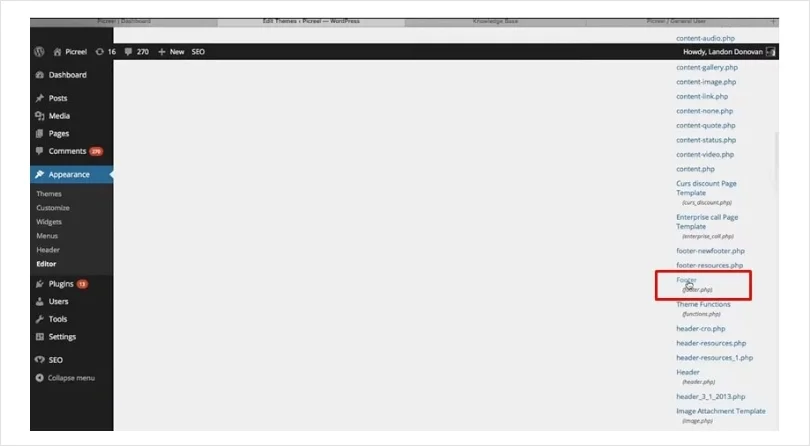
The header and footer files load on every page of your site. This makes them ideal for adding popup code. Start by going to the WordPress dashboard, then navigate to Appearance > Theme Editor.
Choose the header.php or footer.php file from the list. Paste your popup code before the closing tag in the header or before in the footer. Save the changes and check your site. The popup should appear as expected.
Be careful while editing theme files. Backup your site before making changes. Mistakes here can break your site.
Using The Code Snippets Feature
Code snippets offer a safer way to add custom code without touching theme files. Install a plugin that allows code snippets if your theme does not support it natively. Then, add a new snippet and paste your popup code.
Set the snippet to run in the header or footer area, depending on your popup script. Save and activate the snippet. This method keeps your code organized and easy to manage.
Using snippets avoids losing code after theme updates. It also reduces the risk of errors on your site.
Testing And Troubleshooting
Testing and troubleshooting are vital steps after adding a popup to your WordPress site without a plugin. These steps ensure your popup works smoothly and looks good on every device. Small issues can stop the popup from showing or make it hard to close. Checking and fixing these problems improves user experience and keeps visitors engaged.
Checking Popup Display On Devices
Check your popup on different devices like phones, tablets, and desktops. Open your site on each device to see if the popup appears correctly. Make sure the popup fits the screen and is easy to close. Sometimes popups look fine on a desktop but break on smaller screens. Use browser tools to simulate devices and test responsiveness.
Fixing Common Issues
Start by clearing your browser cache to load the latest changes. If the popup does not show, check the code for errors or missing tags. Ensure JavaScript is enabled in your browser settings. If the popup appears too often, adjust the timing or triggers in your code. For closing problems, verify the close button’s code works and is visible. Test after each fix to confirm the popup runs well.
Credit: www.picreel.com
Optimizing Popup Performance
Optimizing popup performance helps keep your website fast and user-friendly. Poorly optimized popups can slow down your site. Visitors may leave if pages take too long to load. Focus on clean, efficient code and fast loading times. Small tweaks can make a big difference.
Minimizing Code Impact
Use only the code needed for the popup to work. Avoid extra scripts or styles that do not help. Write simple HTML, CSS, and JavaScript. Combine and compress code files to reduce size. This lowers the load on the browser and speeds up popup display.
Ensuring Fast Load Times
Load popup code only when needed, not on every page. Use lazy loading techniques to delay popup scripts. Keep images small and optimized for the web. Avoid heavy animations or effects that slow rendering. Test popup speed on different devices and browsers to ensure quick load times.

Credit: www.youtube.com
Frequently Asked Questions
How Can I Add A Popup In WordPress Without A Plugin?
You can add a popup by using custom HTML, CSS, and JavaScript directly in your theme files. This method avoids plugins and keeps your site lightweight and fast.
Is Coding Knowledge Required To Create A WordPress Popup Manually?
Basic coding knowledge helps. You need to understand HTML, CSS, and JavaScript to create and customize popups effectively without plugins.
Can I Customize The Popup Design Without Plugins?
Yes, you can fully customize the popup’s appearance using CSS styles. This allows you to match your site’s branding and design preferences easily.
Will Adding Popups Manually Affect My Website Speed?
Manual popups usually improve speed compared to plugins. They add minimal code, reducing bloat and ensuring faster loading times on your WordPress site.
Conclusion
Adding a popup in WordPress without a plugin is simple and effective. You control the design and behavior directly in your site’s code. This method keeps your website fast and avoids plugin conflicts. Use HTML, CSS, and JavaScript to create popups that fit your needs.
Test your popup on different devices to ensure it works well everywhere. This approach helps you learn more about web design too. Start with small steps, and your site will feel more interactive. A clean, lightweight popup can improve user experience without extra tools.



