
Are you thinking about moving your website from Squarespace to WordPress? You might be wondering if it’s possible, how hard it will be, and what benefits you’ll gain.
Switching platforms can feel overwhelming, but it doesn’t have to be. You’ll discover clear answers and simple steps to make the move smooth and stress-free. Keep reading to find out how you can take full control of your website and unlock new possibilities with WordPress.
Reasons To Switch To WordPress
Switching from Squarespace to WordPress can offer many advantages. WordPress gives more control and flexibility for your website. This helps you build a site that fits your exact needs. Understanding why WordPress might be better can help you decide.
Limitations Of Squarespace
Squarespace has a simple setup but limits your design options. You cannot change the core features or add advanced tools easily. It also restricts how you manage your website data. Many users find these limits hold back growth.
Benefits Of WordPress
WordPress offers full control over your website’s look and functions. It supports thousands of plugins to add features. You can customize your site’s design freely with themes. WordPress also allows better search engine optimization for more traffic.
Cost Considerations
Squarespace charges a monthly fee for its platform. WordPress itself is free to use. You only pay for hosting and optional premium themes or plugins. This makes WordPress a budget-friendly choice for many website owners.
Preparing For The Move
Preparing for the move from Squarespace to WordPress requires careful steps. This preparation ensures a smooth transition without losing content or design. Planning ahead saves time and reduces stress. Focus on backing up your current site, choosing the right hosting, and picking a theme that fits your brand.
Backing Up Your Squarespace Site
Backing up your site is the first step. Squarespace allows you to export some content, like blog posts and basic pages. Download these files to your computer. Note that not all content, such as style settings and some pages, can be exported. Consider copying important text and images manually. This backup keeps your content safe during the move.
Choosing A WordPress Hosting Provider
Pick a reliable hosting provider for your WordPress site. Hosting affects your site’s speed and uptime. Look for providers with good reviews and support. Make sure they offer easy WordPress installation. Select a hosting plan that matches your site’s size and traffic. A good host helps your site run smoothly after the move.
Selecting A WordPress Theme
Choose a WordPress theme that matches your style. Themes control your site’s look and feel. Search for themes that are simple and mobile-friendly. Check if the theme supports the features you need. Preview themes before installing them. A good theme helps keep your brand consistent and your site easy to use.
Migrating Your Content
Migrating your content from Squarespace to WordPress involves several important steps. You need to move all your text, images, and pages carefully. This ensures your website looks and works well after the move. The process might seem tricky but can be done step by step.
Exporting Content From Squarespace
Start by exporting your content from Squarespace. Squarespace allows you to export most blog posts and basic pages in an XML file. This file contains the text and some formatting. To do this, go to the Settings menu, find the Advanced section, and select Import/Export. Then click on Export and download the file. Note that some content, like product pages or custom code, might not export automatically.
Importing Content Into WordPress
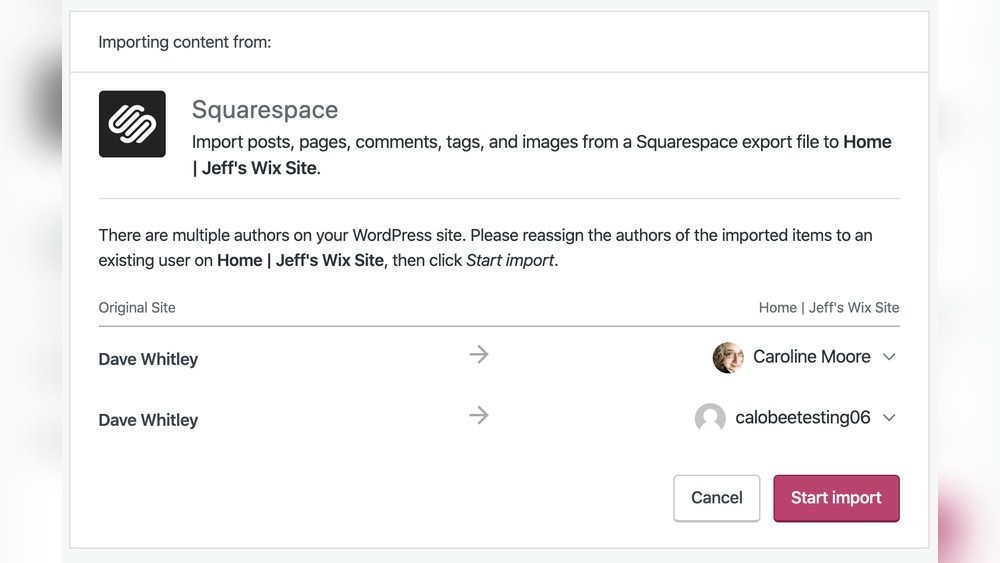
Next, import the XML file into WordPress. In your WordPress dashboard, go to Tools and click on Import. Choose the WordPress option, install the importer if needed, and upload the file. WordPress will add your posts, pages, and comments from Squarespace. You can assign authors and fix any broken links during this step. This process brings your content into WordPress quickly.
Handling Images And Media
Images do not always transfer smoothly. Squarespace stores images separately. You will need to download your images manually or use a plugin that imports media files. Upload these images to your WordPress Media Library. Check your posts and pages to make sure all images appear correctly. Fix any missing images by re-uploading or updating the links inside your content.
Transferring Pages And Blog Posts
Pages and blog posts move with the XML file but may need extra attention. Some Squarespace page layouts do not match WordPress themes. Edit your pages to fit your new design. Adjust formatting, add menus, and set featured images. Organize your blog posts into categories and tags. This helps visitors find content easily on your WordPress site.
Credit: flexi.ink
Setting Up WordPress
Setting up WordPress after moving your website from Squarespace is a crucial step. It lays the foundation for your new site’s performance and appearance. Careful setup helps maintain your site’s SEO and user experience.
WordPress offers many tools and options. Focus on the basics first. This includes adding key plugins, adjusting settings, and customizing the design.
Installing Essential Plugins
Plugins add important features to WordPress. Start with SEO plugins to improve search rankings. A security plugin keeps your site safe. A caching plugin helps your site load faster. Use a plugin for backups to protect your content. These tools work behind the scenes and improve your site’s function.
Configuring Permalinks And Seo
Permalinks are the web addresses of your pages. Set them to be clean and easy to read. This helps both visitors and search engines. Choose a format that shows the post name. Adjust SEO settings with your SEO plugin. Add meta titles and descriptions for each page. This improves your site’s visibility on search engines.
Customizing Design And Layout
WordPress themes control your site’s look. Pick a theme that matches your brand style. Use the theme customizer to change colors and fonts. Add your logo and adjust the header. Arrange widgets in sidebars or footers. Keep the layout simple and easy to navigate. This helps visitors find information quickly.
Redirects And Seo Preservation
Moving your website from Squarespace to WordPress requires careful attention to redirects and SEO. Without proper redirects, your visitors may land on broken pages. This harms user experience and lowers your search engine rankings. Preserving SEO means keeping your site’s visibility and traffic stable during the move.
Setting Up Url Redirects
URL redirects send visitors from old pages to new ones. This stops broken links and lost traffic. Create a list of your Squarespace URLs and match them to WordPress URLs. Use 301 redirects for permanent moves. This tells search engines that the page has moved. You can set redirects in your WordPress .htaccess file or with plugins.
Maintaining Search Rankings
Maintaining search rankings keeps your site’s traffic steady. Search engines trust websites with working links and good redirects. Check your old pages for backlinks and replicate them on WordPress. Keep your page titles, descriptions, and content similar. This helps search engines understand your new site. Test redirects to ensure they work properly before going live.
Using Seo Plugins
SEO plugins on WordPress help manage redirects and optimize your site. Plugins like Yoast SEO or Rank Math make it easy to add redirects. They also help with meta tags, sitemaps, and keyword optimization. These tools guide you to keep your SEO strong. Regularly update plugins and monitor your site’s SEO health for best results.

Credit: blogvault.net
Testing And Launching
Testing and launching your website after moving from Squarespace to WordPress is a crucial step. This phase ensures your site works well and looks great for visitors. Careful checks help avoid errors that can hurt user experience and SEO. Focus on key areas before making your site live.
Checking For Broken Links
Broken links frustrate visitors and harm SEO. Scan your site to find any links that do not work. Use tools or plugins designed to detect broken URLs. Fix or update these links to ensure smooth navigation.
Ensuring Mobile Responsiveness
Most users browse on phones or tablets. Your WordPress site must look good and work well on small screens. Test your website on different devices and screen sizes. Adjust layouts or images that do not display properly.
Final Review Before Going Live
Review all pages, content, and features carefully. Check spelling, grammar, and formatting. Test contact forms and other interactive elements. Confirm loading speed is fast enough. Only launch your site when everything is perfect.
Common Challenges And Solutions
Moving your website from Squarespace to WordPress brings some challenges. These issues can slow down your progress. Knowing common problems helps you prepare better. You can find simple fixes to make the switch smoother. This section covers typical challenges and how to solve them.
Dealing With Design Differences
Squarespace and WordPress use different design tools. Your site may look different after moving. Themes on WordPress vary in style and layout. You need to pick a theme that fits your brand. Customizing the theme helps match your old design. Some design details might not transfer perfectly. Expect to spend time adjusting fonts, colors, and spacing.
Fixing Media Upload Issues
Images and videos can fail to upload correctly. File paths and formats may cause problems. Large files might not import smoothly. Check the size and type of each file. Use WordPress media library to re-upload missing files. Rename files if they don’t appear. Clear your browser cache to see updated media.
Troubleshooting Plugin Conflicts
WordPress uses plugins for added features. Some plugins may not work well together. Conflicts can cause slow loading or errors. Deactivate all plugins first. Activate them one by one to find the troublemaker. Replace incompatible plugins with better options. Keep plugins updated to avoid problems.

Credit: www.youtube.com
Frequently Asked Questions
Can I Transfer My Squarespace Content To WordPress Easily?
Yes, you can transfer content using export-import tools. Squarespace exports blog posts and basic pages. Media files and complex layouts need manual migration or plugins.
Will My Seo Rankings Be Affected After Migrating?
SEO rankings may temporarily fluctuate. Proper redirects and preserving URL structure help maintain rankings. Optimize WordPress SEO settings post-migration.
Do I Need Technical Skills To Move From Squarespace?
Basic technical skills help but aren’t mandatory. Many plugins and tutorials simplify migration. Hiring a developer ensures smooth transition and fewer errors.
How Long Does It Take To Migrate My Website?
Migration time varies by website size and complexity. Simple blogs take a few hours; larger sites may need days. Planning speeds up the process.
Conclusion
Moving your website from Squarespace to WordPress can be smooth with the right steps. WordPress offers more control and flexibility for your site. Take time to plan your move carefully. Back up your content and check your design choices. Test your new WordPress site before going live.
This switch can help your website grow and improve. Stay patient and learn as you go. Your site will feel more personal and powerful in the end.



