
Are you wondering if you can upload your HTML files directly to WordPress? Maybe you’ve spent time crafting a custom webpage and want to bring it into your WordPress site without losing its look or functionality.
The good news is, yes—you can! But there are some important details you need to know to make it work smoothly. Keep reading, and you’ll discover exactly how to upload your HTML to WordPress without headaches or hassle. Your website will thank you.
Uploading Html Files To WordPress
Uploading HTML files to WordPress is a useful skill for adding custom pages or content. WordPress mainly uses PHP and its own editor. Still, you can add plain HTML files to your site. This gives you more control over design and layout.
There are several ways to upload HTML files to WordPress. Each method fits different user needs and access levels. Choose the one that suits your setup best.
Using The WordPress Dashboard
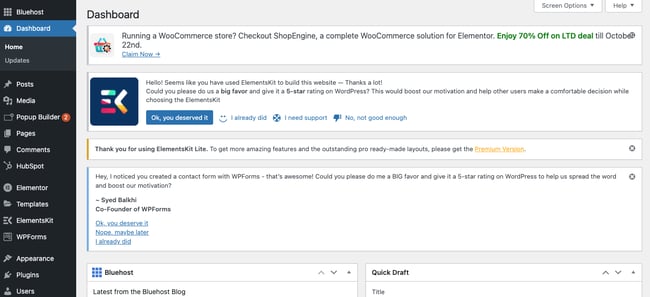
You can upload HTML files through the WordPress dashboard by adding them to the Media Library. Go to Media > Add New and select your HTML file. However, WordPress treats HTML files as downloads, not web pages. To display the file as a page, you must link to it directly.
This method is easy but limited. It works well for simple files without complex scripts or styles. For full control, other methods are better.
Accessing The Hosting File Manager
Most web hosts provide a File Manager in their control panel. This tool lets you upload files directly to your website folder. Log in to your hosting account and open File Manager. Navigate to the public_html or www directory. Upload your HTML files here.
This method places files on your server where WordPress runs. You can then link to these files from your site menus or posts. This approach is straightforward and does not require extra software.
Uploading Via Ftp Clients
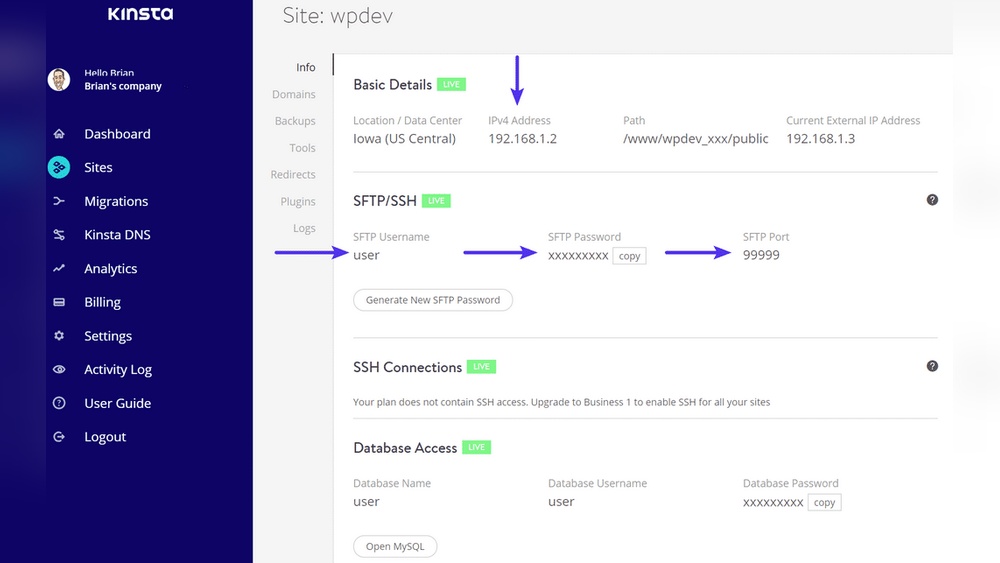
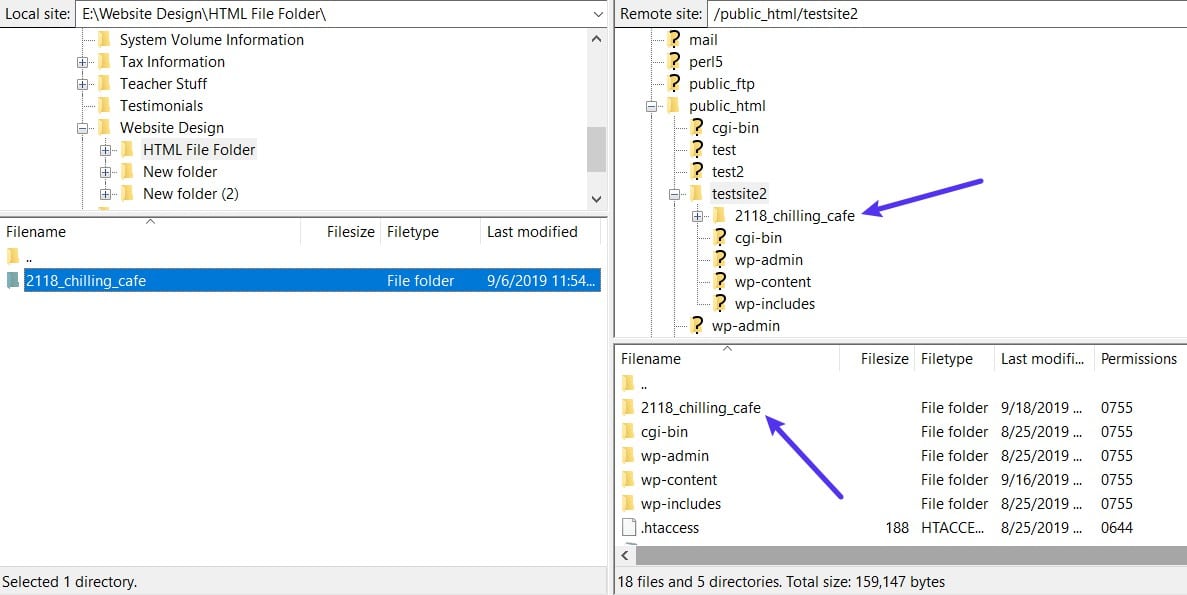
FTP clients like FileZilla allow direct file transfer to your web server. Install an FTP client and connect using your hosting credentials. Navigate to your WordPress root folder. Upload your HTML files into the desired directory.
FTP offers more control and works well for bulk uploads. You can organize files in folders and manage them easily. This method suits users comfortable with basic file management.
Credit: blog.hubspot.com
Converting Html To WordPress Pages
Converting HTML to WordPress pages lets you keep your site’s look and feel. This process helps you move static content into a dynamic platform. WordPress makes managing and updating content easier. You can use your existing HTML code and display it inside WordPress pages. This way, your website stays consistent and functional.
There are different ways to add HTML content to WordPress. Each method depends on your needs and skill level. Below are simple steps to convert HTML into WordPress pages effectively.
Creating A New Page
Start by logging into your WordPress dashboard. Click on “Pages” and then “Add New.” Give your page a title. This step creates a blank page ready for content. You can later add your HTML code here. It’s the base for your converted HTML page.
Embedding Html Code In The Editor
Use the WordPress editor to add HTML directly. Switch to the “Text” or “Code” view in the editor. Paste your HTML code into this section. This method keeps your design intact. Save or publish the page to see the changes live. It works well for simple HTML snippets.
Using Custom Page Templates
For complex HTML sites, custom templates offer more control. Create a new PHP file in your theme folder. Insert your HTML code inside this file. Add a template name at the top with a comment tag. Assign this template to a WordPress page. This method keeps your design consistent and flexible.
Choosing The Right Method
Choosing the right method to upload HTML to WordPress depends on your site’s needs. Each method offers different advantages and suits different skill levels. Understanding the differences helps you pick the best approach. This section breaks down the main options to guide your decision.
Static Html Vs Dynamic WordPress Content
Static HTML pages are simple files. They load fast and show fixed content. Good for small sites or landing pages. Dynamic WordPress content changes based on user actions. It uses PHP and databases to deliver content. Ideal for blogs, shops, and sites needing frequent updates. Static HTML is easy but less flexible. WordPress content requires more setup but offers more power.
Benefits Of Using Plugins
Plugins simplify adding HTML to WordPress. They let you embed code without editing theme files. Some plugins allow full HTML page creation inside WordPress. Others help convert HTML to WordPress format. Plugins save time and reduce errors. They also keep your site secure. Choose plugins with good reviews and updates. Avoid plugins that slow down your site.
When To Use Child Themes
Child themes let you change site design safely. Use them when you want to add custom HTML or CSS. They keep your changes separate from the main theme. This way, theme updates won’t erase your work. Child themes require some coding knowledge. Best for users who want control over site look. Avoid editing parent themes directly to prevent problems.
Common Issues And Fixes
Uploading HTML files to WordPress can cause some common problems. These issues often stop your site from working well or looking right. Fixing these problems helps your website run smoothly and look good on all devices.
Handling Broken Links
Broken links appear when URLs in your HTML do not match WordPress paths. This happens because WordPress uses a different folder structure. Check all links after upload. Update them to use the correct WordPress URLs. Use relative links instead of absolute ones to avoid errors. Plugins like Broken Link Checker can help find broken links fast.
Resolving Styling Conflicts
WordPress themes come with their own CSS styles. These styles can clash with your HTML file’s styles. Conflicts cause strange fonts, colors, or layouts. Avoid this by isolating your CSS. Use unique class names or IDs in your HTML. Add your styles inside WordPress’s custom CSS area. This method keeps your design clean and consistent.
Ensuring Mobile Responsiveness
HTML files may not be mobile-friendly when uploaded to WordPress. Fixed widths and large images cause problems on small screens. Use flexible layouts and responsive CSS in your HTML. Test your pages on phones and tablets. Adjust styles to fit different screen sizes. WordPress themes often include mobile support; match your HTML to it for best results.
Tips For Seamless Integration
Uploading HTML to WordPress can be smooth with the right approach. Follow simple tips to avoid common problems. These tips help keep your site fast, safe, and easy to manage. A few steps can make the integration flawless.
Optimizing Html For WordPress
Clean your HTML code before uploading. Remove unnecessary tags and scripts. Use standard HTML5 elements for better compatibility. Avoid inline styles; use CSS files instead. Keep your code simple and well-structured. This helps WordPress read and display content correctly.
Maintaining Seo Best Practices
Use proper heading tags in your HTML. Include meaningful title and meta description tags. Optimize images with alt text for better ranking. Ensure URLs are clean and descriptive. Use keywords naturally in your content. These steps improve your site’s visibility in search engines.
Backing Up Your Site Before Upload
Create a full backup of your WordPress site before changes. Save your database and files separately. Use backup plugins or manual methods. This protects your content if errors occur during upload. Restoring a backup is faster than fixing problems.
Credit: kinsta.com

Credit: www.hosted.com
Frequently Asked Questions
Can You Directly Upload Html Files To WordPress?
WordPress does not support direct HTML file uploads. Instead, you can copy HTML code into the WordPress editor or use plugins to embed HTML content effectively.
How Do I Add Custom Html To A WordPress Page?
To add custom HTML, use the WordPress block editor’s Custom HTML block or switch to the text editor and paste your code directly.
Is It Safe To Upload Html To WordPress?
Uploading HTML via the editor is safe if you trust the source. Avoid unknown scripts to prevent security risks and site vulnerabilities.
Can I Convert An Html Website Into WordPress?
Yes, you can convert an HTML site by recreating pages in WordPress using themes and custom HTML blocks or specialized conversion tools.
Conclusion
Uploading HTML to WordPress is simple and useful. You can add custom code to your site easily. Just follow the steps carefully and test your pages. This lets you keep control over your design and content. WordPress supports many ways to add HTML, like the editor or plugins.
With a little practice, you will feel confident. Your website can look exactly how you want. Try it out and see the difference yourself.



