
Are you looking for a simple way to add powerful features to your WordPress site without touching complex code? Shortcodes are the secret tool that can transform your pages and posts instantly.
With just a few easy steps, you can insert galleries, buttons, forms, and much more—making your website more interactive and engaging. In this guide, you’ll discover exactly how to use shortcode WordPress features to save time and boost your site’s appeal.
Keep reading, and you’ll be creating stunning content with ease before you know it.
What Are WordPress Shortcodes
WordPress shortcodes are small codes that let you add features easily. These codes save time and avoid complex coding. They help you insert content or functions inside posts and pages fast. Shortcodes make your site more flexible and interactive without needing a developer.
Basic Concept
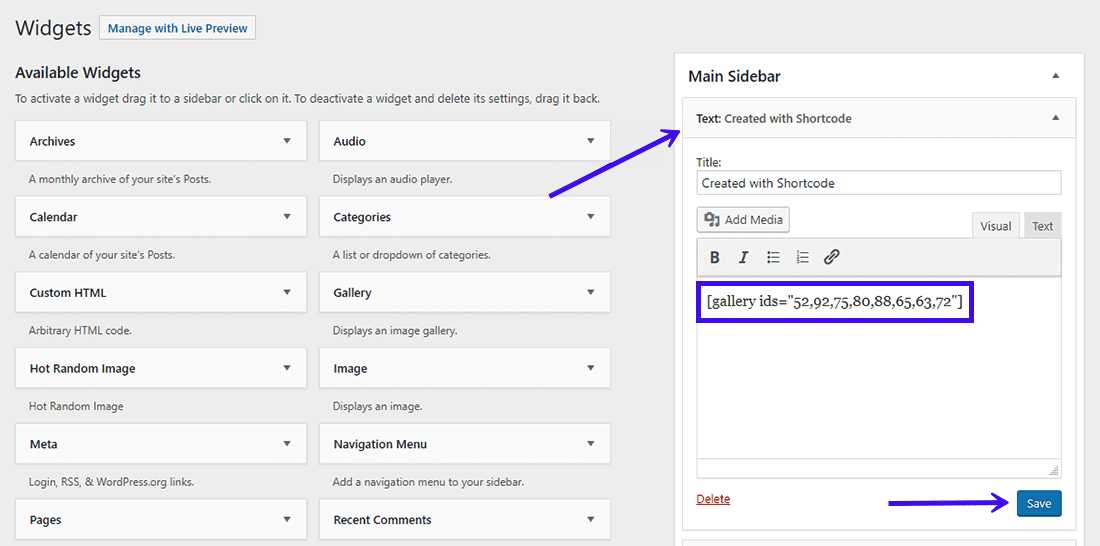
Shortcodes are simple text enclosed in square brackets. For example, shows a photo gallery. WordPress reads these codes and replaces them with dynamic content. You can use shortcodes anywhere in posts, pages, or widgets. No programming skills are needed to use them.
Common Uses
Shortcodes often add buttons, forms, or videos quickly. They help display galleries, sliders, or contact forms. Many plugins provide their own shortcodes to extend site features. They keep your site clean and easy to manage by avoiding long code blocks.

Credit: wordpress.org
Creating Your First Shortcode
Creating your first shortcode in WordPress is a simple way to add custom content. Shortcodes help you insert dynamic elements without writing code every time. They make your site easier to manage and update.
This section will guide you through creating a basic shortcode. You will learn how to write a simple function and then add it to your theme. Follow these steps to start using shortcodes quickly.
Simple Function Example
Start by writing a basic function for your shortcode. This function tells WordPress what content to display.
function my_first_shortcode() { return "Hello, this is my first shortcode!"; } add_shortcode('greet', 'my_first_shortcode'); This code creates a shortcode named [greet]. Use it in any post or page to show the greeting message.
Adding Shortcode To Theme
Next, add the shortcode function to your theme files. The best place is the functions.php file.
Open your theme folder and find functions.php. Paste the shortcode code at the end of the file.
Save the file and upload it back to your server if needed. The shortcode now works across your site.
Using Shortcodes In Posts And Pages
Shortcodes make adding special content to posts and pages easy. They are small pieces of code that show complex elements without writing long code. Using shortcodes saves time and keeps content neat. This section explains how to insert, edit, and manage shortcodes in WordPress posts and pages.
Inserting Shortcodes
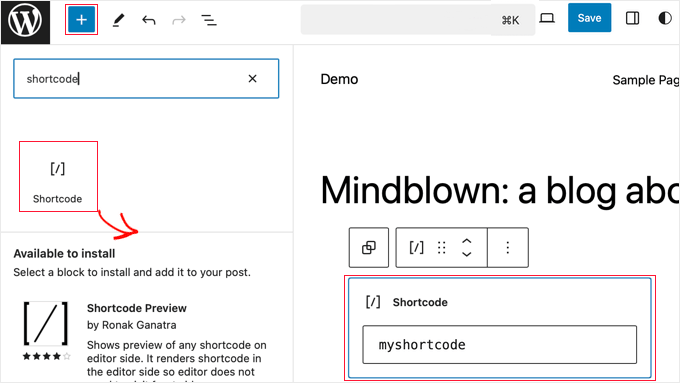
Insert shortcodes directly into the WordPress editor. Place them where you want the content to appear. Shortcodes look like this: [example_shortcode]. They work in both Classic and Block editors.
In the Block editor, use the “Shortcode” block. Paste your shortcode inside it. This method keeps shortcodes separate and easy to find.
In the Classic editor, just type or paste the shortcode in the text area. WordPress will process it and show the content on the front end.
Editing And Managing
Edit shortcodes by opening the post or page in the editor. Find the shortcode and change its parameters if needed. Parameters control how the shortcode looks or works.
Keep track of shortcodes you use often. Create a list or note to avoid mistakes. Some plugins add their own shortcodes. Check plugin docs for details.
Remove unused shortcodes to keep content clean. Use a search tool to find all shortcodes in your site. Edit or delete them carefully to avoid errors.
Shortcode Attributes And Parameters
Shortcode attributes and parameters help control how a shortcode works in WordPress. They let you change the default settings of a shortcode. This way, you can make the shortcode show different content or styles each time you use it. Attributes act like options you can set inside the shortcode tag.
Using attributes is easy. You write the shortcode name, then add the attributes inside the square brackets. Each attribute has a name and a value. This tells WordPress how to display the shortcode output. Attributes make shortcodes flexible and useful for many situations.
Customizing Output
Attributes let you customize what the shortcode displays. For example, if you have a gallery shortcode, you can add attributes to set the number of images or their size. This changes how the gallery looks on your page.
Each attribute changes one part of the shortcode. You can mix many attributes to get the exact output you want. This avoids writing new code. You control the shortcode directly from your post or page editor.
Default Vs. User-defined Values
Shortcodes have default values for their attributes. These defaults work if you do not add any values. They keep the shortcode simple to use.
You can override these defaults by adding your own values. WordPress then uses your values instead of the default ones. This lets you change the shortcode output without touching the original code.
For example, a button shortcode might have a default color set to blue. You can add an attribute to change it to red. This way, the same shortcode works differently in different places.
Shortcodes With Content Enclosure
Shortcodes with content enclosure let you wrap text or other elements inside a shortcode. This method gives more control over how content looks or behaves on your site. You can create sections that have special styles or functions by enclosing content inside shortcodes.
Enclosed shortcodes are different from self-closing ones. They have an opening tag and a closing tag. The content between these tags is affected by the shortcode’s function. This helps in adding custom effects or layouts easily.
Enclosing Content Syntax
The syntax for enclosed shortcodes includes an opening and closing tag. It looks like this:
[shortcode]Your content here[/shortcode]
Replace “shortcode” with the actual shortcode name you want to use. Put the content you want to style or modify between the tags. This content can be text, images, or even other shortcodes.
For example, a shortcode for highlighting text might look like this:
[highlight]This text will be highlighted[/highlight]
Use Cases
Enclosed shortcodes work well for many purposes. You can create custom buttons with text inside. Or add special formatting to paragraphs.
They also help in embedding videos or audio with descriptions. Another use is for toggles or collapsible sections that hide content initially.
Bloggers use enclosed shortcodes for quotes, notes, or alerts that stand out. Developers often build them for complex layouts without coding.
Credit: kinsta.com
Popular Plugins For Shortcodes
Shortcodes simplify adding features to WordPress pages and posts. Popular plugins offer many ready-to-use shortcodes. They save time and add professional touches. These plugins help users add sliders, buttons, forms, and more without coding.
Enhancing Functionality
Plugins extend WordPress capabilities through shortcodes. They let you insert complex elements easily. For example, you can add contact forms or image galleries. Some plugins offer animation effects and styling options. This improves the look and feel of your site. Shortcodes keep content clean and easy to manage.
Recommended Plugins
Shortcodes Ultimate is a popular choice. It provides over 50 shortcode types. You can add tabs, buttons, and lightboxes quickly. Another plugin is WPForms, great for contact forms. It uses shortcodes to embed forms anywhere. Elementor also supports shortcodes and offers design tools. These plugins are beginner-friendly and update regularly. Choose one that fits your website needs best.
Troubleshooting Common Issues
Shortcodes make WordPress easy and flexible. Sometimes, shortcodes do not work as expected. Troubleshooting common issues helps fix most problems fast. This section covers typical errors and how to solve them.
Shortcode Not Working
Shortcodes may fail due to syntax errors. Check if the shortcode is typed correctly. Use square brackets [ ] around the shortcode name. Avoid extra spaces inside the brackets.
Sometimes, shortcodes need to be placed in the right editor. Use the text editor, not the visual editor, for some shortcodes. Clear your site cache to see changes.
Conflicts With Themes Or Plugins
Themes or plugins can block shortcode functions. Disable all plugins except the one with the shortcode. Test if the shortcode works. If yes, enable plugins one by one to find the conflict.
Switch to a default WordPress theme temporarily. Check if the shortcode works with the default theme. If yes, your theme may cause the problem. Contact the theme developer or look for an update.
Credit: www.wpbeginner.com
Best Practices For Shortcode Usage
Using shortcodes in WordPress can make your site more flexible and dynamic. Following best practices helps keep your site fast and your code easy to manage. Proper shortcode use improves user experience and site maintenance. It also reduces errors and keeps your site clean.
Performance Tips
Keep shortcodes simple to avoid slowing your site. Limit the number of shortcodes on a single page. Use caching plugins to store shortcode output. Avoid complex database queries inside shortcode functions. Test shortcode performance regularly to catch issues early.
Maintaining Clean Code
Write shortcode functions with clear, simple code. Use meaningful names for your shortcodes and functions. Keep shortcode logic separate from display code. Comment your code to explain its purpose. Remove unused shortcodes to avoid clutter and confusion.
Frequently Asked Questions
What Is A Shortcode In WordPress?
A shortcode is a small code snippet that adds dynamic content in WordPress posts or pages. It simplifies adding complex features without coding. Users insert shortcodes inside brackets like [shortcode], making content management easier and more flexible.
How Do I Create A Custom Shortcode In WordPress?
To create a custom shortcode, add a PHP function in your theme’s functions. php file. Use add_shortcode() to link the function with the shortcode name. This allows you to display custom content or functionality anywhere on your site.
Where Can I Use WordPress Shortcodes?
Shortcodes can be used in posts, pages, widgets, and even theme files. They help insert dynamic content like galleries, forms, or buttons without manual coding. This flexibility enhances content presentation across your WordPress site.
Can Shortcodes Improve WordPress Website Seo?
Yes, shortcodes improve SEO by making content easier to manage and update. They help insert rich media and interactive elements, enhancing user experience. Better engagement and structured content can positively impact your site’s search rankings.
Conclusion
Shortcodes make adding features to WordPress easy and fast. They save time and reduce errors. You can use them for galleries, forms, and more. Just copy and paste the shortcode where you want the feature. No need to write complex code.
Experiment with different shortcodes to see what works best. Keep your site simple and user-friendly. Shortcodes help you build better pages with less effort. Give them a try to improve your WordPress skills.



