
Are you trying to send visitors from one WordPress page to another URL but don’t know where to start? Redirecting a page might sound tricky, but it’s actually simple—and it can save you time, protect your site’s SEO, and improve your visitors’ experience.
Whether you want to fix broken links, guide users to updated content, or manage your website’s flow better, this step-by-step guide will show you exactly how to redirect a WordPress page quickly and easily. Keep reading, and you’ll have it done in no time.
Reasons To Redirect WordPress Pages
Redirecting WordPress pages is a common task for website owners. It helps manage site changes smoothly. Redirects send visitors from one URL to another automatically. This keeps your site organized and user-friendly. Understanding why redirects are important helps you use them wisely.
Improving User Experience
Visitors expect fast and easy access to content. Redirects prevent broken links and error pages. They guide users to the right place without confusion. This keeps visitors happy and more likely to stay on your site. A smooth browsing experience builds trust and loyalty.
Maintaining Seo Value
Search engines rank pages based on content and links. Redirects preserve the SEO value of old URLs. They pass ranking power to the new page. This prevents loss of traffic and search engine visibility. Proper redirects help maintain your site’s authority online.
Handling Outdated Content
Websites change over time, and some pages get old. Redirecting outdated pages to relevant content keeps your site fresh. It stops visitors from landing on irrelevant or empty pages. This improves overall site quality and user satisfaction. Redirects help manage content updates efficiently.
Credit: optinmonster.com
Types Of Redirects In WordPress
Redirects send visitors from one URL to another. They help manage site changes and improve user experience. WordPress supports several types of redirects. Choosing the right one is key for your site’s health and SEO.
301 Permanent Redirect
A 301 redirect tells browsers and search engines the page moved permanently. It passes almost all SEO value to the new URL. Use it when you change a page’s address forever. Search engines update their index with the new URL. Visitors see the new page automatically.
302 Temporary Redirect
A 302 redirect means the move is temporary. Search engines keep the old URL in their index. This redirect is useful during site maintenance or short-term changes. Visitors get sent to a different URL temporarily. SEO value stays with the original page.
Meta Refresh Redirect
This redirect happens on the page level, not the server. It uses HTML code to refresh or redirect after a set time. Often seen as a “redirect in 5 seconds” message. Not recommended for SEO because it passes little to no value. Use only when server redirects are not possible.
Using Plugins For Redirects
Using plugins to redirect WordPress pages is a simple way to manage URL changes. Plugins handle redirects without needing coding skills. They save time and prevent broken links. This method is ideal for beginners and busy site owners.
Popular Redirect Plugins
Several plugins help with redirects. “Redirection” is one of the most used and trusted. It offers easy setup and tracking. “Simple 301 Redirects” is good for straightforward redirects. “Yoast SEO” also includes redirect options in its premium version. These tools support different redirect types like 301 and 302.
Setting Up A Redirect With A Plugin
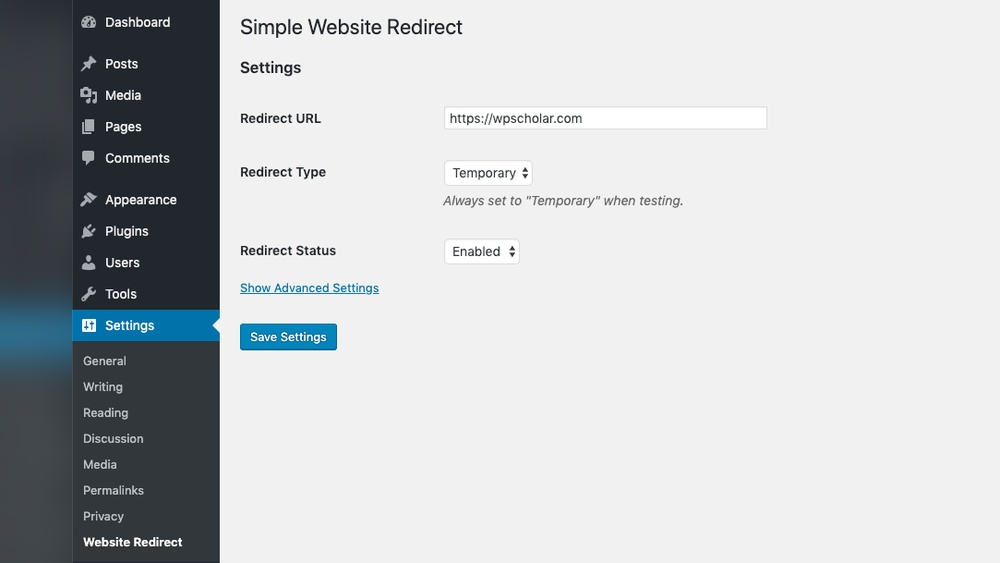
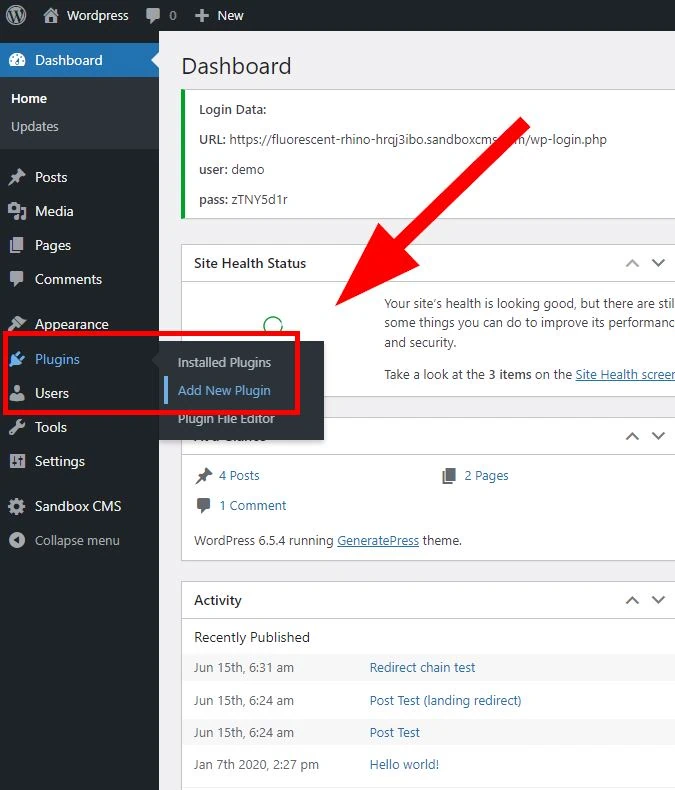
First, install and activate your chosen plugin. Go to the plugin’s settings page in your WordPress dashboard. Enter the old URL and the new URL you want to redirect to. Select the redirect type, usually 301 for permanent redirects. Save your changes. The plugin will now send visitors to the new address automatically.
Managing Redirects Easily
Plugins provide a clear list of all redirects. You can edit or delete redirects with a few clicks. Some plugins show redirect logs for tracking visitor activity. This helps find broken links or errors. Managing redirects this way keeps your site healthy and improves user experience.
Credit: www.lupagedigital.com
Manual Redirects Via .htaccess
Manual redirects using the .htaccess file give you direct control over how visitors reach your WordPress site pages. This method works at the server level, making redirects fast and reliable. It is especially useful when you want to redirect old URLs to new ones without installing plugins.
Editing the .htaccess file requires care. A small mistake can cause errors on your website. Always back up the file before making changes. This way, you can restore it if something goes wrong.
Accessing .htaccess File
The .htaccess file is in your WordPress root directory. Use an FTP client or your hosting control panel’s file manager to find it. The file might be hidden, so enable “show hidden files” in your tool. Download the file to your computer before editing.
Adding Redirect Rules
Open the .htaccess file with a plain text editor like Notepad. Add redirect rules at the top of the file to ensure they work correctly. Use the Redirect 301 command for permanent redirects. The format is simple: old URL first, then the new URL.
Common Redirect Examples
Redirect an old page to a new one:
Redirect 301 /old-page.html https://yourwebsite.com/new-page/Redirect the entire site to a new domain:
RewriteEngine On RewriteCond %{HTTP_HOST} ^oldsite\.com$ [NC] RewriteRule ^(.)$ https://newsite.com/$1 [L,R=301]Redirect from non-www to www:
RewriteEngine On RewriteCond %{HTTP_HOST} ^example\.com [NC] RewriteRule ^(.)$ https://www.example.com/$1 [L,R=301]Redirects Using Php Code
Redirecting a WordPress page using PHP code offers a direct way to send visitors to a new URL. This method works by adding a small snippet of code to your site. It tells the server to move users automatically from one page to another. This technique is useful for permanent or temporary redirects.
Using PHP for redirects keeps your site fast and efficient. You do not need extra plugins. The code runs on the server before the page loads. This ensures smooth redirection without delays.
Editing Theme Functions File
To add redirect code, open your theme’s functions.php file. This file controls many parts of your WordPress theme. You can access it through the WordPress dashboard under Appearance > Theme Editor. Or use FTP to find the file in your theme folder.
Be careful while editing. A small mistake can break your site. Always back up your functions.php file before making changes. Paste your redirect code at the end of this file.
Sample Redirect Code
function redirect_to_new_url() { if (is_page('old-page-slug')) { wp_redirect('https://example.com/new-page-url', 301); exit; } } add_action('template_redirect', 'redirect_to_new_url'); This code redirects visitors from the old page to a new URL. Replace old-page-slug with your original page slug. Change https://example.com/new-page-url to your target URL. The number 301 means a permanent redirect.
Precautions When Using Code
Test your site after adding redirect code. Check if the redirect works on the correct page. Watch out for redirect loops, where pages keep loading endlessly.
Do not add multiple redirects for the same page. Keep your code clean and simple. Avoid editing the functions file during high traffic times. This helps prevent downtime.

Credit: www.cozmoslabs.com
Testing And Troubleshooting Redirects
Testing and troubleshooting redirects is a key step after setting them up. It ensures visitors reach the correct page without errors. Redirects can sometimes fail or cause loops. Checking them early saves time and improves user experience.
Verifying Redirects Work
Open your browser and enter the original URL. Press enter and watch if it goes to the new page. Clear your browser cache to avoid old data. Use a private window to test clean redirects. Confirm the page loads quickly and without errors.
Common Issues And Fixes
Redirect loops happen when URLs keep sending you back and forth. Check your redirect rules for conflicts. Sometimes, wrong URL paths cause 404 errors. Make sure the redirect points to an existing page. Mixed HTTP and HTTPS URLs may block redirects. Use consistent protocols to fix this.
Tools For Testing Redirects
Several free tools check redirects easily. Online redirect checkers show redirect paths step-by-step. Browser extensions highlight redirect status codes instantly. Use these tools to spot errors fast. They help verify 301 or 302 redirect types too.
Best Practices For WordPress Redirects
Redirects help guide visitors and search engines to the right page. Using redirects correctly keeps your website healthy and user-friendly. Follow these best practices for WordPress redirects to avoid problems and improve site performance.
Avoid Redirect Chains
Redirect chains happen when one URL redirects to another, which then redirects again. This slows down loading times and hurts SEO. Always redirect directly to the final destination. Keep your redirects simple and short.
Keep Redirects Updated
Remove or change redirects if the destination URL changes. Old redirects can cause errors or confusion. Check your redirects regularly to make sure they lead to active pages. Update redirects after site changes or content moves.
Monitor Redirect Performance
Use tools like Google Search Console to track redirect issues. Watch for broken redirects or too many redirects on a page. Fix problems quickly to keep visitors happy and maintain search rankings. Regular monitoring improves overall site health.
Frequently Asked Questions
How Do I Redirect A WordPress Page Easily?
You can redirect a WordPress page using plugins like Redirection or by editing the. htaccess file. Plugins offer a user-friendly interface, while. htaccess requires coding knowledge. Both methods effectively send visitors from the old URL to the new one without losing SEO value.
Can I Redirect A WordPress Page Without A Plugin?
Yes, you can manually redirect pages by adding redirect rules to your site’s. htaccess file. This method requires FTP access and some coding knowledge. It is fast and efficient but less beginner-friendly compared to using plugins designed for redirection.
What Is The Best Plugin For WordPress Page Redirection?
The Redirection plugin is highly recommended for WordPress page redirection. It’s free, easy to use, and supports 301, 302, and 307 redirects. It also tracks 404 errors and helps manage redirects without editing code, making it ideal for beginners and professionals alike.
Will Redirecting A Page Affect My Seo Ranking?
Properly implemented 301 redirects preserve SEO rankings by passing link equity to the new URL. Temporary redirects like 302 do not pass full SEO value. Always choose the correct redirect type to maintain search engine rankings and avoid broken links.
Conclusion
Redirecting a WordPress page is simple and useful. It helps visitors find the right content fast. Use plugins or edit your site’s code carefully. Always test the redirect to avoid errors. Good redirects improve user experience and site ranking. Keep your site organized and easy to navigate.
Small steps like this make your website better. Try it today and see the difference.



