
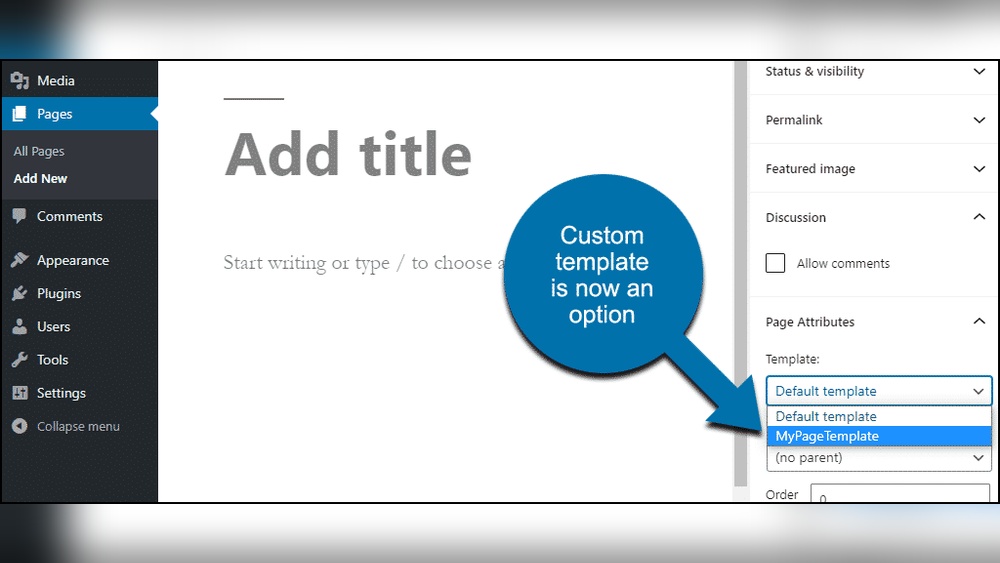
Are you looking to give your WordPress site a fresh, professional look? Adding a template can be the easiest way to transform your website without any hassle.
Whether you want to create a blog, portfolio, or online store, the right template can make all the difference. In this guide, you’ll learn exactly how to add a template in WordPress step-by-step, so you can start building the site you’ve imagined.
Keep reading—your perfect website design is just a few clicks away!

Credit: wordpress.com
Choosing The Right Template
Choosing the right template for your WordPress site sets the foundation for its look and functionality. The template affects how visitors see your site and how easy it is to manage. Picking a good template helps your site stand out and run smoothly. Consider your site’s purpose and what features you need before making a choice.
Free Vs Premium Templates
Free templates cost nothing and offer basic design and features. They are good for simple sites or beginners. Premium templates charge a fee but provide more options and support. These often include regular updates and better security. Choose premium if you want more control and professional quality. Free templates suit small projects or testing ideas.
Template Features To Look For
Look for templates that are easy to customize. Check if the template supports plugins you need. Fast loading times improve user experience and SEO. Templates with good documentation make setup easier. Built-in SEO features help your site rank better. Make sure the template fits your content style and goals.
Responsive Design Importance
Responsive design means your site looks good on all devices. Phones, tablets, and desktops show your site correctly. Most visitors use mobile devices, so this is crucial. A responsive template improves user experience and lowers bounce rates. Search engines also prefer mobile-friendly sites. Always pick a template that adapts to screen size.
Credit: www.smashingmagazine.com
Preparing Your WordPress Site
Preparing your WordPress site before adding a new template is very important. It helps avoid problems and keeps your website safe. Taking a few simple steps makes the process smoother. Follow these easy actions to get ready.
Backup Your Website
Backing up your website saves all your data and files. It protects your site from losing information during changes. Use a reliable plugin or your hosting service to create a backup. Keep the backup file in a safe place. This step is crucial for website safety.
Update WordPress Version
Updating WordPress ensures you have the latest features and security fixes. It helps the new template work properly. Check your dashboard for update notifications. Click “Update Now” and wait until it finishes. Running the latest WordPress version improves site performance.
Deactivate Unnecessary Plugins
Deactivate plugins that you don’t need during the template installation. Some plugins can cause conflicts with the new template. Go to the Plugins section in your dashboard. Select unused plugins and click “Deactivate.” This step reduces errors and speeds up your site.
Installing A Template From WordPress Directory
Installing a template from the WordPress directory is an easy way to change your site’s look. The directory has many free templates. These templates fit different styles and needs. You do not need coding skills to install them. Follow clear steps to find, preview, and activate a template.
Searching For Templates
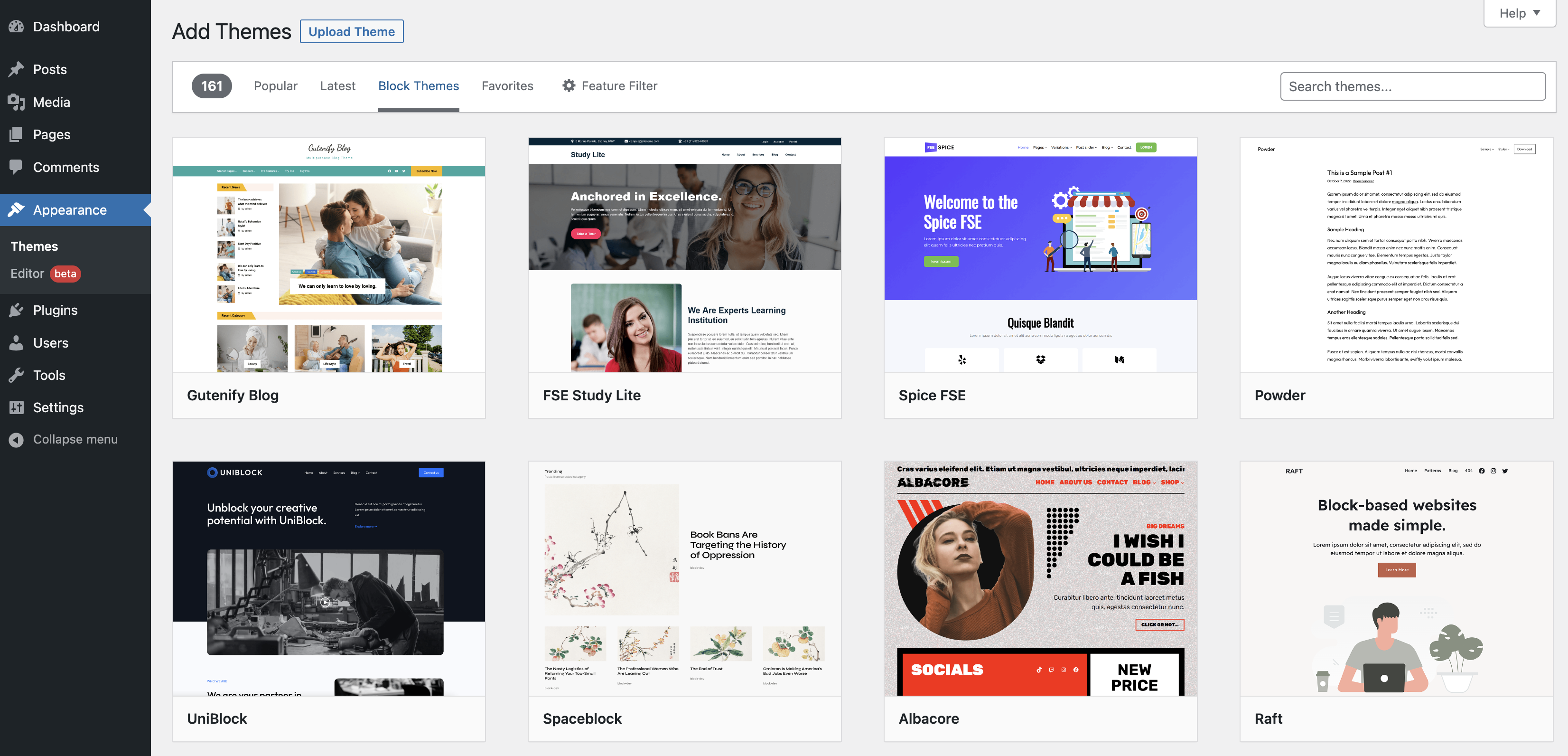
Start by going to your WordPress dashboard. Click on “Appearance” and then “Themes.” Use the “Add New” button to open the template directory. Type keywords into the search bar to find templates. You can filter by features, layout, or popularity. Look for a template that fits your site’s purpose.
Previewing Templates
Before installing, preview templates to see how they look. Click on the “Preview” button next to any template. This shows a demo site using that template. Check if the colors and layout match your vision. Preview helps avoid installing a template that does not fit your needs.
Installing And Activating
Once you find the right template, click “Install.” WordPress downloads and adds it to your site. After installation, click “Activate” to apply the template. Your site will change to the new design immediately. You can switch templates anytime from the Themes page.
Uploading A Template Manually
Uploading a template manually in WordPress is a straightforward way to customize your website. It gives you control over the design and layout. This method works well for templates downloaded from third-party sites or custom-made themes. Follow simple steps to get your template ready and active on your site.
Downloading Template Files
First, find a template that suits your website needs. Download the template files to your computer. Usually, the files come in a ZIP format. Do not unzip the file yet. Keep it ready for uploading to WordPress.
Uploading Via WordPress Dashboard
Log in to your WordPress dashboard. Go to the “Appearance” menu and select “Themes.” Click the “Add New” button at the top. Choose “Upload Theme” and then click “Choose File.” Select the ZIP file from your computer. Click “Install Now” to start uploading.
Activating The Uploaded Template
After the upload finishes, you see an “Activate” button. Click it to apply the new template to your website. Your site now uses the new design. Check your site to make sure everything looks right. You can always switch back or try another template later.
Customizing Your Template
Customizing your WordPress template lets you create a unique website. It helps match your style and needs. You can change many parts without coding.
This section explains easy ways to customize your template. You will learn to use the WordPress Customizer, add widgets and menus, and change colors and fonts.
Using The WordPress Customizer
The WordPress Customizer is a simple tool to change your site’s look. You can access it from the dashboard under Appearance > Customize. It shows a live preview of changes.
Use it to edit your site title, tagline, and logo. You can also adjust layout settings and background images. Changes appear instantly on your site preview.
Adding Widgets And Menus
Widgets add extra features like search bars or recent posts. Add widgets by going to Appearance > Widgets. Drag and drop them into sidebars or footers.
Menus help visitors navigate your site easily. Create or edit menus under Appearance > Menus. Add pages, posts, or custom links. Assign menus to locations like header or footer.
Changing Colors And Fonts
Colors and fonts affect your site’s feel and readability. Use the Customizer to pick colors for backgrounds, text, and links. Choose colors that match your brand.
Fonts can be changed to suit your style. Many themes let you select fonts from simple dropdown menus. Pick clear, easy-to-read fonts for better user experience.
Troubleshooting Common Issues
Adding a template in WordPress can sometimes cause problems. These issues can stop your site from looking or working correctly. Knowing how to fix common problems saves time and stress. The following tips help you solve frequent template troubles quickly.
Template Compatibility Problems
Templates must match your WordPress version. Old templates may not work with new WordPress updates. Check the template’s description for compatibility details. Use templates from trusted sources to avoid issues. Update WordPress and the template to the latest versions. This step often solves many compatibility problems.
Fixing Broken Layouts
Broken layouts happen when template files are missing or damaged. Clear your browser cache to see the latest changes. Disable custom CSS to check for conflicts. Use the WordPress Customizer to reset layout settings. Reinstall the template if the problem stays. Small layout fixes improve your site’s look fast.
Handling Plugin Conflicts
Plugins can clash with templates and cause errors. Deactivate all plugins to find the troublemaker. Activate plugins one by one while checking your site. Update plugins and templates to their newest versions. Use only necessary plugins to keep your site stable. This method helps keep your site error-free.
Tips For Stunning Site Design
Creating a stunning site design is key to attracting and keeping visitors. Good design makes your site look professional and easy to use. Small details can make a big difference in how people feel about your site.
Focus on clear images, consistent colors, and fast loading. These tips help your site stand out and work well on any device.
Choosing High-quality Images
Use clear and sharp images that match your content. Avoid blurry or pixelated pictures. High-quality images make your site look trustworthy and professional. Choose photos that tell a story or show your products well. Keep file size small to avoid slow loading.
Maintaining Consistent Branding
Use the same colors, fonts, and style across all pages. Consistent branding helps visitors remember your site. Pick a simple color scheme with two or three colors. Use readable fonts that fit your brand style. Keep logos and headers uniform on every page.
Optimizing Site Speed
Fast sites keep visitors happy and improve search rankings. Compress images to reduce file sizes without losing quality. Use a reliable web host for better speed. Limit the number of plugins and scripts. Test your site speed regularly and fix any issues quickly.
Credit: wordpress.org
Frequently Asked Questions
How Do I Add A Template In WordPress?
To add a template, log in to your WordPress dashboard. Navigate to Appearance > Themes, then click “Add New. ” Upload your template file or choose one from the directory. Activate the template to apply it to your site instantly.
Can I Customize WordPress Templates After Adding Them?
Yes, you can customize templates using the WordPress Customizer. Go to Appearance > Customize to change colors, fonts, and layouts. Some templates also support page builders for advanced editing without coding.
What File Formats Are Supported For WordPress Templates?
WordPress templates usually come as. zip files. These archives contain PHP, CSS, and image files needed for the theme. Always upload templates in. zip format via the WordPress dashboard for smooth installation.
Is It Safe To Add Third-party WordPress Templates?
Adding third-party templates can be safe if downloaded from reputable sources. Always check reviews and update frequency. Use security plugins and back up your site before installation to avoid potential risks.
Conclusion
Adding a template in WordPress is simple and quick. You can change the look of your site anytime. Choose a template that fits your style and needs. Upload or activate it with just a few clicks. This helps your website look professional and clean.
Keep exploring templates to find the best match. Your site will stand out and work well. Start customizing now and enjoy your new design.



