
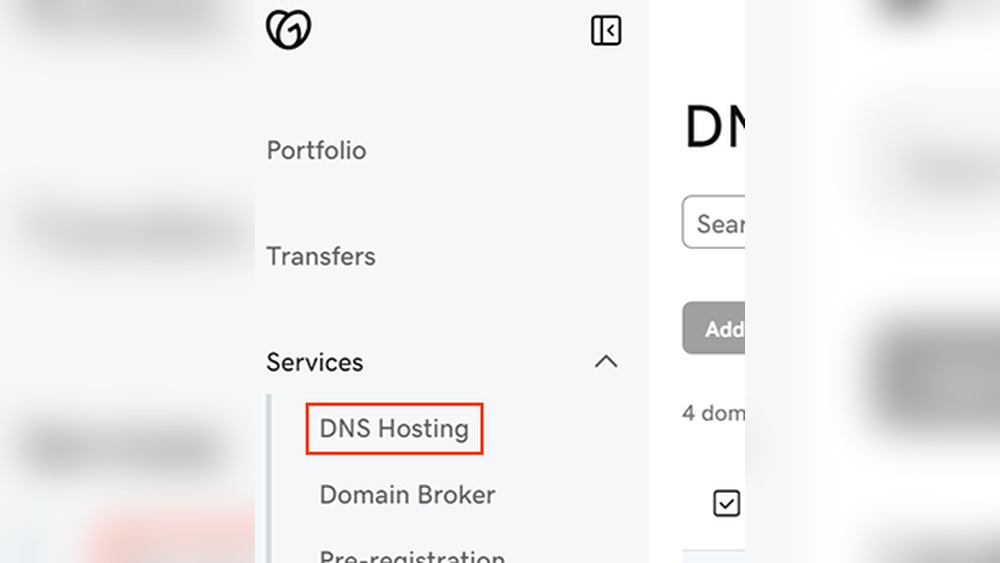
Are you struggling to remove your domain name from GoDaddy hosting? You’re not alone.
Whether you want to switch providers or simply clean up your account, the process can seem confusing at first. But don’t worry—this guide will walk you through every step, making it easy and stress-free. By the end, you’ll have full control over your domain and know exactly what to do next.
Keep reading to take charge of your domain today!
Credit: www.godaddy.com
Accessing Your Godaddy Account
Accessing your GoDaddy account is the first step to manage your hosting settings. It allows you to control your domains and hosting easily. Follow a simple process to log in and find the right settings.
Logging In Securely
Go to the GoDaddy website and click the sign-in button. Enter your username and password carefully. Use a strong password to keep your account safe. Avoid public computers for logging in. Enable two-factor authentication for extra security.
Navigating To Hosting Settings
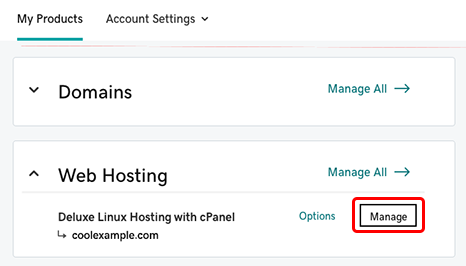
After logging in, find the “My Products” section on your dashboard. Look for the hosting area under your account. Click on “Manage” next to your hosting plan. This opens the control panel where you can make changes. Find the domain settings to remove or update your domain name.
Locating Domain Management
To remove a domain name from GoDaddy hosting, first find the domain management area. This section helps you control all your domains quickly. It shows all the domains you own and lets you manage each one easily.
Knowing where to find your domains saves time. It makes the process smooth and clear. Let’s see how to locate domain management in your GoDaddy account.
Finding The Domain List
Log in to your GoDaddy account. On the main dashboard, find the menu or icon for “My Products.” Click on it. Here, you will see a list of all your products, including domains.
Scroll down to the “Domains” section. This area shows all your domain names. Each domain appears with details like expiration date and status. This list is your starting point to manage any domain.
Selecting The Correct Domain
From the domain list, find the domain you want to remove from hosting. Check the domain name carefully. Confirm it matches the one you want to change.
Click on the domain name to open its settings. This page displays all options for that domain. It’s important to select the right domain to avoid mistakes during removal.
Removing The Domain From Hosting
Removing a domain from GoDaddy hosting means the domain will no longer connect to your hosting account. This process frees your hosting space for other domains or projects. It is important to follow the right steps to avoid any downtime or loss of data.
Detaching The Domain
Start by logging into your GoDaddy account. Go to the “My Products” section and find your hosting plan. Click on “Manage” next to your hosting.
Look for the “Domains” tab or section. Find the domain you want to remove. Select the option to detach or remove the domain from the hosting account.
This action disconnects the domain from your hosting files. The domain will no longer show your website content.
Confirming Removal
After detaching, GoDaddy will ask you to confirm the removal. Read the confirmation message carefully. Confirm the removal only if you are sure.
The system will process your request. You may receive an email confirming the domain removal. Check your domain status to ensure it is no longer linked to hosting.
Removing the domain does not delete your domain registration. You can still manage the domain separately in your GoDaddy account.

Credit: www.youtube.com
Verifying Domain Status
Verifying your domain status is a key step before removing a domain name from GoDaddy hosting. It ensures your domain is set up correctly and ready for changes. This step helps avoid issues like downtime or loss of control over your domain.
Checking your domain status gives you a clear picture of where your domain currently stands. You can confirm if the domain is active, locked, or connected to hosting services. This knowledge helps you take the right actions next.
Checking Domain Configuration
Start by logging into your GoDaddy account. Go to the domain management section. Look for your domain name and check its status. Confirm if the domain is active and unlocked. Check if DNS settings point to GoDaddy hosting. Note any custom records or redirects. These details affect how your domain interacts with hosting.
Ensuring Hosting Separation
Verify that your hosting account no longer links to the domain. Access the hosting dashboard in GoDaddy. Confirm the domain is removed from the hosting account. Check if website files related to the domain are deleted. Make sure email services tied to the domain are separated. This step prevents conflicts after removal.
Alternative Options For Domain Use
Removing a domain name from GoDaddy hosting does not mean losing its value. Domains can serve many purposes outside hosting. Choosing the right option helps you use the domain effectively. Explore how to keep your domain active and useful after removal from GoDaddy hosting.
Transferring Domain To Another Host
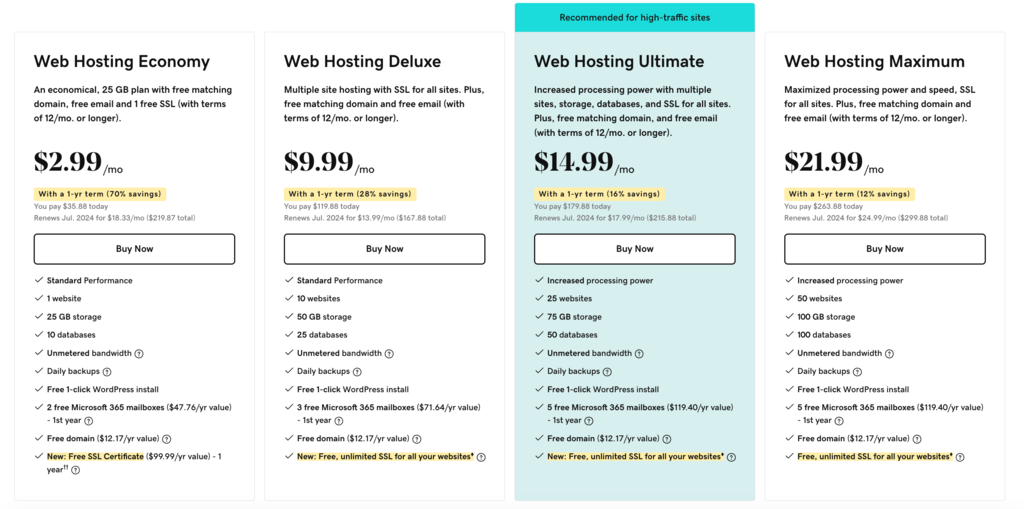
Transferring your domain to a new hosting provider keeps your website live. The domain stays connected to a hosting service. This process involves unlocking your domain at GoDaddy and getting an authorization code. Provide this code to the new host to start the transfer. Transfers usually take a few days to complete. During this time, your website remains accessible. Transferring helps if you want better hosting features or support.
Using Domain Forwarding
Domain forwarding sends visitors to another website automatically. This option works without changing your hosting provider. You can forward your domain to a blog, social media page, or online store. Set up domain forwarding easily in your GoDaddy account. Visitors type your domain name but see a different website. This keeps your domain active and useful. Domain forwarding is simple and requires no technical skills.
Credit: www.hostinger.com
Troubleshooting Common Issues
Troubleshooting common issues is key when removing a domain name from GoDaddy hosting. Problems can stop the process or cause confusion. Knowing how to handle errors and who to contact helps finish the task smoothly.
Handling Removal Errors
Errors may appear during domain removal. Check for messages explaining the problem. Common issues include domain lock, unpaid fees, or active services linked to the domain.
Make sure the domain is unlocked in your GoDaddy account. Also, confirm no hosting or email services use the domain. Clearing these blocks allows removal to proceed.
Try refreshing the page or logging out and back in. Sometimes, simple steps fix glitches. If errors persist, note the exact message for support.
Contacting Godaddy Support
GoDaddy offers customer support to help with domain removal. Use chat, phone, or email to reach them. Be ready with your account details and error messages.
Explain your issue clearly and follow their instructions carefully. Support can guide you through tricky steps or fix account issues. Keep notes of the conversation for reference.
Contacting support is useful when errors do not resolve. Their help ensures your domain removal completes without delays.
Frequently Asked Questions
How Do I Remove A Domain From Godaddy Hosting?
Log in to your GoDaddy account, go to your hosting dashboard, select the domain, and choose the option to remove or disconnect it from your hosting plan.
Can I Keep My Domain After Removing Godaddy Hosting?
Yes, removing a domain from GoDaddy hosting does not delete the domain registration. You still own your domain and can manage it separately.
Will My Website Go Offline After Removing The Domain?
Yes, your website will go offline if the domain is removed from hosting without redirecting or pointing it to another host or service.
How To Transfer A Domain After Removing It From Hosting?
After removal, update your domain’s nameservers or initiate a domain transfer through the GoDaddy domain management panel or another registrar.
Conclusion
Removing a domain name from GoDaddy hosting is simple and quick. Just follow the clear steps shared here. This helps manage your websites better and avoid confusion. Keep your account organized by removing unused domains. Always double-check before deleting to avoid mistakes.
Now, you can control your hosting with confidence and ease.



