
Are you wondering if you can export your WordPress site? Whether you’re moving to a new host, creating a backup, or simply want to keep a copy of your content, exporting your site is a smart move.
But how exactly do you do it? And what should you watch out for? You’ll discover clear, step-by-step answers to these questions. By the end, you’ll feel confident handling your WordPress export like a pro—no confusion, no stress. Keep reading to unlock the simple secrets behind exporting your WordPress site with ease.
Credit: www.wpbeginner.com
Why Export A WordPress Site
Exporting a WordPress site means moving all your content and settings to another location. Many website owners do this to keep their data safe or to change hosting providers. It also helps in redesigning the site or creating a backup before major changes. Understanding why to export a WordPress site helps you decide the best time to do it.
Common Reasons For Migration
Changing web hosts is a frequent reason to export a WordPress site. A new host might offer better speed or support. Some users export to move from a local test site to a live server. Others want to switch to a new domain name. Exporting also helps when redesigning the site on a new platform. It makes transferring content and settings easier and faster.
Benefits Of Exporting Your Site
Exporting your site creates a full backup of all your data. This backup protects your content from accidental loss or hacks. It also allows you to test updates or plugins safely. You can restore your site quickly if something goes wrong. Exporting makes site migration smoother, saving time and effort. It keeps your site’s look and feel consistent after the move.

Credit: www.clook.net
Preparing For Export
Preparing your WordPress site for export is a crucial step. It helps avoid problems during the move. Taking time to prepare ensures a smooth transfer. You can save your content and settings safely.
Backup Your Site
Start by making a full backup of your site. This includes your database and all files. Use trusted backup plugins or your hosting control panel. Keep the backup in a safe place. It helps restore your site if something goes wrong.
Check Plugin And Theme Compatibility
Review your plugins and themes before exporting. Some may not work on the new host or setup. Update all plugins and themes to the latest versions. Remove any that are outdated or unused. This step prevents conflicts after the move.
Exporting Using WordPress Tools
Exporting your WordPress site is a useful way to move or back up your content. WordPress offers built-in tools to help with this process. These tools make exporting simple, even for beginners. Understanding how to use these tools can save time and avoid confusion.
Exporting is not just about copying your content. It also involves understanding what parts of your site you want to export. WordPress tools give you control over this choice.
Using The Built-in Export Feature
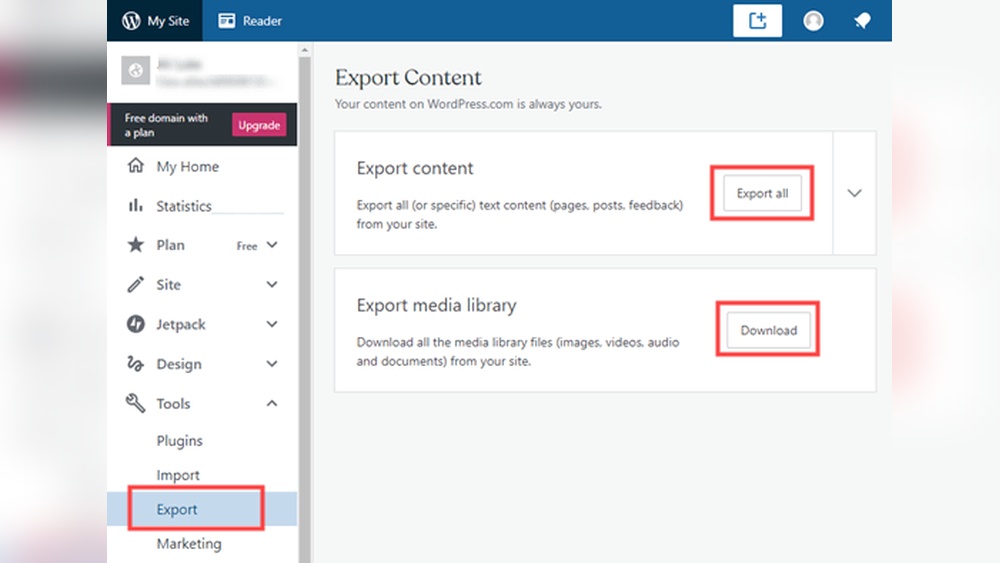
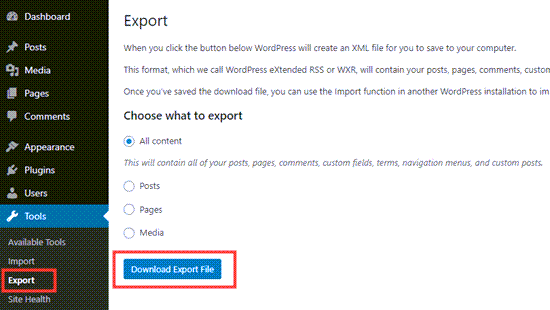
WordPress has a built-in export feature under the Tools menu. This tool lets you export posts, pages, comments, and more. You can choose to export all content or select specific parts.
The export file is an XML document. It holds your content in a format WordPress can import later. This file does not include themes or plugins. It focuses on your site’s content only.
To use it, go to Tools > Export in your WordPress dashboard. Select what you want to export and click the button. The file downloads to your computer quickly.
Exporting Content Vs. Full Site
Exporting content means moving posts, pages, and media. It does not include your theme, plugin settings, or customizations.
Exporting a full site is more complex. It needs tools beyond the built-in export feature. Full site export includes themes, plugins, and database settings.
Many users export content only. This method is easier and fits most needs. For full site export, consider using plugins or manual backup methods.
Credit: www.inmotionhosting.com
Exporting Via Plugins
Exporting a WordPress site using plugins simplifies the process. Plugins handle the complex parts for you. They save time and reduce errors. Many plugins offer options to export everything or just parts of your site. This method suits users who want an easy, reliable export without manual work.
Popular Export Plugins
Several plugins help export WordPress sites effectively. “All-in-One WP Migration” is a top choice. It exports your entire site, including database, media files, and plugins. “Duplicator” is another popular tool. It creates a package of your site for easy migration. “WP Migrate DB” focuses on exporting the database. It is useful for developers and advanced users. These plugins are widely used and trusted.
Step-by-step Plugin Export Process
First, install and activate the export plugin. Next, open the plugin’s export tool in your WordPress dashboard. Choose what to export: full site or parts like database, media, or themes. Click the export button. Wait for the plugin to prepare the file. Finally, download the export file to your computer. Keep this file safe for importing later.
Manual Export Methods
Manual export methods give full control over your WordPress site data. This process involves exporting the database and downloading files directly from the server. It requires some technical steps but offers flexibility and security.
Exporting Database
The WordPress database holds all your posts, pages, and settings. Exporting it means creating a backup copy. Use phpMyAdmin or a similar tool on your hosting control panel. Select your WordPress database, then choose the export option. Save the file as an SQL format. This file is essential to restore or move your site.
Downloading Files Via Ftp
FTP lets you access your website files on the server. Use an FTP client like FileZilla to connect. Enter your FTP credentials from your hosting provider. Download the entire WordPress folder, including themes, plugins, and uploads. These files contain all your website’s content and media. Keep this backup safe for future use or migration.
Importing To A New WordPress Site
Importing content to a new WordPress site is a key step after exporting your old site. It helps move all your posts, pages, and media smoothly. This process ensures your new site looks and works like the old one.
Two main ways exist to import your WordPress site. You can use built-in WordPress tools or restore your full database and files. Both methods have clear steps and benefits.
Using WordPress Import Tools
WordPress has a simple import tool for content transfer. It allows you to upload an export file from your old site. This file contains posts, pages, comments, and media links.
Start by installing the WordPress Importer plugin on your new site. Then upload the export file through the Tools > Import menu. The tool walks you through assigning authors and importing attachments.
This method is quick and works well for most content. It does not move themes or plugins though. For a full site copy, use the database restore option.
Restoring Database And Files
Restoring your database and files copies everything from your old site. This includes themes, plugins, settings, and all content. It creates an exact copy of your previous site.
First, export your database using a tool like phpMyAdmin. Next, download your WordPress files via FTP or your hosting control panel. Upload these files and import the database on your new server.
This process needs technical knowledge but keeps your site intact. It is best for full site migration or backups.
Troubleshooting Common Issues
Exporting a WordPress site can sometimes cause issues. These problems often appear after moving your site to a new server or domain. Knowing how to fix common errors saves time and stress. This guide covers two frequent problems and how to solve them quickly.
Fixing Broken Links
Broken links appear when URLs change during export. They lead visitors to error pages. Use a plugin to scan for broken links across your site. Replace old URLs with the new ones carefully. Check links in posts, pages, and menus. This keeps your site user-friendly and improves SEO.
Handling Missing Media Files
Media files sometimes do not transfer properly. Images or videos may not show on the new site. Verify media files exist in the new site’s upload folder. If missing, re-upload the media files manually. Use a plugin to help export and import media files. Correct media display keeps your content attractive and complete.
Tips For Seamless Migration
Migrating a WordPress site can be tricky. Proper planning makes the process smooth. Small steps prevent big errors. Follow simple tips to keep your site running well after export.
Testing The New Site
Test the new site before making it live. Check all pages for broken links and missing images. Verify that plugins and themes work properly. Test forms and interactive features. Ensure site speed is fast and consistent. Preview the site on different devices and browsers.
Keeping Seo Intact
Keep your SEO rankings during migration. Export and import your SEO settings carefully. Use 301 redirects for changed URLs. Check that meta titles and descriptions remain unchanged. Submit a new sitemap to search engines. Monitor your site’s traffic to catch any drops early.
Frequently Asked Questions
Can You Export A WordPress Site Easily?
Yes, WordPress allows easy export of your site content using built-in tools. You can export posts, pages, and media in XML format quickly.
What Formats Can I Export From WordPress?
WordPress primarily exports content in XML format, which includes posts, pages, comments, and custom fields. Media files are not included.
How To Export WordPress Site With Media Files?
To export media, you must manually download the wp-content/uploads folder via FTP or use plugins that bundle media with content export.
Can I Export A Full WordPress Site Database?
Yes, you can export the full database using phpMyAdmin or plugins, which helps migrate all site data including settings and content.
Conclusion
Exporting a WordPress site is simple with the right steps. You can move your content, themes, and plugins easily. This helps keep your website safe or switch hosts. Just follow the export tools and backup your files first. Take your time and check everything after exporting.
Your site can work smoothly on a new platform. Now you know it’s possible and not too hard. Start planning your export today and keep your website ready for any change.



