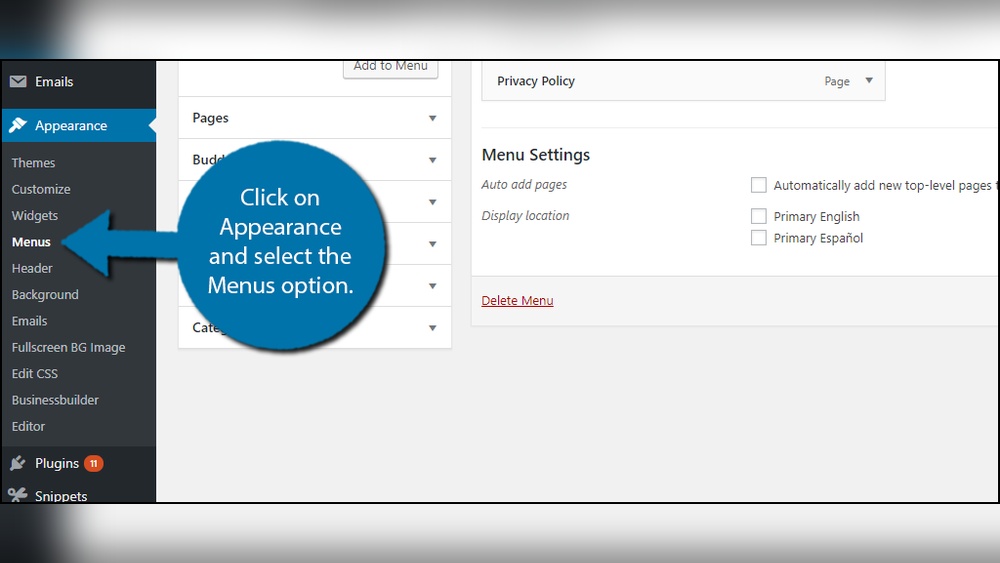
Are you looking for a simple way to keep your old WordPress pages safe without cluttering your site? Archiving your WordPress pages is the perfect solution.
It helps you organize your content, improve your site’s performance, and make sure nothing important gets lost. In this guide, you’ll learn easy steps to archive your pages like a pro. By the end, you’ll have a cleaner, faster website that still holds all your valuable information.
Ready to get started? Let’s dive in!
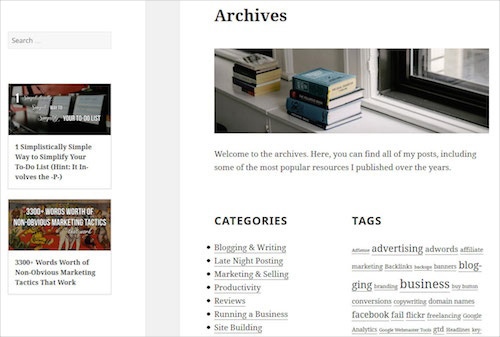
Credit: www.smashingmagazine.com
Reasons To Archive WordPress Pages
Archiving WordPress pages helps keep your website clean and efficient. It allows you to store old content without deleting it. This process offers many benefits for your site’s health and user experience.
Improve Site Performance
Archiving unused pages reduces the load on your server. Fewer active pages mean faster site speed. Visitors enjoy quicker access and better browsing. Search engines prefer faster websites, boosting your rankings.
Maintain Content History
Archiving keeps old pages safe for future reference. You can restore or review content anytime. This helps track changes and updates over time. It preserves valuable information without cluttering your site.
Organize Website Structure
Archiving helps tidy your website’s layout. It separates current content from outdated pages. This makes navigation easier for visitors. A clean structure improves user experience and site management.
Credit: toolset.com
Preparing Pages For Archiving
Preparing pages for archiving is a key step before you start the process. It ensures you keep important content safe and avoid errors later. Proper preparation helps in managing your website smoothly.
Identify Pages To Archive
First, list all pages that need archiving. Choose pages no longer active or relevant. These might include old promotions or outdated information. Keep pages with ongoing traffic or value live.
Review your site map or page list to find these pages. Mark them clearly for easy access during archiving. This reduces the chance of deleting important content by mistake.
Backup Your Website
Create a full backup of your website before making changes. This step protects your data from loss or corruption. Use trusted backup plugins or your hosting service tools.
Save the backup file in a secure place outside your website. This allows quick restoration if anything goes wrong. Regular backups are good practice for all site updates.
Check Page Dependencies
Some pages link to others or use shared elements. Check if the pages you archive affect other parts of your site. Look for menus, widgets, or scripts that depend on these pages.
Update or remove links to archived pages to avoid broken links. Keep your website user-friendly and error-free. This step improves your site’s SEO and user experience.
Methods To Archive WordPress Pages
Archiving WordPress pages helps keep your site organized and clean. It also improves user experience by hiding old or unused content. There are several ways to archive pages in WordPress. Each method has its own benefits and suits different needs. Choose the one that fits your workflow and skills best.
Using Plugins
Plugins make archiving WordPress pages simple and fast. They often add extra features like bulk archiving and scheduling. Some popular plugins allow you to mark pages as archived without deleting them. This method requires no coding knowledge. Just install the plugin, activate it, and follow the instructions. Plugins also help keep your archived pages safe and easy to manage.
Manual Archiving
Manual archiving means you handle everything yourself. You can change page status to “Draft” or “Private” to hide it from visitors. Another way is to move the page to a different category or create a folder for old pages. This method needs more time but gives full control. It is good for small websites or those with only a few pages to archive.
Custom Post Status
Custom post status lets you create your own page status. This method is more advanced and requires coding skills. You can add a status called “Archived” and assign it to pages. It keeps archived pages separate from published ones. Custom post status helps organize content better and improves workflow. It works well for developers or site owners who want more control.
Managing Archived Pages
Managing archived pages helps keep your WordPress site organized. It lets you control old content without deleting it right away. You can access, restore, or permanently delete archived pages. Each action ensures your website stays clean and up to date. Understanding how to manage these pages makes site maintenance easier.
Accessing Archived Content
To access archived pages, go to your WordPress dashboard. Click on the “Pages” section. Then select “All Pages” and look for the “Archived” filter. This shows all pages you have archived. Click on any page to view its content. You can also edit or restore the page from here.
Restoring Archived Pages
Restoring an archived page brings it back to your live site. Find the page in the archived list. Click on the “Restore” option next to the page title. The page will move back to the active pages section. Visitors can see the page again once it is restored. It takes just a few clicks to restore a page.
Deleting Archived Pages Permanently
Deleting archived pages removes them from your site forever. Go to the archived pages list. Select the page you want to delete. Click on “Delete Permanently” to erase it. This action cannot be undone. Only delete pages you are sure you no longer need.
Best Practices For Page Archiving
Archiving WordPress pages keeps your site clean and organized. It helps save space and improves site speed. Following best practices ensures your archived pages remain useful and easy to find. Proper management avoids confusion and data loss.
Regularly Review Archived Pages
Check archived pages often. Remove pages that no longer add value. Update pages that need fresh content. This keeps your archive relevant. It also frees up storage from unnecessary files.
Keep Backups Updated
Always back up your archived pages. Use reliable backup tools for WordPress. Store backups in a safe place. Update backups after any major changes. This prevents data loss and allows easy recovery.
Use Clear Naming Conventions
Name archived pages clearly and consistently. Use simple words to describe content. Include dates or version numbers if possible. This makes pages easier to find later. Avoid vague or complex names that confuse users.

Credit: www.wpxpo.com
Frequently Asked Questions
How Do I Archive WordPress Pages Safely?
To archive WordPress pages safely, first back up your site. Then, change page status to “Draft” or use a plugin for archiving. This keeps content intact without deleting it, ensuring easy restoration if needed.
Can I Archive Multiple WordPress Pages At Once?
Yes, you can archive multiple WordPress pages simultaneously. Use the bulk action feature in the Pages section. Select pages, choose “Edit,” and change status to “Draft” or “Private” for easy archiving.
Does Archiving WordPress Pages Affect Seo Rankings?
Archiving pages can impact SEO if pages become inaccessible. Use 301 redirects or update internal links to maintain SEO value. Proper archiving ensures search engines understand your site structure.
What Plugins Help Archive WordPress Pages Efficiently?
Popular plugins like “WP Archive Page” and “Simple Page Archiver” help archive WordPress pages easily. These tools automate status changes and page management, saving time and ensuring organized archives.
Conclusion
Archiving WordPress pages keeps your site neat and organized. It helps visitors find old content easily. You control what stays live and what gets stored. Regularly archiving also improves site speed and performance. Try these simple steps to keep your website tidy.
Keep your content clear and easy to navigate. Archiving is a smart way to manage your WordPress pages. Give your site a fresh feel while preserving useful information.