
Are you struggling to find the login URL for your WordPress site? You’re not alone.
Many users, especially those new to WordPress, often find themselves puzzled by this seemingly simple task. Understanding how to access your WordPress dashboard is crucial, as it’s where all the magic happens—whether you’re tweaking your site’s design, adding new content, or installing must-have plugins.
Imagine the frustration of not being able to access your own website. But don’t worry, you’re about to unlock a world of simplicity and ease. We’ll guide you step-by-step to locate and remember your WordPress login URL, ensuring you never face this challenge again. So, if you’re eager to regain control and streamline your workflow, keep reading. Your website management just got a whole lot easier.
Locating The Login Page
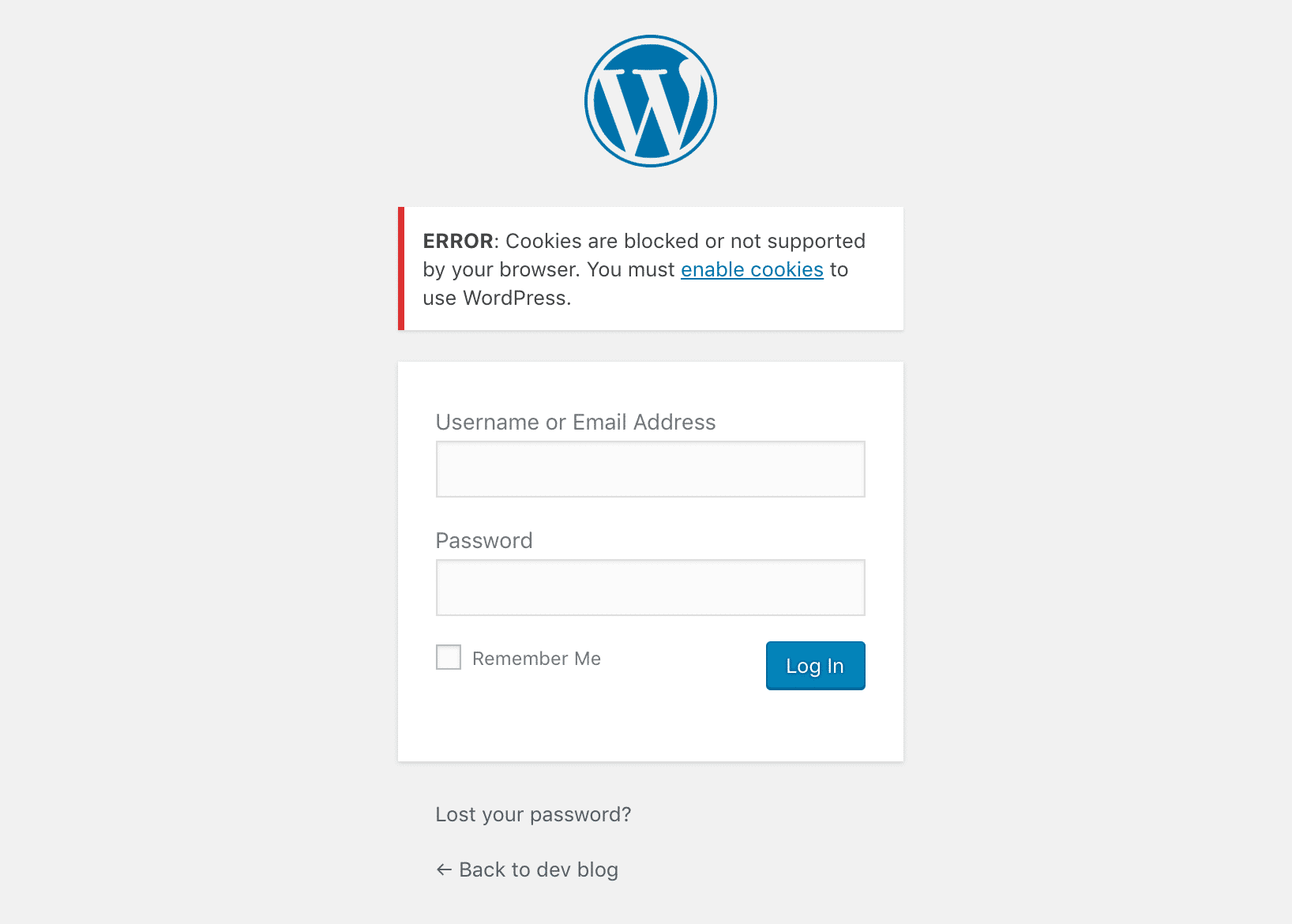
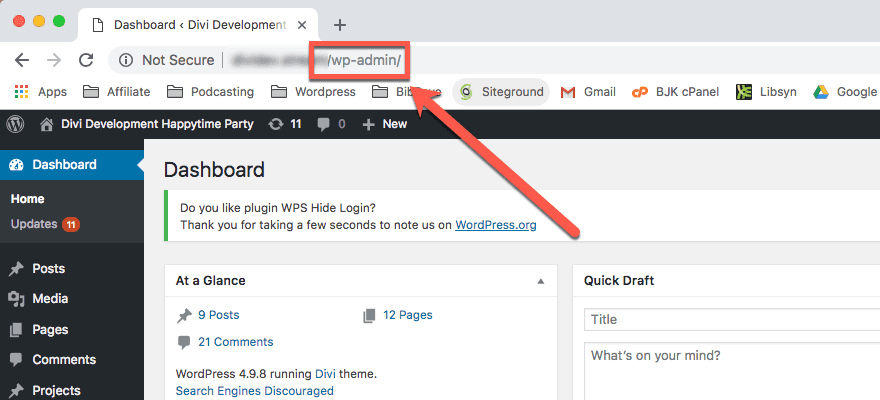
Finding the WordPress login page is easy. Common WordPress Login URL is often the same. Just add /wp-admin at the end of your website’s address. This works for most sites. Another default WordPress Login Path is /wp-login.php. Both lead to the login screen.
Some websites have different login paths. Website owners change these for security. If you can’t find the login page, check with your website admin.
Credit: kinsta.com
Accessing Admin Dashboard
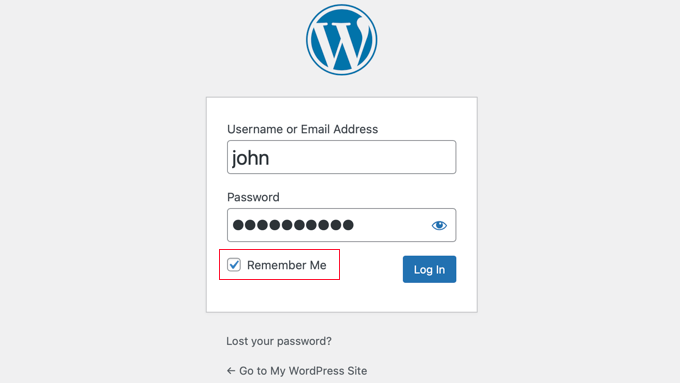
The login page is crucial for WordPress users. It acts as a gatekeeper. Only with the right credentials can you enter. This keeps your site safe and secure. Always remember to use strong passwords. Avoid simple words and numbers. This protects your site from hackers.
The login page leads you to the admin dashboard. Here, you can make changes to your site. Add new posts, edit pages, or manage comments. The dashboard is where you control everything. It’s like the control room of your website. Without access, you can’t manage your site well.
After logging in, you see the admin menu. This menu lets you navigate quickly. Want to change site settings? Click on ‘Settings’. Need to add a new post? Click on ‘Posts’. Each section is easy to find. This makes managing your site simple and fun. Explore each menu item to learn more.
Troubleshooting Login Issues
Can’t log into your WordPress? Try the forgot password link. Enter your email address. You will receive a link to reset your password. Make sure to check your spam folder too. Follow the link to create a new password. Ensure it is strong and secure. Remember your new password to avoid future issues.
Seeing an error message? Don’t worry. Check your internet connection first. Ensure your username and password are correct. Still having trouble? Clear your browser cache. Try logging in again. You can also use a different browser. If problems persist, contact WordPress support for help.
Securing The Login Page
Strong passwords keep your site safe. They are hard to guess. Simple passwords are risky. Hackers find them easily. Combine letters, numbers, and symbols. Avoid using names or birthdays. Longer passwords are better. At least 12 characters is good. Change passwords often. Every few months is ideal. This keeps your site secure.
Two-Factor Authentication (2FA) adds extra security. It’s more than a password. You use a code sent to your phone. Or a special app gives the code. This makes it hard for hackers. They need your phone too. Set up 2FA to protect your site. Many plugins help with this. They make 2FA easy to use. Your site becomes safer.
Customizing The Login Url
Custom URLs can improve your site’s security. They help in protecting against unwanted access. Hackers often target the default login URL. Changing it keeps them away. Custom URLs also help in brand recognition. Users remember unique URLs better. It adds a touch of professionalism. Plus, it makes logging in quicker for regular users. They know where to go. Custom URLs are a small change. But they bring big benefits.
Changing the login path is simple. First, install a plugin like WPS Hide Login. Activate it from the dashboard. Go to the settings page of the plugin. Enter your new login URL there. Save the changes. Now, use the new URL to log in. Always keep a note of the new URL. Inform trusted users about it. This keeps everyone updated.
Credit: www.elegantthemes.com
Credit: www.wpbeginner.com
Frequently Asked Questions
How Do I Find My WordPress Login Url?
You can typically access your WordPress login by adding “/wp-admin” or “/wp-login. php” to your site’s URL. For example, if your website is www. example. com, your login URL would be www. example. com/wp-admin. If you have customized your login URL, contact your site administrator for assistance.
Why Can’t I Access My WordPress Login Page?
There could be several reasons. Check for typos in the URL, clear browser cache, or disable plugins. Sometimes, security settings or a misconfigured. htaccess file could also block access. If problems persist, contact your hosting provider for assistance.
Can I Change My WordPress Login Url?
Yes, you can change it for security reasons. Use plugins like WPS Hide Login to customize your login URL. Changing the default login URL can help protect against unauthorized access and brute force attacks. Always ensure to remember the new URL.
What Should I Do If I Forget My WordPress Password?
Click on the “Lost your password? ” Link on the login page to reset it. Enter your email, and follow the instructions sent to you. If you don’t receive an email, check your spam folder or contact your hosting provider for help.
Conclusion
Navigating WordPress login is simple with the right URL. Remember, it’s usually your website’s address followed by “/wp-admin”. Bookmarking this URL saves time. Now you can access your WordPress dashboard easily. Manage your site with confidence and efficiency. If issues arise, check your URL.
Ensure it’s correct. Sometimes, small mistakes lead to big confusion. Keep learning and exploring WordPress features. Familiarity grows with practice. Understanding these basics enhances your blogging experience. Enjoy creating and managing your content seamlessly. Stay curious and keep improving your skills.
Happy blogging!



