
Feeling lost trying to access your WordPress site? You’re not alone.
Many people find themselves puzzled when searching for the login page of their WordPress site. Whether you’re a seasoned blogger or just starting out, knowing how to find and access this page is crucial for managing your website. Imagine having the power to update content, monitor site performance, and interact with your audience, all at your fingertips.
That’s exactly what awaits once you master logging into your WordPress site. You’ll discover where to find the login page, how to access it easily, and why it’s a critical step in your digital journey. Stick around, and unlock the door to seamless site management.
Credit: managewp.com
Basics Of A Login Page
The login page is a gatekeeper for your site. It controls who enters. Only those with the right username and password can go in. It keeps your site safe from unwanted guests. The page connects users to the site’s backend. This is where they can make changes or see content. Without it, your site might be open to anyone.
Many login pages have similar features. They usually ask for a username and password. Some have a forgot password link. This helps if you forget your password. A remember me option can keep you logged in. Sometimes, there’s a captcha to stop robots. These features make the login page secure and easy to use.
Accessing The Login Page
The default URL to access a WordPress login page is simple. Just type your site’s URL and add /wp-admin or /wp-login.php at the end. For example, if your website is mywebsite.com, the login page would be mywebsite.com/wp-admin.
Sometimes, logging in with different methods is possible. Some sites use custom login pages. In this case, check with the site admin. Another way is through plugins that change the login URL. These plugins can make the URL unique for more security.
Customizing The Login Page
The login page for a WordPress site is the gateway for users and administrators. It allows access to the website’s backend. Customizing this page can enhance security and user experience.
Using Themes And Plugins
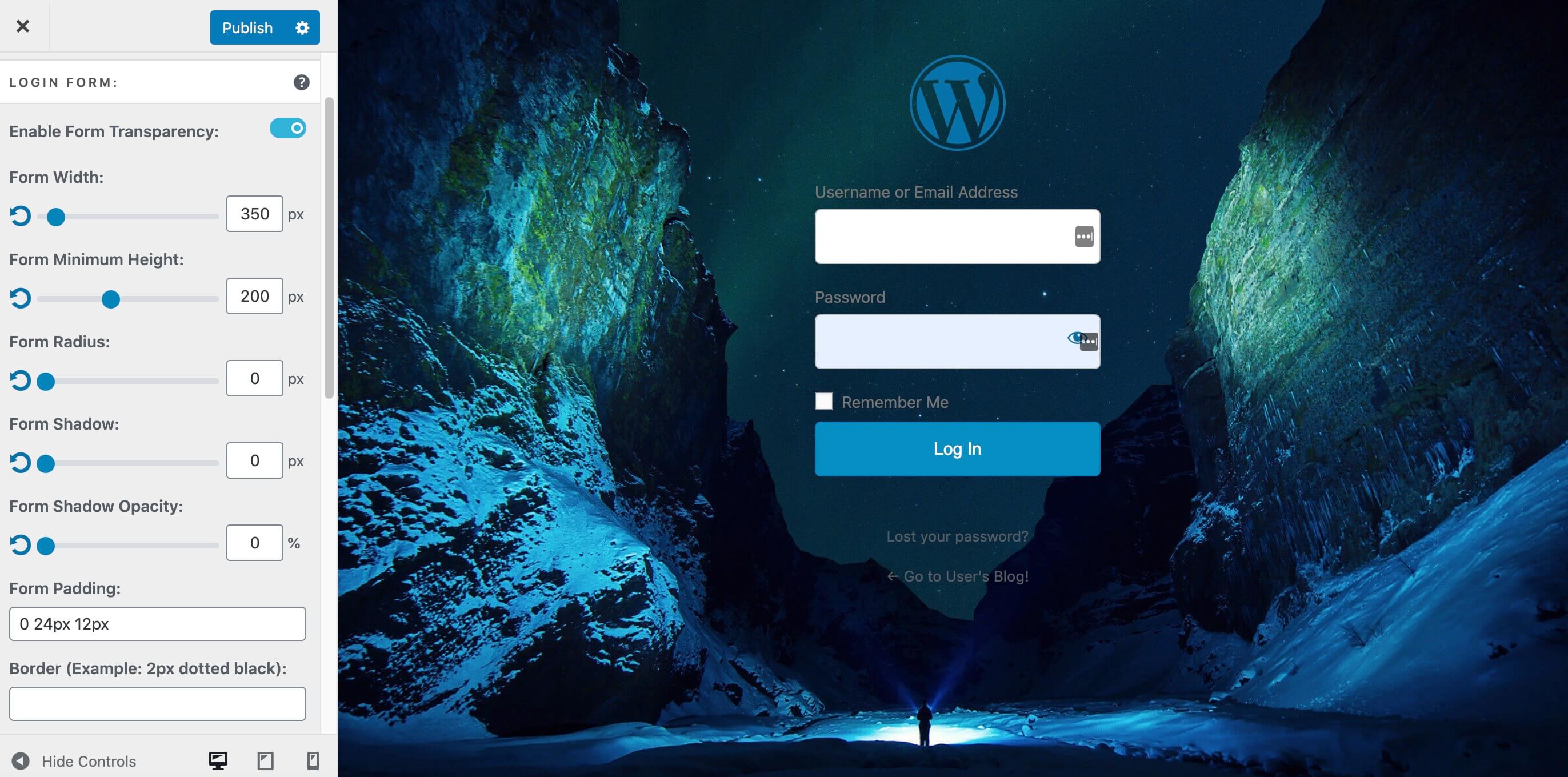
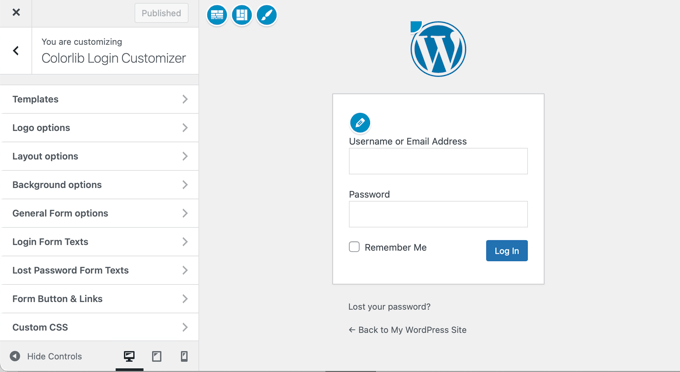
Themes and plugins can change how your login page looks. Some plugins offer templates that make the page look nice. Many themes have options to customize colors and fonts. You can pick what fits your site’s style.
Plugins like LoginPress or Custom Login Page Customizer are popular. They help make changes easy. With just a few clicks, you can make your page unique. Use these tools to make the login page look great and work well.
Custom Css And Branding
Custom CSS lets you change the design more. You can add your logo and match your brand colors. This makes your site look professional. With CSS, you can adjust the layout too.
Branding is important for your site. It helps users recognize your site easily. Use simple CSS to change small details. This makes the login page special for your site. Many websites use custom CSS for a unique look.
Security Measures
The login page for a WordPress site is typically found at yourdomain. com/wp-login. php. This page is crucial for accessing the site’s backend, where administrators can manage content and settings securely. Regularly updating passwords and using two-factor authentication can enhance security.
Two-factor Authentication
Adding two-factor authentication makes your login page safer. It asks for a second step to verify who you are. This can be a text message or an app on your phone. Even if someone knows your password, they can’t get in without this second step. It’s like having a second lock on your door.
Limiting Login Attempts
Limit login attempts to protect your site. This stops people from trying passwords too many times. If someone tries too many times, they get locked out. It keeps your site safe from bad people. This is a simple way to stop hackers. It also helps keep your site fast and smooth.
Troubleshooting Login Issues
Many users see error messages on the login page. “Incorrect Password” is a common one. This means the password is wrong. “Username Not Found” is another. This means the username is not in the system. “Account Locked” happens after many wrong tries. You need to wait or contact support. “Session Expired” means you need to log in again. These messages help users know what went wrong.
Forgetting passwords happens often. First, click the “Forgot Password” link. Enter your email in the box. You will get an email with steps. Follow the steps to reset your password. Make sure to choose a strong password. Use letters, numbers, and symbols. This keeps your account safe.
Credit: www.wpbeginner.com
Enhancing User Experience
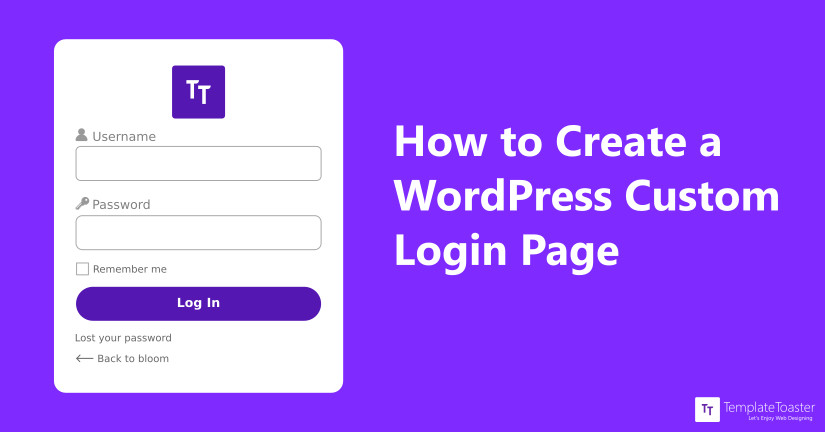
A login page should be simple. Users need to find it easy. Clear instructions help. Avoid clutter on the page. Place buttons in clear view. Use colors that are soft. This will make users feel calm. Simple design builds trust.
Many users log in with phones. The page should fit all screens. Text must be big enough. Buttons should be easy to tap. Fast loading is key. Slow pages lose users. Check the page on different devices. Ensure it looks good everywhere.
Credit: blog.templatetoaster.com
Frequently Asked Questions
How To Find The WordPress Login Page Url?
The WordPress login page URL is typically yoursite. com/wp-login. php. Replace “yoursite. com” with your actual domain name. If you have custom login settings, consult your web developer or hosting provider for the correct URL. Bookmarking the login page can make accessing it easier in the future.
Can I Customize The WordPress Login Page?
Yes, you can customize the WordPress login page using plugins or custom code. Plugins like “Custom Login Page Customizer” allow easy design changes. Custom coding enables advanced modifications, such as changing colors, logos, or adding additional fields. Always backup your site before making significant changes.
What To Do If I Forget My WordPress Login Details?
If you forget your WordPress login details, use the “Lost your password? ” Link on the login page. Enter your registered email address to receive a password reset link. Alternatively, you can reset it through your hosting provider’s control panel or phpMyAdmin for database access.
Why Is The WordPress Login Page Not Loading?
If the WordPress login page isn’t loading, check your internet connection first. Clear your browser cache and cookies, as they may cause loading issues. Ensure your hosting server is operational. If problems persist, contact your hosting provider or a web developer for assistance.
Conclusion
Understanding your WordPress login page is crucial. It ensures easy access and security. Always remember to keep your login details safe. Use strong passwords. Regularly update your login credentials. This helps in preventing unauthorized access. A secure login protects your site from threats.
Familiarize yourself with the login URL. Bookmark it for quick access. This saves time and reduces hassle. A smooth login process enhances your WordPress experience. Keep these tips in mind for seamless access. Your site’s security starts with you. Make it a priority today.



