
Have you ever wondered how your WordPress files seamlessly move from your computer to your website? The secret lies in a powerful tool known as the FTP server.
Imagine it as a bridge that connects your local files to your online presence, ensuring everything is in perfect sync. Understanding the FTP server for WordPress can unlock new possibilities for managing your site more efficiently. Whether you’re a seasoned blogger or just starting your WordPress journey, grasping this concept can save you time and headaches.
Stick around to discover how this tool can be your new best friend in the world of website management.
Introduction To Ftp Servers
FTP servers help move files on the internet. They are like post offices for computer files. WordPress uses FTP servers to upload and download files. This helps you manage your website easily.
FTP stands for File Transfer Protocol. It allows computers to send files to each other. You need an FTP client to connect to an FTP server. This software acts like a bridge. It helps you reach your website’s files.
Some popular FTP clients are FileZilla, Cyberduck, and WinSCP. They are easy to use and free. These tools work on both Windows and Mac. Choose the one that suits you best.
Role Of Ftp In WordPress
FTP stands for File Transfer Protocol. It helps move files easily. WordPress uses FTP for uploading themes and plugins. This is very useful for website owners. You can fix errors by accessing files directly. FTP is like a bridge between your computer and the server. It makes changes without logging into the WordPress dashboard.
FTP is safe and secure. It keeps your files protected. You need an FTP client for this. Some popular ones are FileZilla and Cyberduck. They are easy to use. FTP clients show files in two columns. One side is your computer, the other is the server. Just drag files to move them.
FTP is perfect for backups. You can save a copy of your website files. This is important if something goes wrong. It helps keep your WordPress site safe. Always have a backup plan ready.
Setting Up An Ftp Server
Picking the right FTP client is important. Popular options include FileZilla, Cyberduck, and WinSCP. These tools are easy to use. They help you connect to your WordPress site. Each client has special features. FileZilla is free and easy to install. Cyberduck works well on Mac. WinSCP is great for Windows. Choose one that fits your needs.
Set up FTP access for your WordPress site. First, get your FTP login details. These are your username, password, and server address. Next, open your FTP client. Enter your details to connect. Check your connection to ensure it works. You can now upload and edit files. This helps manage your WordPress site easily.
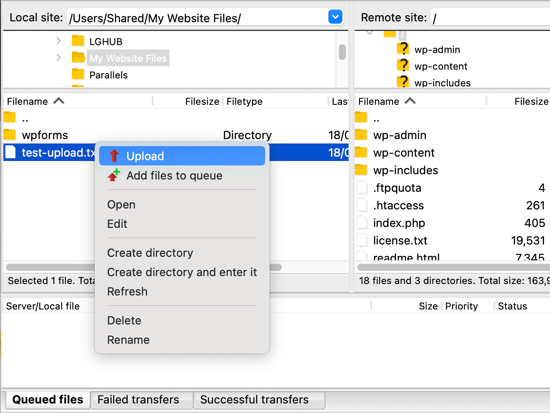
Credit: www.wpbeginner.com
Ftp Vs. Other File Transfer Methods
FTP servers enable seamless file transfers for WordPress, offering a reliable method compared to other file transfer protocols. They ensure secure uploading and downloading of website files, crucial for maintaining site performance and security. Using FTP helps manage WordPress files efficiently, enhancing user experience and site functionality.
Ftp Vs. Sftp
FTP is simple. SFTP is more secure. FTP uses a standard connection. SFTP uses encryption. Encryption keeps files safe. FTP does not use encryption. SFTP needs a secure channel. FTP uses plain text. Plain text can be risky. SFTP is better for sensitive files. FTP is faster for small files. SFTP can be slower. Choose based on needs. Safety matters for important files. Speed matters for small files. Both have uses. Knowing the difference helps.
Ftp Vs. WordPress Dashboard
FTP allows file transfers. Directly to the server. WordPress Dashboard manages content. Without accessing the server. FTP is good for large files. Dashboard is for posts and pages. FTP bypasses WordPress. Dashboard is user-friendly. FTP needs software. Dashboard needs a web browser. FTP offers more control. Dashboard offers ease of use. Both are useful. Depends on what you need. FTP can be complex. Dashboard is simpler. Choose based on skills.
Common Ftp Servers For WordPress
FileZilla is a popular choice for managing WordPress files. It is free and easy to use. FileZilla supports Windows, macOS, and Linux. Many users find it fast and reliable. It also offers a drag-and-drop interface. This makes uploading files simple. FileZilla offers secure file transfer options. This keeps your files safe.
Cyberduck is another well-known FTP server. It is available for Windows and macOS. Cyberduck has a clean and simple interface. This makes it easy for beginners. It also integrates with cloud storage services. Examples are Google Drive and Dropbox. Cyberduck provides strong encryption for file transfers. This ensures your data stays private.
WinSCP is a popular FTP server for Windows users. It supports SFTP, SCP, and FTP protocols. WinSCP offers a user-friendly interface. This helps in managing WordPress files easily. It also includes an integrated text editor. This allows users to edit files directly. WinSCP ensures secure file transfers. It is trusted by many users for its reliability.

Credit: wpmarmite.com
Security Considerations
An FTP server for WordPress allows file transfers between your computer and your website. Ensuring secure connections is crucial to protect sensitive data and prevent unauthorized access. Always use strong passwords and consider using SFTP for enhanced security.
Secure Login Practices
Strong passwords are very important. They keep your website safe. Use a mix of letters, numbers, and symbols. Passwords should not be easy to guess. Changing passwords often is smart. Never share your passwords. Keeping them private is crucial.
Use two-factor authentication. It adds an extra layer of security. You need something you know and something you have. This makes it hard for bad people to get in. They need more than just your password.
Ftp Encryption Methods
FTP can be made secure with encryption. Encryption hides your data. It makes it hard for others to see. Use FTPS. FTPS stands for FTP Secure. It uses SSL/TLS to encrypt data. This makes data safe during transfer.
Another method is SFTP. SFTP means SSH File Transfer Protocol. It uses SSH to encrypt data. SSH helps keep your data private. Choose the method that works best for you. Both methods keep your files safe.
Troubleshooting Ftp Issues
Understanding FTP server setup for WordPress helps in solving connection issues. FTP allows file transfers between your computer and the server hosting your WordPress site. Proper configuration ensures smooth file access and uploads, keeping your site running efficiently.
Common Connection Problems
FTP servers can have connection issues. Sometimes, the server does not respond. This might be due to incorrect settings. Check your FTP server address. Ensure it is typed correctly. Also, verify the username and password. These must match the server’s records. Sometimes, a poor internet connection causes trouble. Restart your modem if needed. Also, check your firewall settings. They might block the FTP connection.
Resolving Permission Errors
Permission errors happen when you can’t access files. This might occur if file permissions are wrong. Check the file permissions in your FTP client. They should be set to allow read and write access. Sometimes, the WordPress folder does not have proper permissions. Update these permissions in the server settings. If unsure, ask your hosting provider for help. They can guide you to set the correct permissions.
Benefits Of Using Ftp With WordPress
FTP makes file handling smooth. Quick uploads and easy downloads are its perks. Organizing folders is simple. It helps keep things tidy. No more cluttered space.
FTP allows direct file access. Change or fix files anytime. No waiting. It’s fast and straightforward. Edit themes and plugins easily. This saves time for everyone. Anyone can do it with little guidance.

Credit: wordpress.stackexchange.com
Frequently Asked Questions
What Is An Ftp Server In WordPress?
An FTP server is a tool for transferring files between your computer and WordPress hosting. It helps in managing website files efficiently. You can upload, download, or edit files without accessing WordPress dashboard, providing more control over your site’s data and functionality.
How Do I Access My WordPress Ftp Server?
To access your WordPress FTP server, use an FTP client like FileZilla. Enter your website’s FTP credentials: host, username, and password. Connect to the server, then navigate through your site’s files. It’s an essential step for managing and troubleshooting WordPress files.
Why Use Ftp For WordPress File Management?
FTP allows direct access to your WordPress files, providing more control than the dashboard. It’s useful for uploading themes, plugins, or backups. You can quickly fix permissions, troubleshoot errors, or edit files. FTP is vital for advanced WordPress management and problem-solving tasks.
Can Ftp Improve WordPress Security?
FTP can enhance security by allowing direct file management without dashboard access. Secure your FTP with strong passwords and use SFTP for encrypted transfers. This minimizes vulnerabilities and protects your WordPress site from unauthorized access, ensuring safer file handling practices.
Conclusion
Understanding FTP servers for WordPress helps manage your site better. It simplifies file transfers and boosts efficiency. You gain control over your website’s files. A basic grasp of FTP empowers you with confidence. Troubleshooting becomes easier with this knowledge. Keep exploring WordPress features and grow your skills.
Remember, practice makes perfect. Applying FTP tools can enhance your WordPress experience. Stay curious and keep learning. The more you know, the smoother your WordPress journey becomes. Happy managing!



