
Imagine visiting a website and feeling overwhelmed by walls of text. As a reader, you might lose interest quickly, missing out on valuable content.
This is where the “Read More” tag in WordPress comes to the rescue. It’s a simple tool with powerful effects, and it could be the key to making your website more engaging. By using the “Read More” tag, you can tease intriguing content, keeping your pages tidy and inviting.
It’s like offering a sneak peek that sparks curiosity and encourages your visitors to dive deeper into your articles. Curious about how this little tag can transform your WordPress site? Keep reading to unlock the secrets of captivating your audience and enhancing your website’s appeal.
Credit: rankmath.com
Read More Tag Basics
The Read More tag is a tool in WordPress. It helps to make posts shorter on the main page. By adding this tag, only the first part of a post shows up. Readers see a link saying “Read More.” Clicking this link opens the full post. This keeps the main page tidy and organized.
The tag is easy to use. Editors add it where they want a break in the text. It’s simple to find in the editor toolbar. Posts look clean and neat with its help. The tag also improves page loading speed. Less content to load means faster pages. Visitors stay happy with quick loading times. They find information easily.
The default look of the Read More tag is a basic link. It says “Read More” or something similar. Themes may change how it looks. Some themes use buttons instead of links. Others add styles or colors. The tag’s appearance can be changed by coding. But most users stick to the default. It’s simple and clear for everyone.
Benefits For Engagement
Improving User Experience is essential for a website. The Read More tag helps. It keeps the page neat. Only important content shows first. Users click to see more. This makes the site look tidy. Visitors find information faster.
Enhancing Page Load Speed is crucial. Faster pages mean happy users. The Read More tag loads less data first. This speeds up the initial view. Less waiting means more browsing. Users stay longer when pages load quickly.
Encouraging Further Reading can keep users engaged. The Read More tag invites curiosity. Users see a teaser first. They click to learn more. This keeps them on the site longer. More clicks mean more interest. It’s a smart way to engage readers.
Setting Up The Read More Tag
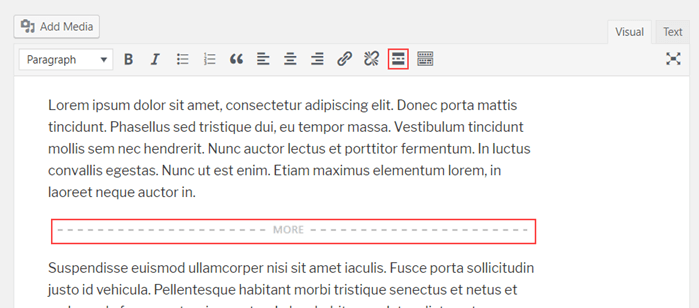
The WordPress Editor helps in adding the Read More tag easily. It splits long posts into shorter ones. Find the Read More button in the toolbar. Click it to insert the tag in your post. This makes reading easy and clean.
You can change the Read More text to anything you like. Go to the Editor and click on the Read More tag. Type new words to replace the default text. Make it fun or direct. It’s your choice.
Place the Read More tag where the post gets long. Usually, after the first few sentences or paragraphs. This keeps readers interested. They will click to read the full post. It also helps in organizing your content.
Credit: www.hostpapa.com
Customizing With Css
Styling options for the Read More tag can be fun. You can change colors and fonts. Use CSS to make it look nice. Add border styles for a unique touch. Change the size of the text easily. Make it stand out on the page. Use hover effects to catch the eye. Styling helps make the page look good.
Responsive design considerations are important. Make sure the Read More tag looks good on all devices. Use media queries to adjust the style. Check on mobile phones and tablets. Keep the text readable. Ensure buttons are easy to click. Test on different screen sizes. Responsive design makes sure everyone can see it nicely.
Seo Implications
Read More tags can affect how search engines see your site. They help keep pages clean. Search engines may not see all your text. This can change your page rankings. It is important to show key content clearly. Make sure important words appear before the tag. This helps search engines understand your page. It can improve your site’s visibility in search results.
Balancing the use of Read More tags is crucial. Too many tags can hide useful content. Users might miss key details. Search engines need enough text to rank your site well. Keep the main message clear. Tags should not hide essential information. They should enhance user experience. Make sure content is easy to find and read.
Credit: www.greengeeks.com
Common Mistakes To Avoid
Using the Read More tag incorrectly can lead to poor user experience on your WordPress site. Avoid hiding essential content, as readers may miss important information. Proper placement ensures your website remains engaging and easy to navigate.
Overuse Of The Tag
WordPress offers the Read More Tag for cutting long posts. Using it too much can harm your blog. Readers may get annoyed if every post stops abruptly. This can lead to lower engagement and less time spent on your site. Balance is important. Use the tag sparingly. Ensure content before the tag is valuable and relevant. Make readers want to click Read More.
Misleading Text
Some bloggers use the Read More Tag to trick users. They might write exciting text to lure clicks. But if the full post is unrelated, readers feel cheated. This damages trust. Always match the teaser text with the full content. Ensure the first part gives a clear idea of what’s next. Keep it honest and straightforward.
Advanced Tips
The “Read More” tag in WordPress helps manage lengthy content by hiding part of the post. Readers click the tag to reveal the full article, keeping your blog tidy and engaging. This tool is essential for improving user experience on your website.
Integration With Themes
The Read More tag fits well with many themes. Most themes have settings for this tag. Check the theme’s documentation for guidance. Some themes offer custom styles for the tag. This makes content look neat. Experiment with different styles. See what works best. Ensure it matches your site’s look. Keep it simple and clear. The goal is to help readers. Guide them without confusion.
Using Plugins For Enhancement
Plugins can add extra features to the Read More tag. Some plugins offer animations or custom buttons. This can make your site more interactive. Many plugins are free. Try a few to see which you like. They are easy to install. Always keep them updated. This ensures they work well. Remember to check reviews before choosing. Happy writing!
Frequently Asked Questions
What Is The Read More Tag In WordPress?
The Read More tag in WordPress allows you to truncate long posts. It helps in displaying a preview on the homepage or archive pages. When clicked, it leads users to the full post, enhancing user experience and engagement.
How To Add Read More Tag In WordPress?
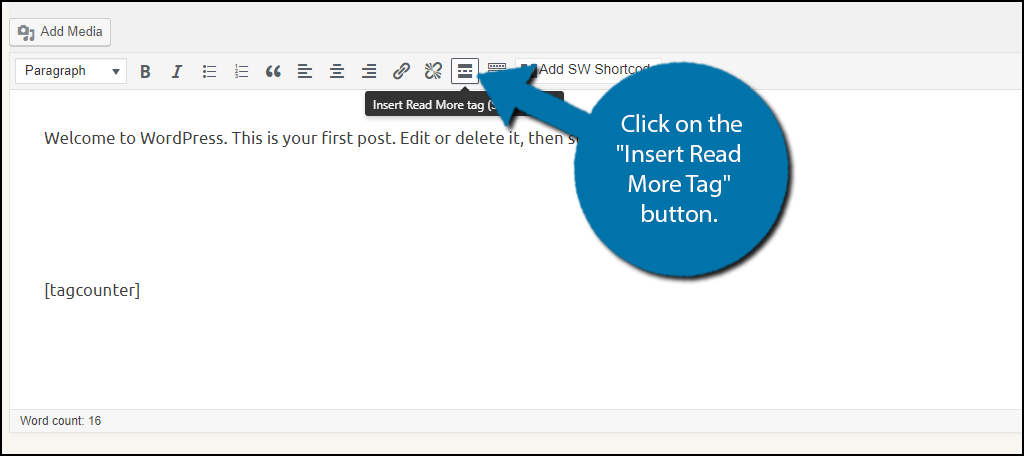
You can add a Read More tag using the WordPress editor. Simply place your cursor where you want the break. Click on the “Insert Read More tag” button to create the truncation. It divides your content effectively.
Why Use Read More Tag In WordPress?
Using the Read More tag keeps your blog organized and clean. It provides a snippet of your content, attracting readers. This tag improves site navigation and user engagement, while also optimizing page loading times.
Can Read More Tag Affect Seo?
Yes, the Read More tag can affect SEO positively. It helps improve site structure and user experience. By offering previews, it encourages clicks and reduces bounce rates. Proper usage can enhance your site’s search rankings.
Conclusion
The “Read More” tag is a handy tool in WordPress. It keeps your blog neat and organized. Readers see a snippet and click to read full articles. This helps improve user experience on your site. It also makes your webpage load faster.
Simple and effective for bloggers. Consider using it for longer posts. It can increase engagement and keep readers interested. Easy to implement, even for beginners. Start using it today and enhance your blog’s appeal. Make your content more accessible and reader-friendly.



