
Imagine you’re ready to dive into your WordPress site, eager to create engaging content or tweak your design. But there’s a hurdle – accessing the admin login.
It’s the gateway to your site’s heart and soul, yet it can sometimes feel like a puzzle. Whether you’re a newbie or seasoned WordPress user, understanding how to find and use the admin login is crucial. We’ll uncover everything you need to know about the WordPress admin login, ensuring you can effortlessly manage your site.
Stick around, and soon you’ll navigate your site with confidence and ease.
Accessing The Admin Dashboard
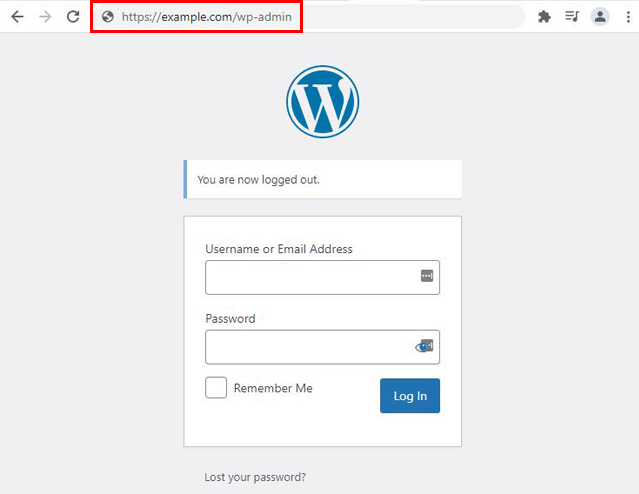
WordPress admin login is easy to find. Most sites use a simple URL. The default URL is often /wp-admin or /wp-login.php. Type this after your website address. For example, www.yoursite.com/wp-admin. This will take you to the login page. You will need your username and password to enter.
Many WordPress sites follow the same pattern. The login URL usually looks like this: www.example.com/wp-login.php. This URL is standard for all WordPress sites. Always check this first if you can’t find the login page. Remember, the URL is case-sensitive. So type it correctly.
Some sites have custom login URLs. These are different from the common ones. Site owners change them for security reasons. You may need to ask the site owner for this URL. It is not easy to guess. If you see an error, check with your site admin.
Admin Login Credentials
The default WordPress username is often “admin.” This is common for many setups. The default password might be “password” or “1234.” These are not safe options. They are easy to guess. Always change them. Hackers know these defaults.
A strong password keeps your site safe. Use a mix of letters. Add numbers and special symbols too. Make passwords at least 12 characters long. Avoid using common words or names. Change passwords often. This way, your site stays secure.
Troubleshooting Login Issues
Accessing the WordPress admin login involves entering “/wp-admin” after your website URL. This page is crucial for managing your website’s content and settings. If issues arise, double-check the URL and credentials to ensure correct login details.
Resetting Passwords
Passwords are easy to forget. Use the “Forgot Password” link. Enter your email. Follow the steps to reset your password. Check your email for a link. Click the link to make a new password. This helps you log in again.
Dealing With Locked Accounts
Sometimes accounts get locked. This happens due to many wrong tries. Contact your site admin for help. They can unlock your account. Also, they might reset your password. Always keep your password safe.
Clearing Browser Cache
Browser cache can cause login problems. Clear cache to fix these issues. Find the settings in your browser. Choose “Clear Cache”. This removes old data. After clearing, try logging in again. It often solves login troubles.
Credit: themegrill.com
Enhancing Login Security
Two-factor authentication adds an extra layer of security. It requires a password and a second step. This could be a code sent to your phone. Even if someone knows your password, they need this code. It makes your WordPress account much safer.
Limit the number of login attempts. This helps stop hackers from guessing passwords. If someone tries too many times, they get locked out. It makes it harder for them to access your site. It’s a simple step to boost security.
Security plugins can protect your WordPress site. They offer features like firewalls and malware scanning. Some plugins can even block bad bots and users. Choose a plugin that updates regularly. This ensures your site stays protected from new threats.
Customizing The Login Page
Changing the Login Page Appearance is easy and fun. Use themes or plugins to start. These tools help change colors and fonts. Try different styles to see what you like. A new look makes your site stand out. Visitors will remember your site better.
Adding Custom Branding is important too. Add your logo to the login page. This makes it look professional. It shows visitors who you are. Branding builds trust with users. You can also add a custom message. A nice message can make users feel welcome. Make the login page match your website. This creates a seamless experience for everyone.

Credit: jetpack.com
Managing User Roles
Accessing the admin login for WordPress allows users to manage roles efficiently. Enter your website URL followed by “/wp-admin” in your browser’s address bar. This portal enables control over user permissions and settings, ensuring streamlined website management.
Understanding User Permissions
WordPress has different user roles. Each role has specific permissions. Admins can do everything. Editors can manage content. Authors can write posts. Contributors can suggest posts. Subscribers can read content. Choosing the right role is important. It keeps the site safe and organized.
Assigning And Modifying Roles
Assigning roles is simple. Go to the User section. Click Add New or select a user. Choose a role from the dropdown. Save the changes. To change a role, edit the user profile. Select a new role. Save again. This helps in managing site tasks easily.
Credit: www.hostinger.com
Frequently Asked Questions
How To Find WordPress Admin Login Url?
The default WordPress admin login URL is usually “yourwebsite. com/wp-admin”. If you’ve changed it for security reasons, check your site’s documentation or consult your hosting provider. You can also find it by accessing your site’s root directory and looking for the login page.
What Are The Default WordPress Admin Credentials?
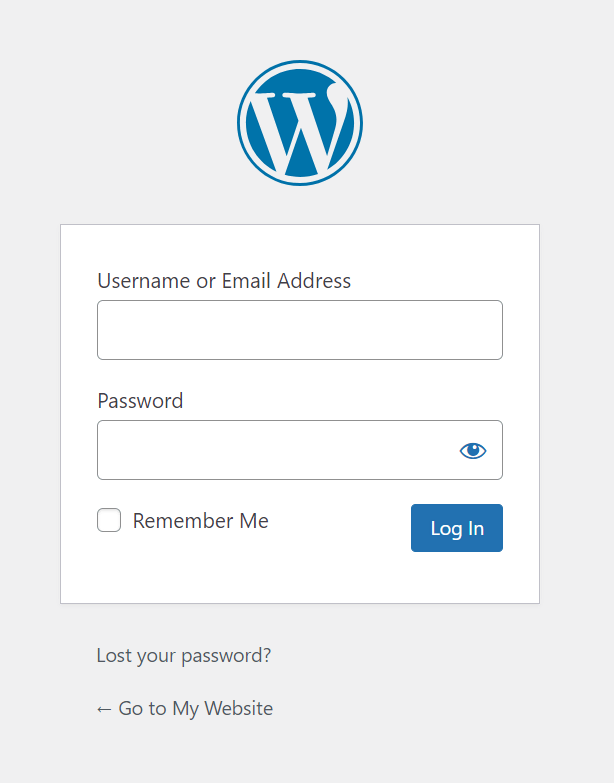
WordPress admin credentials are created during installation. The default username is usually “admin”. There is no default password; it’s set by you. If you forget your password, use the “Lost your password? ” Link on the login page to reset it.
Can I Change The WordPress Admin Login Url?
Yes, you can change the admin login URL using plugins like WPS Hide Login. Changing the URL enhances security by hiding the default login page. Always ensure you remember the new URL to avoid lockout from your site.
How To Secure WordPress Admin Login?
To secure your WordPress admin login, use strong passwords and two-factor authentication. Regularly update your plugins and themes. Consider changing the default login URL and limit login attempts to protect against brute force attacks.
Conclusion
Understanding how to access WordPress admin is essential. It’s the control center for your website. Remember the login URL and your credentials. Keep your password secure and update it regularly. This prevents unauthorized access. Bookmark your login page for quick access.
If you face issues, check your internet connection first. Consider seeking help from WordPress support if needed. Mastering this login process saves you time and stress. So, get familiar with it. A well-maintained login routine ensures smooth website management. Happy blogging!



