
Imagine visiting a website and feeling instantly lost. You want to explore, but you’re not sure where to start.
This confusion is what a well-designed navigational bar on WordPress aims to prevent. A navigational bar is like a map for your website. It helps your visitors find their way around easily and keeps them engaged. But do you know how to make yours effective?
Understanding your navigational bar is crucial because it can make or break your site’s user experience. It guides your visitors, highlights your top content, and can even influence how long they stay on your site. As you dive into this article, you’ll discover how to create a navigational bar that not only looks good but also works flawlessly. This knowledge could transform your website into a user-friendly haven, boosting your traffic and improving your visitors’ experience. So, are you ready to unlock the secrets of a successful navigational bar on WordPress? Let’s get started!
Navigational Bar Basics
A navigational bar is a list of links. It helps users move around a website. It sits at the top of each page. This bar is very important. It makes websites easy to use. Visitors find what they need quickly.
The key parts of a navigational bar include menu items. These are the links. They lead to different pages. There is often a search box. This helps users find content fast. Some bars have drop-down menus. These show more links when you hover over them. Each part has its role. Together, they make navigation easy and clear.
Credit: www.wpkube.com
Types Of Navigational Bars
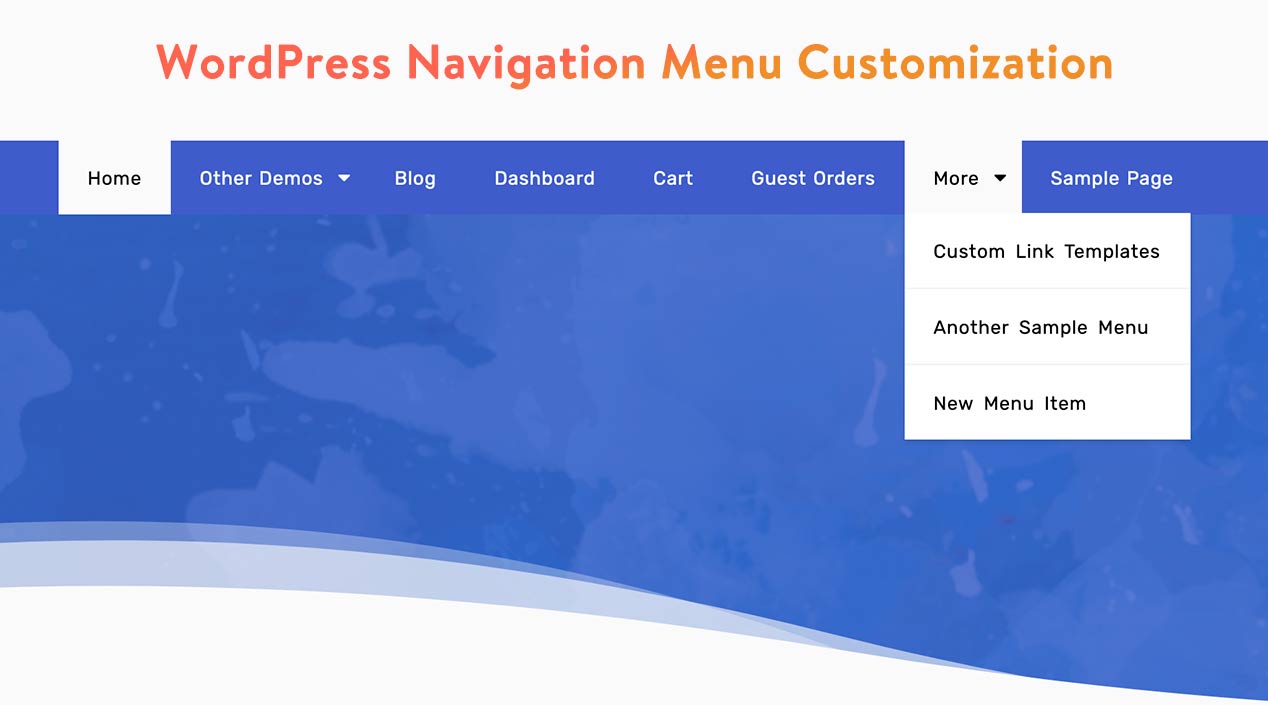
The horizontal navigation bar is common on many websites. It sits at the top of the page. Links line up side by side. Easy to see. Easy to click. Users find this style simple. It works well for most sites. Many themes support horizontal bars. They are efficient and clear. Users know where to go.
Vertical navigation bars run down the side. Links stack top to bottom. This style fits neatly. It works well for long lists. Great for directories or blogs. It keeps the page tidy. Less cluttered than horizontal bars. Users scroll to find links. Some themes use both vertical and horizontal bars.
Dropdown menus hide links until clicked. They save space. Good for sites with many pages. Users hover or click to reveal links. Dropdowns keep the design neat. They help users find specific pages fast. Many themes offer dropdown options. Designers use them for clean, organized sites.
Creating A Navigational Bar
WordPress themes often come with built-in navigational bars. These bars help users move around your site easily. You can find them in the theme settings. Simply choose the location where you want the bar to appear. Many themes offer top and bottom placement options.
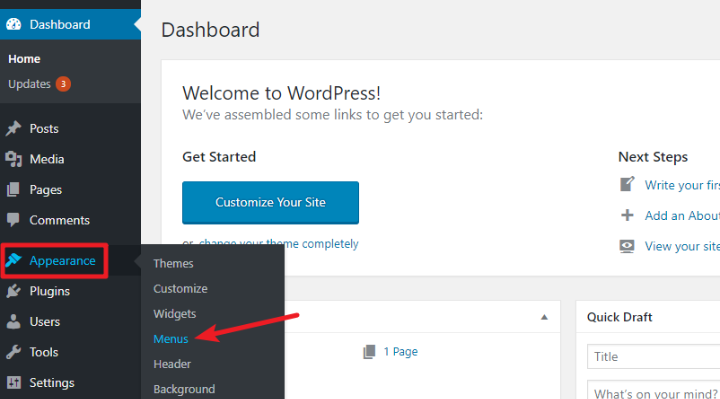
WordPress allows you to create custom menus. Go to the dashboard and select Appearance. Then, click on Menus. Here, you can add pages, links, or posts. Arrange these items as you like. Click Save when done. Your new menu will show up on the site. It’s very simple and user-friendly.
Credit: www.wpdownloadmanager.com
Customizing The Navigational Bar
WordPress navigational bars guide visitors through your site, offering links to key pages. Customizing this bar enhances user experience, allowing you to tailor menus to fit your site’s style and needs. Personalize appearance and structure for a seamless browsing experience, boosting engagement and accessibility.
Changing Colors And Fonts
Make the navigational bar look pretty. Choose colors that match your site. Use bright colors for fun sites. Use soft colors for calm sites. Fonts matter too. Pick a font that is easy to read. Big fonts are good for kids. Small fonts can be hard to read. Mix colors and fonts for a unique look. Make your site special!
Adding Icons
Icons make the bar look cool. They help people find things fast. Use a house icon for home. A letter icon for contact. Icons are like pictures. They are easy to understand. Kids love them. So do adults. Add icons to make it fun. Make sure they are clear. Simple icons work best.
Best Practices For Navigational Bars
Navigational bars in WordPress help users find information on a website easily. They organize links to important pages. Keep it simple and clear for better user experience.
Enhancing User Experience
Good navigational bars help users find what they need quickly. They should be simple and easy to use. Links must be clear and direct. Users will stay longer if they find things easily. Organize links by importance and relevance. Use drop-down menus for extra options. Avoid too many links at once. This keeps the page clean and tidy.
Ensuring Mobile Responsiveness
Many people browse on phones. Navigational bars must work well on small screens. Use responsive designs for best results. Links should be easy to click with fingers. Keep buttons large enough to touch. Test your website on different devices. This ensures everyone can use your site easily. Mobile users enjoy simple and clear navigation.
Credit: www.formget.com
Common Issues And Solutions
Sometimes the navigational bar does not show up correctly. This can confuse visitors. Check your theme settings first. Ensure the menu location is set properly. Try refreshing your page. If the bar still looks wrong, inspect CSS styles. Make sure font color and background color are visible. A plugin conflict might cause display problems. Deactivate plugins one by one to find the issue.
Broken links in the navigational bar frustrate users. Verify each link. Click on them to see if they work. If a link is broken, update it with the correct URL. Use a link checker tool for help. Test your site regularly. Broken links can harm search engine rankings. Fix them quickly to keep your site healthy.
Tools And Plugins
Navigational bars on WordPress help visitors find their way around a website. These bars often appear at the top of pages, showcasing links to important sections like Home, About, and Contact. Plugins can customize these bars, enhancing user experience and accessibility.
Popular Plugins For Navigation
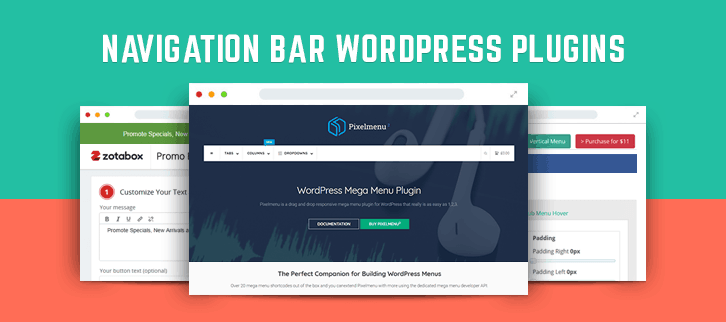
WordPress plugins make navigation easy. They help create menus and bars. Some plugins are popular. Elementor is one of them. It has a drag-and-drop feature. Another is Max Mega Menu. It helps with big menus. WP Mega Menu is also useful. It lets you add images.
Other options are UberMenu and WP Mobile Menu. UberMenu is flexible. WP Mobile Menu helps with phones. Each plugin has unique features. Choose based on your needs. Plugins can improve the user experience. Make sure to pick the right one.
Selecting The Right Tools
Selecting tools is important. Think about your site’s needs first. Small sites need basic plugins. Large sites need more features. Consider your skills too. Some tools are easy. Others need practice. Check reviews before you choose. Reviews show what others think.
Always update your tools. Updates fix bugs. They add new features. Try to back up your site. Backing up protects your data. It is good to have a plan. This makes your site safe.
Frequently Asked Questions
How Do I Add A Navigational Bar In WordPress?
To add a navigational bar in WordPress, access your WordPress dashboard. Go to ‘Appearance’ and select ‘Menus’. Create a new menu and add desired pages or categories. Assign the menu to a theme location, usually labeled as ‘Primary’ or ‘Header’.
Save changes to display the navigational bar on your site.
Why Is A Navigational Bar Important For WordPress Sites?
A navigational bar is crucial for WordPress sites as it enhances user experience. It helps visitors easily find content, improving site navigation. A well-designed navigational bar can reduce bounce rates and increase engagement. It’s also important for SEO, as it aids search engines in understanding site structure.
Can I Customize The WordPress Navigational Bar?
Yes, you can customize the WordPress navigational bar. Use the ‘Appearance’ section in the dashboard to modify menus. You can change menu items, order, and appearance. For advanced customization, use plugins or edit theme files. Customization allows you to match the navigational bar with your site’s design.
What Plugins Help With Navigational Bars In WordPress?
Several plugins enhance navigational bars in WordPress. Popular ones include ‘Max Mega Menu’, ‘WP Mega Menu’, and ‘UberMenu’. These plugins offer advanced customization options. They allow you to create responsive menus, add icons, and improve design. Choosing the right plugin depends on your specific needs and site design.
Conclusion
A navigational bar in WordPress is a vital tool. It helps users find content easily. With simple menus, your site becomes user-friendly. It guides visitors to important pages quickly. A well-organized bar enhances user experience. It also boosts website performance.
Think about what your visitors need. Organize your menu accordingly. Use clear labels for each link. This clarity keeps users engaged. Remember, a good navigation bar reflects your site’s goals. It makes browsing effortless for everyone. So, spend time designing it right.
Your visitors will appreciate it. And your site will benefit from better traffic flow.



