
Have you ever found yourself wondering, “What is my WordPress page ID?” You’re not alone.
Understanding your WordPress page ID can unlock new levels of customization and control over your website. It’s like discovering a secret key to hidden features that can enhance your site’s functionality. Imagine being able to seamlessly integrate plugins or tweak settings with precision, all because you know your page ID.
You’ll discover exactly how to find your WordPress page ID and learn why it’s crucial for maximizing your site’s potential. Ready to make your WordPress experience smoother and more efficient? Keep reading to uncover the simplicity behind this often-overlooked detail.
Understanding WordPress Page Ids
Every page in WordPress has a unique number. This number is called a Page ID. It helps WordPress know which page you are talking about. Page IDs are important for plugins and themes. They use these IDs to work correctly. Knowing your Page ID can help you customize your site. You can find Page IDs in your WordPress dashboard.
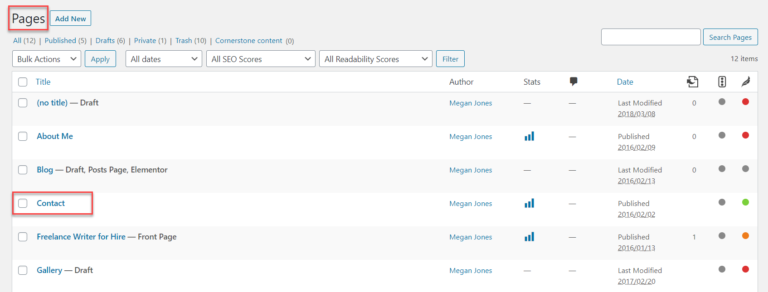
Go to Pages in the menu. Then, hover over the page title. Look at the bottom of your browser. You will see a URL. In that URL, there is a number after “post=”. This number is your Page ID. It is simple to find and useful too.
Credit: athemes.com
Importance Of Page Ids
Page IDs are unique numbers. Each page has its own ID. They help in organizing and managing content. IDs are useful for customizing your site. They help developers target specific pages. This makes changes easy.
IDs are vital for plugins and themes. Many plugins use these IDs. They enhance site functionality. Themes also rely on IDs. They help in applying styles to pages. Knowing the ID is crucial for advanced settings. This improves user experience.
Finding a Page ID is simple. Check the URL in your browser. Look at the number after “post=”. That is your Page ID. This number identifies the page uniquely. It is important to know your Page IDs.
Locating Page Ids In WordPress
First, log into your WordPress Admin Dashboard. Click on “Pages” from the menu. Find the page you want to check. Hover over the page title. A small preview window will appear. Look at the URL at the bottom of your browser. The page ID is the number after “post=”. It’s a simple way to find it.
Open the page you want to find. Look at the browser’s URL bar. The number next to “post=” is your Page ID. This method is quick and easy. You don’t need any special tools. Just your web browser.
Some plugins can help. Install a plugin like “Reveal IDs”. It shows IDs in your admin panel. This makes finding IDs fast and simple. Plugins are helpful for beginners. They save time and effort.
Credit: pluginsforwp.com
Using Page Ids Effectively
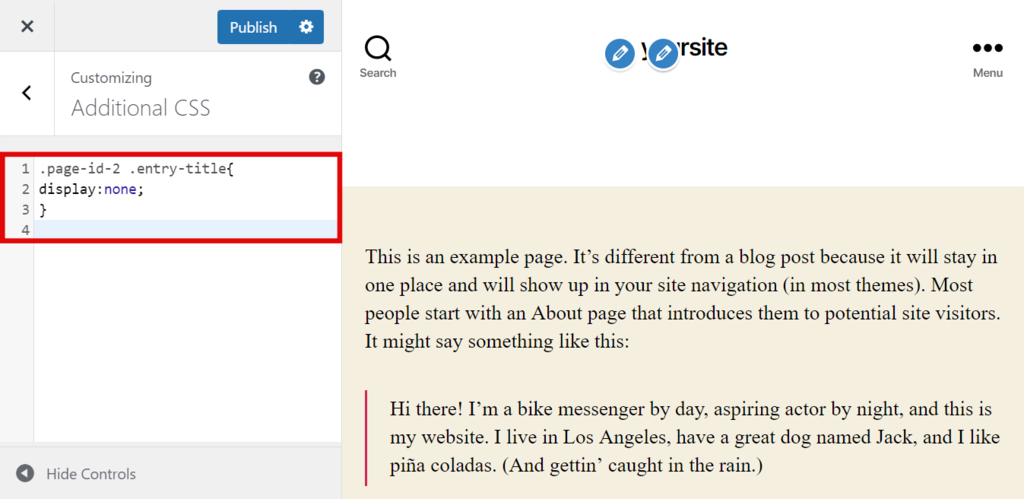
Page IDs help in customizing themes. Each page has a unique ID. This ID allows specific changes. You can alter colors or fonts for one page. It makes your site special. No coding skills needed. Just know your page ID. Use it in theme settings. Easy and fun.
Plugins add features to your site. Page IDs aid in plugin settings. Some plugins work better with IDs. You can show or hide items. Only on chosen pages. This keeps your site tidy. Use IDs to manage content. Makes your site user-friendly.
SEO helps people find your site. Page IDs play a part here. They ensure clean URLs. Search engines like clean URLs. You can use IDs for redirects. This boosts your site’s ranking. Helps in organizing content. Keeps site structure clear.
Common Issues With Page Ids
Page IDs can sometimes go missing. This can confuse users. It can also cause issues with plugins. Missing IDs can affect site functionality. They may lead to broken links. Users may see errors on their site. Finding the right page can become hard.
Troubleshooting Missing Ids
First, check your trash folder. Sometimes, pages get deleted by mistake. Use the WordPress dashboard to look for IDs. If not found, try reinstalling plugins. This helps restore lost IDs. Ensure all plugins are up to date. Outdated plugins can cause ID issues.
Resolving Conflicts
Conflicts can occur between plugins. This can hide page IDs. To fix this, deactivate plugins one by one. This helps identify the problematic plugin. Once found, check for updates. Updating plugins can often resolve conflicts. Always ensure plugins are compatible with your WordPress version.
Tools For Managing Page Ids
Plugins make it easy to find your WordPress Page ID. They help you manage your pages better. Many plugins show the Page ID in the admin panel. Some popular plugins include Show IDs and Reveal IDs. These plugins are easy to use. Install them from the WordPress plugin store. After installing, your Page ID will be visible. This makes organizing your pages simple and fast. You don’t need special skills to use these plugins. They are user-friendly.
Check the WordPress support site for more help. There are guides available. They teach how to use plugins. Forums also help with questions. Other users share their tips there. You can learn from their experiences. Video tutorials on YouTube are helpful too. They show steps clearly. These resources are free. Use them to improve your WordPress skills.
Credit: www.hostinger.com
Frequently Asked Questions
How Do I Find My WordPress Page Id?
To find your WordPress page ID, go to the Pages section in your dashboard. Hover over a page title and look at the URL at the bottom of your browser. The number after “post=” is your page ID.
Why Is WordPress Page Id Important?
WordPress page IDs are crucial for customizing specific pages using plugins or custom code. They help you target specific pages without affecting others. This is especially useful for developers and site administrators managing large websites.
Can I Change My WordPress Page Id?
No, you cannot change a WordPress page ID. Page IDs are automatically generated by WordPress and serve as unique identifiers. To alter content or settings, modify the page itself or use custom fields.
What Is The Difference Between Post Id And Page Id?
In WordPress, both post ID and page ID are unique identifiers. Post IDs are for posts, while page IDs are for pages. Each serves to distinguish different content types, allowing for precise content management and customization.
Conclusion
Understanding your WordPress page ID is essential. It simplifies website management. These IDs help link and customize content easily. Locating them is straightforward. Just follow the steps outlined. Use your dashboard or URL inspection. Both methods are quick and effective.
Now, you can manage your WordPress site more efficiently. This knowledge empowers you to optimize your website. Don’t let page IDs confuse you anymore. With this guide, you have the tools needed. Happy website managing!



