
Are you diving into the world of WordPress and feeling a bit puzzled about where CSS files are tucked away? You’re not alone!
As you customize your website, knowing where to find these crucial files can save you time and enhance your site’s performance. Imagine having the power to tweak and refine your design, achieving the exact look and feel you want. With a clear understanding of where CSS files reside, you can unlock endless possibilities for your site.
Stick around as we unravel the mystery, ensuring you have the tools to transform your WordPress site into a masterpiece.
Credit: www.codeable.io
WordPress File Structure
WordPress has many core files. These files help the site run. They live in the main directory. This directory is called the root folder. Some important files are wp-config.php and index.php. These files should not be changed. They keep WordPress working right.
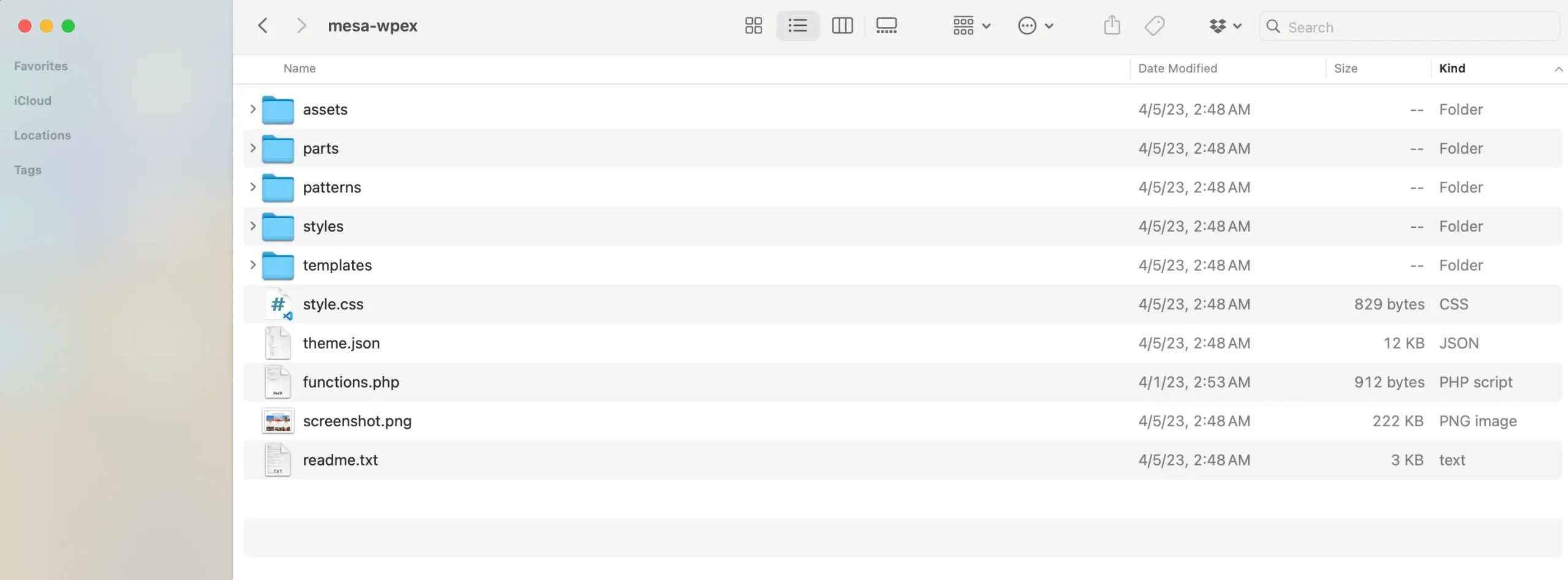
Themes change how your site looks. Theme files are stored in the wp-content/themes folder. Each theme has its own folder. Inside, you find style.css. This file controls how the theme looks. You can edit this file to change colors and fonts.
Plugins add features to your site. Plugin files live in the wp-content/plugins folder. Each plugin has its own folder. These files help do special tasks. Sometimes, plugins have their own CSS files. These control how plugins look. You can edit them to change plugin styles.
Location Of Css Files
CSS files for themes are in the theme’s folder. Find this folder inside wp-content/themes. Each theme has its own folder. The main CSS file is often named style.css. This file controls the look of your site. You can edit it to change colors or fonts.
Plugins often have their own CSS files. These files are in the plugin’s folder. You can find this folder inside wp-content/plugins. Each plugin has its own folder. Plugin CSS files help to style plugin features. Changing these files might affect how the plugin works.
WordPress allows adding custom CSS through the Customizer. This does not change theme or plugin files. Custom CSS helps you to style your site uniquely. You can find this option under Appearance > Customize. It’s a safe way to style without touching original files.
Accessing Css Files
CSS files control the look of your website. Find them in the WordPress Dashboard. Go to Appearance and click on Editor. There, you see the style.css file. This file is important. It changes the design of your site. Edit it with care. Mistakes can break your site. Always back up your files first.
Access CSS files using FTP or a File Manager. Look in the wp-content/themes folder. Inside, find your theme’s folder. The style.css file is there. Use software like FileZilla for FTP. It helps you connect to your site. Make changes safely. Download files before editing. This way, you can restore them if needed.

Credit: www.reddit.com
Modifying Css Files
The CSS files are in the theme folder. You can find them under wp-content/themes. Each theme has its own stylesheet. It’s called style.css. You can edit this file to change your site’s look. Be careful. Changes can break your site.
You can add custom CSS using the WordPress Customizer. Go to the dashboard. Click on Appearance and then Customize. Find the Additional CSS section. You can write your CSS here. It won’t affect your main files. This is safe for small changes.
A child theme is a great way to modify CSS. It keeps the original theme intact. Create a new folder in the themes directory. Name it after your parent theme. Add a style.css file here. You can now add your CSS changes. This way, updates won’t erase your edits.
Best Practices
CSS files should be neat and tidy. This helps find things easily. Group similar styles together. Use comments to explain sections. Always name files clearly. Choose names that say what the file does. This helps everyone understand. This is important for big projects. It saves time and effort later.
Child themes are safe for changes. They keep original files safe. This is great for updates. You can change styles without worry. Create a child theme before making changes. This way, changes won’t affect the parent theme. It’s a smart way to work with WordPress.
Backups protect your work. They save your website from problems. Make backups often. Use plugins for automatic backups. Store backups in a safe place. This makes sure your work is always safe. If something goes wrong, backups can help you fix it.
Troubleshooting Css Issues
Locating CSS files in WordPress can solve styling issues. Typically, these files are stored in the “wp-content/themes/your-theme-name” folder. Accessing this directory helps identify and fix any CSS-related problems efficiently.
Common Css Errors
CSS errors can cause a website to look wrong. A missing semicolon can break a CSS rule. Make sure every line ends with a semicolon. Incorrect selectors can also cause issues. Use the right class or ID names. Misspelled properties will not work. Double-check your spelling. Using a wrong path to a CSS file will stop styles from loading. Ensure the file path is correct.
Debugging Techniques
Start with the browser’s developer tools. Right-click and select “Inspect” to open it. Check the console for errors. Use the “Elements” tab to view styles. Look for crossed-out styles, which are overridden by another rule. Try disabling CSS to see changes. Test on different browsers for compatibility. Clear the cache to ensure changes are visible.
Seeking Professional Help
Sometimes help is needed. A web developer can fix CSS issues. They understand the code well. Ask for help if stuck. Online forums can also provide answers. Websites like Stack Overflow have experts. Post your issue and get advice. Always remember to back up your site first. This protects your work.
Credit: www.wpexplorer.com
Frequently Asked Questions
Where Are Css Files Stored In WordPress?
CSS files in WordPress are typically stored in your theme’s folder. You can find them in the “wp-content/themes/[your-theme-name]/” directory. The main stylesheet is usually named “style. css”. Other CSS files might be located in subdirectories within the theme folder.
How Do I Edit Css Files In WordPress?
To edit CSS files in WordPress, go to the Appearance menu in your dashboard. Select “Editor” or “Theme File Editor” to access the CSS files. You can also use FTP or a file manager to edit them directly on your server.
Can I Add Custom Css In WordPress?
Yes, you can add custom CSS in WordPress using the Customizer. Go to “Appearance” > “Customize” and select “Additional CSS” to input your custom code. This method is safe and won’t affect your theme’s original files.
Why Is My Css Not Updating In WordPress?
If your CSS changes aren’t visible, try clearing your browser and WordPress cache. Sometimes, changes are not immediately reflected due to caching. Also, ensure you’re editing the correct CSS file associated with your active theme.
Conclusion
Locating CSS files in WordPress can seem tricky. But it’s simple. Usually, CSS files reside in the theme’s directory. Look in the “wp-content/themes” folder. Each theme has its own folder there. Find the “style. css” file. This is the main stylesheet.
Some themes have extra CSS files. They help with design and layout. Always back up files before editing. This prevents loss of data. Understanding where CSS files are helps you customize WordPress. Now, you’re ready to enhance your site’s design confidently.
Happy editing!



