
Are you looking to enhance your WordPress site without diving deep into complex coding? You’re in the right place!
A Text Widget in WordPress is a simple yet powerful tool that can boost your website’s functionality and appearance with just a few clicks. Imagine having the flexibility to add text, images, and other media anywhere on your site effortlessly.
This little widget might be just what you need to make your site stand out and keep your visitors engaged. Curious to know more? Stick around, and you’ll discover how a Text Widget can become your secret weapon for a more dynamic and captivating website.

Credit: wordpress.org
Text Widget Basics
A text widget is a small tool in WordPress. It lets you add text to your site. You can put it in the sidebar or footer. The widget is easy to use. You can type plain text or HTML. This means you can add links or make text bold.
Text widgets help make your site better. They can show special messages. You can use them for announcements. You can even share codes or scripts. Many people use text widgets for ads. It’s a simple way to communicate with visitors.
Text widgets are found in the widget area. You can drag and drop them. Then, type your content and save. Your text will show on your site. It’s that easy!
Adding A Text Widget
Text widgets are handy tools. They let you add text to your WordPress site. You can write messages, notes, or even code. Simple customization is possible with these widgets.
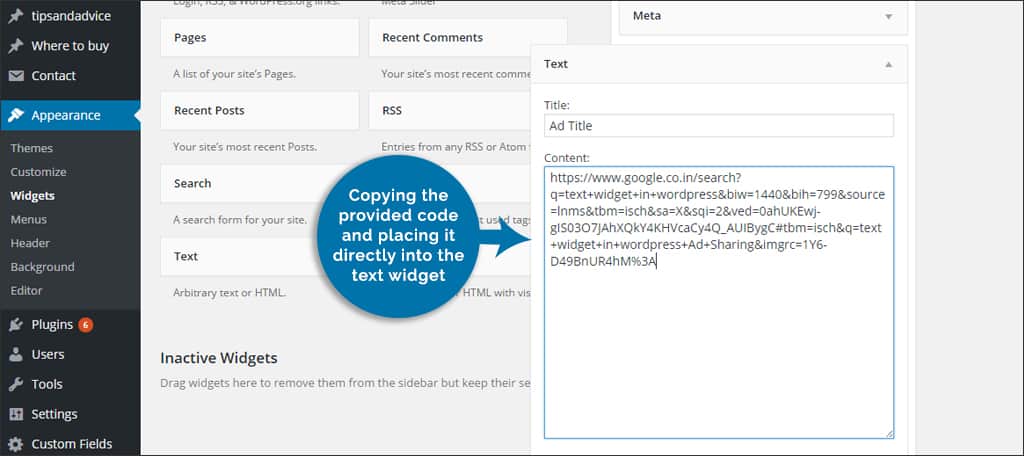
First, go to your WordPress dashboard. Find the Appearance tab. Click on Widgets. This opens the widget page. You will see a list of available widgets. Look for the Text widget. Drag it to your desired sidebar or footer area.
Once placed, click on the widget. Type your text in the box. You can also add HTML code. Press Save to finish. Your text will now appear on the site. It’s a quick way to add information.
Customization Options
Text Widget WordPress offers easy customization options. Users can add text, images, and HTML to sidebars. Personalize your site’s appearance with simple adjustments, making it unique and engaging for visitors.
Formatting Text
Text widgets in WordPress let you make your words look nice. You can change the font size to make words big or small. You can make words bold to stand out. Use italics for special words. You can even change colors to make text colorful.
Adding Links
Links help you go to other pages. You can put them in text widgets. Click the link, and it takes you somewhere new. Adding links is easy in a text widget. Links can be to websites or other posts.
Using Html
HTML is a language for making web pages. You can use it in text widgets. It helps make text look good. You can add images or videos with HTML. It makes your text widget fancy and cool.
Enhancing Site Functionality
A text widget can show your contact information. Include your phone number, email, or address. This helps users reach you easily. It’s simple and effective.
Using a text widget, you can embed media. Display videos or audio clips. This makes your site interactive. Users enjoy multimedia content.
Text widgets can showcase advertisements too. Place banners or text ads. This can be a source of income. Easy to manage and update.
Seo Benefits
A Text Widget in WordPress allows easy integration of custom HTML, CSS, or text within your site’s sidebar. Enhancing SEO, it offers flexibility to include keywords and links that improve search engine rankings and user engagement. Simple customization boosts visibility and helps tailor content to audience needs.
Optimizing Keywords
Text widgets help highlight important keywords. This can boost your site’s search rank. Use them to place targeted words. These keywords should match what people search for. Keep them simple and clear.
Improving Readability
Widgets can make text easier to read. Break up big blocks of text. Short sentences work best. Use headings and lists to guide readers. This helps in understanding the content.
Enhancing User Experience
Text widgets improve how users interact with your site. They make pages look neat. Organize information in a smart way. This keeps readers happy and engaged. Happy readers come back often.
Best Practices
A text widget should have useful content. Always make sure it relates to your website’s theme. Avoid putting too much text. Short and clear messages work best. Think about your visitors. What do they want to know? How can you help them? Provide that information. Keep it simple and direct.
Many people use phones to browse. Your text widget must be easy to read on small screens. Check how it looks on different devices. Adjust the font size if needed. Make sure all text fits well. No need to scroll sideways. This helps all users have a good experience.
Fresh content keeps readers coming back. Update your text widget regularly. This shows your site is active. New information can attract more visitors. Remove old news and add new tips. Keep it lively and engaging. This builds trust with your audience. They will return for more.
Troubleshooting Common Issues
Text widget not showing? First, check if it is enabled. Go to the widget settings in WordPress. Ensure it is placed in the right sidebar or area. If still not visible, check for any plugin conflicts. Disable plugins one by one. See if the widget appears.
Sometimes, text may not look right. Check the HTML code in the widget. Make sure it is correct. Wrong tags or missing quotes can cause problems. Use the text editor mode. Fix any mistakes you find. Check for extra spaces or characters too.
Widgets may not work with all themes. Some themes have custom widgets. These may conflict with the text widget. Test your widget on a default theme. If it works, the issue is the theme. Contact the theme developer for help.

Credit: make.wordpress.org
Credit: www.greengeeks.com
Frequently Asked Questions
What Is A Text Widget In WordPress?
A text widget in WordPress is a flexible tool. It allows users to add text, HTML, or shortcodes to widget areas. This can include sidebars or footers. It’s perfect for displaying custom messages, links, or advertisements. Easily customize your website’s appearance with a text widget.
How Do I Add A Text Widget?
To add a text widget, navigate to the WordPress dashboard. Click on “Appearance,” then “Widgets. ” Drag the “Text” widget to your desired widget area. Enter your content and save the changes. Your text will now appear on the site.
Can I Use Html In A Text Widget?
Yes, you can use HTML in a text widget. This feature allows you to format text, add links, or images. HTML enhances the widget’s functionality. Ensure your HTML code is correct for best results. This flexibility makes WordPress text widgets powerful.
Are Text Widgets Mobile-friendly?
Text widgets in WordPress are typically mobile-friendly. They automatically adapt to different screen sizes. However, complex HTML or large images may affect responsiveness. Always preview your site on mobile devices. This ensures optimal display and user experience.
Conclusion
Text Widgets in WordPress simplify content management. They offer versatility for your site. You can add text, images, or HTML easily. Customization becomes straightforward and user-friendly. Whether you’re a beginner or experienced, Text Widgets help enhance your site. They improve both functionality and aesthetics.
Explore different ways to use them. Make your website engaging and informative. With Text Widgets, designing becomes more accessible. Your visitors enjoy improved user experience. Start experimenting today. Experience the benefits firsthand. Elevate your website without complexity. Embrace the simplicity of Text Widgets in WordPress.
Your site deserves it.



