
Are you tired of slow-loading web pages and frustrated visitors? The secret to a faster, more engaging website often lies in one crucial element: image file size.
If you’re a WordPress user, understanding the ideal file size for web images can drastically enhance your site’s performance. Imagine transforming your website into a lightning-fast, visually appealing platform that keeps your audience hooked. You’ll discover how to optimize your images without sacrificing quality, ensuring your WordPress site stands out in the digital landscape.
Let’s dive into the world of web images and unlock the potential to captivate and retain your audience.
Optimal Image Sizes
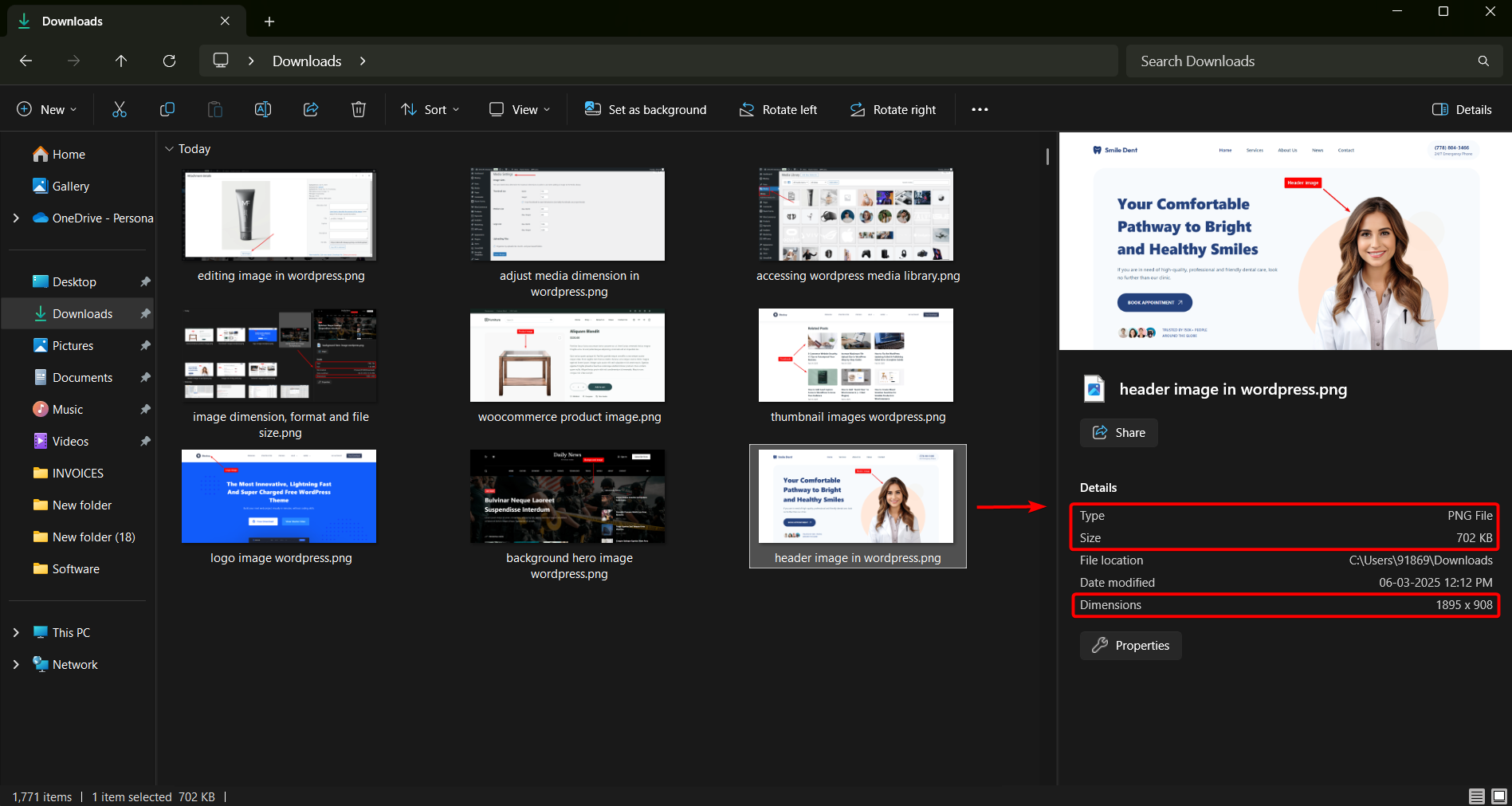
Images on websites should be clear. They need to load fast. Standard image dimensions help with this. For WordPress, common sizes include 1024×768 pixels. This is good for full-width images. Thumbnails are smaller. Often 150×150 pixels. Medium images might be 300×200 pixels. Large images can be around 600×400 pixels. Choose sizes that fit your layout. Always keep image quality high.
Aspect ratio is key for images. It means the shape of the image. Images look better with consistent ratios. 4:3 and 16:9 are popular ratios. They keep images balanced. Content looks neat. This helps user experience. Avoid distorted images. They confuse visitors. Use tools to check ratios. Maintain the right aspect ratio for clarity.
Credit: creativethemes.com
Impact Of Image Size On Performance
Large images can slow down a website. This affects loading speed. Websites need to load fast. Speed matters for user experience. Slow sites can lose visitors. Image size impacts loading time. Smaller images load quicker. They use less data.
Optimizing images is key. It enhances performance. Use image compression tools. They reduce size. Keep quality high, but file size low. This helps improve speed. Your website will run smoother. Visitors stay longer. Everyone benefits from fast loading.
Many people use phones to browse. Mobile users need fast sites. Large images can be a problem. They load slowly on mobile. Optimize images for mobile use. Use responsive design. It adjusts images for screens. Smaller screens need smaller images.
Mobile optimization boosts performance. It makes pages load quickly. Users have a better experience. They don’t wait for images. This keeps them happy. They are more likely to return. Fast mobile sites are essential today.
File Formats And Compression
JPEG is great for photos. It has small file size. PNG works well for images with text. It keeps details clear. GIF is perfect for animations. It supports fewer colors. Each format has its own strengths. Choose based on your needs.
WebP is newer and better. It makes files smaller than JPEG or PNG. WebP supports both photos and animations. It helps load pages faster. Use WebP to save space and speed up websites.
Tools can make images smaller. TinyPNG reduces PNG and JPEG sizes. ImageOptim works on Mac. It compresses images well. ShortPixel is a plugin for WordPress. It makes images load fast. Use these tools to help your site.
Image Seo Strategies
Choosing the right file size for web images on WordPress boosts your site’s speed and user experience. Opt for compressed images under 100KB to enhance loading times without losing quality. Efficient image handling helps maintain a visually appealing website while improving SEO performance.
Alt Text Best Practices
Alt text helps search engines understand images. It also aids visually impaired users. Write descriptive alt text for each image. Use simple words. Describe the image clearly. Keep it short but useful. Avoid stuffing keywords. This can harm your SEO.
Image Sitemaps
Image sitemaps help search engines find your images. They list all images on your site. Include image details. Such as image URL, title, and caption. This boosts your image visibility. Use XML format for image sitemaps. Add the sitemap to your robots.txt file. This helps search engines locate it. Regularly update your sitemap. This ensures it has all your latest images.
Plugins For Image Management
Efficient image management plugins help WordPress users optimize web image file sizes. Smaller images improve loading speed and user experience. They automatically compress and resize images without losing quality, making websites faster and more efficient.
Popular Image Optimization Plugins
Imagify and Smush are popular plugins for image optimization. They help reduce image sizes without losing quality. Imagify compresses images automatically. Smush scans your media library and compresses images. Both plugins offer free and paid versions. Free versions have basic features. Paid versions offer advanced features. Choose the plugin based on your needs.
Automating Image Compression
Credit: kinsta.com
Common Mistakes To Avoid
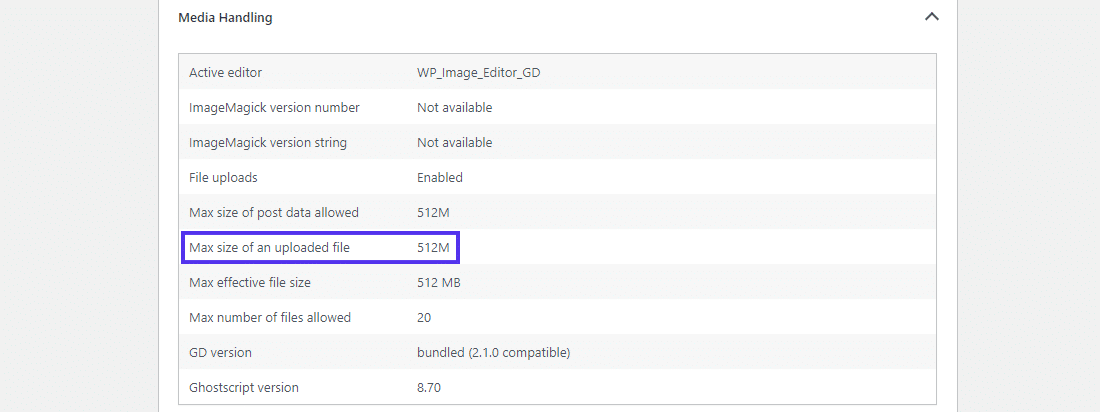
Oversized images can slow down your website. This affects the user experience. Images should be optimized before uploading. Use tools to compress images. Smaller images load faster. They save bandwidth and improve performance. A fast site keeps visitors happy. They stay longer on your page.
Many users browse on mobile devices. Sites must be mobile-friendly. Images should fit small screens. Large images can break layouts. This makes pages hard to read. Use responsive images for different screens. Always test on mobile devices. This ensures a smooth experience. Happy users return to your site.
Credit: www.hostinger.com
Frequently Asked Questions
What Is The Best File Size For Web Images?
The ideal file size for web images is under 100 KB. This ensures fast loading times and maintains image quality. Compress your images using tools like TinyPNG or JPEGmini. Smaller file sizes improve site speed, which is crucial for SEO and user experience.
How Do I Compress Images For WordPress?
Use plugins like Smush or ShortPixel to compress images in WordPress. These plugins automatically optimize images during upload. You can also use online tools before uploading. Proper compression reduces file size without losing quality, enhancing site performance and SEO.
Why Does Image File Size Matter In WordPress?
Image file size impacts site speed and SEO. Larger images slow down page loading times, affecting user experience. Slow sites may rank lower in search results. Optimizing images improves loading speed, enhances user satisfaction, and boosts search engine rankings.
How Can I Optimize Images For Faster Loading?
Optimize images by resizing, compressing, and choosing the right format. Use JPEG for photos and PNG for graphics. Tools like Photoshop and online compressors can help. Fast-loading images improve user experience and SEO, leading to better engagement and rankings.
Conclusion
Choosing the right image size for WordPress matters. It boosts loading speed. Faster sites attract more visitors. Slow sites frustrate users. Keep images under 200KB for best performance. Compress files without losing quality. Use tools like TinyPNG or ImageOptim. They help reduce size easily.
Test your site speed regularly. Make adjustments as needed. A smooth experience keeps users happy. Good image practices improve SEO. Search engines rank faster sites higher. Optimize images thoughtfully. Your site will benefit greatly. Engage visitors with quick-loading pages. It’s essential for success online.



