
Are you trying to understand the nuances of managing Gravity Form submissions on your WordPress site? It can be a bit daunting when you’re unsure who can access these critical pieces of information.
Knowing the access level for viewing Gravity Form submissions isn’t just about security; it’s about ensuring smooth operations and peace of mind. You’ll discover the specific user roles that can view these submissions and learn how to adjust permissions to suit your needs.
By the end, you’ll have the confidence to manage your form submissions effectively, ensuring that the right people have access at the right time. Let’s dive into how you can take control of your WordPress site’s form submission access.
Credit: docs.gravityforms.com
Gravity Forms And WordPress Permissions
Gravity Forms is a tool for making forms on WordPress. Not everyone can see the form submissions. Only users with the right permissions can view them. Admins always have access. They can see and manage everything. Editors might have access too. It depends on settings. Settings decide who can see submissions.
Permissions are important. They keep data safe and private. It’s like a lock on a door. Only people with keys can open it. Admins decide who gets a key. They set up permissions for others. This keeps the website secure.
Default Access Levels
Administrators have full access to view submissions in WordPress. They can see all details in Gravity Forms. This role is for people who manage the site. They can add, edit, and delete forms. They can also change settings. This is the most powerful role on the site.
Editors can view form submissions. They can make content changes on the site. They can’t change the forms themselves. They help manage the site content. Editors have less power than administrators. They ensure content quality.
Authors can write and publish posts. They can’t view form submissions. They focus on creating content. Contributors can write posts but can’t publish them. They also can’t see form submissions. These roles are for content creation only.
Customizing Access Permissions
The User Role Editor Plugin helps manage user roles. It lets you change what users can do. You can set who sees Gravity Form submissions. This plugin is easy to use.
Go to your WordPress dashboard. Find the User Role Editor option. Choose a user role to edit. You will see a list of capabilities. Check or uncheck them to adjust access.
For viewing submissions, find the right capability. Enable it for specific users. Save your changes. Now, only chosen users can see the form data. This keeps your data safe.

Credit: www.gravityforms.com
Best Practices For Managing Access
Data privacy is very important. Only give access to people who need it. This keeps information safe. Many users can cause problems. Too many eyes on data can lead to mistakes.
Be careful with access levels. Only trusted people should see submissions. Choose wisely who gets access. This helps in protecting sensitive data.
Access should be limited. Less access means more safety. Keep control over who sees what. This prevents data leaks. Use roles wisely. Each role should have a purpose. Assign roles based on needs.
Troubleshooting Access Issues
Users may face problems accessing form submissions. Some roles lack required permissions. This can stop them from seeing data. Admins usually have full access. But others might need more rights. Editors and contributors can have different levels. It’s important to check each role.
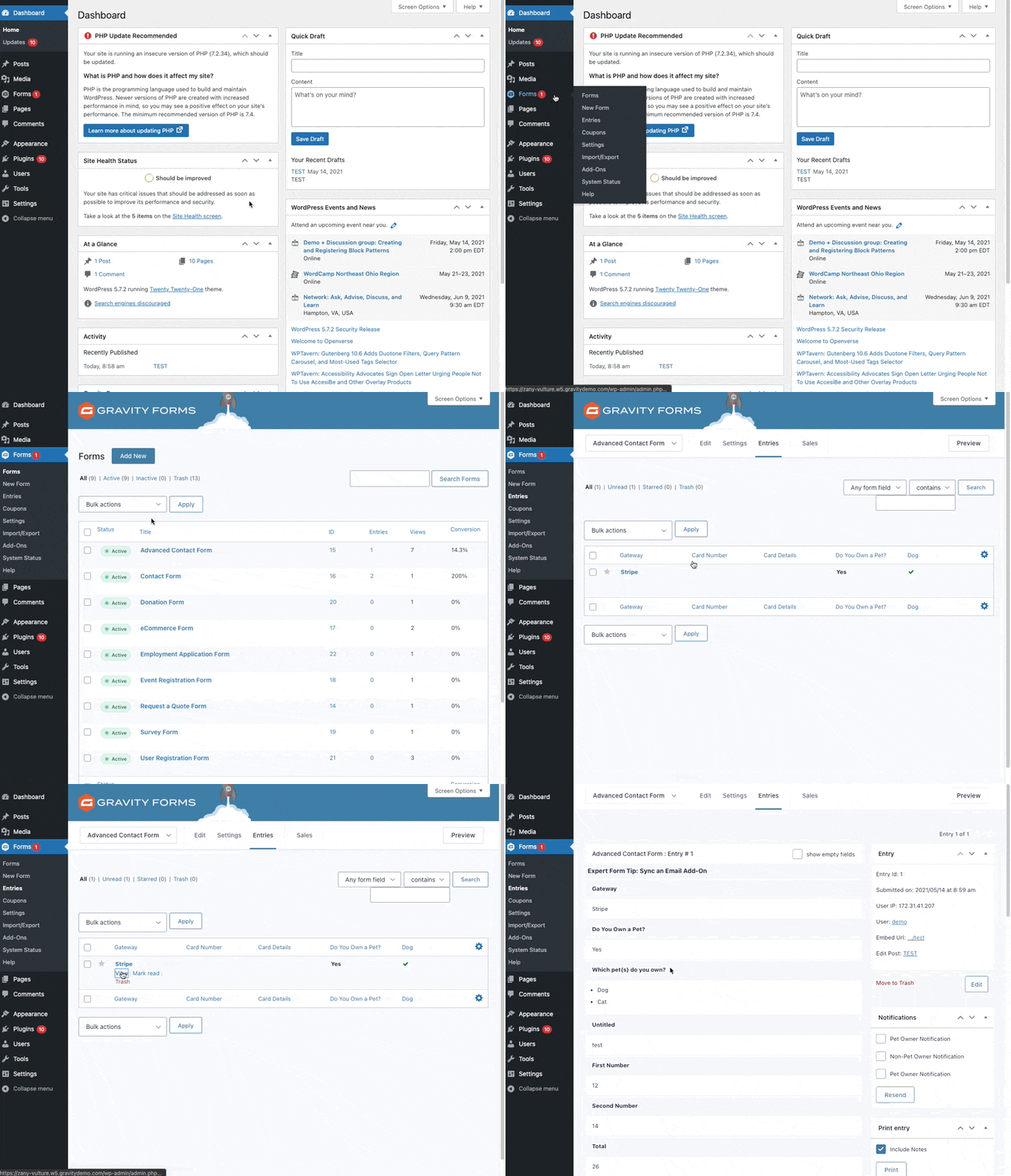
First, check if the user has the right role. Then, go to the WordPress dashboard. Click on User Roles. Change the role if needed. Next, check the Gravity Forms settings. Make sure the role can view submissions. If not, update the settings. Lastly, try logging out and back in.
Credit: docs.gravityforms.com
Third-party Tools For Enhanced Control
Discover the access levels for viewing Gravity Form submissions in WordPress. Admins can fully control and view all submissions. Editors may also view forms, depending on permissions set by the admin. Third-party tools can help manage and enhance control over this data.
Role Management Plugins
Role management plugins help control who sees form submissions. These plugins can change user roles easily. For example, admins can view all data. Editors might see less. Plugins like Members or User Role Editor are popular. They offer simple tools for access control. This makes your site more secure.
Security Enhancement Plugins
Security plugins keep your form data safe. They protect against hackers and data leaks. Plugins such as Wordfence or Sucuri are often used. These tools add extra layers of security. They check for suspicious activity. If something strange happens, they alert the admin. This way, your site stays safe and secure.
Frequently Asked Questions
Who Can Access Gravity Form Submissions In WordPress?
In WordPress, administrators typically have full access to view Gravity Form submissions. Editors or custom roles with specific permissions can also view these entries. To manage access, utilize role management plugins to fine-tune permissions, ensuring appropriate visibility for different user levels.
Can Editors View Gravity Form Submissions?
Yes, editors can view Gravity Form submissions if granted permission. By default, they may not have access. Use plugins like User Role Editor to adjust capabilities. This allows you to expand or restrict access based on your site’s needs, ensuring editors can review form entries if necessary.
How To Limit Access To Gravity Form Entries?
To limit access, use role management plugins. Plugins like Members or User Role Editor allow you to define permissions. Set roles to restrict viewing, ensuring only authorized users can access submissions. This helps maintain privacy and control over sensitive form data.
Are Gravity Form Submissions Private?
Gravity Form submissions are private by default, accessible to site admins. Privacy can be further enhanced using plugins to restrict access. You can set permissions to control who views submissions, ensuring sensitive data remains confidential and secure from unauthorized users.
Conclusion
Understanding access levels in WordPress is crucial. Gravity Forms submissions require the right permissions. Only specific user roles can view these submissions. Administrators and Editors usually have access. Always check your role settings. Proper configuration ensures data security. Regularly review user roles and permissions.
Maintain a secure and efficient WordPress site. Avoid granting unnecessary access. Protect your form submissions carefully. Keep your data safe. Ensure your website runs smoothly. Engage with users effectively. Access control is vital for site management. Stay informed. Keep your WordPress site secure and organized.



