
Have you ever felt frustrated trying to modify the footer on your WordPress site? You’re not alone.
Many WordPress users struggle with this seemingly simple task. Whether you want to add personalized text, update links, or include social media icons, changing the footer can seem like a daunting challenge. But fear not! With the right guidance, you can transform your footer into an engaging and functional part of your website.
Imagine impressing your visitors with a polished, custom look that reflects your brand. Keep reading to discover simple steps to easily change what’s in your WordPress footer and give your site the professional edge it deserves.
Accessing The WordPress Dashboard
Log in to your WordPress account. Find the Dashboard once you log in. The Dashboard is your control center. It helps you manage your site. Look for the Appearance section in the Dashboard. Click on it. It shows options to change your site look. Find the Customize option there. Click on it to see more tools. These tools help you change the footer.
Footer is the bottom part of your site. It can show links and info. Use the tools to change what you want. You can add or remove links. You can change text too. Save changes once you’re happy. Your footer should now look different.
Credit: www.crazyegg.com
Locating The Footer Section
First, log into your WordPress dashboard. Find the Appearance tab on the left. Click on it. Look for Editor. This is where you edit themes. The Editor shows files on the right. Find the footer.php file. It’s usually at the bottom. Click on it to open. You can change the code here. Make sure to save changes.
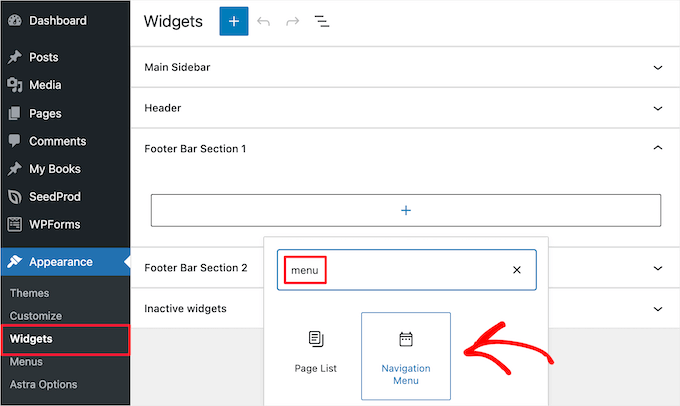
Sometimes, WordPress themes use widgets. Check under Appearance for Widgets. Click on it. You might see a Footer Widget. Open it to edit. You can add text or links. Don’t forget to save. Some themes have special settings. Look under Theme Options or Customizer. You might find footer settings there. Explore these options for more control.
Using The Theme Customizer
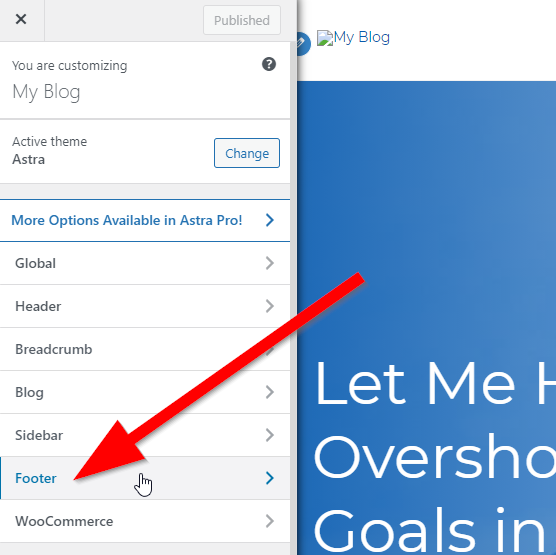
Start by opening your WordPress dashboard. On the left side, find Appearance. Click on it. Then, select Customize. This will open the Theme Customizer. Here, you can change many things. The footer is one of them.
Inside the customizer, look for Widgets. Click on it. You will see different areas for widgets. Find the one for the Footer. Click to edit. You can add or remove widgets here. Make sure to save your changes.
Locate the Footer section in the customizer. Here, you can change the text. Some themes allow you to add links too. Ensure your text is clear and simple. Save your changes after editing.
Editing Footer With Widgets
Go to the Widgets section in your WordPress dashboard. Click on Add Widget to see options. Choose a widget you like. It could be text, an image, or a link. Drag it to the footer area. Drop it there. Now, the widget is in your footer. It’s that easy.
You can change the order of widgets. Click on a widget in the footer area. Drag it up or down. Place it where you want. Let it go. Your new order is now saved. Make sure it looks good. Check your site to see the change.
Some widgets are not needed. Click on the widget you want to remove. Find the Delete or Remove button. Click it. The widget is gone. Your footer is now cleaner. Check your site to see the change.
Adjusting Footer Via Theme Editor
Easily modify your WordPress footer using the Theme Editor. Navigate to Appearance > Theme Editor in your dashboard. Edit footer. php to change the footer content as needed.
Accessing Theme Files
WordPress has many themes. Each theme has its own files. You must find the theme editor. It is in the WordPress dashboard. Click on “Appearance” and then “Theme Editor.” You will see a list of theme files.
Editing Footer Php File
Footer changes need editing the footer.php file. Look for this file in the theme editor. Open it. The footer code is inside. Make changes carefully. Keep the code correct. Wrong edits break the site.
Saving Changes Safely
After editing, save changes safely. Click the “Update File” button to save. Check your site. Is the footer correct? If not, go back and fix it. Always have a backup. Backups help restore your site.
Using A Page Builder Plugin
Picking a plugin can be tricky. Look for plugins that support footer editing. Popular choices include Elementor or Beaver Builder. Check reviews and ratings. Make sure it is compatible with your theme. Plugins should be easy to use. Many plugins offer drag-and-drop features. Look for those.
Open the plugin editor. Locate the footer section. Use tools to add or change elements. Add text, images, or links. Customize the style to match your site. Save changes as you go. Make sure you are satisfied with each edit.
Always preview before saving. Check for errors. Ensure the footer looks good on all devices. Use the preview function in the plugin. If satisfied, save your work. Your changes are now live. Regularly update and check for issues.
Incorporating Custom Css
Adding Custom CSS Code can make your site unique. First, access your WordPress dashboard. Then, click on Appearance and choose Customize. Find the Additional CSS section. Here, you can write your own CSS rules. This will change how your footer looks.
Applying CSS to Footer Elements is easy. Identify the footer elements you want to style. Use the developer tools in your browser. Right-click on the footer and select Inspect. Find the class or ID of the element. Use this in your CSS code to apply changes.
Testing CSS Changes is important. Always check your site on different devices. Make sure your changes look good everywhere. If something looks wrong, adjust your CSS code. Keep testing until everything looks right.
Credit: www.wpbeginner.com
Best Practices For Footer Design
The footer should match your brand’s style. Use the same colors and fonts. Ensure logos and icons are clear. This helps users recognize your brand. Consistency builds trust. Visitors feel familiar with your site. It feels professional and neat.
Most people browse on phones. Footers must be mobile-friendly. Text should be readable on small screens. Links should be easy to click. Test the footer on different devices. Make sure it looks good everywhere. A good mobile footer keeps users happy.
A footer is more than decoration. Add useful links and information. Include contact details and social media icons. This helps users find what they need fast. A well-designed footer can guide visitors. It improves their experience on your site.
Troubleshooting Common Issues
Easily modify your WordPress footer by accessing the Appearance menu in the dashboard. Navigate to Widgets or Theme Editor to make changes. Customize text, links, or widgets to suit your website’s style.
Resolving Display Errors
Display errors can make footers look odd. Often, incorrect settings cause these errors. First, check your theme settings. Make sure they are correct. Next, clear your browser cache. This can help display things right. If errors still show, try updating your theme. Updates can fix bugs. Always back up your site before updating.
Dealing With Plugin Conflicts
Plugins sometimes fight with each other. This can break your footer. Disable all plugins first. Then enable them one by one. This helps find the bad plugin. Look for a replacement or update it. Check forums for more help. Many users share fixes.
Restoring Default Settings
Default settings can fix footer problems. Go to your theme settings. Click “Restore Defaults”. This makes everything normal again. Remember to save changes. If things are still broken, consider reinstalling the theme. Make sure to back up your work. Restoration can be a lifesaver.

Credit: blog.hubspot.com
Frequently Asked Questions
How Do I Edit Footer In WordPress?
To edit the footer in WordPress, navigate to Appearance > Customize. Locate the ‘Footer’ section and make your desired changes. Save your edits. If your theme doesn’t support this, consider using a footer plugin or editing the footer. php file via your theme’s editor.
Always back up before making changes.
Can I Use Plugins To Change Footer?
Yes, plugins like ‘Elementor’ or ‘Footer Builder’ allow you to customize the footer in WordPress easily. They offer user-friendly interfaces to add widgets, links, and custom codes. Using plugins ensures flexibility and minimizes the risk of directly editing theme files, which can be complex.
Why Is My Footer Not Updating?
Your footer might not update due to caching issues or theme restrictions. Clear your browser and site cache to resolve caching problems. If the theme limits footer changes, consider using a child theme or plugins for customization. Always ensure your WordPress and theme are updated.
How To Add Links To WordPress Footer?
To add links, go to Appearance > Menus and create a menu with your desired links. Assign this menu to the footer location. Alternatively, widgets can be used to display links in the footer. Ensure your theme supports these features for smooth integration.
Conclusion
Changing the footer in WordPress is simple with the right steps. Start by accessing the WordPress admin panel. Navigate to the Appearance section and select Customize. There, you can edit the footer text and design. Use widgets to add extra features or information.
Don’t forget to save changes before exiting. With these steps, your WordPress site footer can reflect your style or brand. Practice makes perfect. Regular updates keep your website fresh and engaging. Keep exploring and experimenting with WordPress features to enhance your site’s look and feel.



