
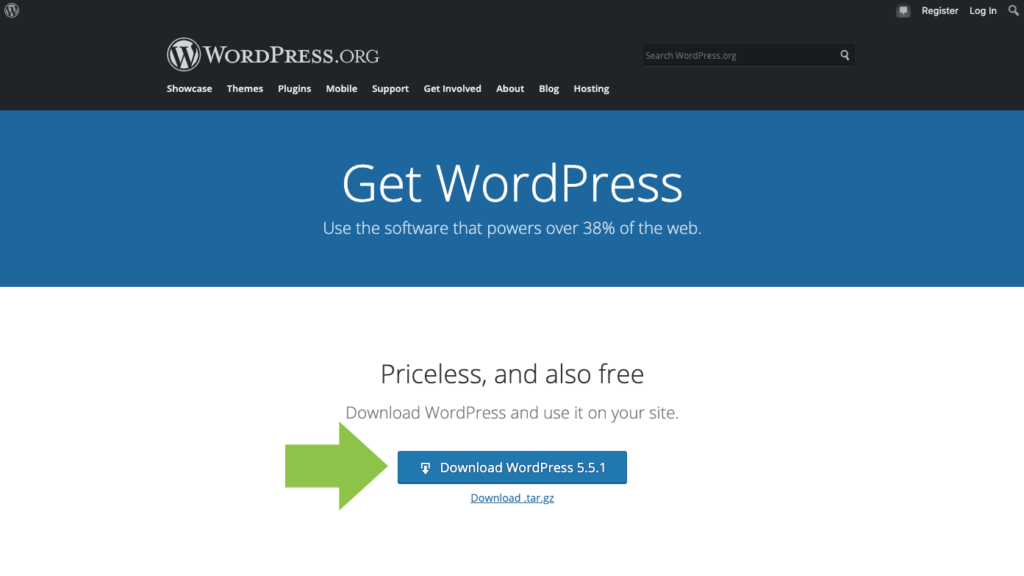
You’ve downloaded WordPress, and now you might be wondering, “What do I do next?” You’re not alone.
Many people find themselves asking the same question after taking that crucial first step. The excitement of starting a website is palpable, but the path can seem unclear. Don’t worry; you’re in the right place. You’ll discover how to transform your downloaded WordPress files into a vibrant, functional website.
By the end, you’ll feel confident and ready to make your mark online. Get ready to dive into the world of WordPress with clear guidance tailored just for you.
Prepare For Installation
Make sure your computer meets the system requirements for WordPress. You need a server with PHP and MySQL. These are important to run WordPress. Look at the version numbers. PHP should be version 7.4 or higher. MySQL should be version 5.6 or higher. These are the basic needs. Without them, WordPress will not work. Check your computer or server. See if it matches these requirements.
Always backup your data before installing anything new. Saving your data is very important. Use an external drive or cloud service. Make sure everything is saved. This includes pictures, files, and documents. If something goes wrong, your data will be safe. A backup is like a safety net. It keeps your data secure during changes.
Setting Up Local Environment
Start by installing a local server. XAMPP and MAMP are popular choices. These tools make it easy. They turn your computer into a server. Download the software from the official website. Follow the instructions to install. Choose the right version for your system. Windows or Mac, it matters. After installation, open the control panel. Start Apache and MySQL. These are necessary for WordPress.
Open your browser. Type localhost/phpmyadmin in the address bar. This will open the database manager. Look for the “Databases” tab. Click on it to create a new database. Give your database a simple name. Use only letters and numbers. Leave other settings as default. Click “Create” to finish. Your database is now ready for WordPress.
Upload And Extract Files
First, open your FTP client. This tool helps you move files. Connect it to your server. Then find the WordPress files on your computer. Drag these files into the server folder. Wait for the transfer to finish. This may take a few minutes. Make sure all files are uploaded. Check if any files are missing. If so, try again.
Next, go to your server dashboard. Find the file manager tool. Open it and locate the folder with the WordPress files. Look for a file named .zip or .tar. Select this file. Click on the “extract” option. This will unpack all the files. Now, WordPress is ready to set up. Double-check that all files are extracted. You are now ready to continue.
Configure WordPress
The wp-config.php file is very important. It helps your WordPress run. This file is in the main folder. You should look for it there. Open it with a text editor. Be careful when editing. Small mistakes can break your site.
Set Database Details
Your site needs a database. It stores all the content. Add the database name, username, and password in wp-config.php. This helps WordPress talk to the database. Make sure you type everything correctly. If you see errors, check your details again. Save the file after editing. This step is very important for your site to work.
Run The Installation Script
To start, open your web browser. Type in the URL of your WordPress folder. This will open the installation page. You will see a prompt to choose your language. Pick your language and press “Continue.” Now, you are on the WordPress setup page.
Fill out the form with database details. Enter your database name, username, and password. Use “localhost” as the database host. Click “Submit” after filling in the details. If all details are correct, you will see a success page. Click “Run the installation” to continue. Enter your site title, username, and password. Add an email address for site updates. Click “Install WordPress” to finish. Now, your site is ready to use!
Credit: solidwp.com
Customize Your Site
A theme changes how your site looks. There are many themes to pick. Some are free, others cost money. Start with a free theme. You can switch later. Look for themes that are easy to use. Themes should match your site’s goal. A food blog needs a different look than a news site. Preview a theme before using it. See how it looks on phones and computers.
Plugins add extra features to your site. They are like apps for your phone. There are many plugins. Some help with security. Others help with speed. Some improve SEO. Start with a few plugins. Too many can slow your site. Look for plugins with good reviews. Update them often. This keeps your site safe and running well.
Secure Your WordPress Site
Use a mix of letters, numbers, and symbols for your passwords. Avoid using words that are easy to guess. Passwords should be at least 12 characters long. Change your passwords every few months. Don’t use the same password for other accounts. Keep your passwords secret and safe.
Use plugins to help keep your site safe. Some plugins can block bad users. Others can scan for problems. Choose plugins with good reviews. Keep your plugins updated. This helps fix bugs and keep your site secure. Check your site’s security often.

Credit: blog.superbthemes.com
Launching Your Site
Always check your site before launch. Make sure all buttons work. Click every link. Do all pages load?
Test forms for errors. Ensure your contact form sends messages. Look at your site on different devices.
Is it mobile-friendly? Check loading times. A slow site can lose visitors. Fix any issues now.
Happy with your test results? Time to go live. Update your site settings. Make your site public.
Announce your site on social media. Invite friends to visit. Keep checking for problems. Update your site regularly.
Credit: ghost.org
Frequently Asked Questions
How Do I Install A Downloaded WordPress Theme?
To install a downloaded WordPress theme, go to your WordPress dashboard. Navigate to Appearance > Themes > Add New. Click “Upload Theme,” select the downloaded theme file, and click “Install Now. ” After installation, click “Activate” to apply the theme to your website.
Can I Use A Downloaded WordPress Plugin?
Yes, you can use a downloaded WordPress plugin. Go to Plugins > Add New in your dashboard. Click “Upload Plugin,” select the plugin file, and click “Install Now. ” After installation, activate the plugin to start using its features.
What Should I Do After Downloading WordPress?
After downloading WordPress, you should upload it to your web server. Then, create a database for WordPress on your web host. Follow the installation instructions in the WordPress setup wizard to complete the installation process.
How Do I Update A Downloaded WordPress Site?
To update a downloaded WordPress site, log in to your dashboard. Go to Dashboard > Updates. Click “Update Now” for the WordPress core, themes, or plugins. Regular updates ensure security and functionality improvements.
Conclusion
Taking the first steps with WordPress can be simple. Download, install, and explore its features. Customize your site to reflect your vision. Use themes and plugins to enhance functionality. Keep your site updated for security and performance. Seek help from online forums or tutorials if needed.
Always back up your data regularly. With patience and practice, your skills will grow. Enjoy building and managing your WordPress site. It’s a journey worth taking. Let creativity guide you. Your site, your rules. Happy blogging!



