
Are you curious about the version of WordPress powering your website? Knowing this can be crucial for a number of reasons.
Whether you’re looking to ensure your site’s security, optimize its features, or troubleshoot a pesky plugin issue, understanding your WordPress version can make all the difference. Imagine having the power to enhance your site’s performance with just a few clicks.
This knowledge not only gives you control but also peace of mind. You’ll discover quick and easy ways to check your WordPress version, empowering you to take charge of your website’s health and functionality. Don’t miss out on the opportunity to keep your site running smoothly and securely. Dive in, and let’s unveil the mystery of your WordPress version together!

Credit: www.hostinger.com
Check WordPress Version In Dashboard
Finding the WordPress version is easy in the dashboard. First, log in to your WordPress admin area. Look at the bottom of the screen. The version number appears there. It says something like “Version 5.8”. This number tells you which WordPress you are using.
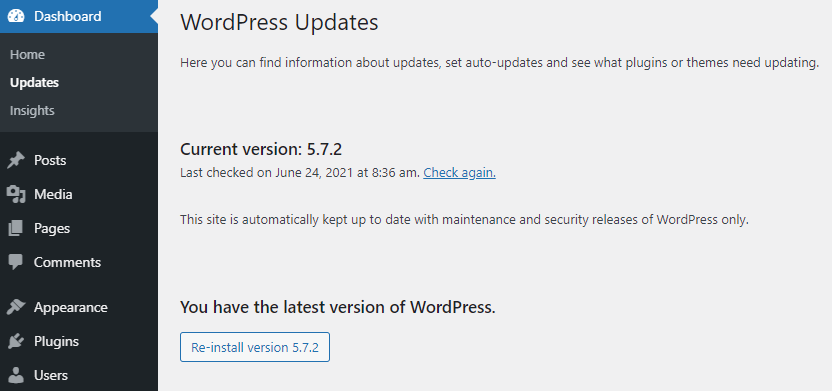
Another way is through the “Updates” section. Click on “Dashboard” in the menu. Then choose “Updates”. Here, you will see information about updates. If there is a new version, it shows up here. Always keep your WordPress up-to-date. It keeps your site safe and working well.
Locate Version In Source Code
Finding your WordPress version is easy. First, open your browser. Go to your WordPress site. Right-click on the page. Click “View Page Source.” A new tab opens. This tab shows the page’s HTML code.
In the HTML, look for the Meta Generator Tag. This tag shows the WordPress version. Press Ctrl + F. Type “generator” in the search box. The search highlights the tag. It reads like this: . The numbers show your WordPress version. This method works well for most sites.
Use Online Tools
Finding the version of WordPress is easy with free tools. These tools help quickly. They save time and effort. Some tools show detailed information. Others focus on the version number. They are usually simple to use. Just enter the website URL. The tool does the rest. Results appear in seconds. Some tools may show extra details. Check them for more insights.
Many free tools are available online. Some popular ones include WP Detector and IsItWP. They are user-friendly and fast. These tools don’t require downloads. Access them from any browser. They offer quick results. Users can learn more about their website. They also provide security tips.
Free tools have limits. They may not show all details. Some tools focus only on the version number. Others might miss recent updates. Accuracy can vary. Always use multiple tools. This helps confirm results. Some tools may not support all websites. Check compatibility first.
Credit: www.hostinger.com
Access Version Via Ftp
Open your FTP client. Connect to your server. Find the root directory of your WordPress site. This is where all important files are kept. It usually has folders like wp-admin and wp-content.
Locate the file named readme.html. It is in the root directory. Open this file. Look for the line that says WordPress Version. This line tells you the version. Keep the information safe. This is important for security.
Check Version In Wp-includes/version.php
Start by opening your WordPress files. Find the wp-includes folder. Look for the version.php file there. This file holds the version information. Open it using a text editor. You will see lines of code. Look for the line with $wp_version. It shows the WordPress version you use. This method is quick and easy. No need for special skills. Just follow these steps carefully. Keep your WordPress up to date. This ensures the best performance and security.
Utilize Command Line Tools
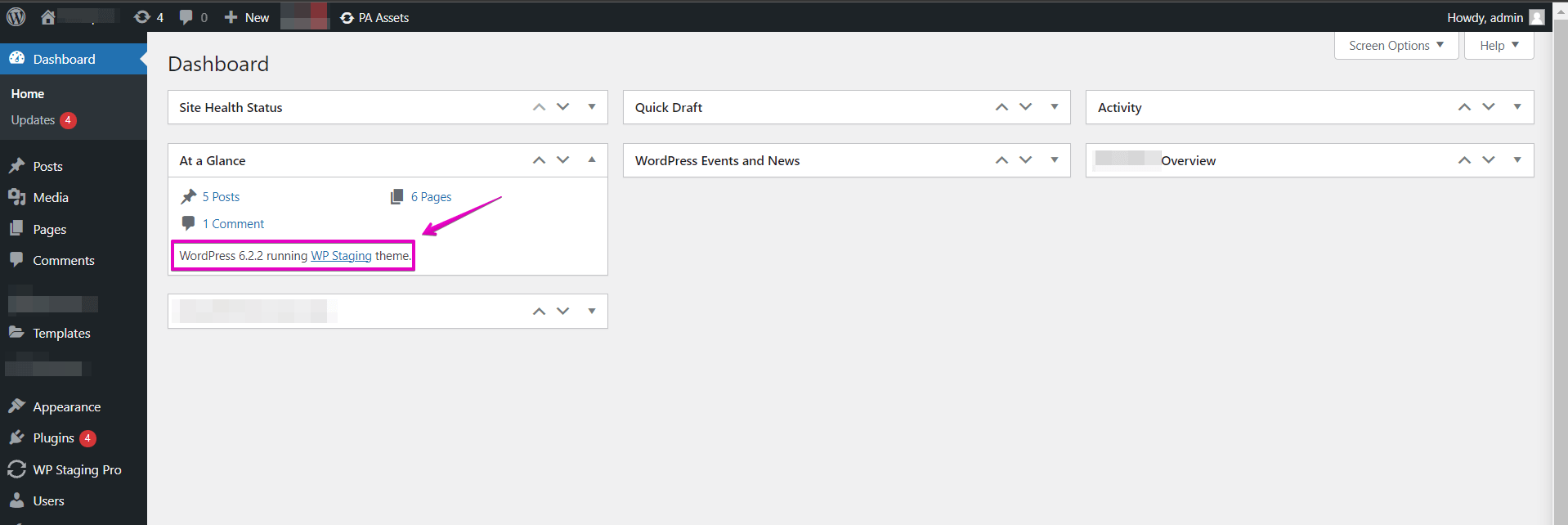
WP-CLI is a handy tool for WordPress users. It helps to manage WordPress from the command line. To find the WordPress version, use this tool. First, you need to have WP-CLI installed on your server.
After installation, you can check the version. Type the command: wp core version. This command will show the current WordPress version. It’s quick and easy.
You don’t need to log into your WordPress dashboard. This method is useful for developers. It saves time and effort. Always keep your WordPress updated. This ensures better security and features.
Credit: wp-staging.com
Frequently Asked Questions
How Do I Find My WordPress Version?
To find your WordPress version, log into your dashboard. Look at the bottom of the screen where the version number is displayed. Alternatively, you can check the ‘Updates’ section under ‘Dashboard’ for version details. It’s important to keep your WordPress updated for security and features.
Is WordPress Version Visible In The Footer?
Yes, the WordPress version is often visible in the footer of your dashboard. Simply scroll to the bottom of your admin panel. This makes it easy to check your current version quickly. Keeping track of your version helps ensure your site is up-to-date with the latest improvements.
Can I Find WordPress Version Via Site Source Code?
Yes, you can find the WordPress version in the site’s source code. Right-click on your site and select ‘View Page Source. ‘ Search for ‘generator’ meta tag, which typically includes the version number. This method is useful if you don’t have dashboard access.
Why Should I Check My WordPress Version?
Checking your WordPress version is crucial for security and performance. Older versions may have vulnerabilities that can be exploited. Staying updated ensures you have the latest features and improvements. Regularly checking helps maintain your site’s reliability and security.
Conclusion
Knowing your WordPress version is essential for smooth updates. It helps in troubleshooting issues quickly. You ensure compatibility with plugins and themes. Checking your version is easy. Just follow the steps outlined. Stay informed to keep your site secure and efficient.
Regular updates protect against vulnerabilities. Up-to-date WordPress enhances performance. It also offers new features. Don’t overlook this simple task. Keep your website running smoothly. Ensure the best experience for your visitors. Stay proactive and informed. Your site will thank you.



