
Are you looking to replicate the perfect WordPress theme for your next project? Whether you’re a seasoned developer or just starting out, duplicating a theme can seem daunting.
But imagine having a seamless copy of your beloved theme, ready to customize and launch without a hitch. This guide will unlock the secrets to duplicating a WordPress theme, making the process simpler than you ever thought possible. By the end, you’ll not only have mastered this skill but also gained the confidence to experiment with design and functionality.
Stick with us and discover how this seemingly complex task can be transformed into an easy, step-by-step adventure!

Credit: docs.liquid-themes.com
Preparing For Duplication
Always backup your existing theme before making changes. It’s like saving your work. Use tools like UpdraftPlus or BackWPup for this. They are easy to use. Find the tool that suits you best. Your theme files are important. Keep them safe. Don’t skip this step. It’s vital.
Selecting the right tools is crucial. Look for plugins that help in duplication. Duplicator and All-in-One WP Migration are popular. They are simple to install. Follow the plugin instructions carefully. Make sure the tool is compatible with your WordPress version. Check for updates. These tools make theme duplication easy.
Credit: www.greengeeks.com
Creating A Child Theme
A child theme lets you change a theme without losing changes. It uses features from the main theme. This is called the parent theme. Child themes are easy to make. They only need a few files. You can change styles and functions with them. Child themes are safe to use. They keep your edits even after updates. This is why many use them. Learn how to make one. It’s a good skill to have.
Start by making a new folder. Name it like your theme but add “-child” at the end. Add a style.css file. This file should have details about the child theme. Include the template name of the parent theme. Next, create a functions.php file. This file helps connect the child theme to the parent theme. Use WordPress guides to learn more. These steps are simple. Anyone can do them with practice.
Copying Theme Files
Theme files are important for your website look. First, locate the style.css file. It holds the theme’s design. Then find the functions.php file. It has key features. These files are in the theme folder. Check for template files too. They create page layouts. Header.php and footer.php are examples.
Child themes are safe for changes. Copy the important files into the child theme folder. Begin with style.css. Do not forget the functions.php file. It is crucial. Add template files next. Header.php and footer.php should be included. Always check if files are correct. This keeps your site working well.
Customizing The Duplicate Theme
Change the theme’s colors to match your brand. Use the WordPress customizer for this. Make your site look unique with different fonts. Select fonts that are easy to read. Adjust the layout for better user experience. Check how your site looks on mobile devices. Ensure images are clear and not too large. This helps the site load fast. Add a logo that represents your site. Make sure it fits the design.
Themes have functions that help your site work well. Find the functions.php file in your theme folder. You can add or change code here. Be careful with changes. Mistakes can break the site. Add new widgets or remove ones you don’t need. Use plugins to add features. Always save backups before making changes. This keeps your site safe.
Testing The Duplicate Theme
Duplicating a WordPress theme involves copying its files and settings to create an identical version. This helps test changes safely without affecting the original theme. Following simple steps ensures a smooth duplication process, allowing users to explore design modifications efficiently.
Checking For Errors
Find errors before using the theme. Check all links and pages. Make sure everything works. Open each page one by one. Look for broken links. Check images and text. Fix any mistakes you find. Make sure no page is missing. Double-check all settings and options. Ensure every button works. Check for missing plugins. Plugins must be installed correctly. Check for any error messages. Fix them immediately. Test on different browsers. Make sure it looks the same. Ensure no error on mobile phones. Errors can break the site.
Ensuring Responsiveness
Responsive design is important. Use a computer to test. Use a phone to test. Check on tablets too. Open the site on each device. Make sure it looks good. Text must be easy to read. Images must adjust to screen size. Buttons must be easy to click. Check menus and links. Ensure they work on all devices. Test in portrait and landscape mode. Check loading speed. Fast loading is important. Site must be usable on every device. Ensure smooth navigation.
Activating The New Theme
Switching to the child theme is simple. Go to the WordPress dashboard. Click on Appearance, then Themes. Find your child theme in the list. Click Activate to use it. This will not change your main theme.
Verifying theme activation is easy. Check your website’s front page. Make sure the design is the same. If you see changes, go back to the dashboard. Double-check the theme settings. Ensure all plugins are active. This helps your site run smoothly.

Credit: www.youtube.com
Frequently Asked Questions
How Can I Duplicate A WordPress Theme?
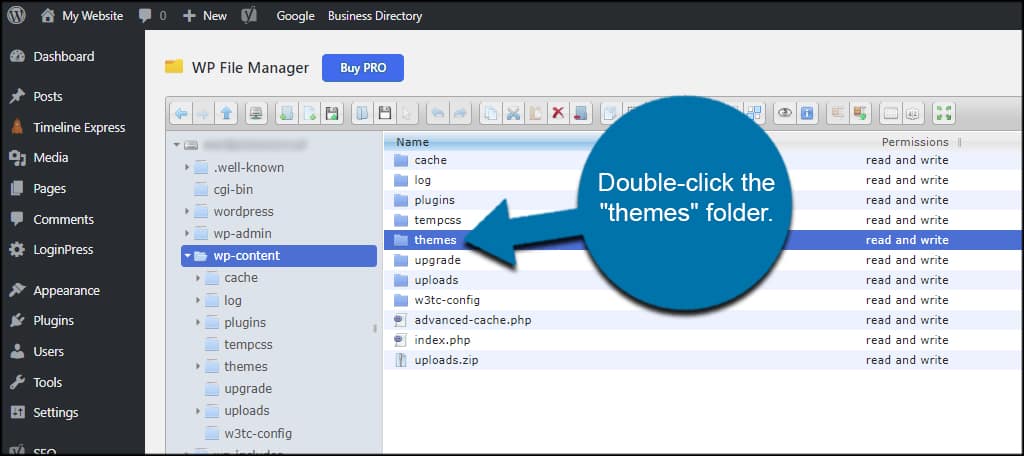
To duplicate a WordPress theme, access your site’s file manager via FTP. Locate the theme folder within wp-content/themes. Copy the folder, rename it, and upload the duplicate. Ensure to activate the duplicated theme in the WordPress dashboard under Appearance > Themes for customization.
Is It Safe To Duplicate WordPress Themes?
Duplicating WordPress themes is generally safe if done correctly. Ensure you have backups before proceeding. This process allows for experimentation without affecting the live site. Always test the duplicate theme on a staging site to prevent issues on your main website.
What Tools Help In Duplicating Themes?
Several tools can assist in duplicating WordPress themes. FTP clients like FileZilla allow direct access to theme files. Plugins such as Duplicator or WP Clone offer easy duplication processes. These tools simplify the task and reduce manual errors during theme duplication.
Can I Duplicate Themes Without Coding Skills?
Yes, duplicating themes without coding skills is possible. Use plugins like Duplicator or WP Clone for a straightforward process. These plugins offer step-by-step guidance, making it accessible for beginners. With these tools, you can duplicate a theme easily and safely.
Conclusion
Duplicating a WordPress theme is straightforward. Follow the steps mentioned above. Always ensure you have backups. Backups prevent data loss during theme duplication. Use a child theme for custom changes. This keeps the original theme intact. Experiment with various design tweaks.
Enhance your website’s look and feel. Check each step carefully. Avoid errors and ensure everything works smoothly. Enjoy the flexibility of custom themes. Tailor your WordPress site to your needs. Keep learning about WordPress features. Expand your skills with practice.
Happy website building!



